How To Position Stamps On Die Cuts

How To Position Stamps On Die Cuts

028 DSCN7914

Many companies are now offering punches or dies that coordinate with their stamps so one can stamp and cut the image easily.  Software for several of the electronic die cutting machines on the market make it possible to create your own die cuts for your stamps.  With a tiny border, it can be challenging to get the stamp positioned perfectly, especially with red rubber stamps since you can’t see through them.  I have several tools that I use to make this easier.


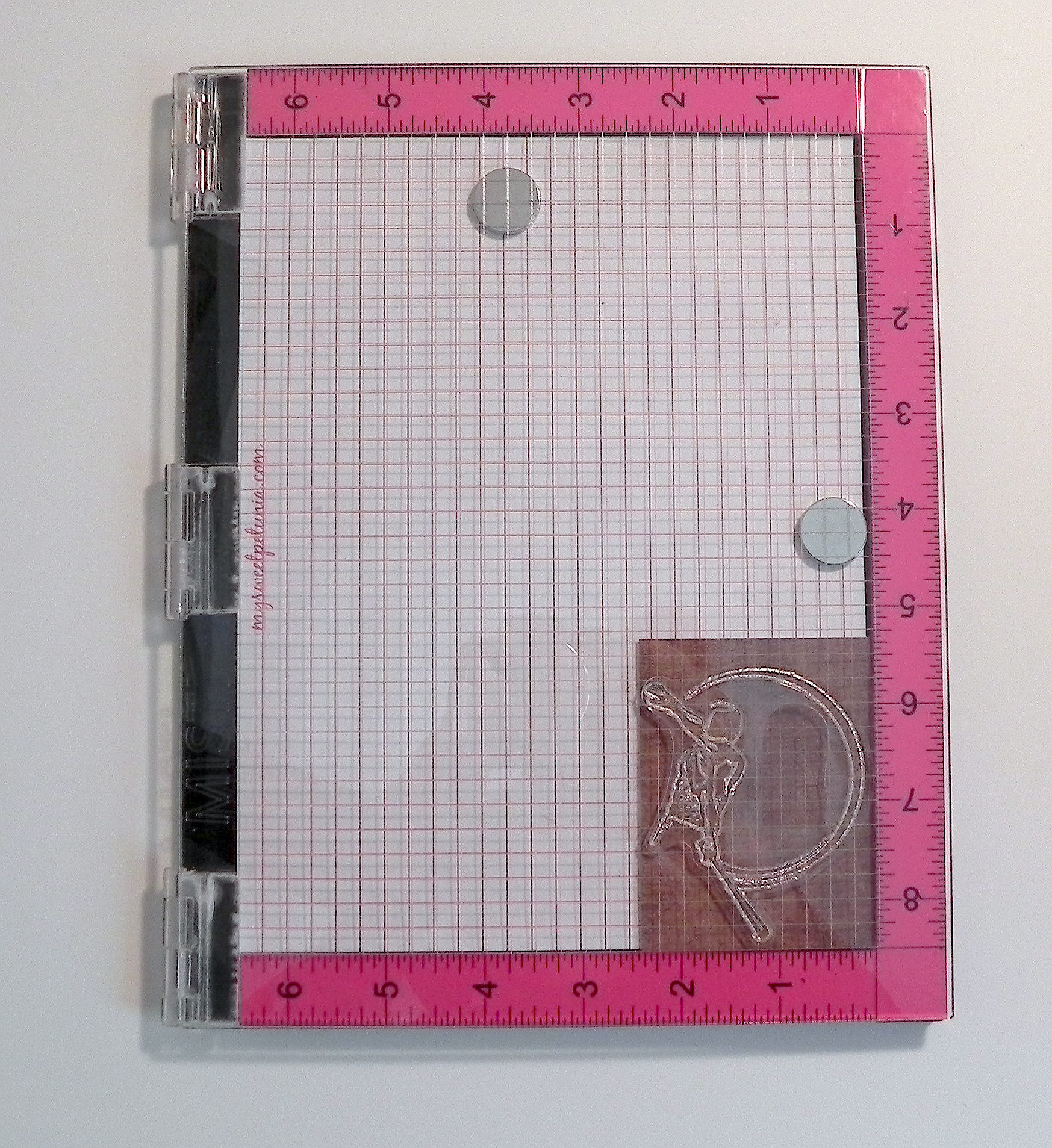
One tool that I use and love is the MISTI (You can check out my previous post HERE for more info on this incredible tool.)  This tool works with acrylic and red rubber stamps that are not mounted on wood or acrylic blocks.  I have quite a few wood mounted stamps so I either use a different positioning tool (a stamp-a-ma-jig which I’ll explain below) with those, or I remove the stamp from the wood block and attach a new piece of mounting foam to the rubber so it becomes a cling stamp.

Here’s how I use the MISTI with my acrylic/cling stamps and coordinating die cuts:

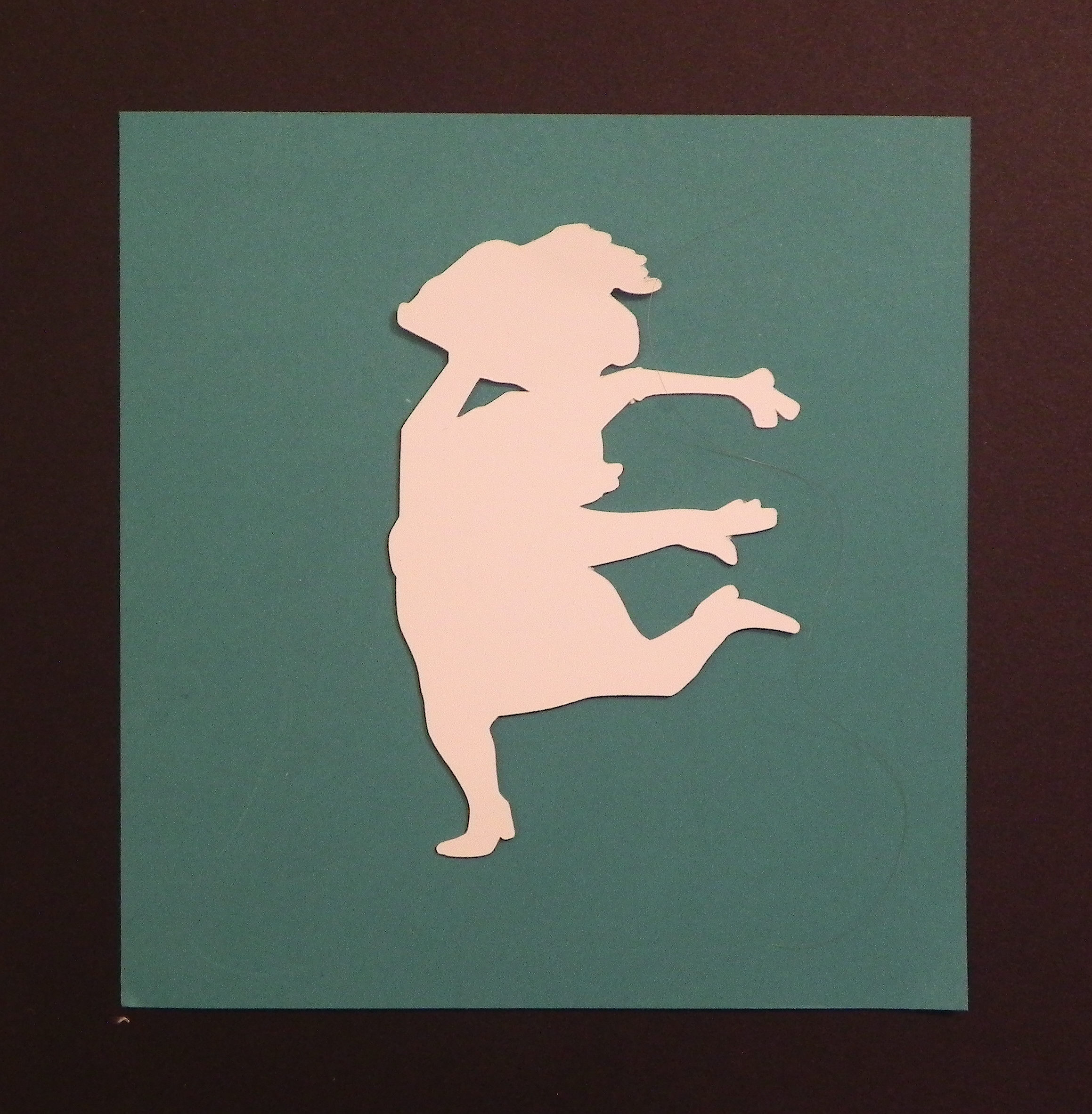
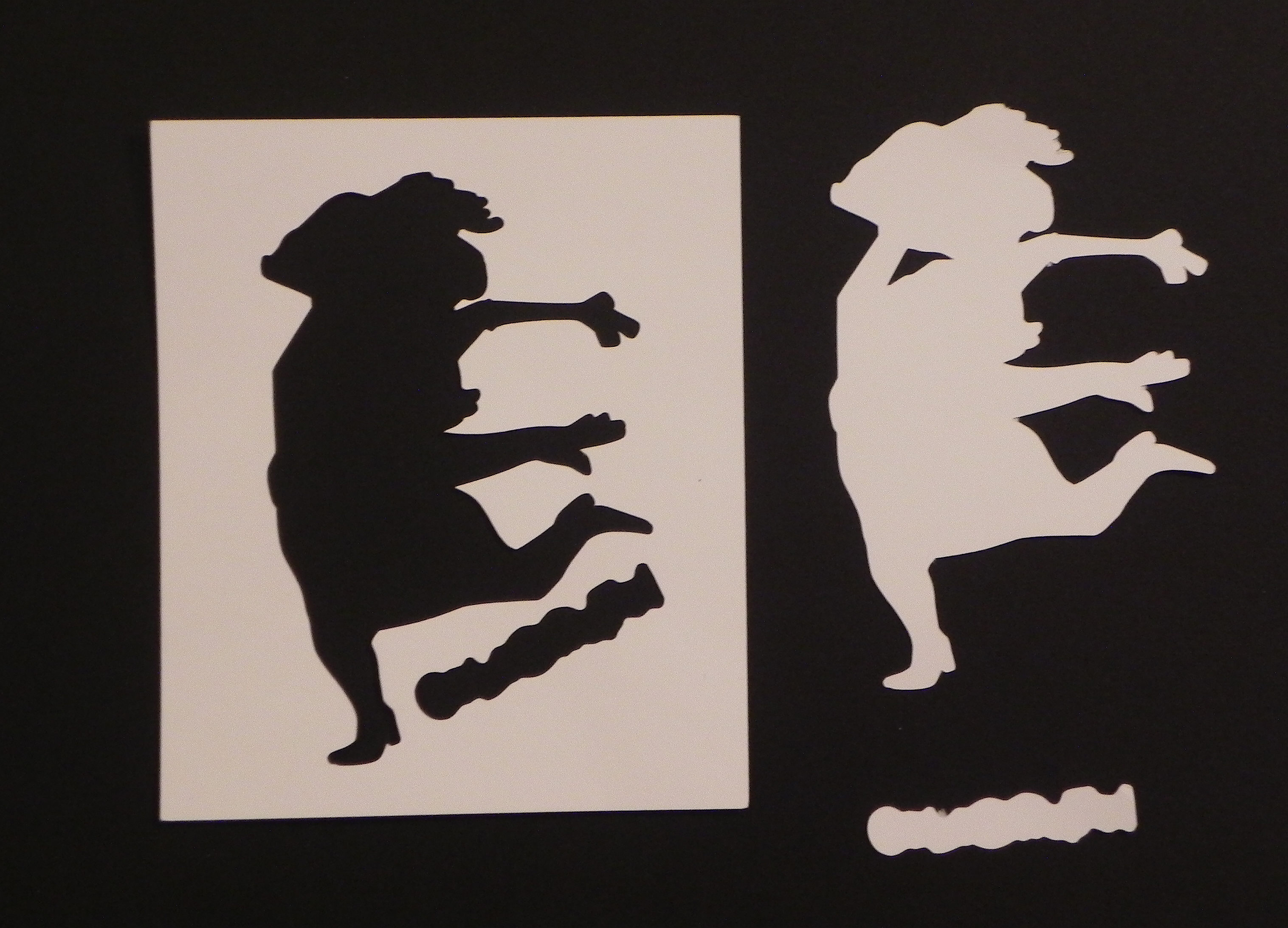
a.  Cut the shape out of a piece of card stock.  Keep BOTH the die cut shape AND the negative (the piece from which you cut the shape – with the hole in it).

001 DSCN7835

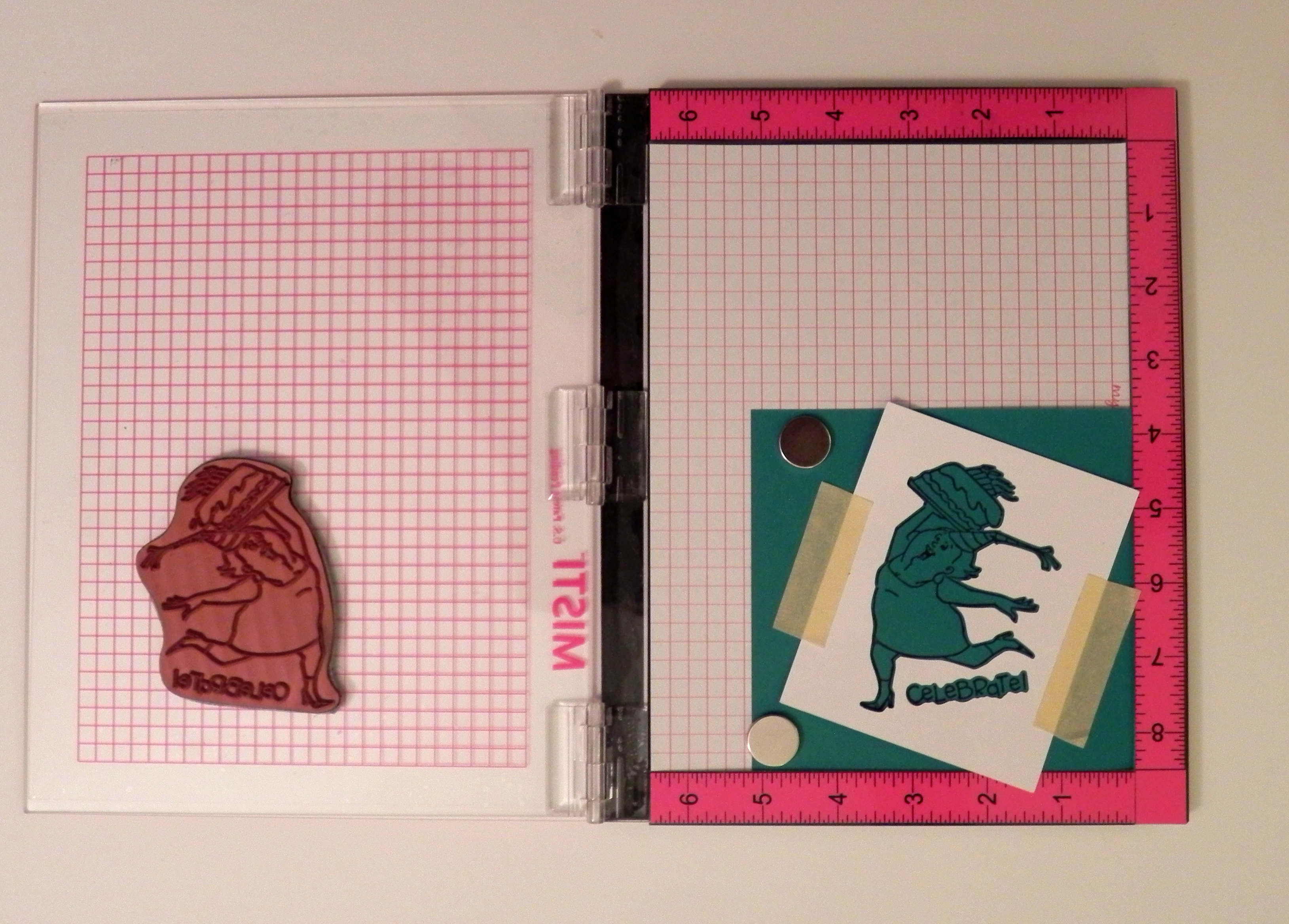
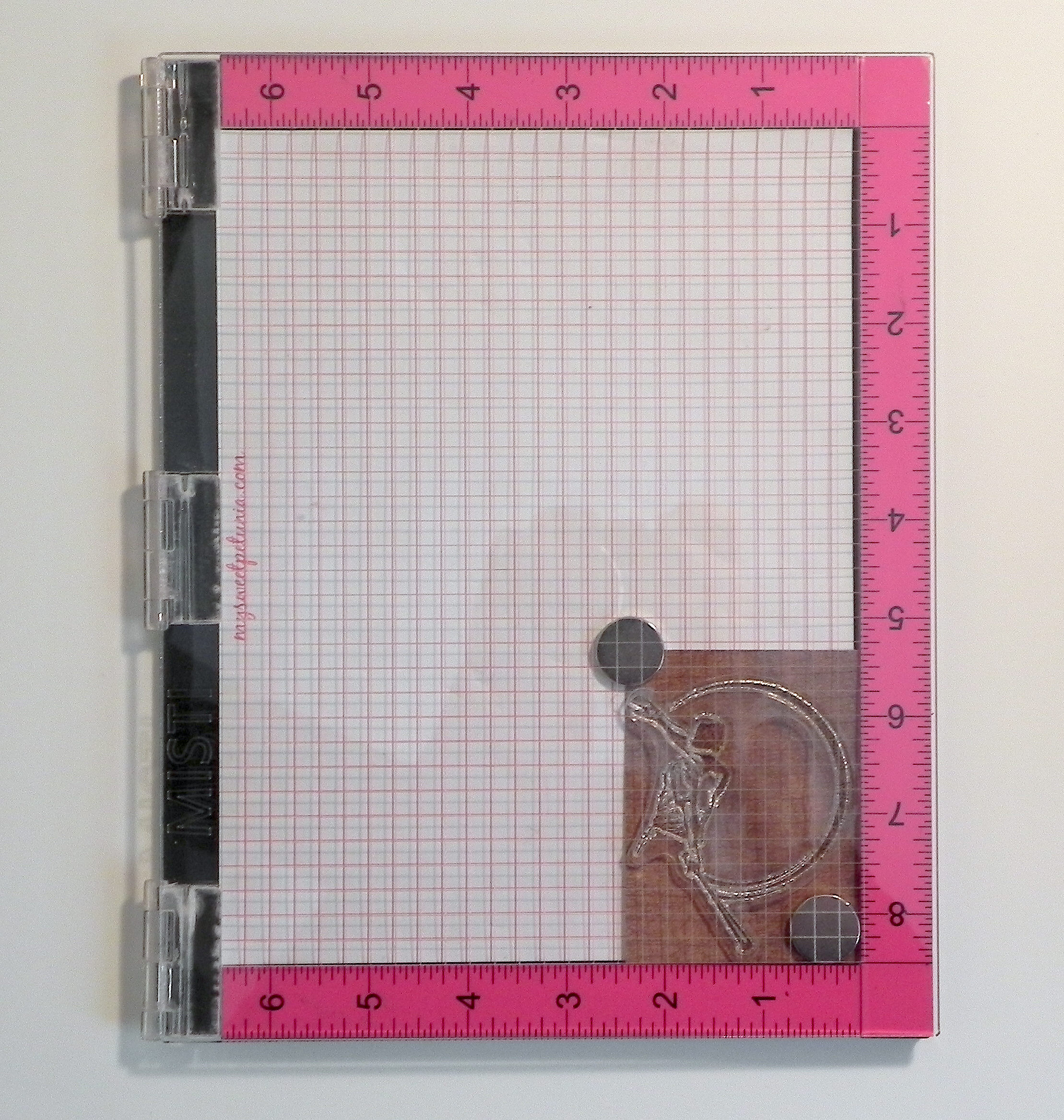
b.  Stamp your image on a scrap of card stock using the MISTI.  DO NOT move the stamp or this panel once it has the image stamped on it.  (I use magnets to hold the card stock in place.  You can also use tape.)

002 DSCN7837
003 DSCN7840


c.  Take the negative of your die cut from step (a), and place it over the stamped image on the MISTI.  Once you have the image lined up in the cut-out hole, tape this panel in place.


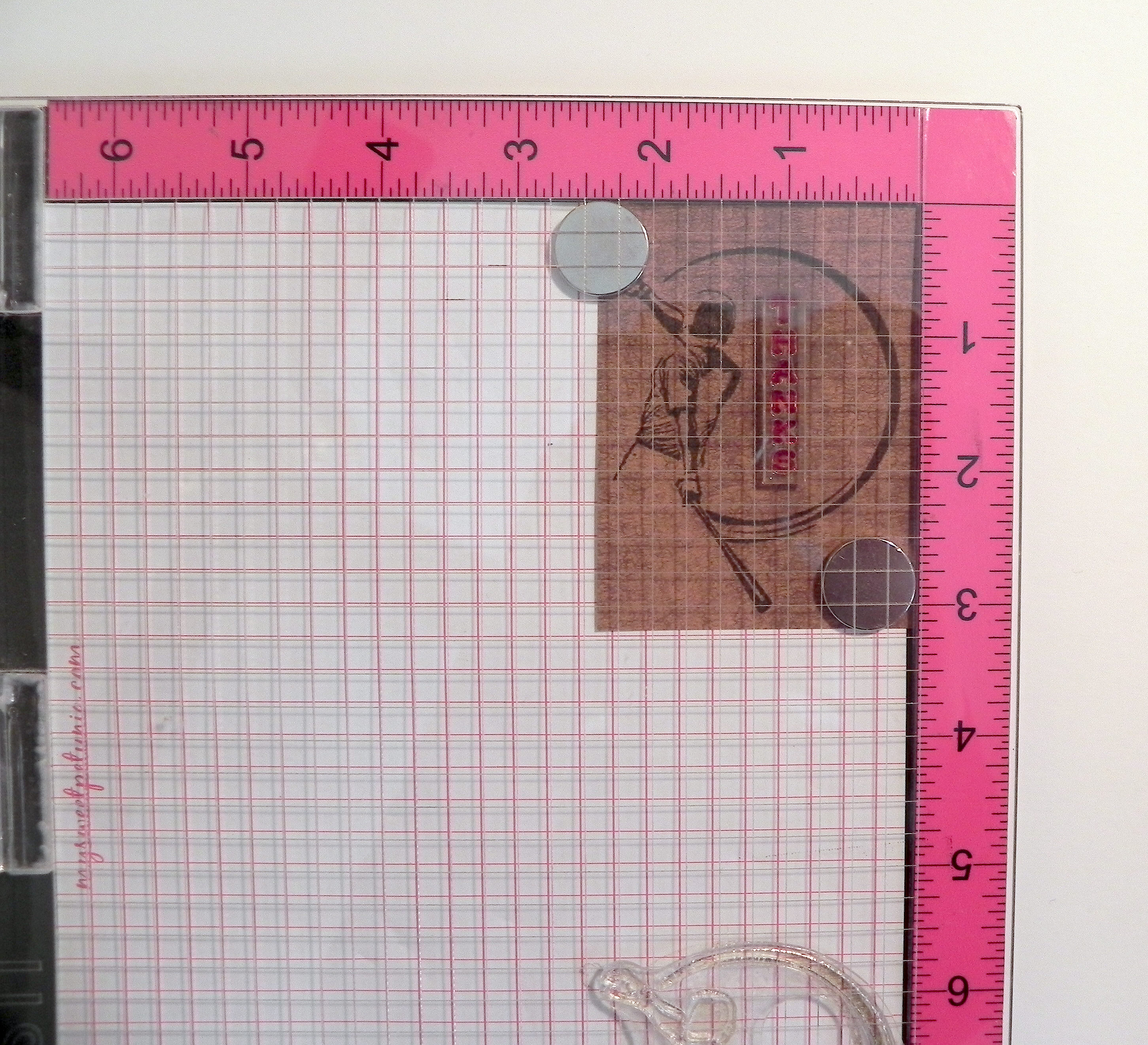
d.  Place the die cut/shape you cut from step (a) back into the hole (over the original stamped image).

006 DSCN7847

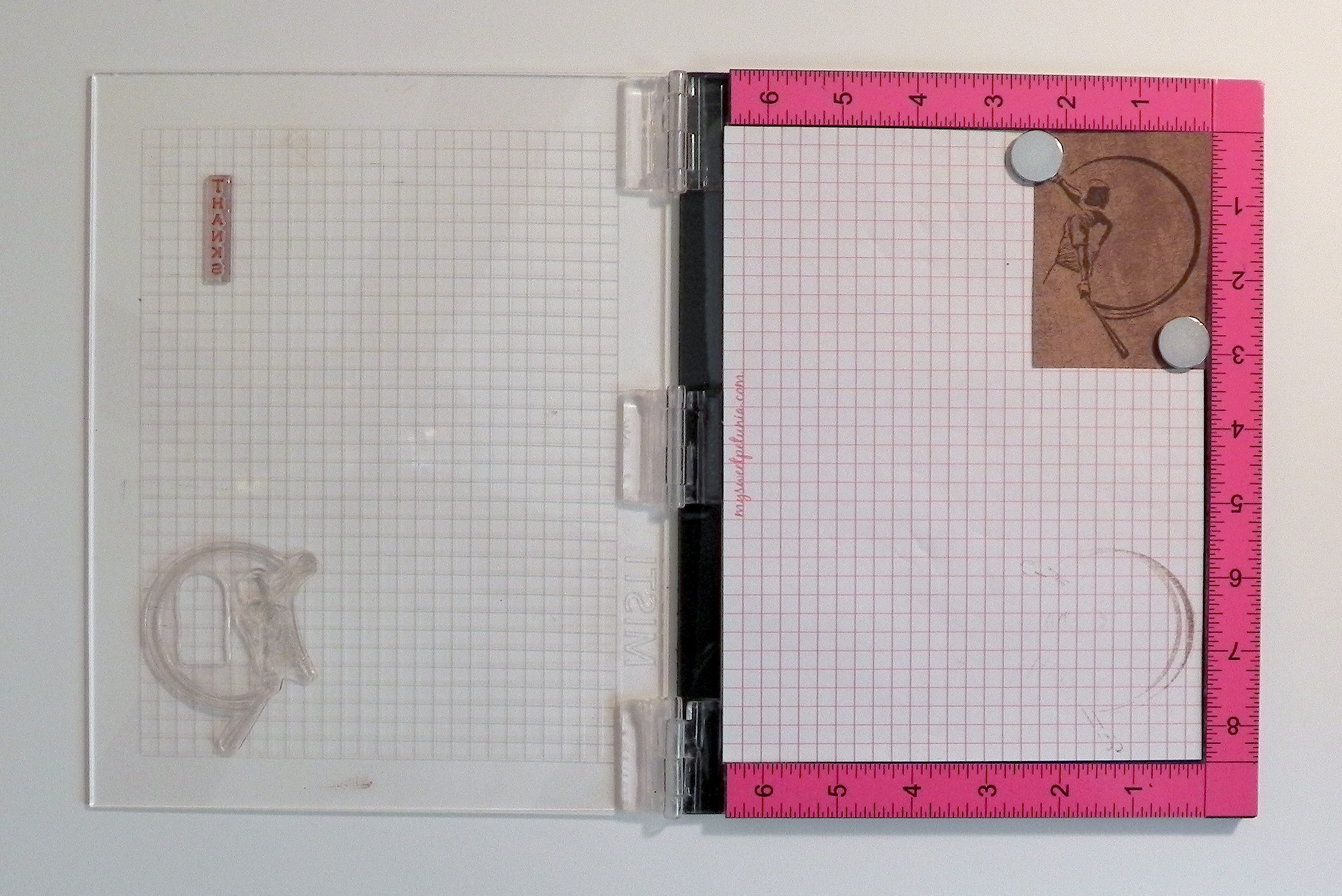
e.  Stamp the image a second time.

007 DSCN7881
008 DSCN7849


f.  Remove the die cut with the stamped image.

027 DSCN7911


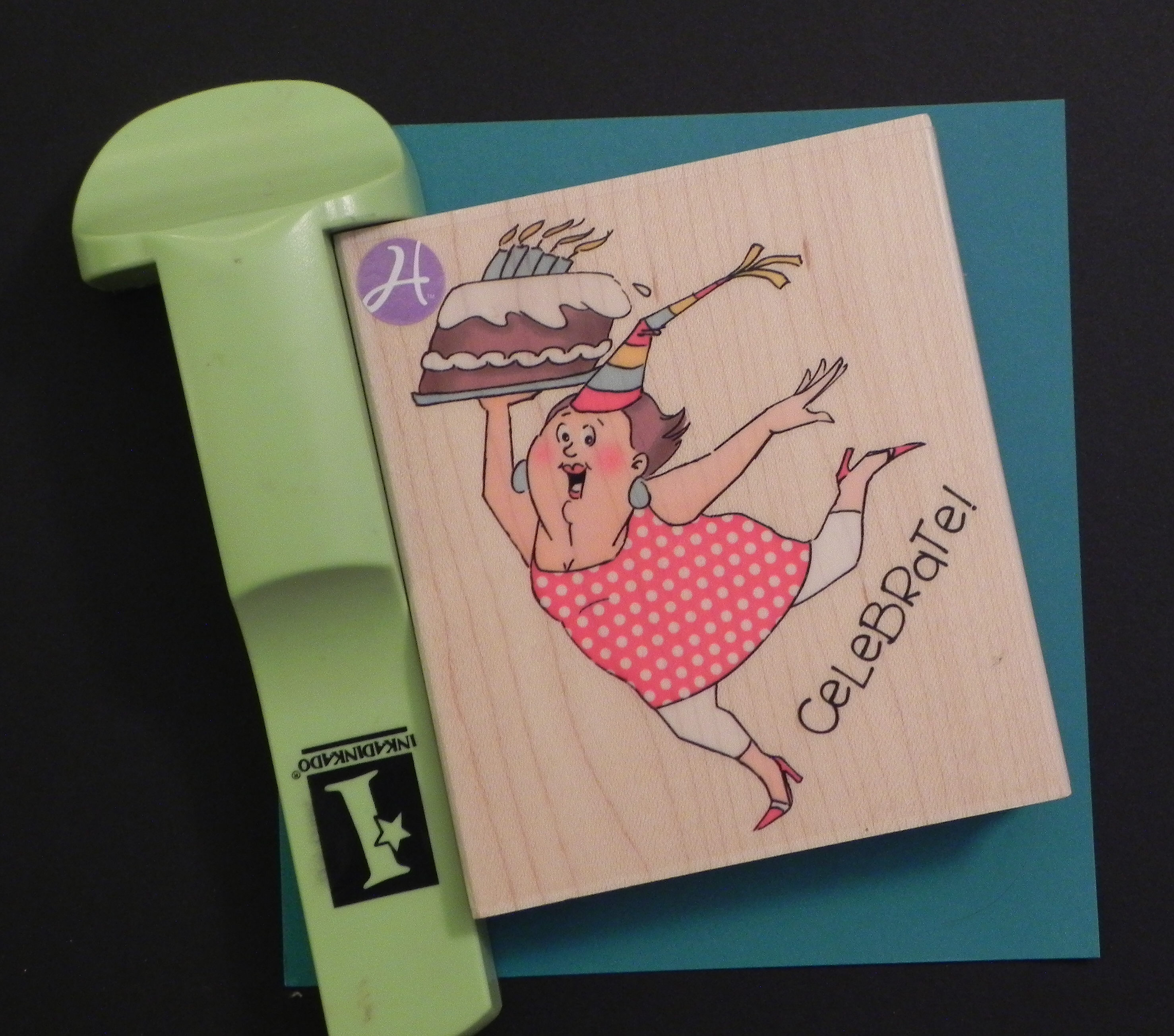
Another tool that I use is a stamp-a-ma-jig.  This stamp positioning tool can be used with wood mounted stamps as well as stamps placed temporarily on acrylic blocks.

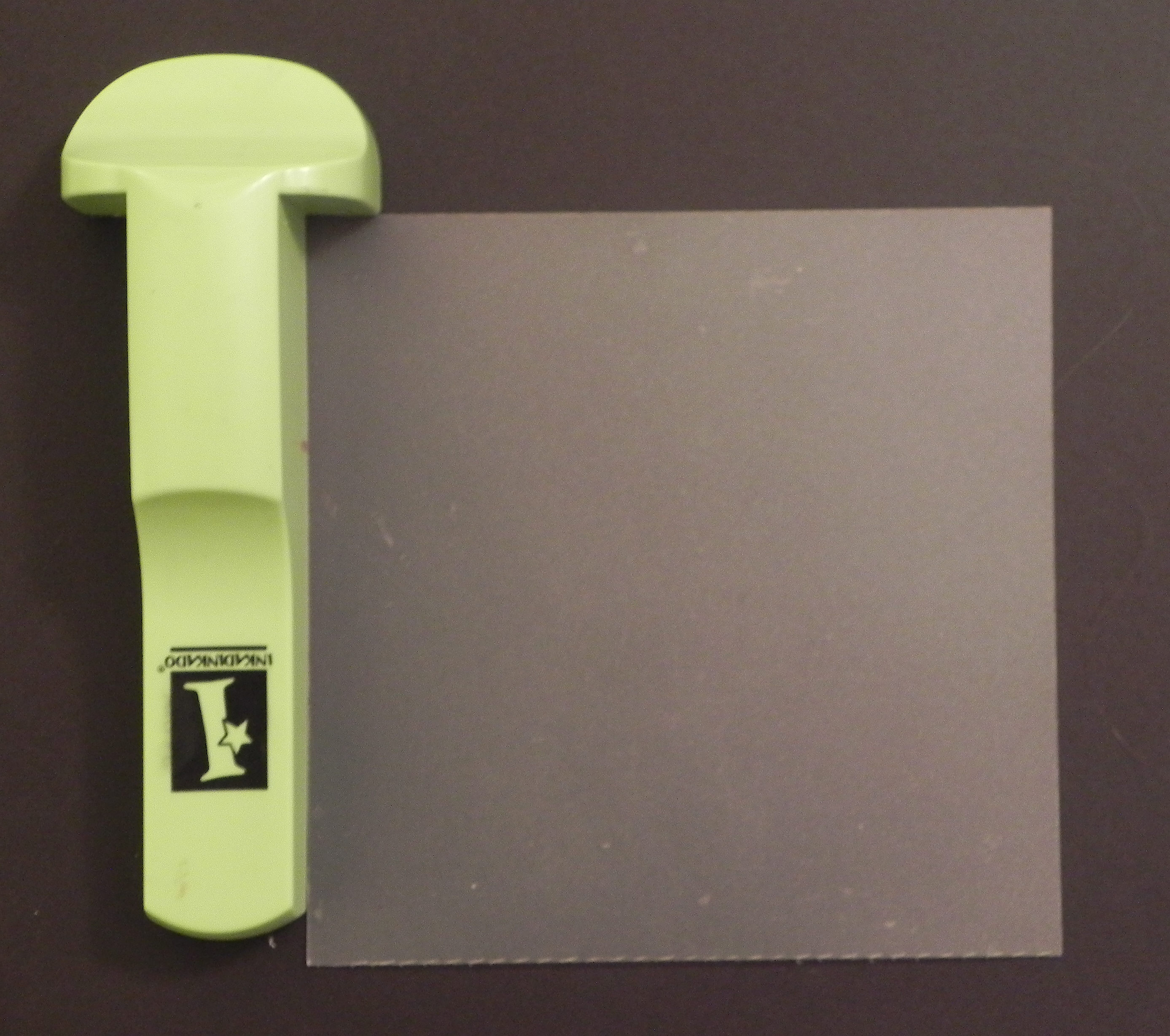
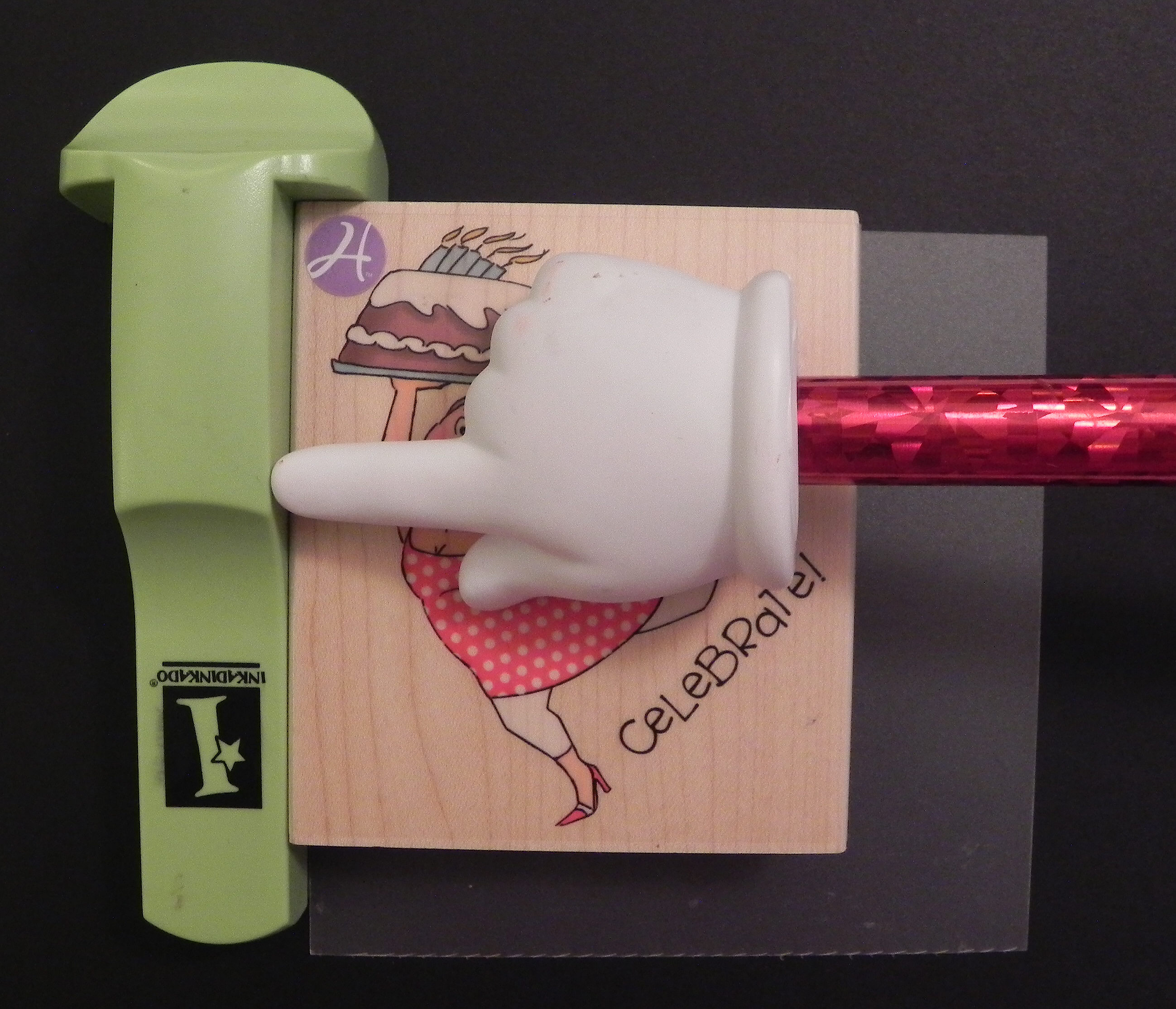
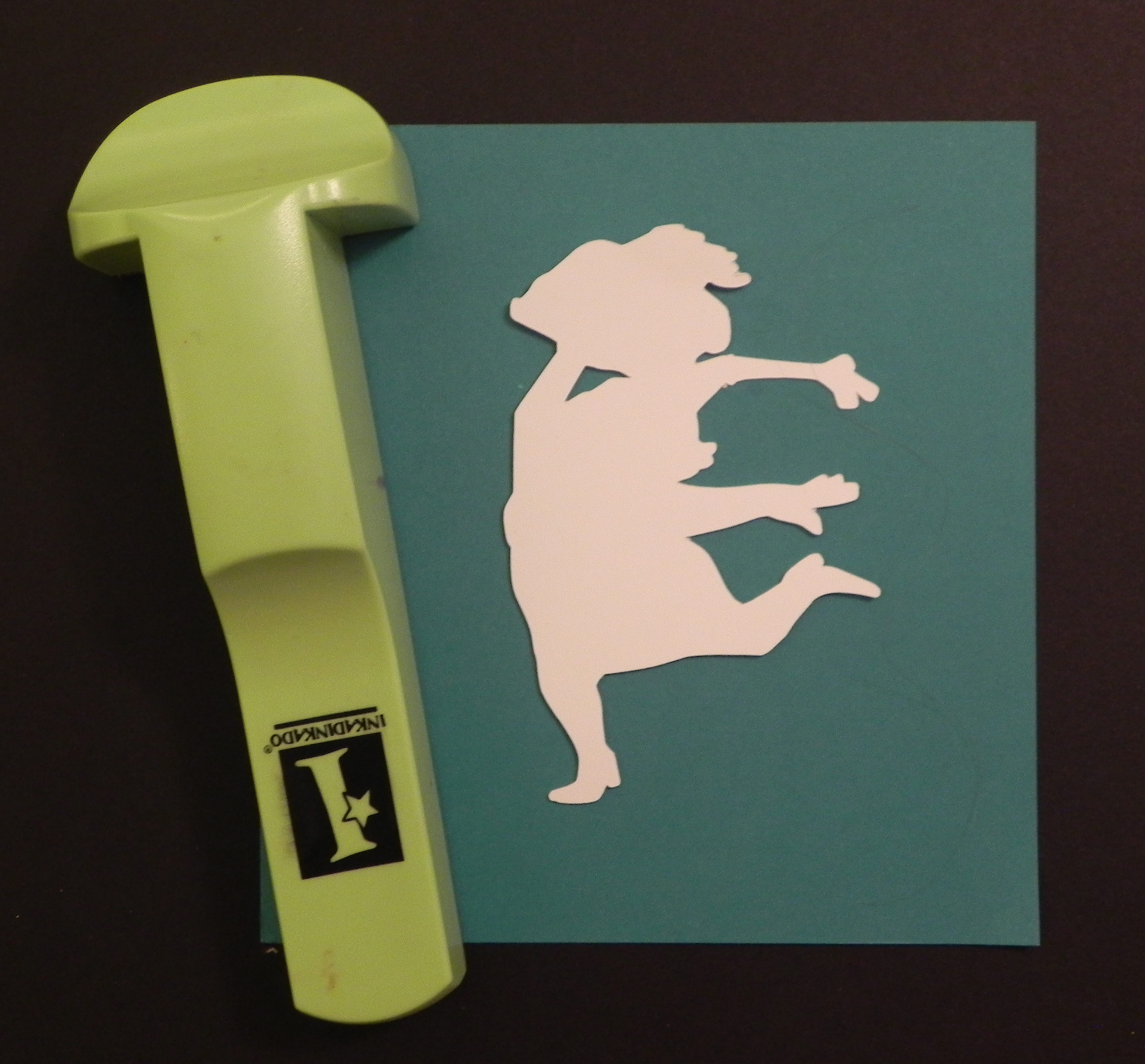
a.  Cut out your shape.  Adhere this shape to a piece of scrap paper with removable adhesive.

016 DSCN7861

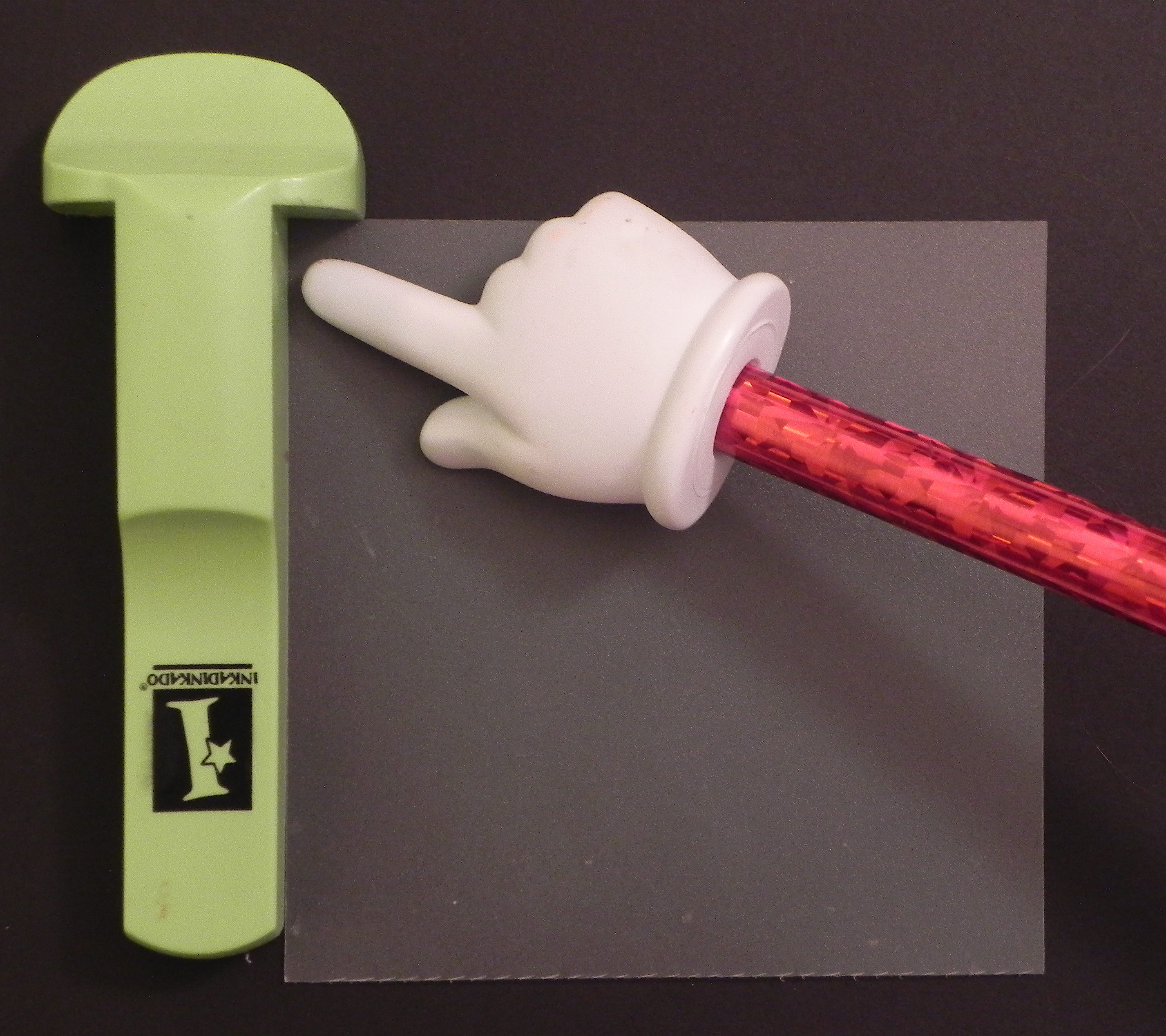
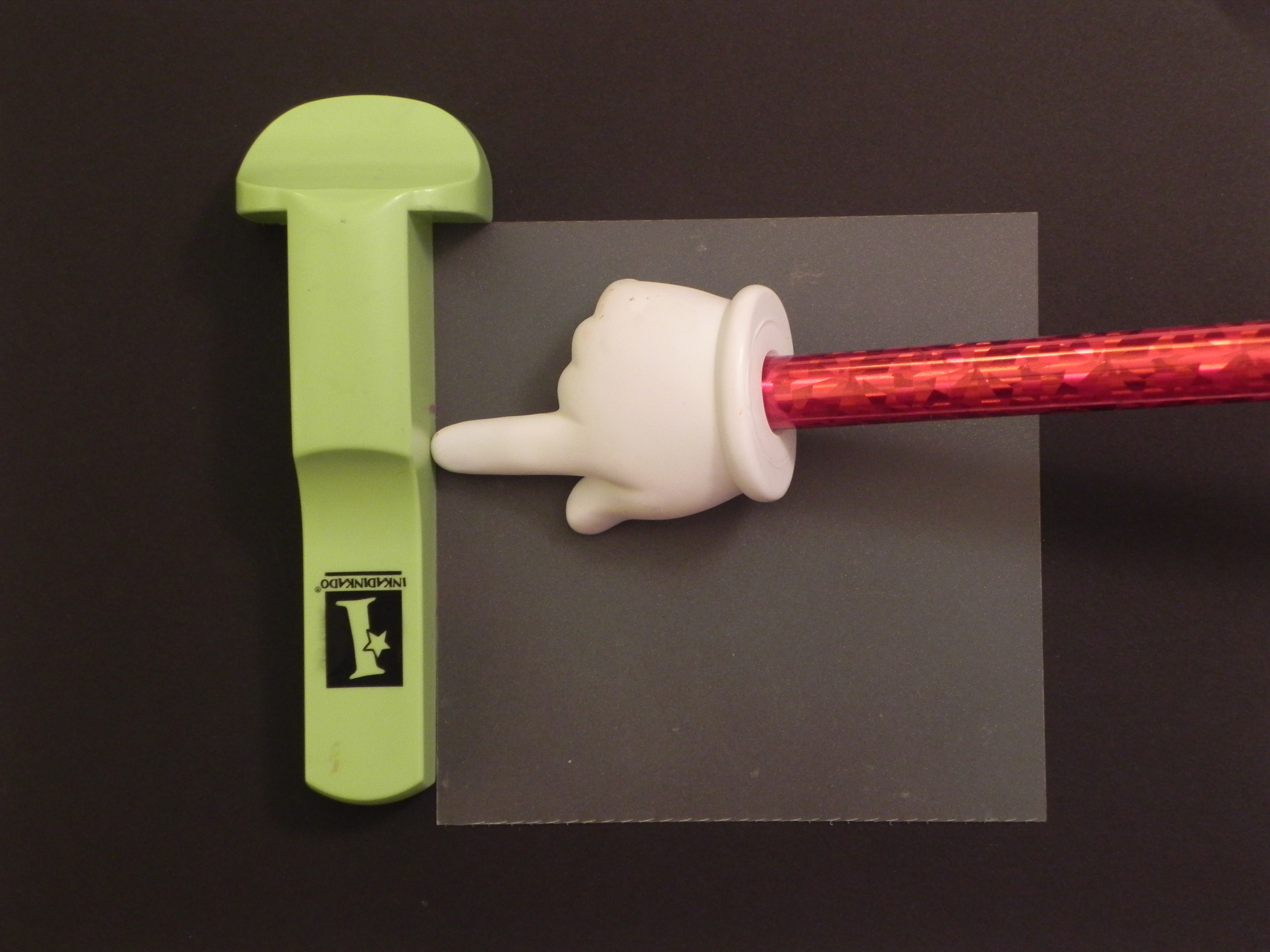
b.  Place the clear, positioner sheet that came with your stamp-a-ma-jig in the corner of the tool.  Make sure it lines up perfectly square.

010 DSCN7851

Check alignment here and here

011 DSCN7853
DSCN7883


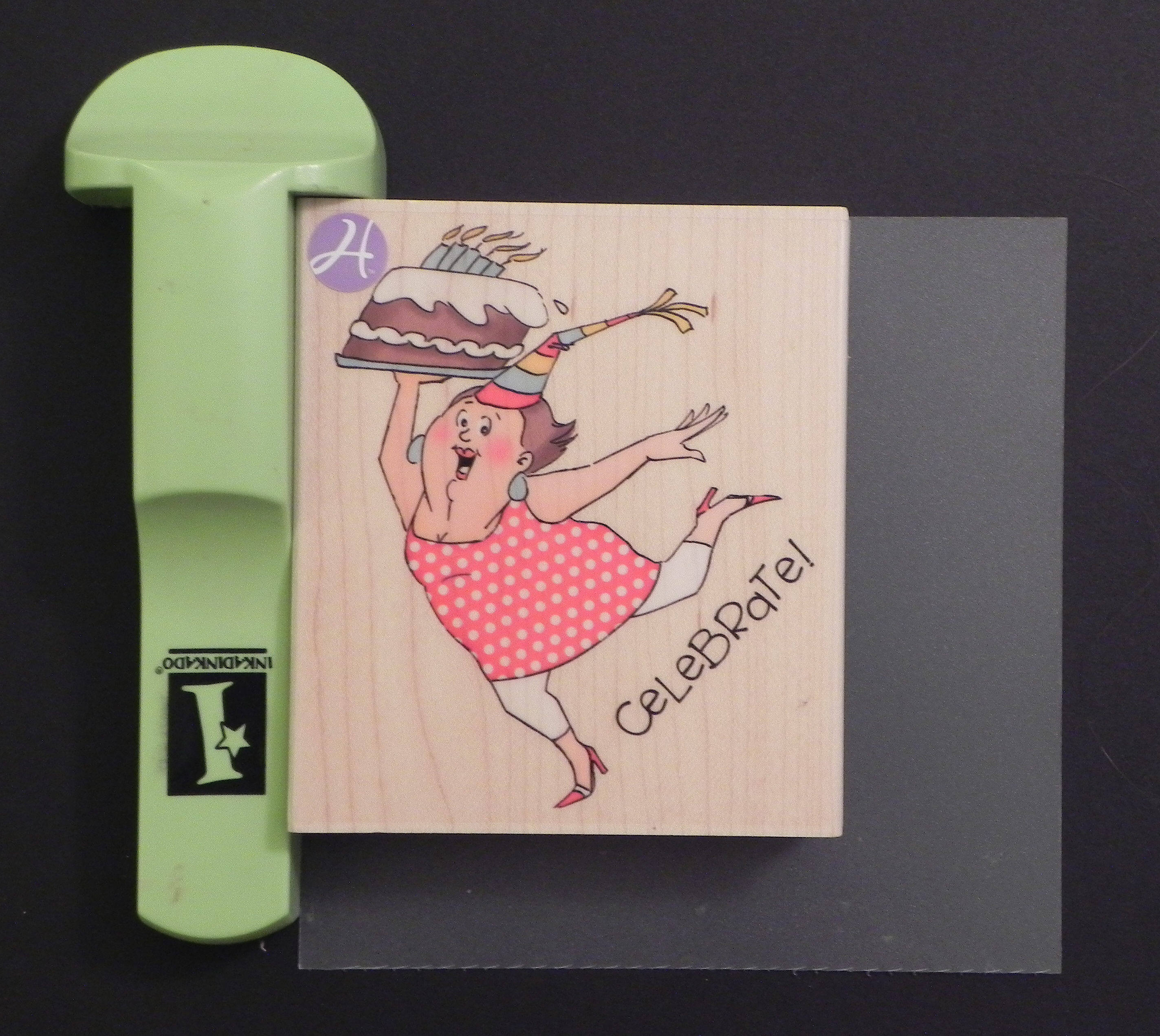
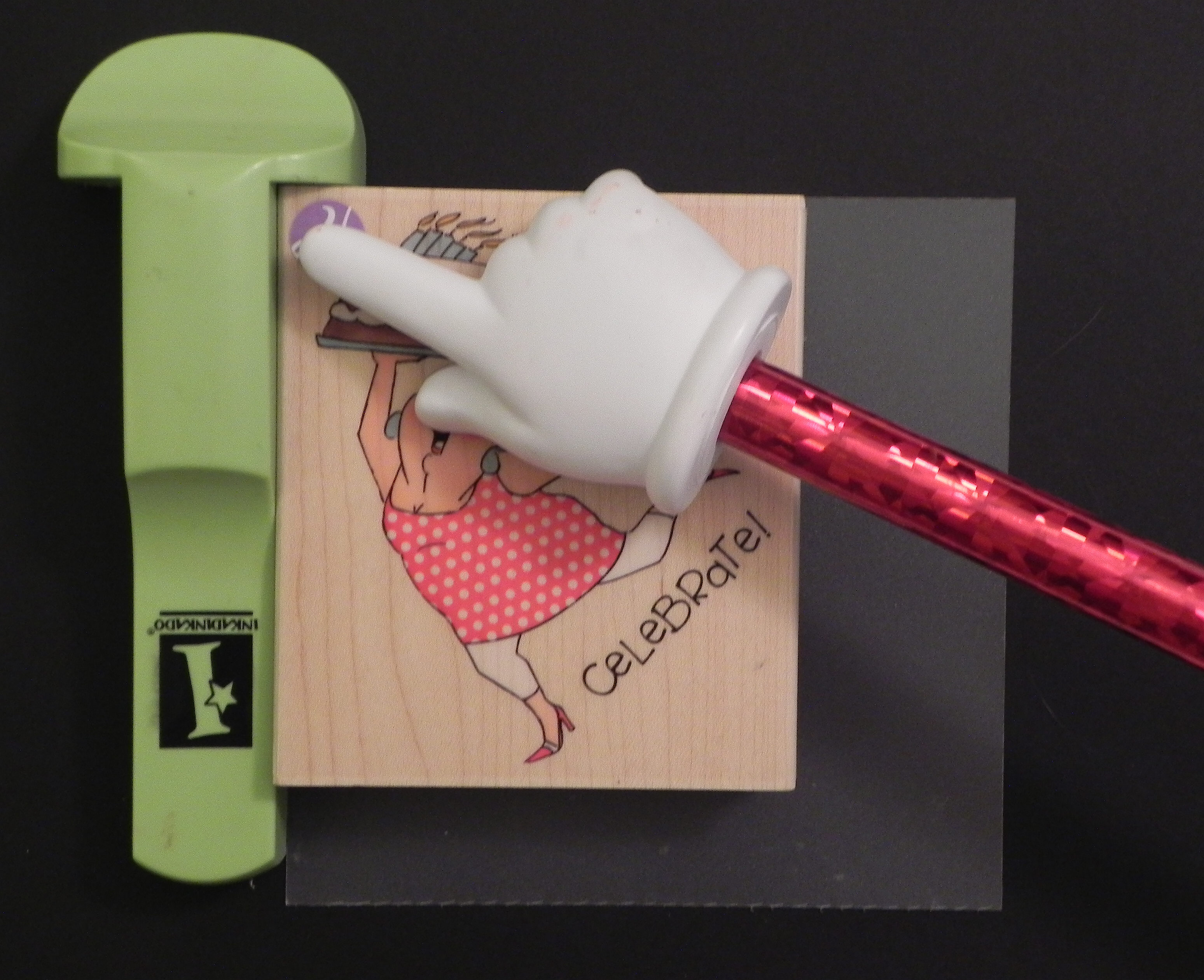
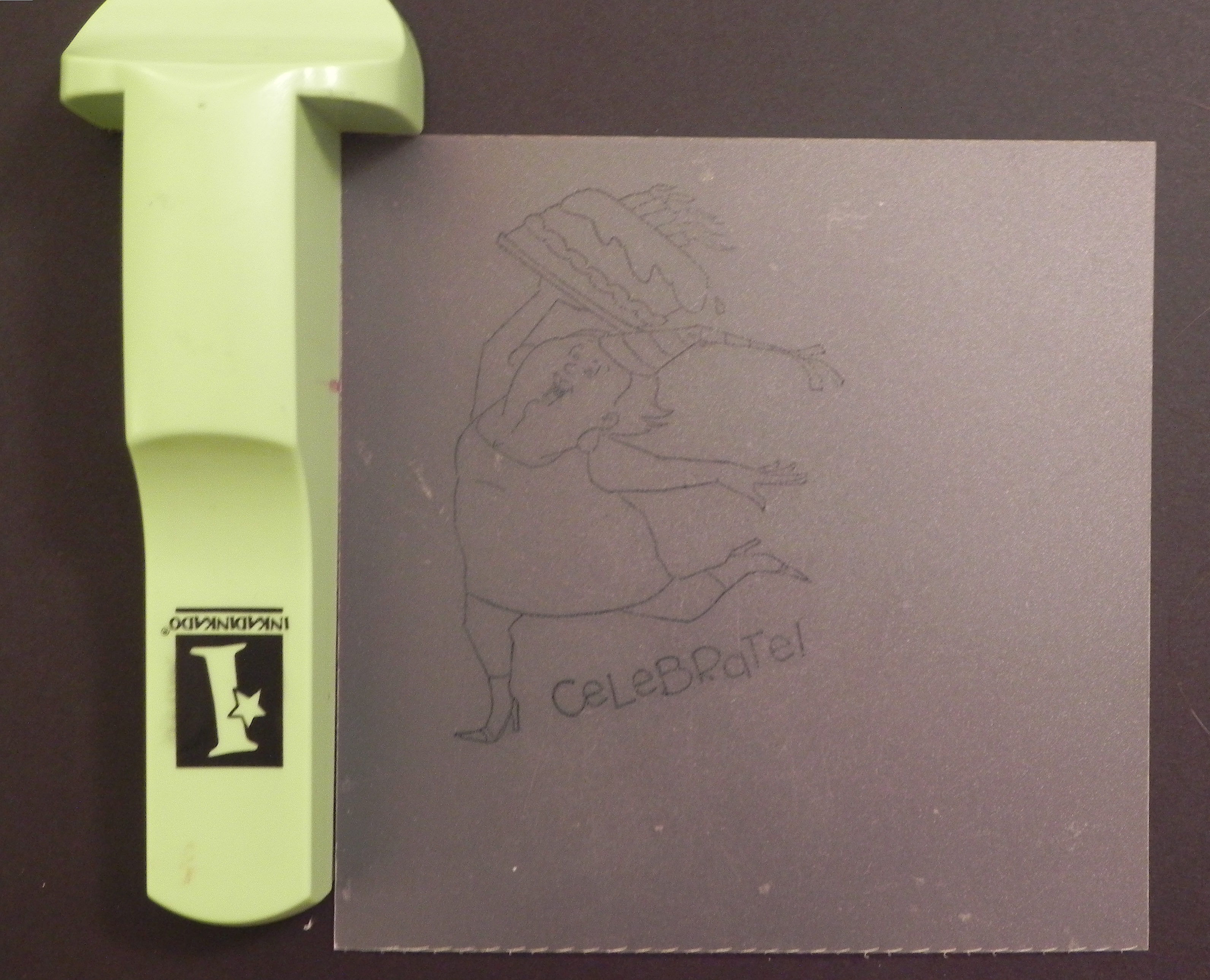
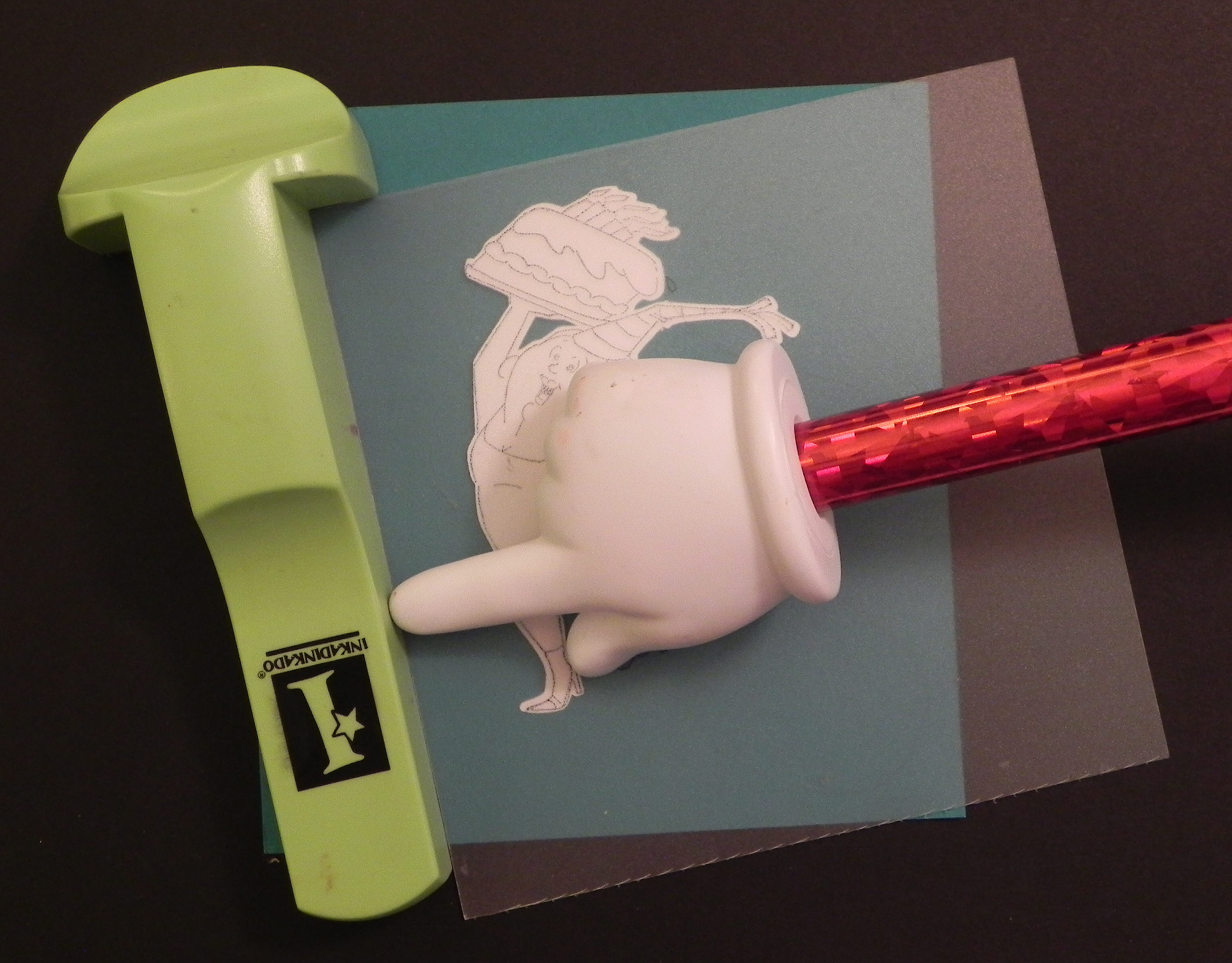
c.  Without moving the tool or positioner, ink your stamp, and stamp the image onto the positioner, again making sure to line up the stamp perfectly in the corner and along left edge of the tool.

012 DSCN7854

Check alignment here and here.

013 DSCN7857
014 DSCN7882


d.  Remove the stamp and tool, and you will have a stamped image on your positioner sheet.

015 DSCN7859

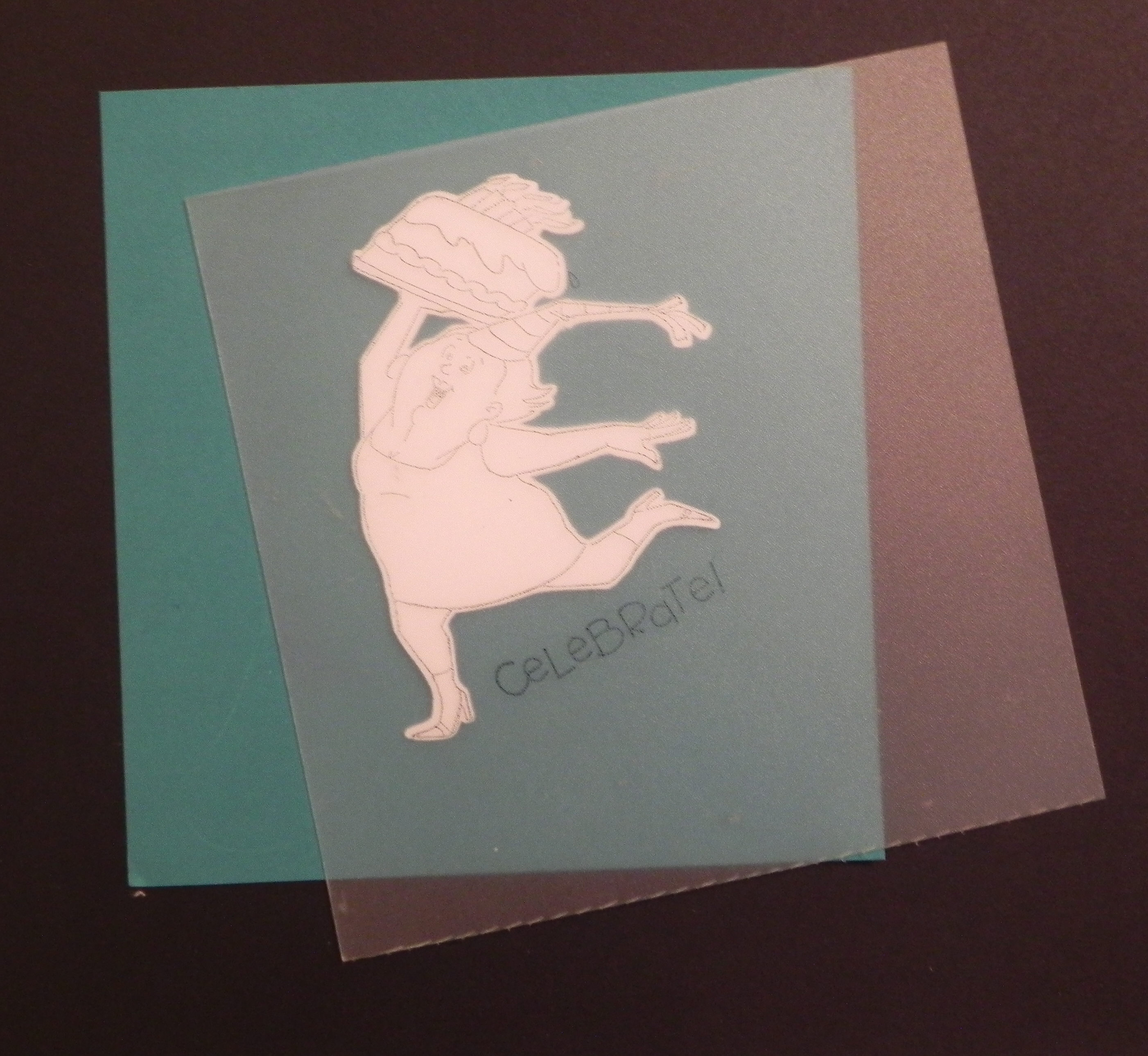
e.  Place the positioner sheet on your cut out shape from step (a).  Position it as desired on the cut-out.

017 DSCN7862

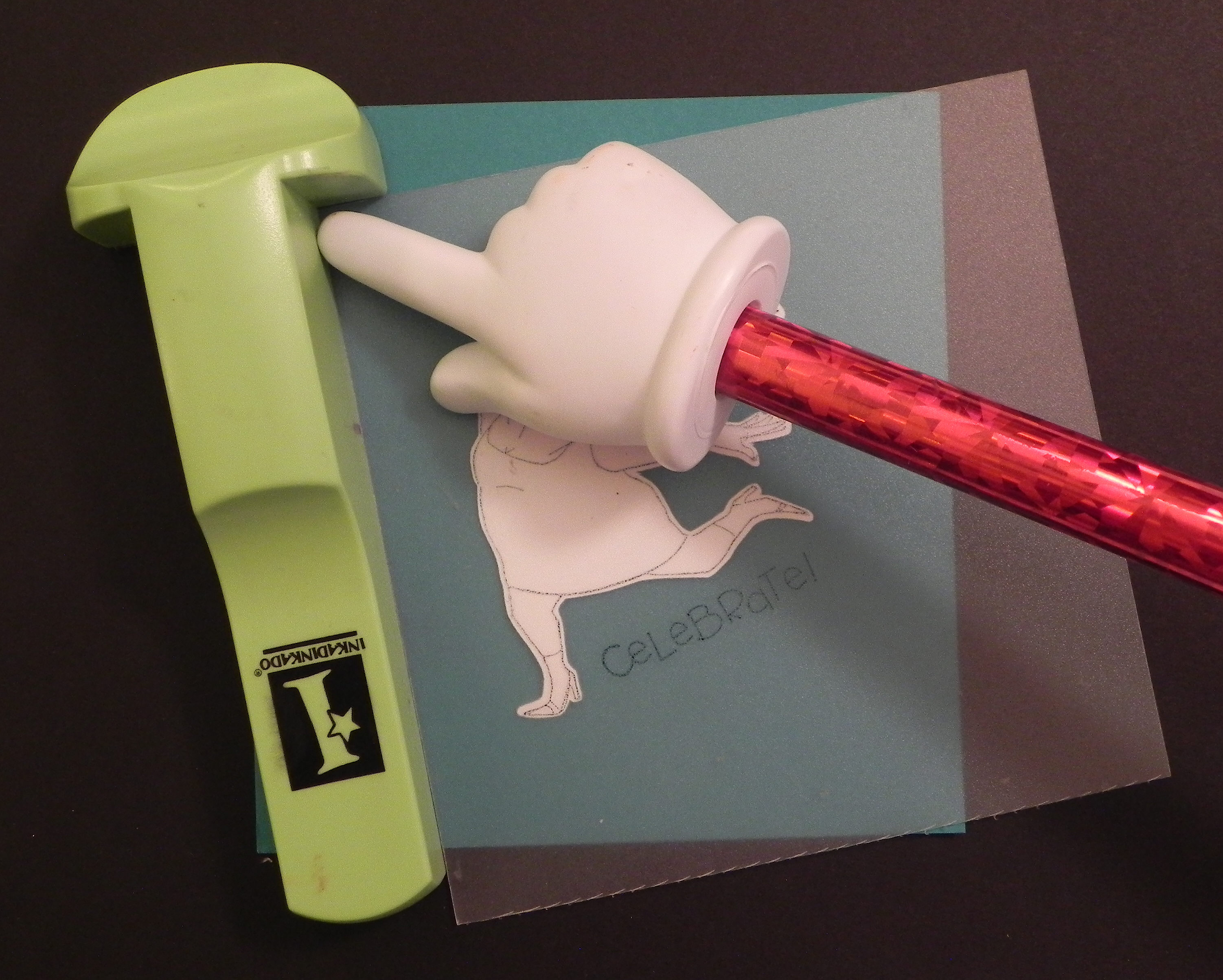
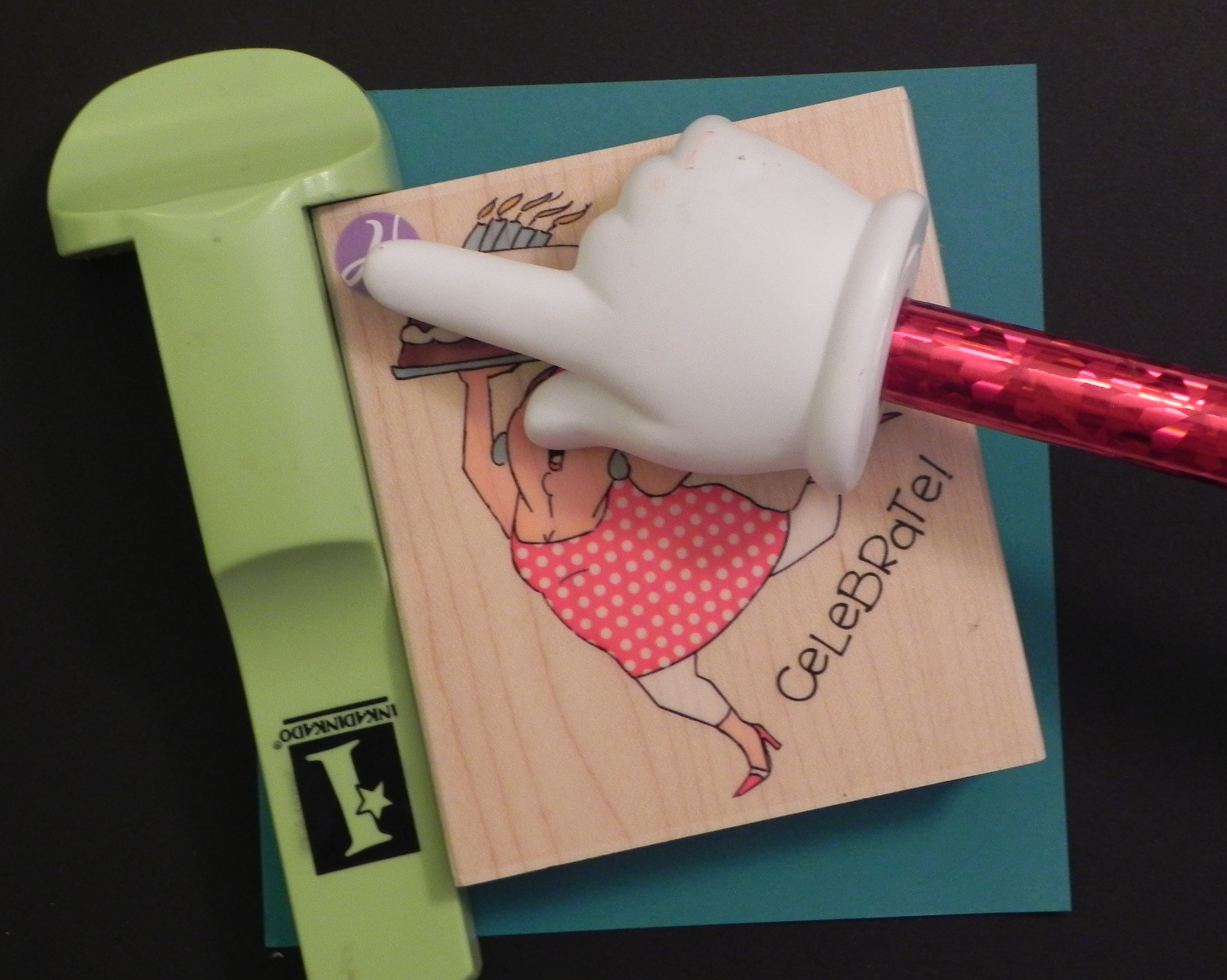
f.  While holding the positioner securely in place, put the stamp-a-ma-jig against the upper left corner of the positioner.  Check the corner and edge to make sure it is positioned correctly.

018 DSCN7864

Check alignment here and here.

019 DSCN7866
020 DSCN7867


g.  Without moving the tool, slide the positioner sheet away.

021 DSCN7869

h.  Stamp the image on your cut-out shape/die cut, lining up the stamp in the corner of the tool as you did before. Don’t let the tool move at all. If it does, start over with the step (e).

022 DSCN7870

Check alignment here and here.

023 DSCN7872
024 DSCN7873


i.  Remove the stamp.  The image is now on the die cut.

025 DSCN7875

Here’s the card I made using the die cut image.  (You can see the original post HERE.)

wDSCN7890

(stamp is Art Impressions (Hampton Art) # PS0919)

Thanks for checking out my post!

This content uses referral links as described in the disclosure policy on my sidebar.

How I use the MISTI to Stamp Multiple Images on My Project

How I use the MISTI to Stamp Multiple Images on My Project

MISTI DSCN8983 cropped

(Click HERE to see the original card post)

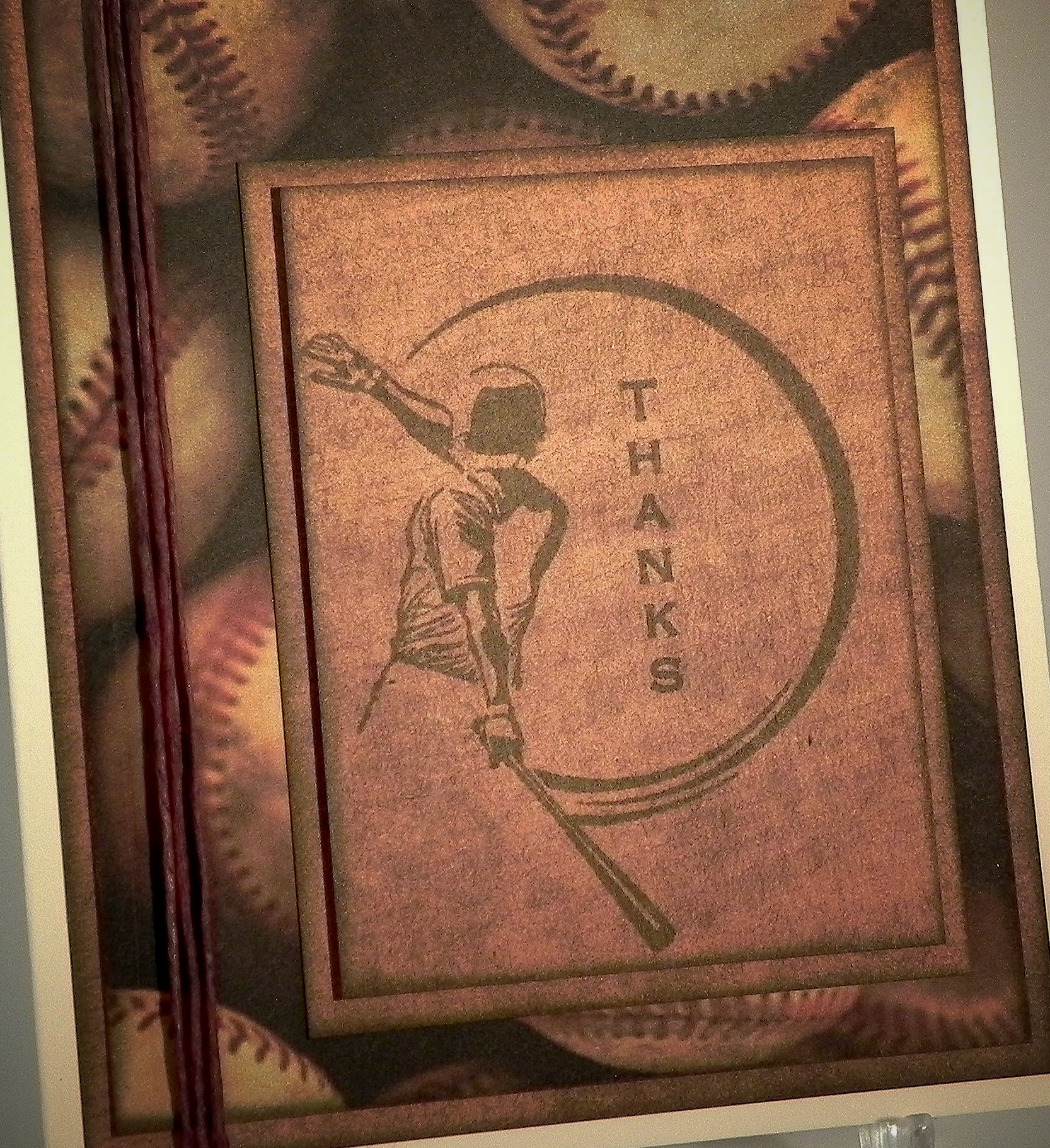
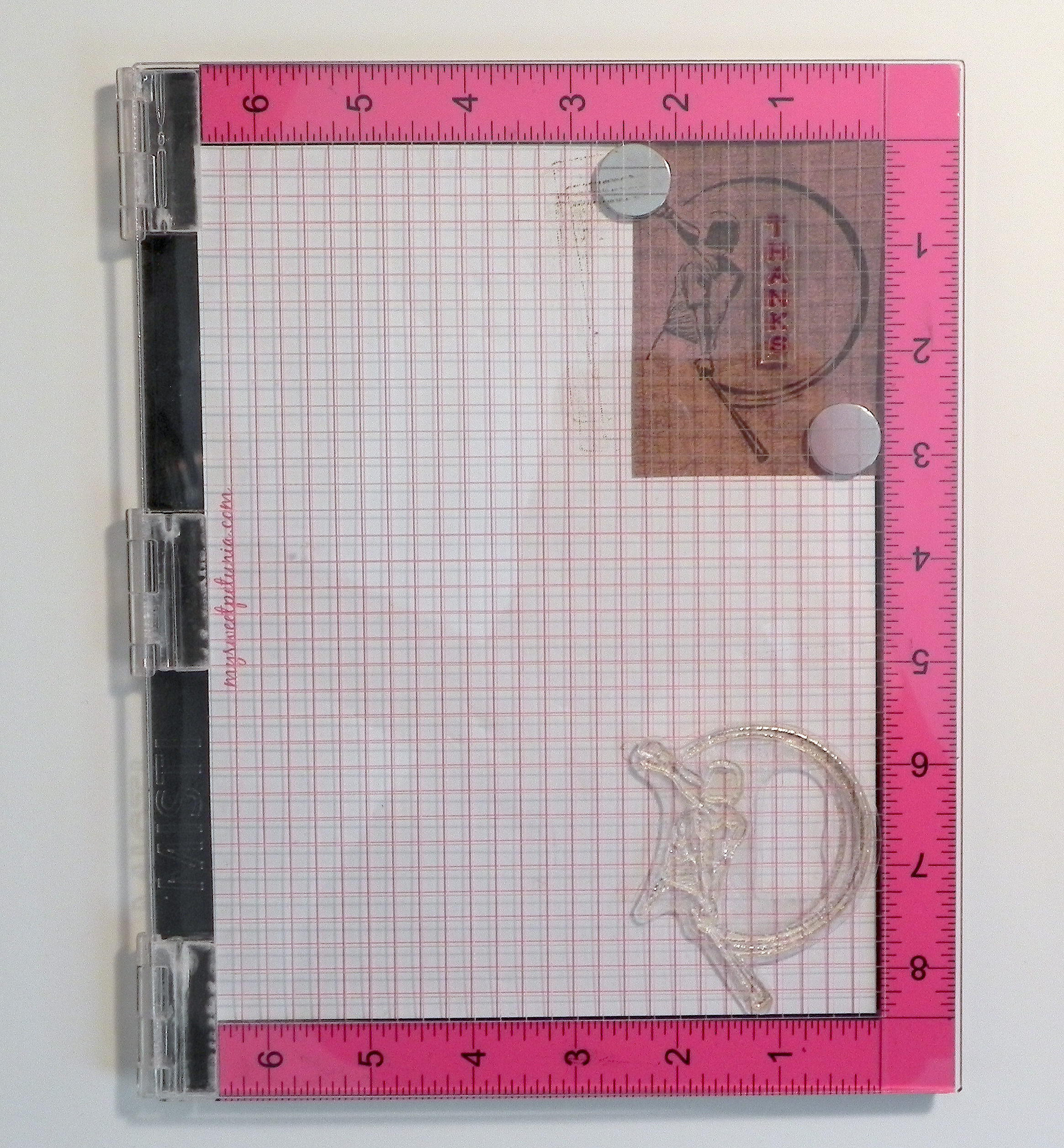
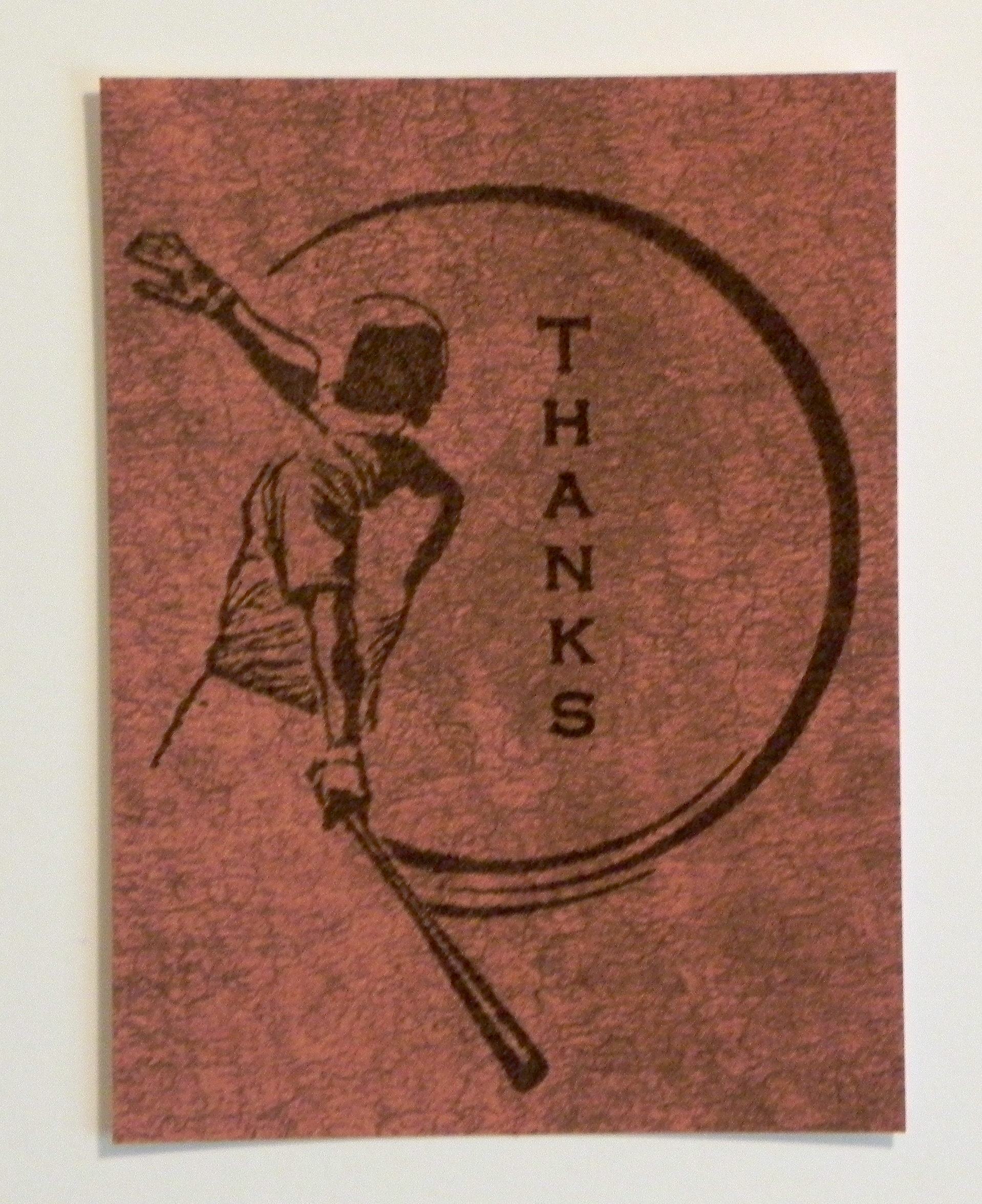
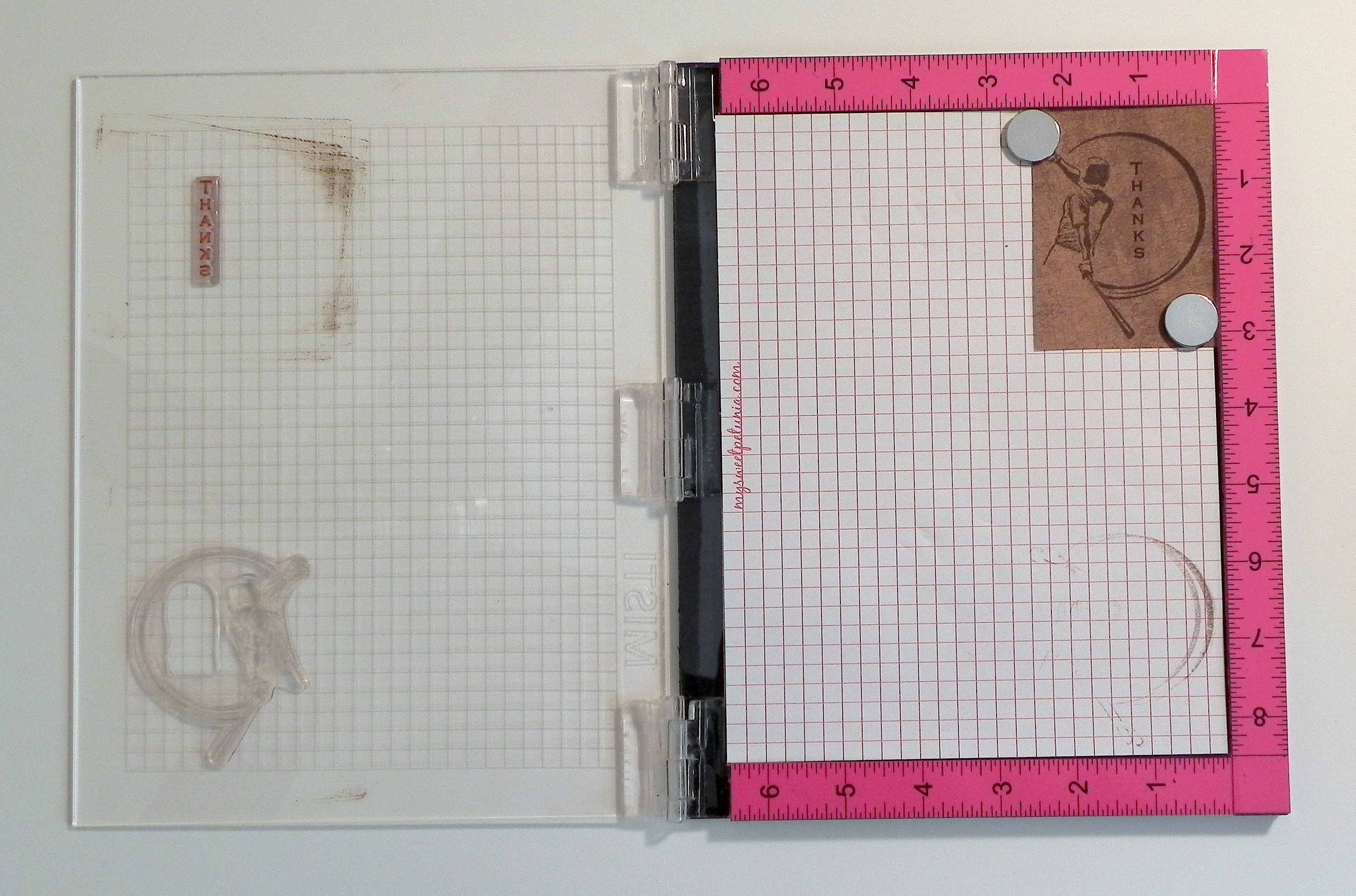
I recently created this Baseball Thank You Note which was to be part of a set.  The greeting stamp had to be positioned “just right” with the other stamp, and because I stamped brown ink onto a somewhat dark brown card stock, I needed to stamp the images multple times in order to make the images dark enough to see well.  Because it was to be a set, I needed to make several copies of this card. My MISTI was the perfect tool for the job!   (I talk about the MISTI in a previous post which you can see HERE.)  It allowed me to precisely place the two stamps exactly where I wanted them, and it allowed me to stamp and re-stamp the images in the exact spot each time.

Here’s how it’s done:

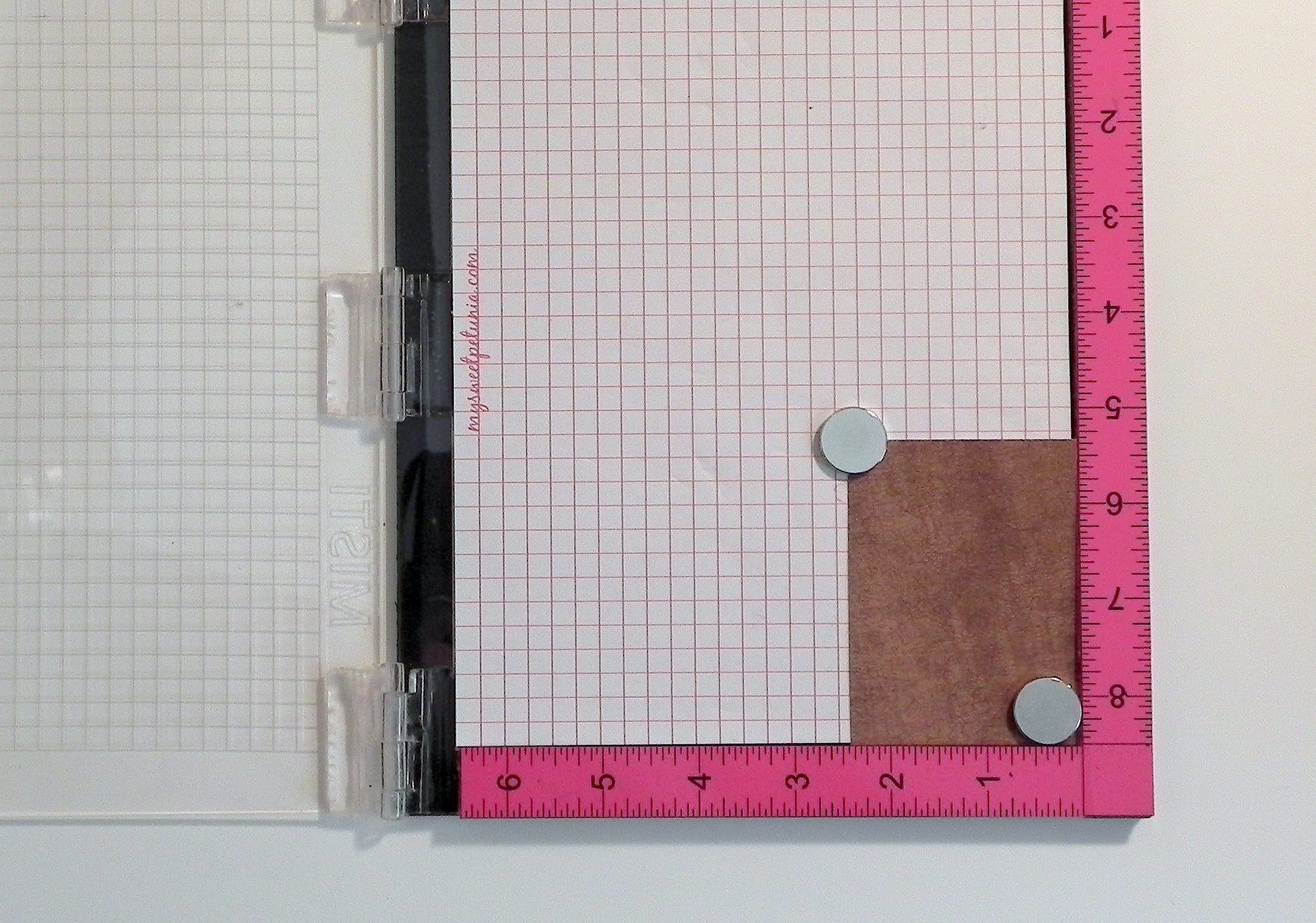
1)  Open the lid.  Start with your blank card stock in the bottom corner.  (I originally placed magnets in the corners to hold it in place but needed to move them for step 2.)  *Note:  If you are using an acrylic stamp, keep the foam panel under the grid paper.  If you are using a rubber stamp, remove the foam because those stamps are thicker.

010 DSCN8928

2)  Place your clean stamp on the card stock where you’d like the image to be.

020 DSCN8921

3)  Close the lid.

030 DSCN8923

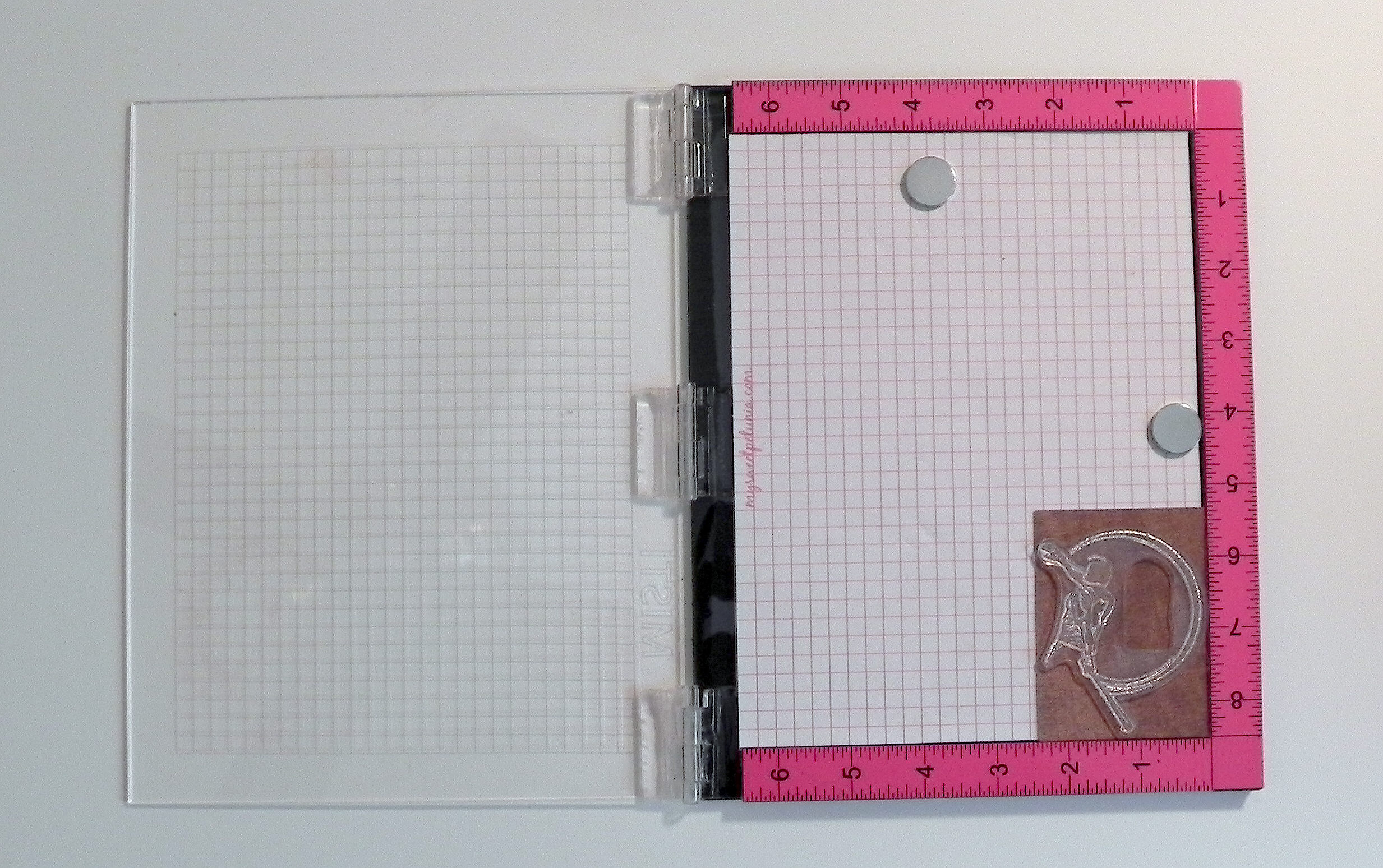
4)  When you open the lid again, the stamp is stuck to the lid in position to stamp the first image.  I use magnets to hold the card stock in place.

040 DSCN8928

5)  Ink up the stamp and close the lid.

060 DSCN8932

6)  Open it to see stamped image.  (I stamped the image 3 or 4 times to get a crisp, dark image.)

070 DSCN8934

7)  Once you are satisfied with the quality of the image, move the card stock (with the image just stamped) to the upper corner.  Place the clean greeting stamp on the card stock where you want the image to be.  (My stamp is stained from repeated use, but it’s clean.)

080 DSCN8935

8)  As before, close the lid.

090 DSCN8937

9)  When you open it, the second stamp is also stuck to the lid.

100 DSCN8939

10)  Ink the top stamp and closed the lid.

110 DSCN8940

11)  Open the lid; the second image is now stamped onto the card stock.  (Again, I repeated this 3 or 4 times to get a nice dark image.)

120 DSCN8941

Here is the finished panel.  Notice that even though I stamped the images several times, the images are crisp without the double lines you often get if you try to re-stamp an image without the tool.  If you use the same size card stock and don’t move the stamps from the lid, you can create an infinite number of these panels, and they will all be exactly the same!  Position the stamps once and just stamp away!! This is perfect when you are making duplicates of the same card.

130 DSCN8943

I use my MISTI all the time.  (I can’t remember the last time I stamped with a plain acrylic block!)  Even if perfect placement of my stamp(s) isn’t necessary, I usually re-stamp my images a few times to make them really dark.

To order or for more information, go to mysweetpetunia.com.

(I am not affiliated with My Sweet Petunia in any way; I’m just a happy customer!  Check it out for yourself, and decide if it would be good for you.)

Thanks for checking out my post!

How to Adhere Tiny Elements to Your Project With No Mess

How to Adhere Tiny Elements to Your Project With No Mess

There are so many beautiful flourish dies, cut files with tiny pieces to assemble, delicate die cut fonts, and a variety of other small elements that can prove challenging when it comes time to adhere them to your project.

010 DSCN8330

One of the first Cricut cartridges I purchased years ago was “Disney Mickey and Friends” which I planned to use for my Disney vacation scrapbook pages.  I excitedly cut out the pieces for a few of the characters just to see how they’d look (pictured above) and realized very early on that I may have bitten off more than I could chew!  All the tiny pieces!!!  How was I ever going to assemble enough of these characters to decorate multiple 12 x 24 inch layouts (for each of my 4 children’s scrapbooks)?!  The cartridge got tucked away, and I went on to work on “easier” designs with larger die cuts.  Then I started purchasing font cartridges which also involved adhering small pieces to my pages.  I was determined to figure out a way to use these beautiful (if not small and skinny!) elements on my projects without going nuts or making a mess!


I tried a number of different products and methods and eventually discovered 2 items that I use together that have made adhering these elements to my work a breeze!

***

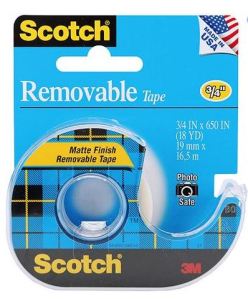
The first item I use (for paper elements) is Scotch Removable Tape.   It allows you to pick up your elements and place them on your project without ever touching them.  This is particularly helpful when there is glue on the back of the pieces!  This product works great because it is clear so you can see through it to make it easier to place your elements exactly where you want them (as you’ll see below), and you can use one piece of tape over and over so the roll lasts a long time.
removable tape

***

The second item is glue that can be applied in tiny amounts and with precise placement.

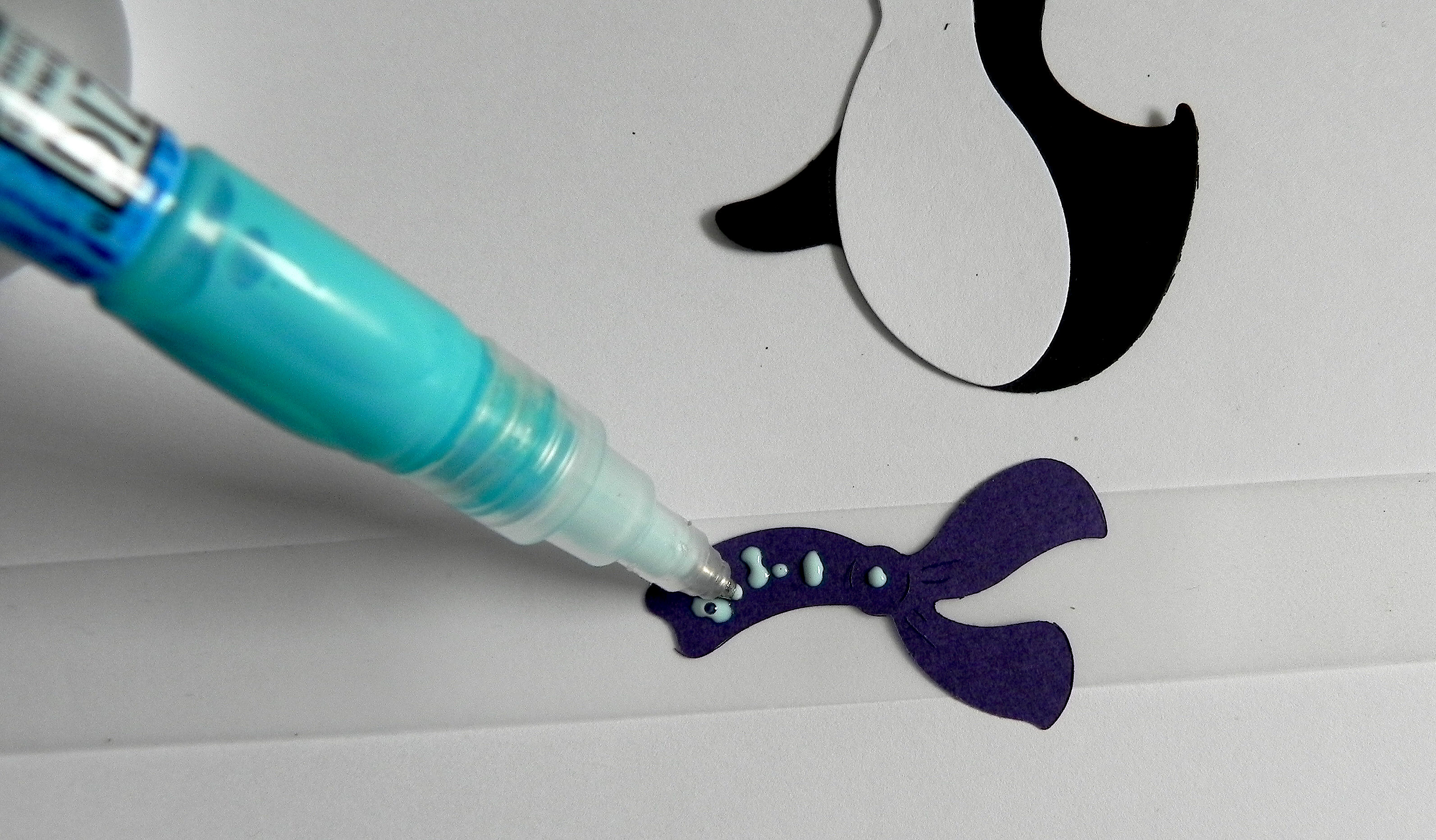
I use a glue pen.  Originally, I used the Creative Memories Precision Point Adhesive Pen (which I think is no longer available?), and have since started using the Zig 2 Way Glue pen.  It looks like a pen and has a fine ball point.  You can squeeze or roll just the right amount of glue that you need with perfect placement.  This glue can be used two ways. Use it when it’s blue and wet for a permanent bond or let it dry clear for a few moments to get a temporary bond.

azig 2 way glue pen

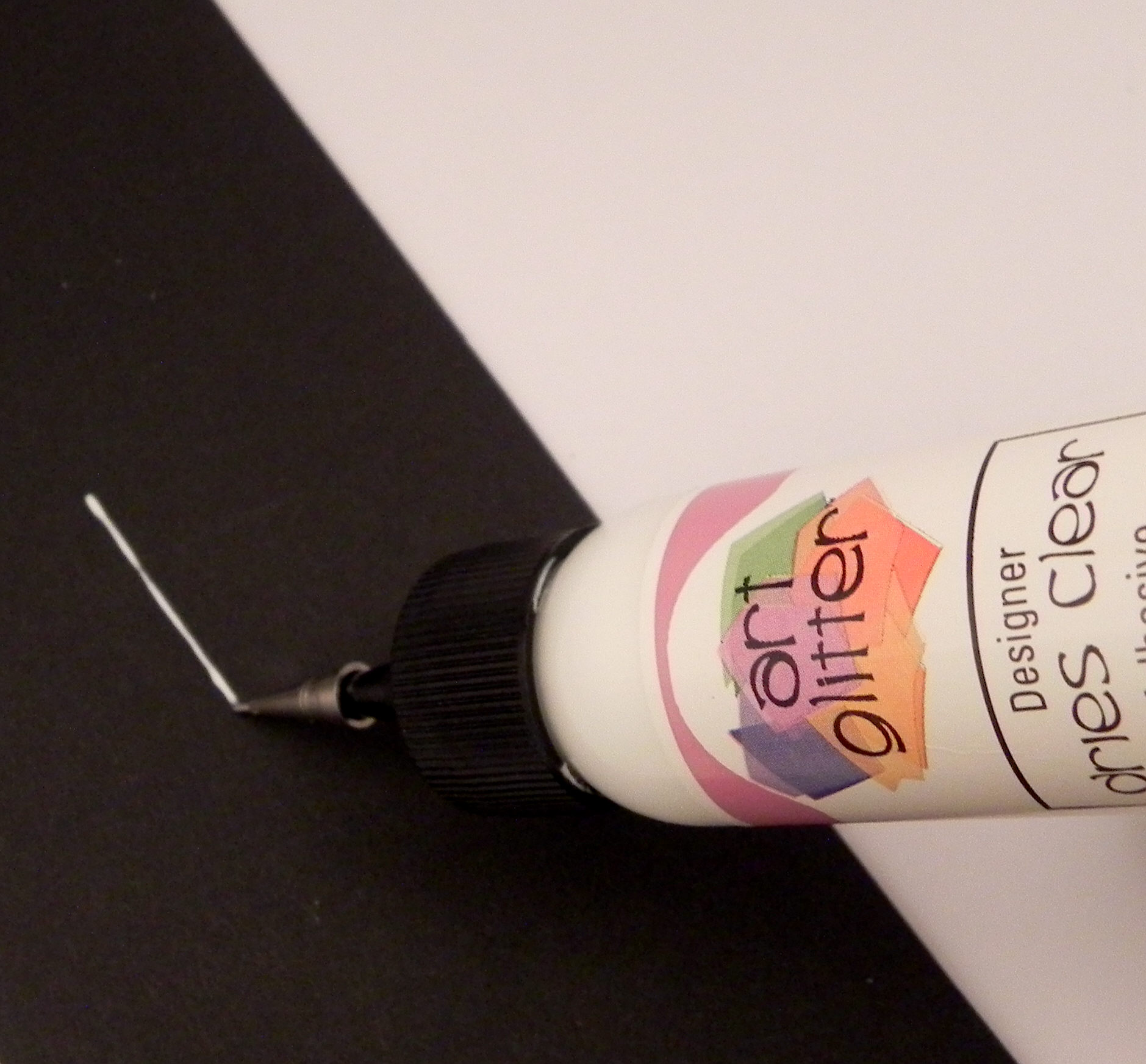
Another type of glue I like is Art Glitter Designer Glue  with optional metal tip that I talked about in a previous post (HERE).  The metal tip makes applying small amounts of glue very easy, as well.
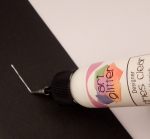
ccDSCN9276

Any glue will work as long as you can apply tiny dots or lines of glue to your project.


Here’s how it’s done:

Let’s look at an example of paper piecing a character.

020 DSCN8334

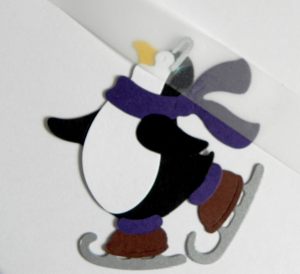
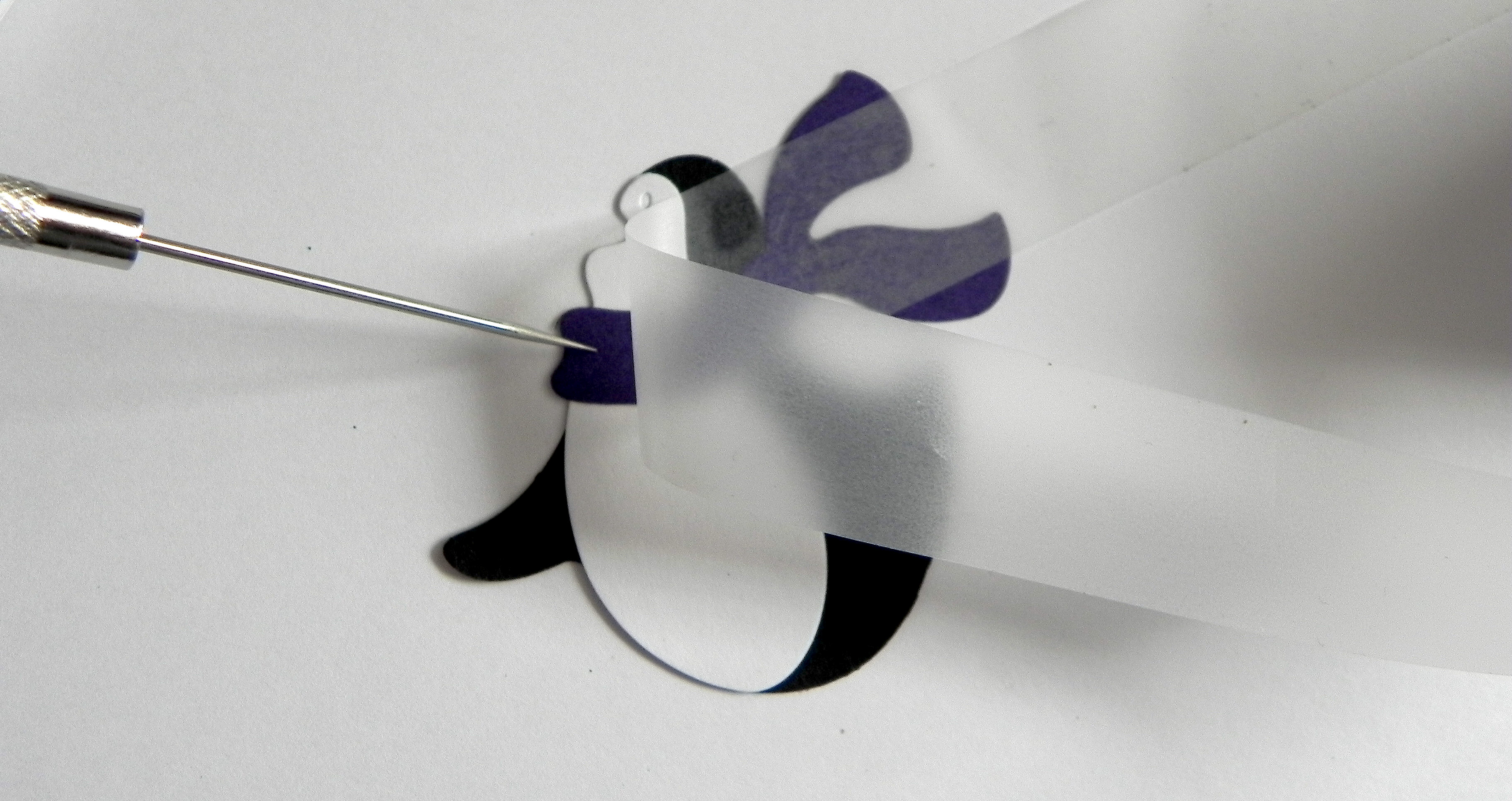
All the pieces (big and small) can be adhered the same way AND WITH THE SAME PIECE OF TAPE.  I’ll use the scarf as my example.  To adhere the scarf, place it on the table and place a piece of removable tape across the top.   Make sure the tape extends past both sides enough that you can hold the tape without touching the scarf.
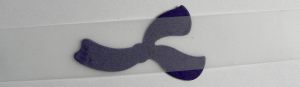
030 DSCN8352

Flip the tape and scarf over and place it on the table.  Use your glue pen to apply your glue to the back of the paper.
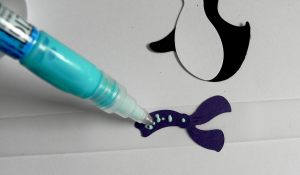
031 DSCN8354

Pick up the tape on both ends, and flip it over.  (Thanks Kelly, for “lending” me your hands so I could take the photo!)
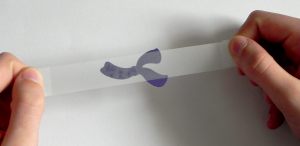
032 DSCN8414

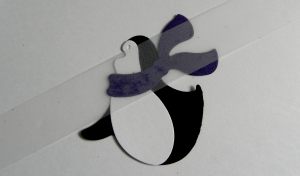
Hold it over the penguin’s body where you’d like to adhere it.  Because the tape is clear, it is really easy to see where to place it!  Once you are happy with the placement, push it onto the body as if you are taping it in place.
033 DSCN8356

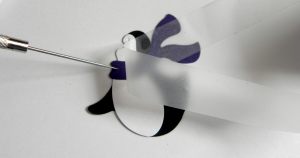
Carefully remove the tape.  If necessary, hold the scarf in place with your finger or a pointy tool like a tooth pick or paper piercer while you remove the tape.
034 DSCN8357

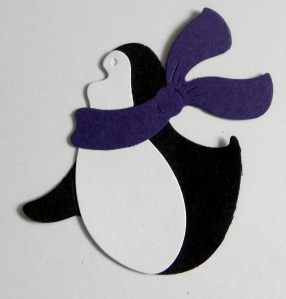
The scarf is in place without getting a spec of glue on your fingers or anywhere on your project except where you wanted it!
035 DSCN8359

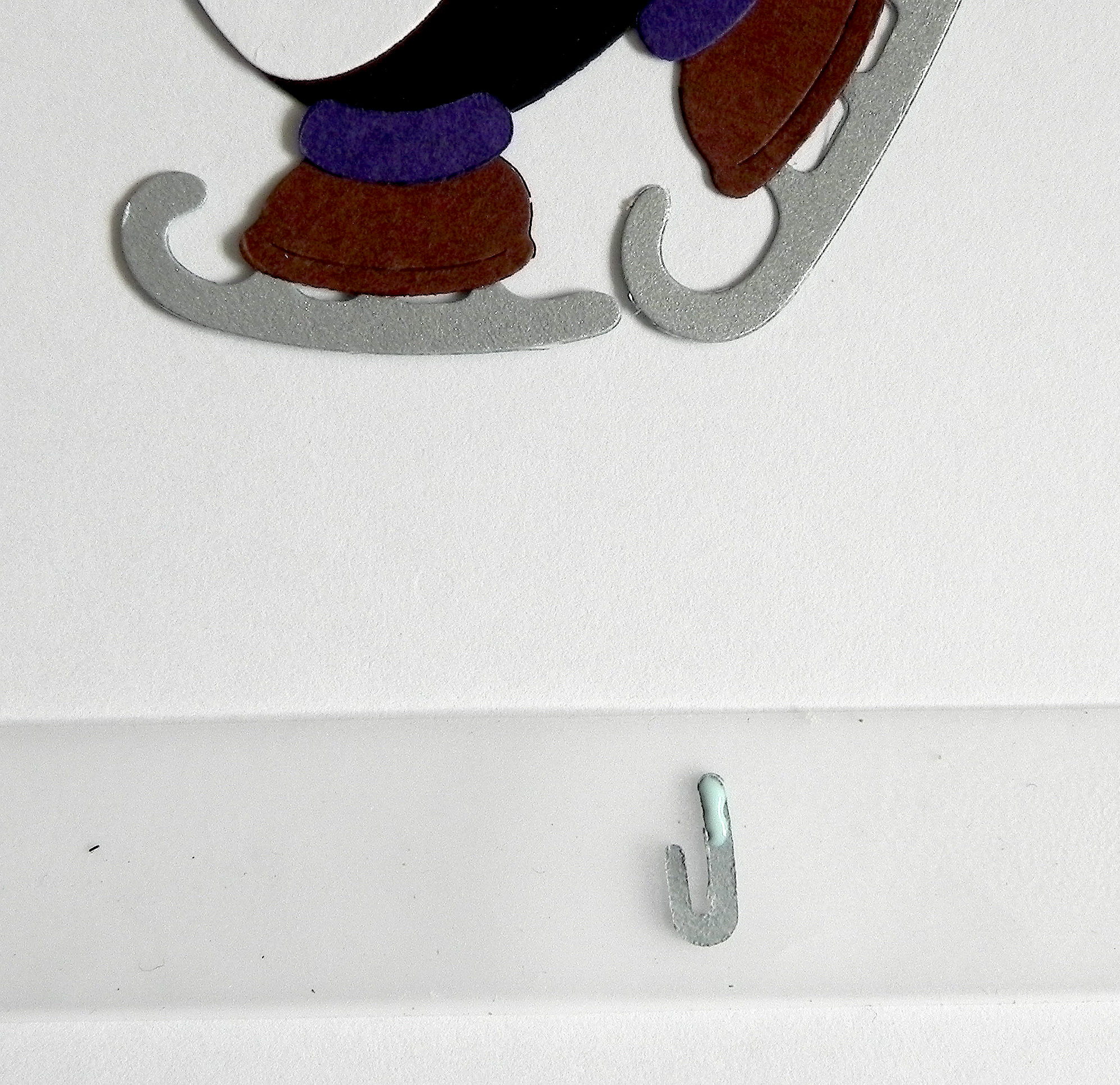
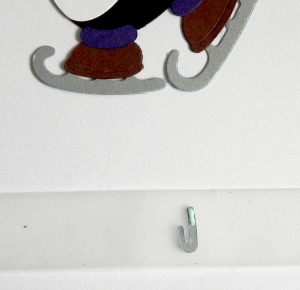
This method works especially well for tiny pieces:
040 DSCN8367   041 DSCN8368  042 DSCN8369

And here is the adorable penguin all paper pieced together:

050 DSCN8376

(He was made with the Cottage Cutz Skating Penguin die.)


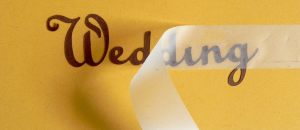
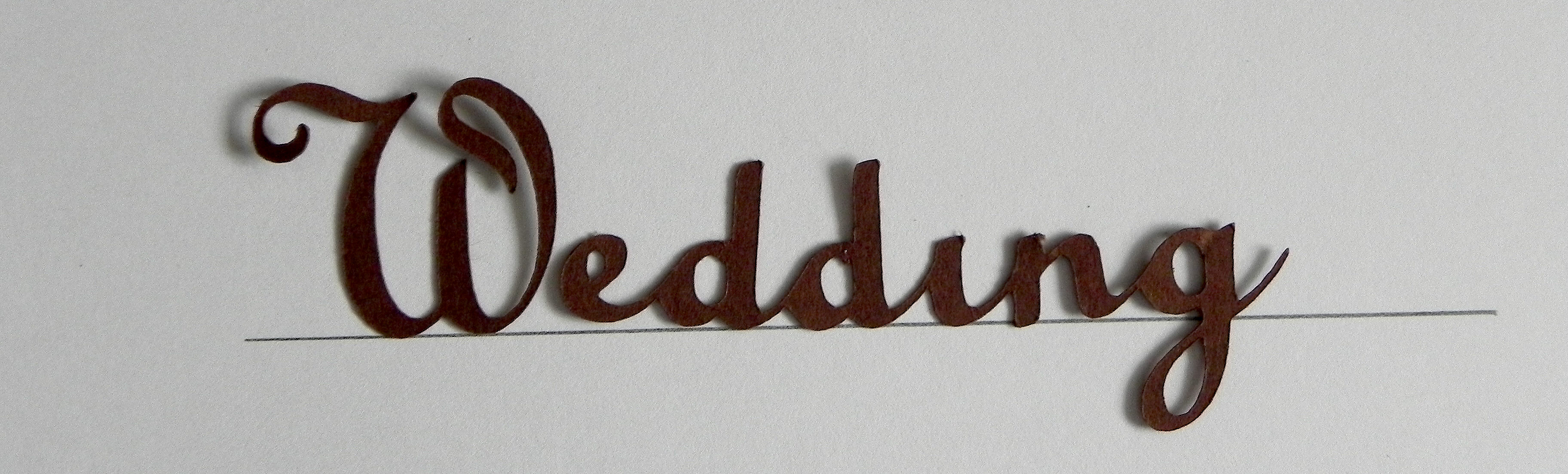
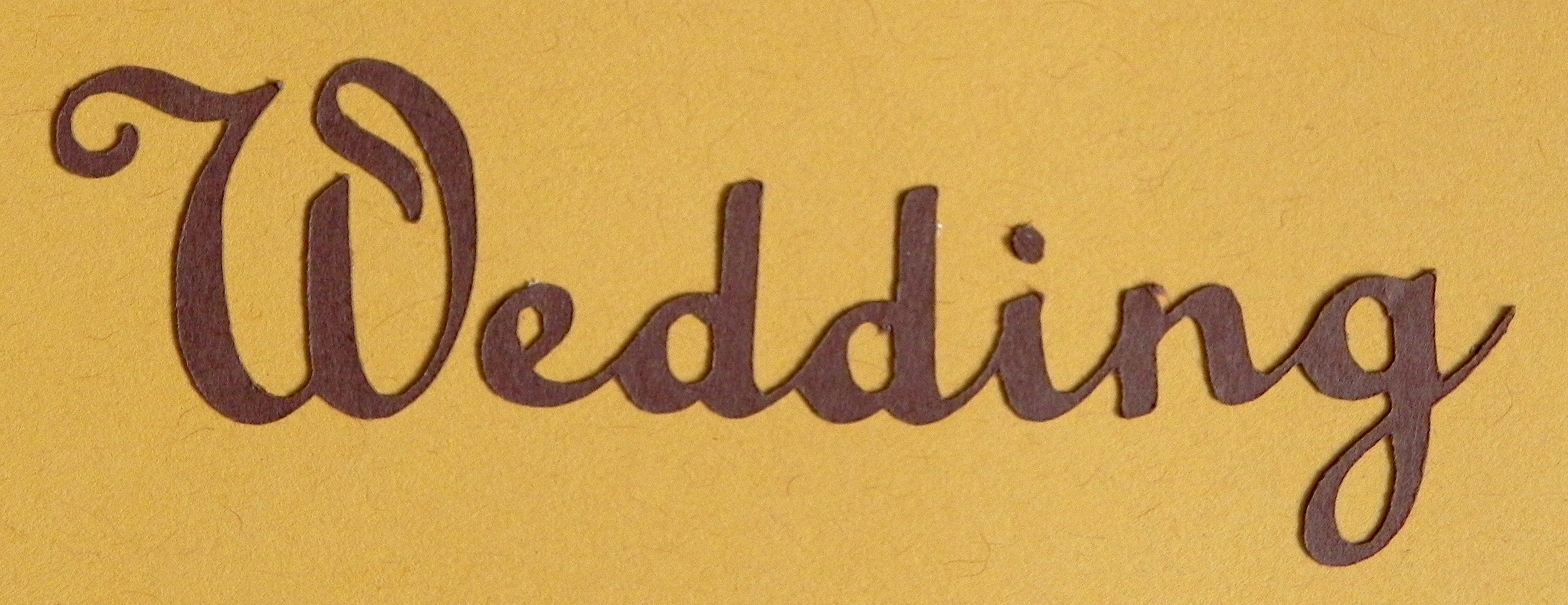
Now, let’s look at an example of something very delicate and thin like die cut lettering.  I placed part of this scrapbook page title on a scrap of paper with a line to make sure it’s straight.  For this example, the “W” was cut separately from the rest of the lettering, but it needs to be placed properly as part of the word.  (The dot over the “i” will be added last.)

060 DSCN8377

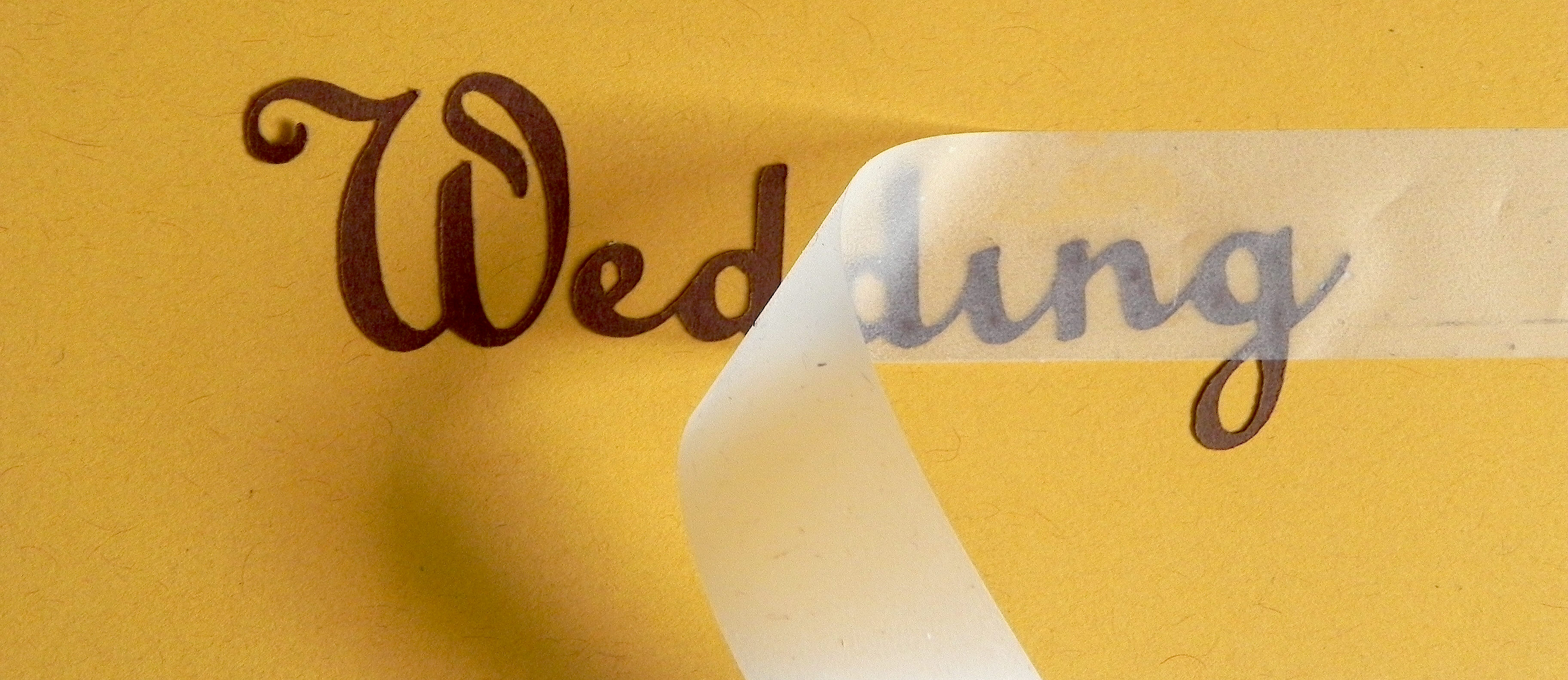
Place your piece of removable tape over the whole word.


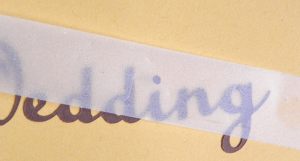
I noticed that the second “d” is a bit crooked so I straightened it out on the tape.
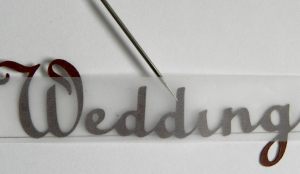
062 DSCN8379

Once you are happy with the placement on the tape, flip the tape and lettering over, and apply the glue.  These letters are extremely thin so use tiny dots of glue.
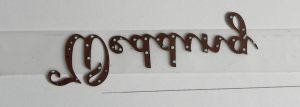
063 DSCN8383

Hold the tape on both ends, flip it right side up, and hold it over project to figure out where you want to adhere it.  Once you’ve found the perfect place, push it down and “tape” it in place.  (I’m using a scrap for my example.)
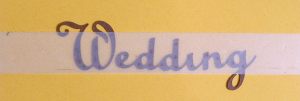
064 DSCN8384

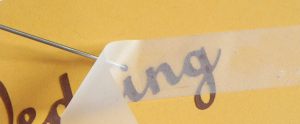
Carefully remove the tape.

065 DSCN8386

Now add the dot over the “i” in the same way.
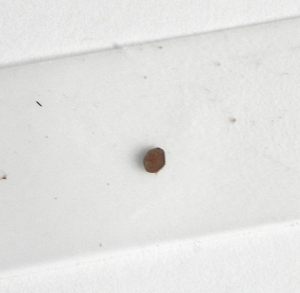
066 DSCN8387   067 DSCN8388

068 DSCN8390   069 DSCN8393

The finished project:

aDSCN7680

The flourishes and gazebo on this page were adhered using this method as well.


I personally prefer the glue pen, but…

An alternative for adding the glue to your elements is to use disposable micro brushes (with whatever glue you choose; I use the Ranger Matte Multi Medium because it doesn’t dry shiny if you get some on your project by accident. But any glue will do).  I’ve seen these brushes marketed as dental tools, beauty tools to adhere eyelash extensions, and on craft sites online.  (The craft sites tend to be more expensive.)  They come in a variety of sizes. HERE is a link on amazon for the ones similar to those pictured below.  (I have used the blue ones from Simon Says Stamp, and I just received my order for these blue ones below.  They appear to be EXACTLY the same, but I got 4 times more for the same price when the cost of shipping  is taken into account.)  Search for the best price and size that suits your needs/taste.
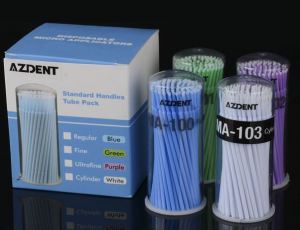
micro brushes

3 DSCN8396


In addition to using glue pens and/or glue, I sometimes use glue dots on some of the heavier, non-paper elements.


I LOVE the removable tape!

In addition to making it easy to adhere tiny pieces to my projects, I find it particularly useful when adhering multiple letters or elements that I’ve worked hard to place just the way I want them but still need to pick up to glue.  The tape keeps everything in place relative to the other pieces while the glue is added (like the “W” with the rest of the word in the example above).  I use this method a lot for titles on scrapbook pages.

I also love that you can use and re-use the tape.  I’ve done whole scrapbook layouts at a crop, stuck the piece of tape I used on the side of my tape dispenser when I was done, and used the same piece a month later at my next crop!  Eventually, it loses its stickiness as paper fibers and dust stick to the piece, but that could take a while!


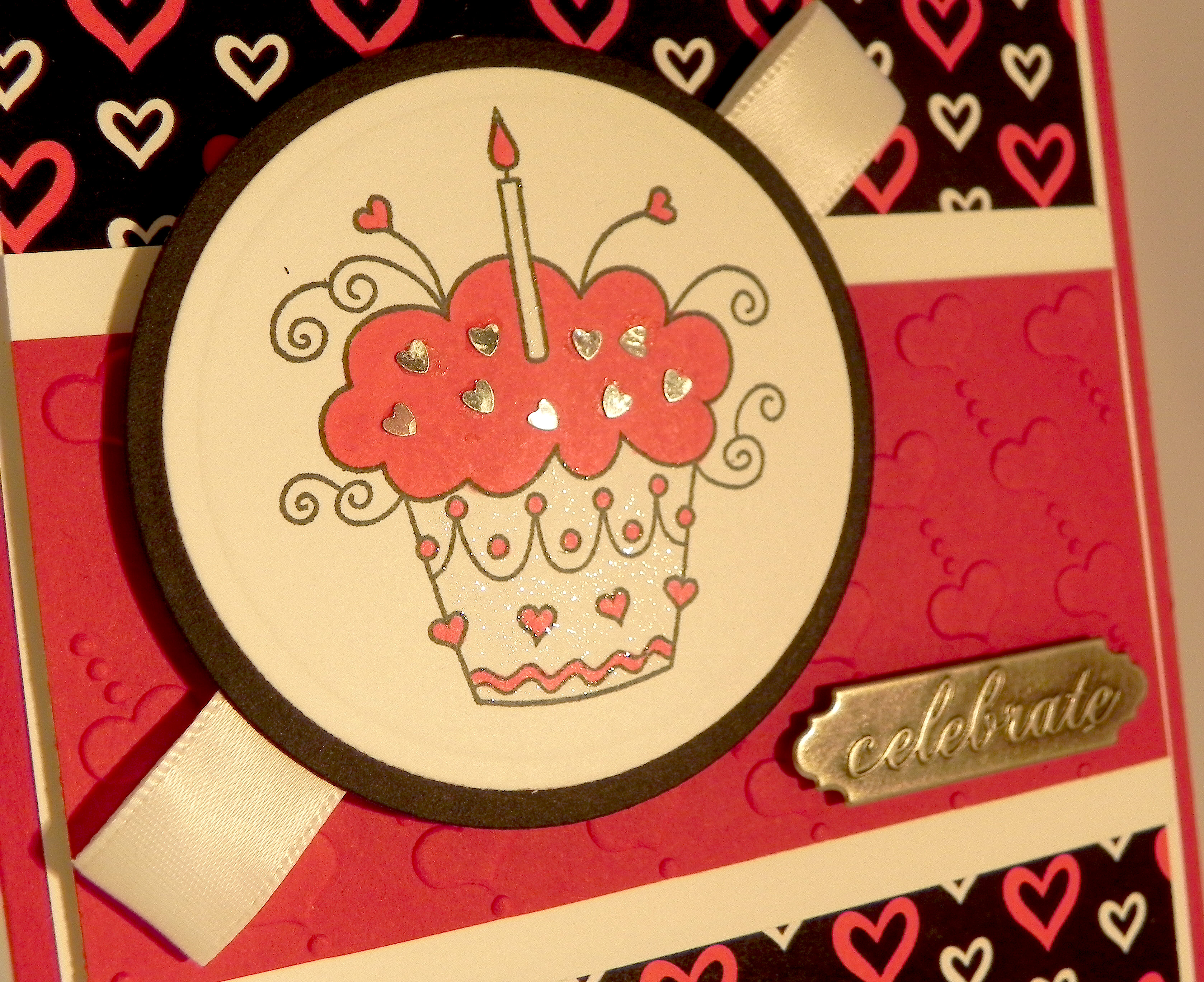
The removable tape works great with paper elements.  However, for things like sequins, gems and other tiny non-paper embellishments (like the tiny hearts on the project below), I find that the tape isn’t strong enough to hold these pieces.
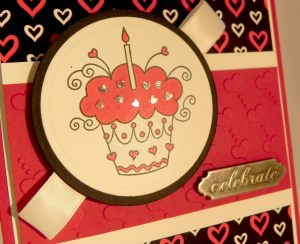
tDSCN7508

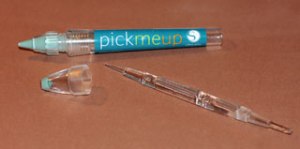
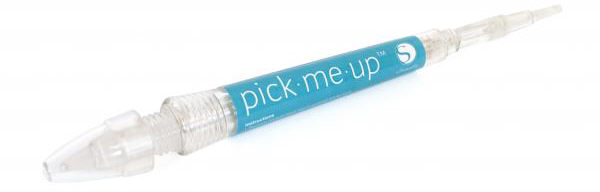
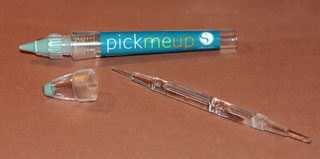
For these elements, I like the Silhouette Pick-Me-Up tool.  One end has a tacky substance on it that allows you to pick things up.  The other end has a removable tool that has two ends that allows you to push the item off the tacky end and onto the adhesive on your project or to push the item in place. (You can see this tool HERE at amazon.com.)  I found a “review” with instructions on how to use this tool online HERE that you may find helpful.
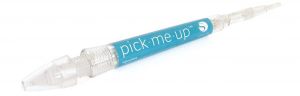
aSilhouette Pick Me Up Tool 1  Silhouette Pick Me Up Tool 2

(You can use this for paper as well; I just prefer the tape!)


One final tip:

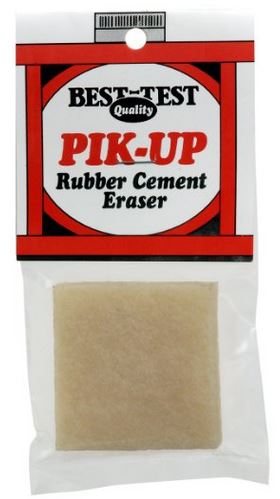
If you should happen to get glue/adhesive on your project where you don’t want it, I have found the best way to get rid of it is with a rubber cement eraser.  There are a number of brands out there; HERE is a sample of one I found on Amazon.  Just carefully “erase” the blobs away!  (I erase the excess glue right away while it’s still wet.  Just be careful not to rip the elements you’ve glued in place.  Don’t rub the eraser back and forth.  Instead, rub in one direction, lifting between each stroke.)  It works great for removing mono-adhesive, Xyron adhesive, glue dots ….. just about any adhesive that may stray!

eraser


Hope all this helps with mess-free, hassle-free sticking!!

Thanks for checking out my post!

This content uses referral links as described in the disclosure policy on my sidebar.
Copic Markers that I like for Caucasian Skin Tones

Copic Markers that I like for Caucasian Skin Tones

cDSCN8811.jpg

The question was asked on StampTV:  What Copic Markers would you use for Caucasian skin tones?  (Sadly, this site is no longer active.)

Let me start out by saying that I am NOT a Copic Marker expert!  I’m still trying to figure out skin tone combinations, too!  And I still need a lot of practice coloring and shading skin, but…

Copic offers whole classes on coloring skin and hair.  Click HERE for a link to their site.  (I took the “2014 Copic Color Along: Whimsical Faces and Hair” class taught by Cindy Lawrence, and I really enjoyed it and learned a lot!)  There are so many combinations (and variations based on how much ink you lay down) so answering the question is really tough!

Annie’s Paper Crafts has a book called Copic Coloring Guide Level 3:  People with some suggestions on coloring all types of skin tones.  (You can check out the book HERE on amazon.com.)  These are some of their suggestions for Caucasion skin tones:  The E0 family is peachy or pinkish and good for children, pale Caucasian or sunburned skin.  The E2 family is more brown or gold and good for tanned Caucasian skin.  And the E3 family is reddish and is also good for Caucasian skin (and several other types).  Having said that, blending from different groups often gives the best results!  You really just need to pick a few to blend and see what you like.  Try comparing your ink colors to a photo with a skin tone you are trying to duplicate.  Here is a link to the Copic Color Chart, but the colors on the computer may not be accurate!  The best thing to do is to create your own color chart with the actual pens.

Take the age of your subject into account when choosing colors as skin changes as one ages.  Young (Caucasian) skin often has peach or pinkish tones.  Young Adult skin tends to become more golden brown with more distinct shadows.  Older adult skin is different still.  It often has yellow undertones, more shadows with deep wrinkles and creases, and may appear more blotchy.

In addition to choosing the markers, one also needs to have an idea of how to shade the image for a more realistic look.  (This is the hardest part for me!!)  The book I mentioned above deals with this as did the instructor in the class I took.

I’m not sure how these will show up on your computer (they are a little more peach and a little less blotchy in real life than what I am seeing on my screen!), but here are a few of MY favorite combinations on samples that I colored:

ppp skin sample 1

(E000, E01, E31, E25)

 cc skin sample 2a

(E50, E21, E13)

cDSCN8811

(E000, E01, E35, E93)

 As I said, I am not an expert and still need a lot of practice, but these are a few of the combinations I tried and liked.

(The above card called “Let’s Have Pie!” was originally posted in my StampTV Gallery.  Sadly, this site is no longer active.)

Thanks for checking out my post.

This content uses referral links as described in the disclosure policy on my sidebar.
Bow Making Tutorial

Bow Making Tutorial

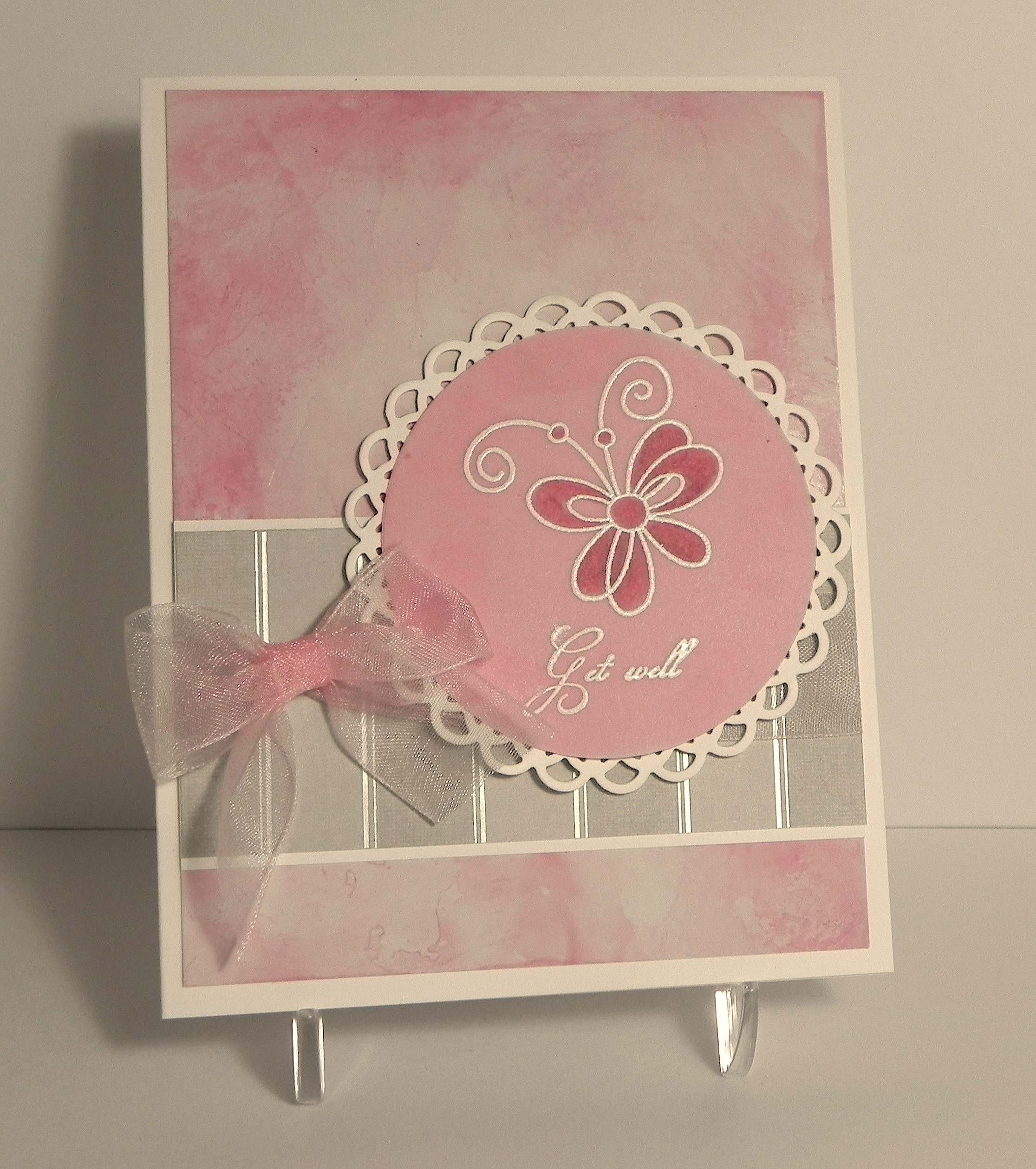
Pink Get Well - Sketch

 (Click HERE to see original card post.)

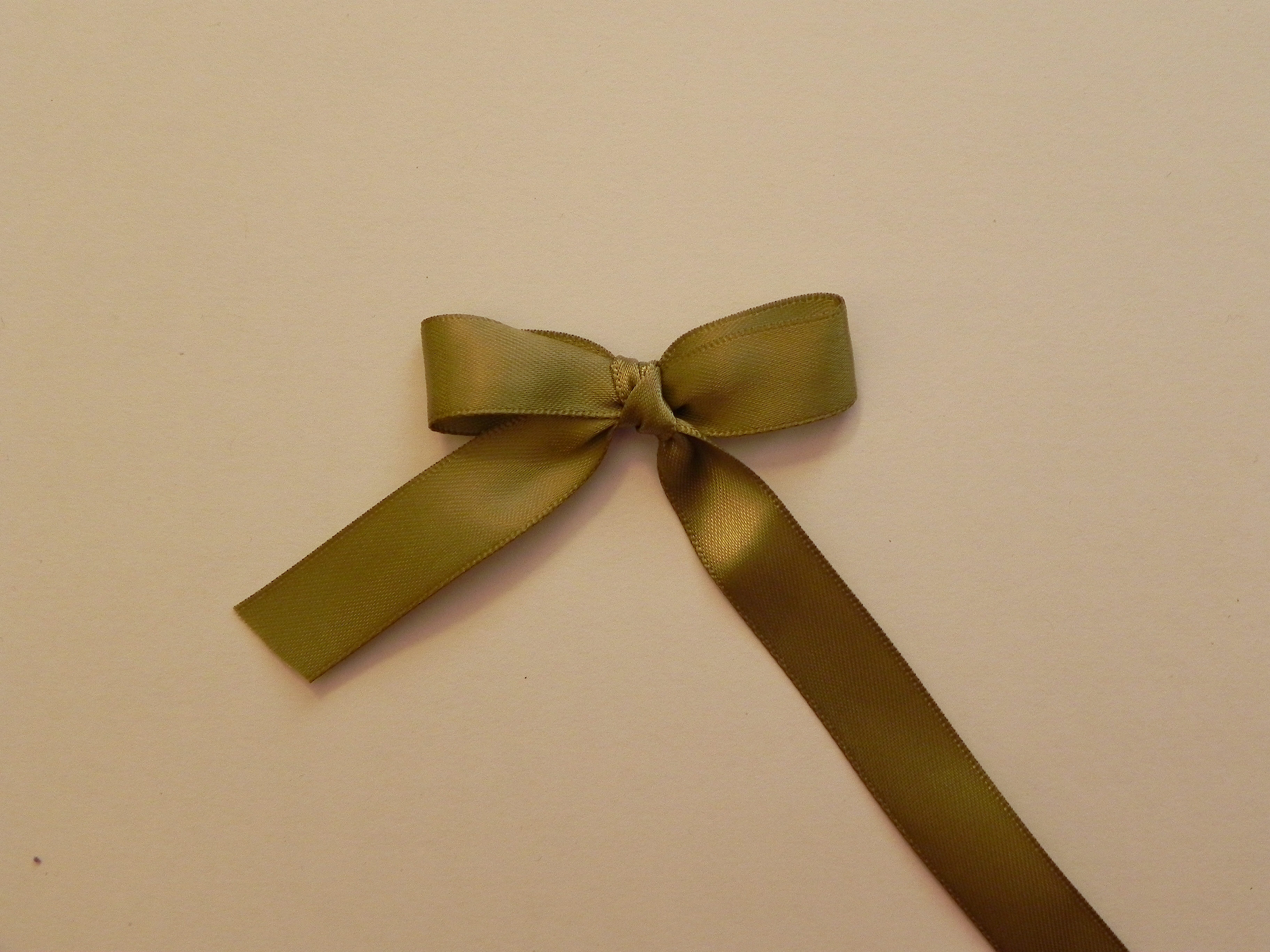
Making the “perfect bow” for your project is easy to do, and you don’t even need fancy tools to do it! While there is a variety of bow makers on the market, I’m going to show you how to make a beautiful bow using something I am sure you have plenty of in your home – cardboard or chipboard.

First, you need to make your tool:

For my demonstration, I used a scrap of a pasta box.  Any piece of sturdy cardboard or chipboard will do.
00000001 aDSCN0825


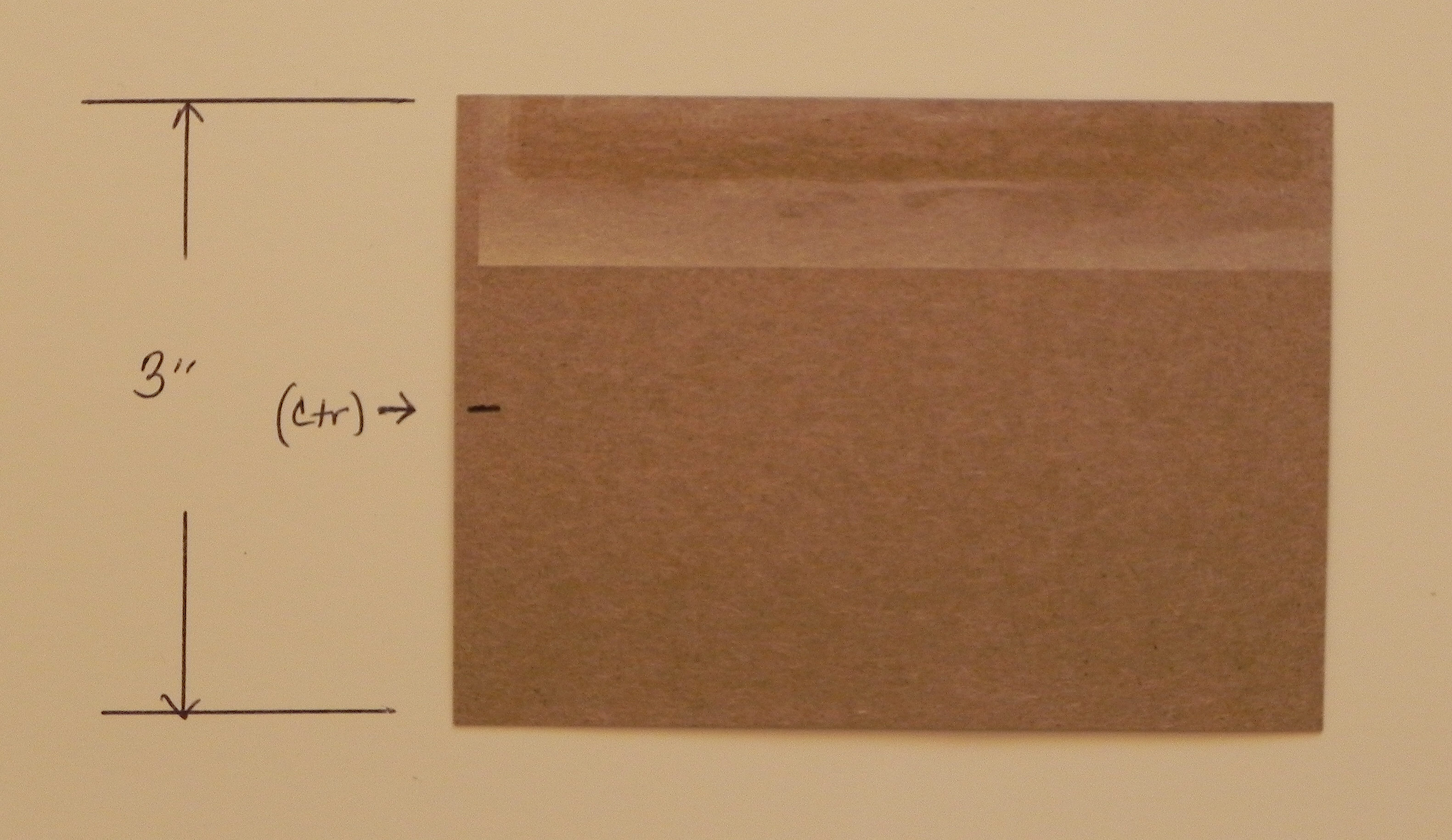
I trimmed the chipboard to 3 inches wide since I wanted to make a bow that was 3 inches wide.  (If you wanted to make a 2 inch bow, trim your chipboard to 2 inches, etc.)  It doesn’t really matter how long it is; it just needs to be big enough to hold it and work with it as you will see below.

0000001 aDSCN0831


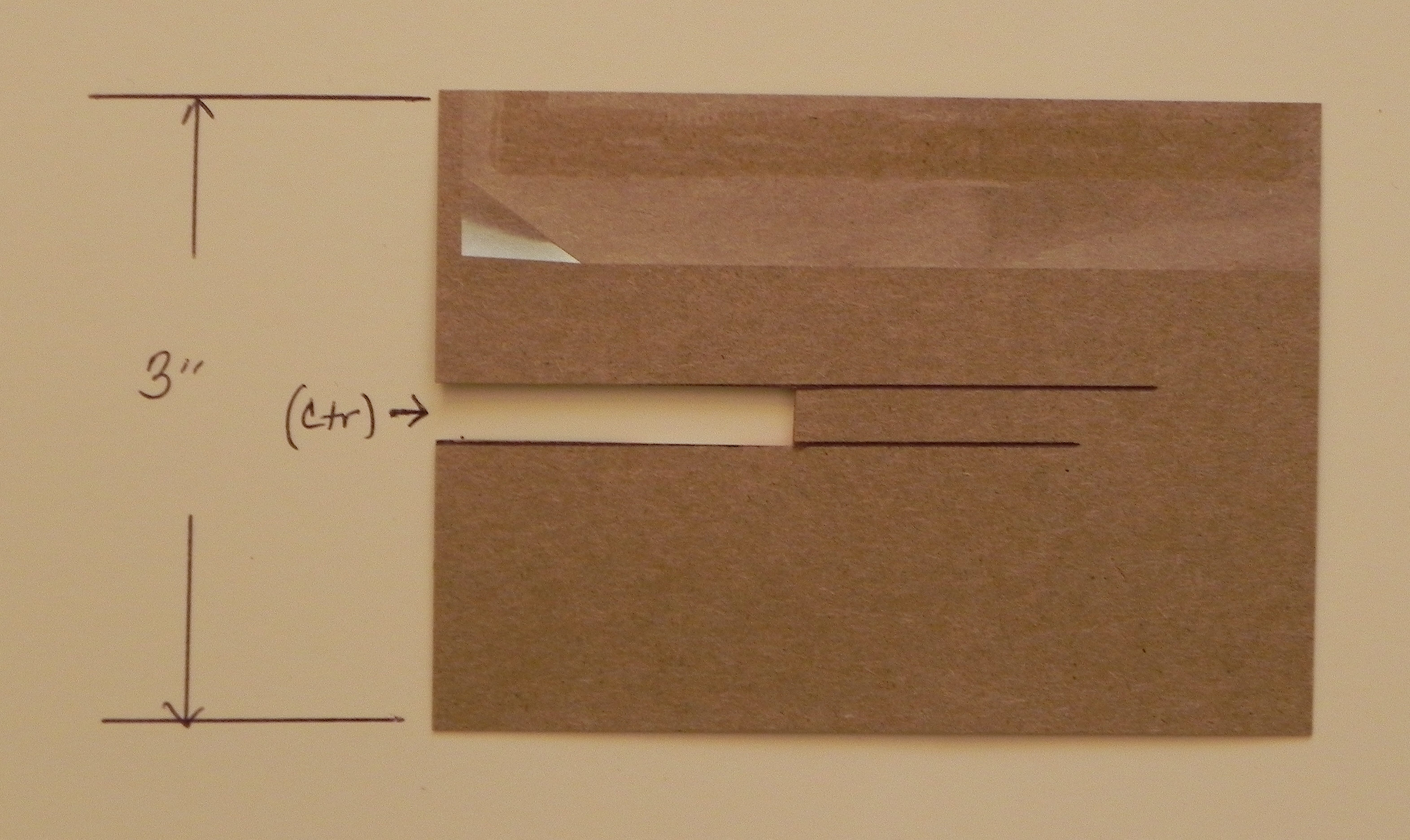
Find the center, and cut a slit about a quarter inch wide and longer than the width of your ribbon.  (I find it much easier to work with the tool when this slit is long – the longer the better!)

000001 aDSCN0832  00001 aDSCN0833

0001 aDSCN0834


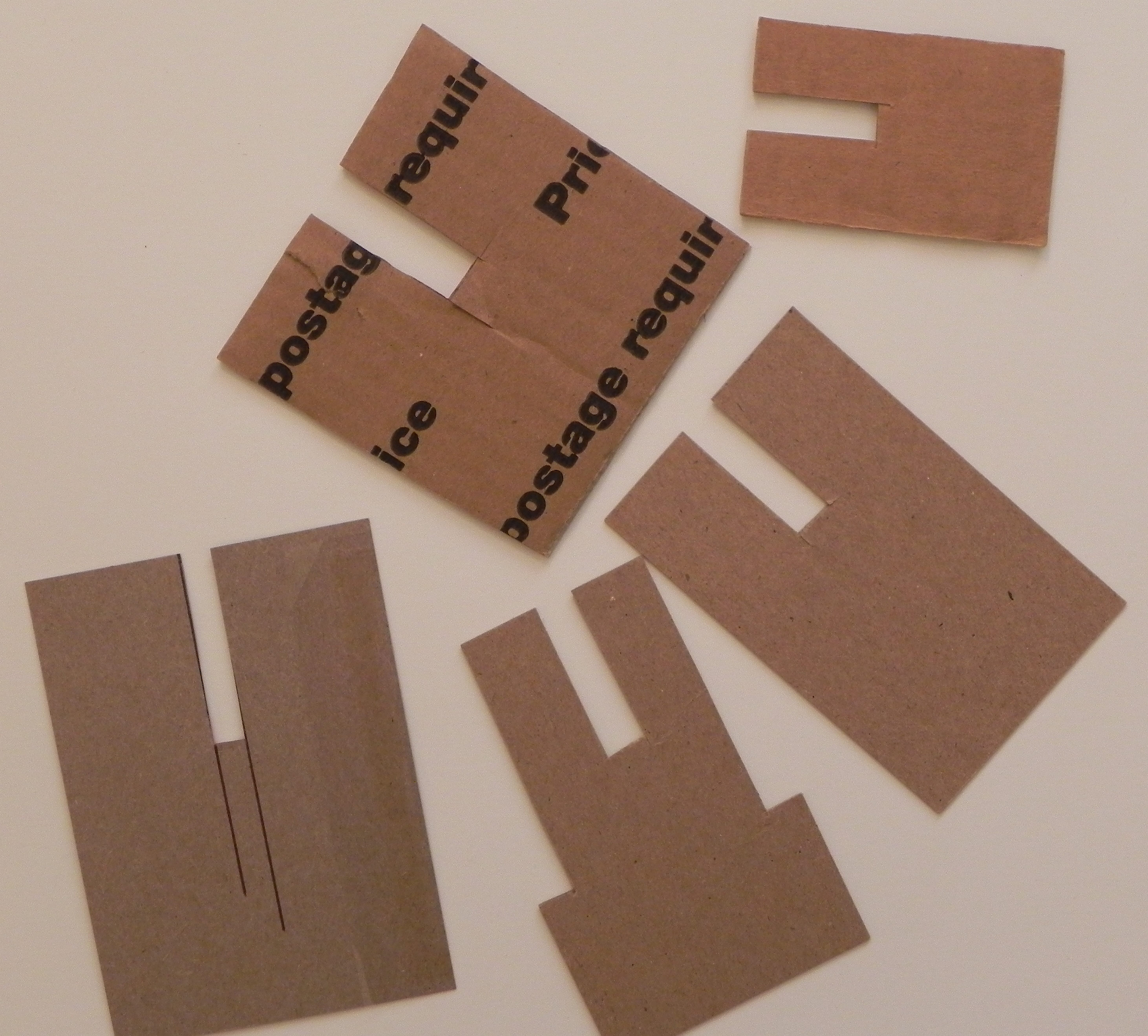
That’s it!  You have a bow making tool.  You can make a number of them in different sizes to have on hand, or you can make them as you need them!

001 aDSCN0835


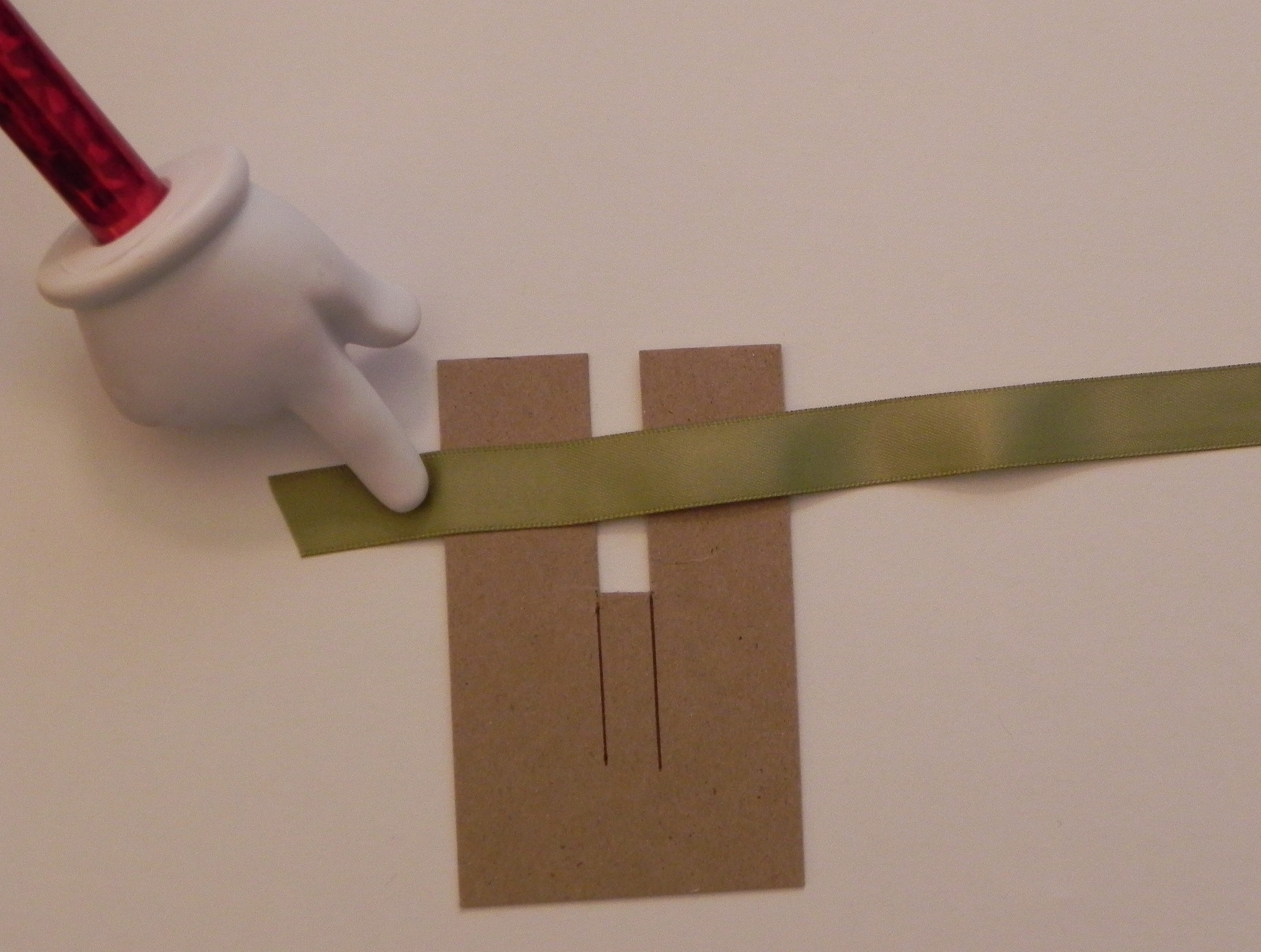
Here is your tool in action!  (Pictured below is a double looped bow.)

aDSCN0840  aDSCN0841


And here is how you use the tool to make a bow:

(For purposes of this tutorial, I made my bow with the tool and ribbon on the table so you could see each step without my hands in the way.  It is much easier to hold the tool and ribbon while you work. I’m right handed, so I start with my ribbon on the left and hold the ribbon in place against the tool with my left hand.  My right hand does all the moving and looping.)

1.  Start with one end of the ribbon, and place it on the left side of the tool.  This end will not really move at all while you create your bow.

010 DSCN8047


2.  Working with the other end of the ribbon from this point forward, wrap it around the tool over the front and to the right and bringing it around the back and to the left.

020 DSCN8049


3.   Then bring it back to the front (toward the right side).

030 DSCN8052

(To make the double bow pictured above, wrap ribbon around a second time – ending up in the same place pictured above – before moving on to next step.)


4.  See the opening at the bottom of the slit?

040 DSCN8054


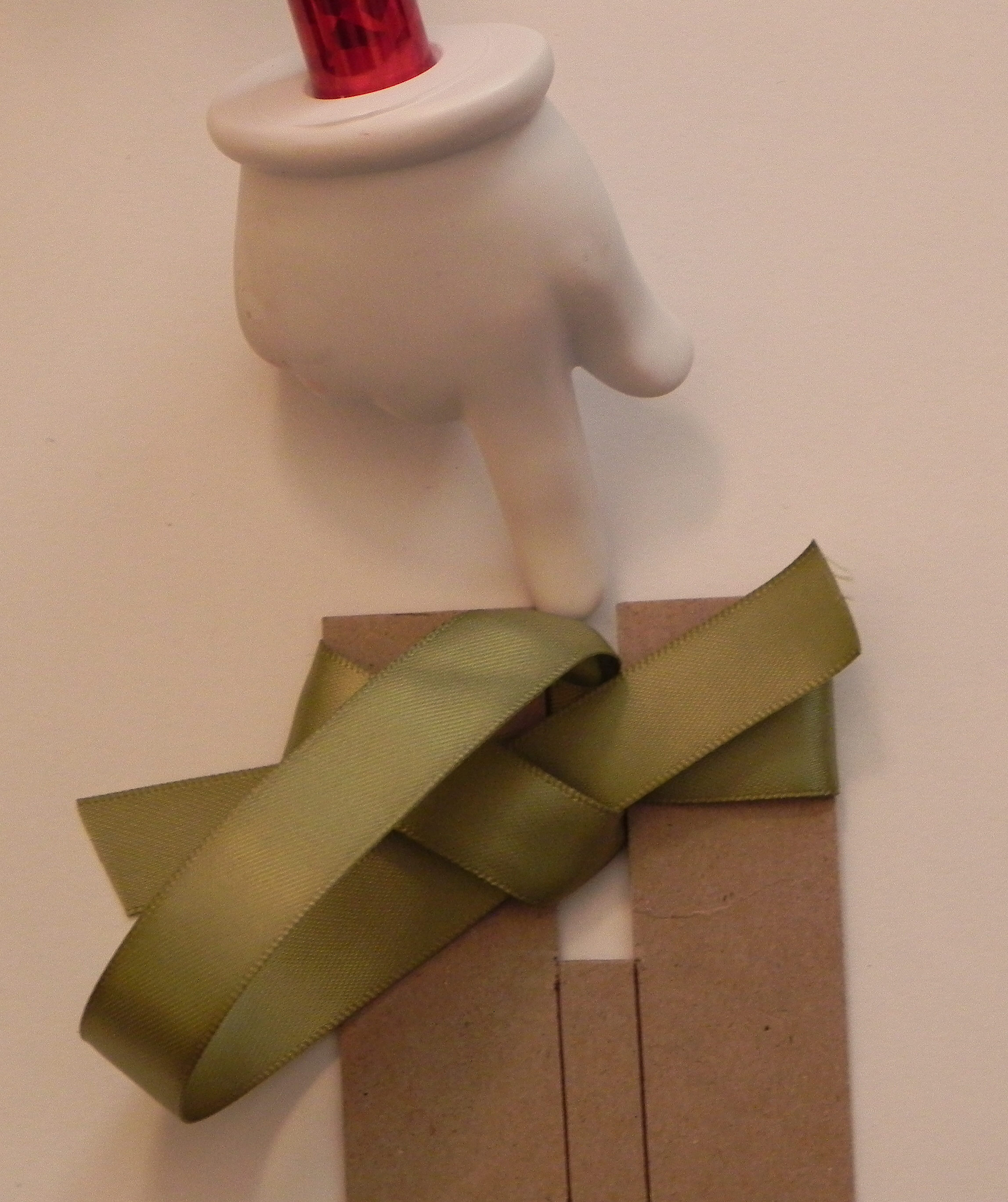
5.  Take the end of the side you’ve been wrapping, and insert it in the slit, below your wrapped ribbon.

030 DSCN8052  050 DSCN8055


6.  With the ribbon still behind the tool, bring it straight up so it lines up with the slit.

060 DSCN8058


7.  See this loop here?

070 DSCN8062


8.   Hold this loop down on left.

075 DSCN8065


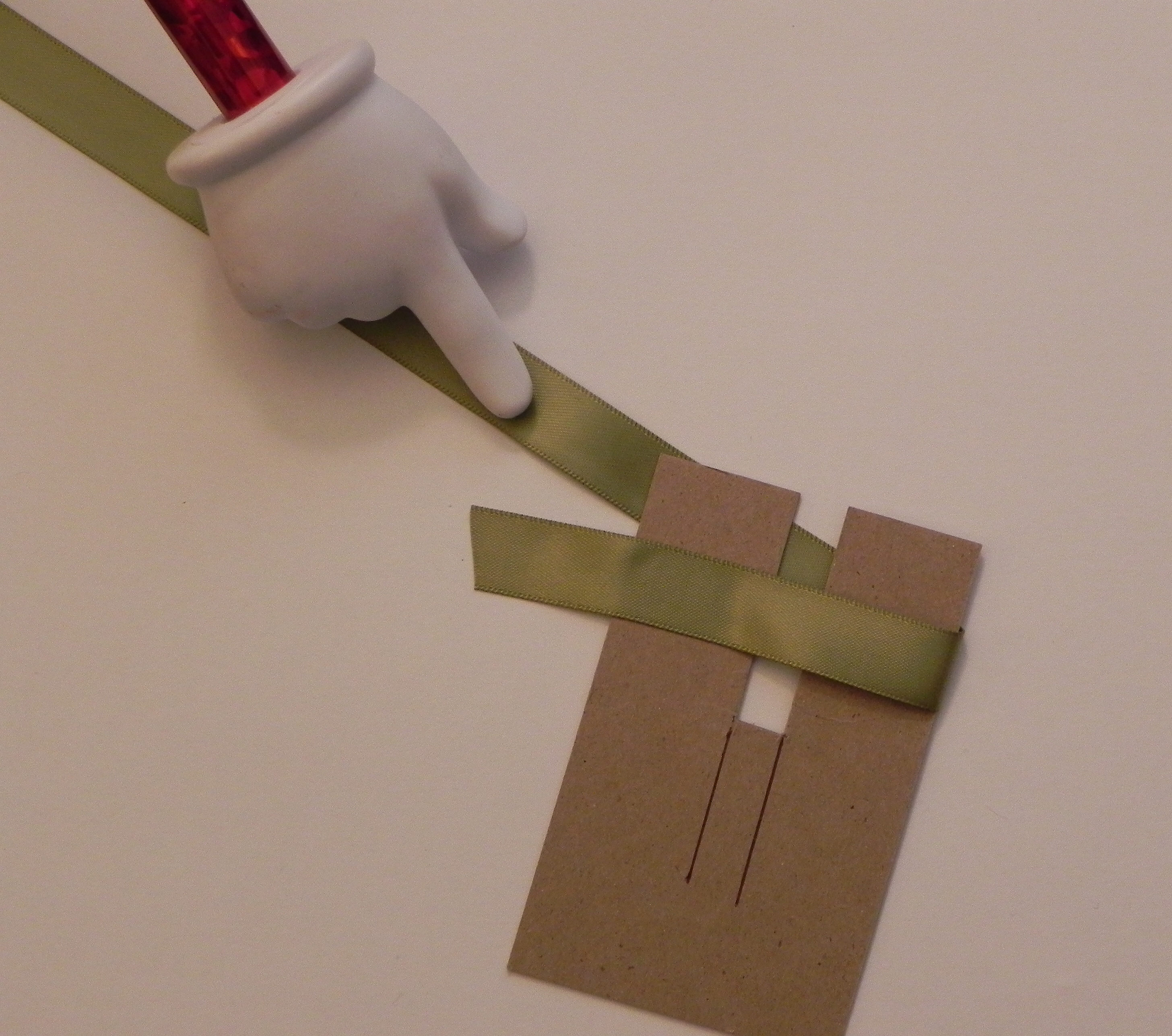
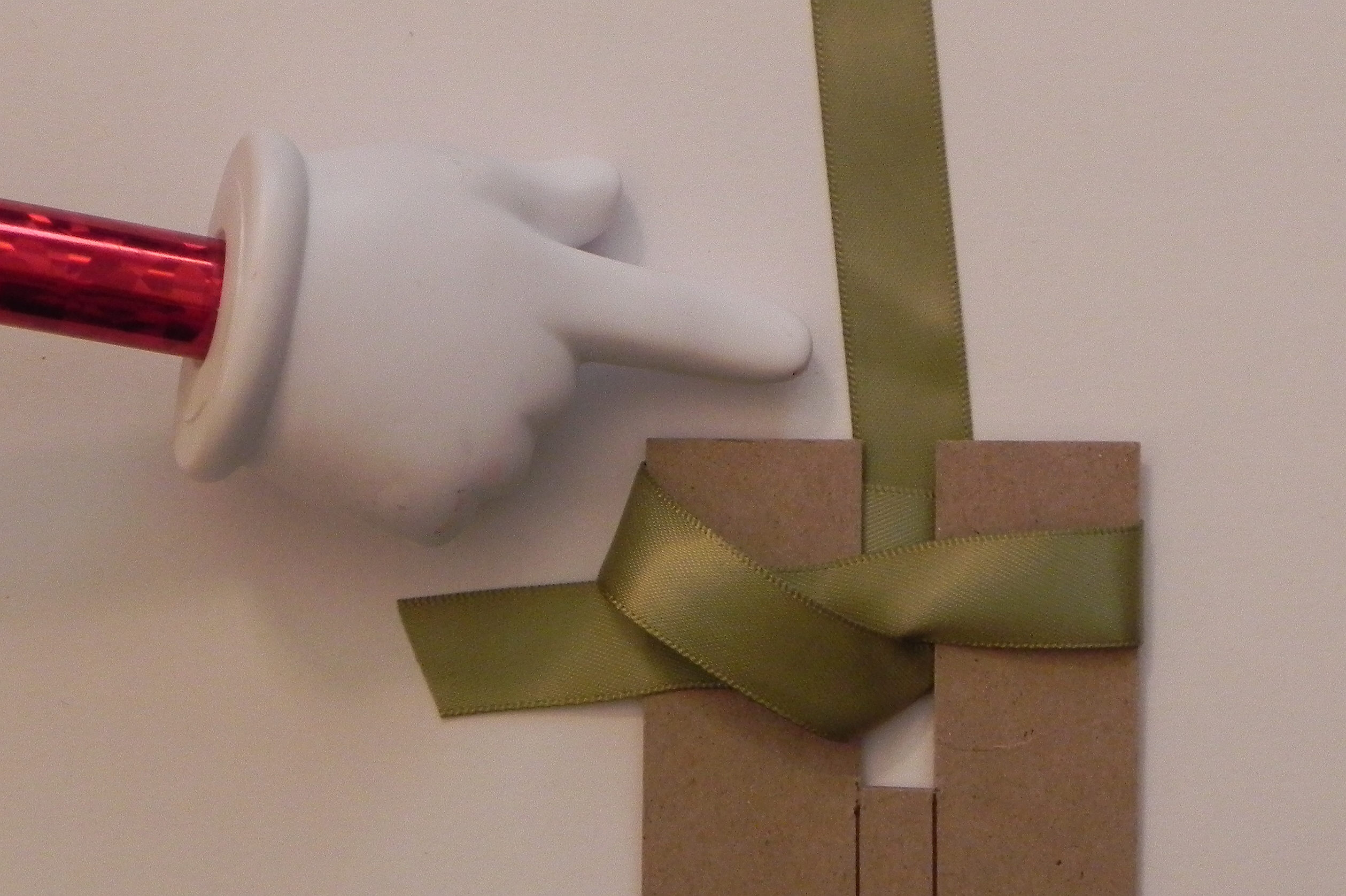
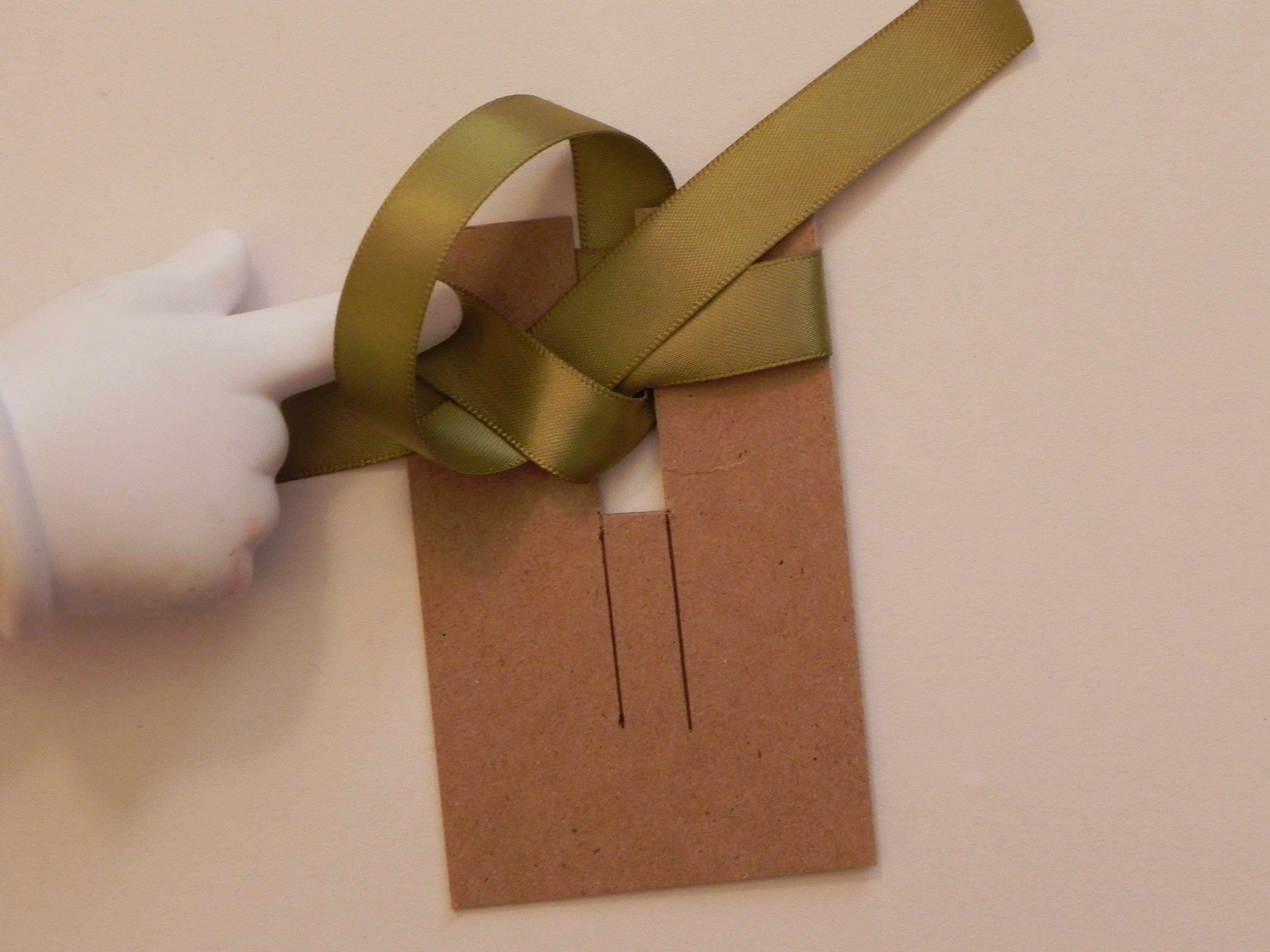
9.  (Here’s where it gets a little tricky to explain!!)  Bring the ribbon forward, and feed the end under the loop you are holding (from bottom/left side to top/right side) and staying to the right of the top loop by the slit.

 080 DSCN8068

 Important:  Make sure you pull through in this direction:

  090 DSCN8073


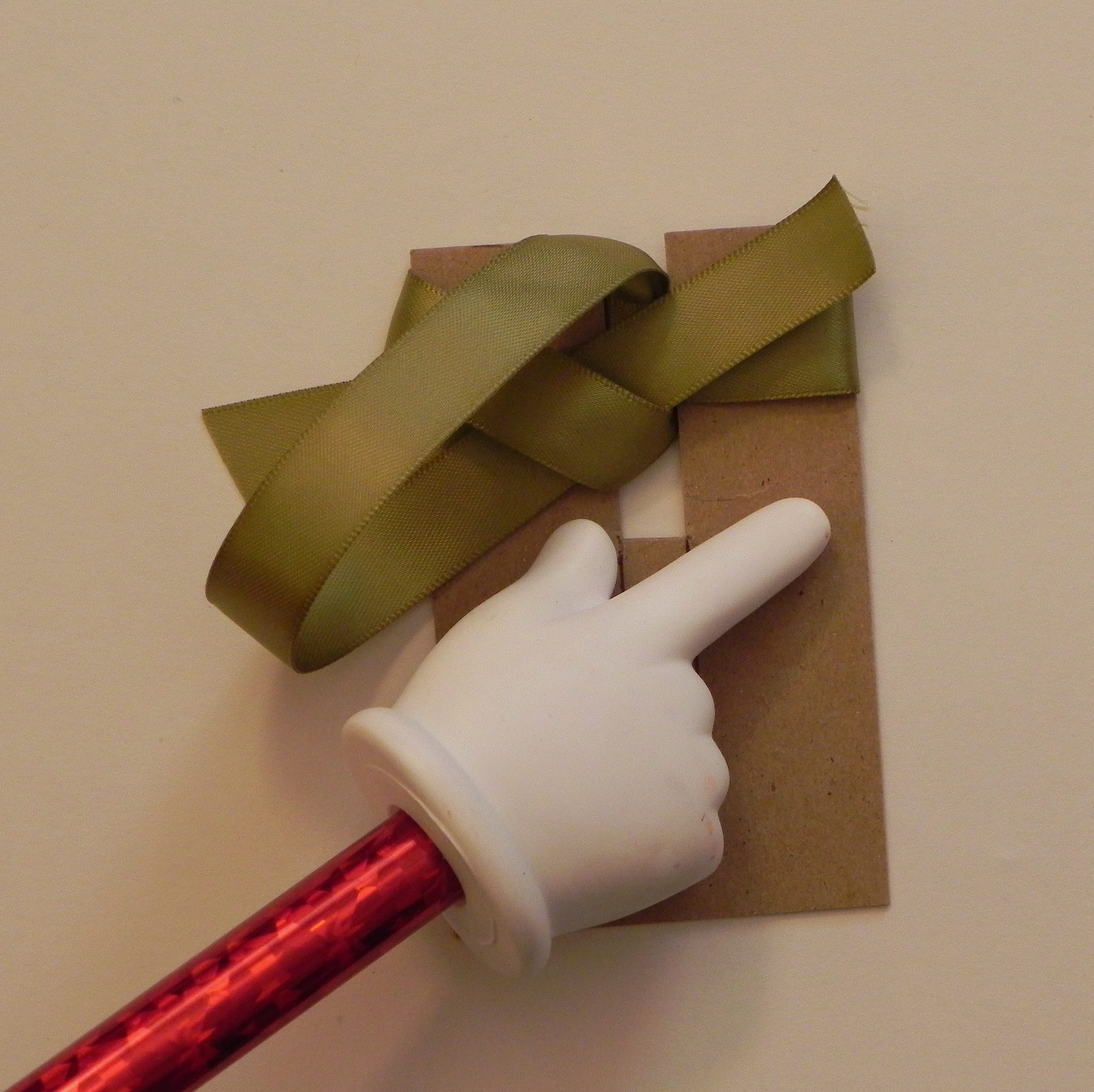
10.  Make sure the ribbon stays in the slit from this point forward.

085 DSCN8071


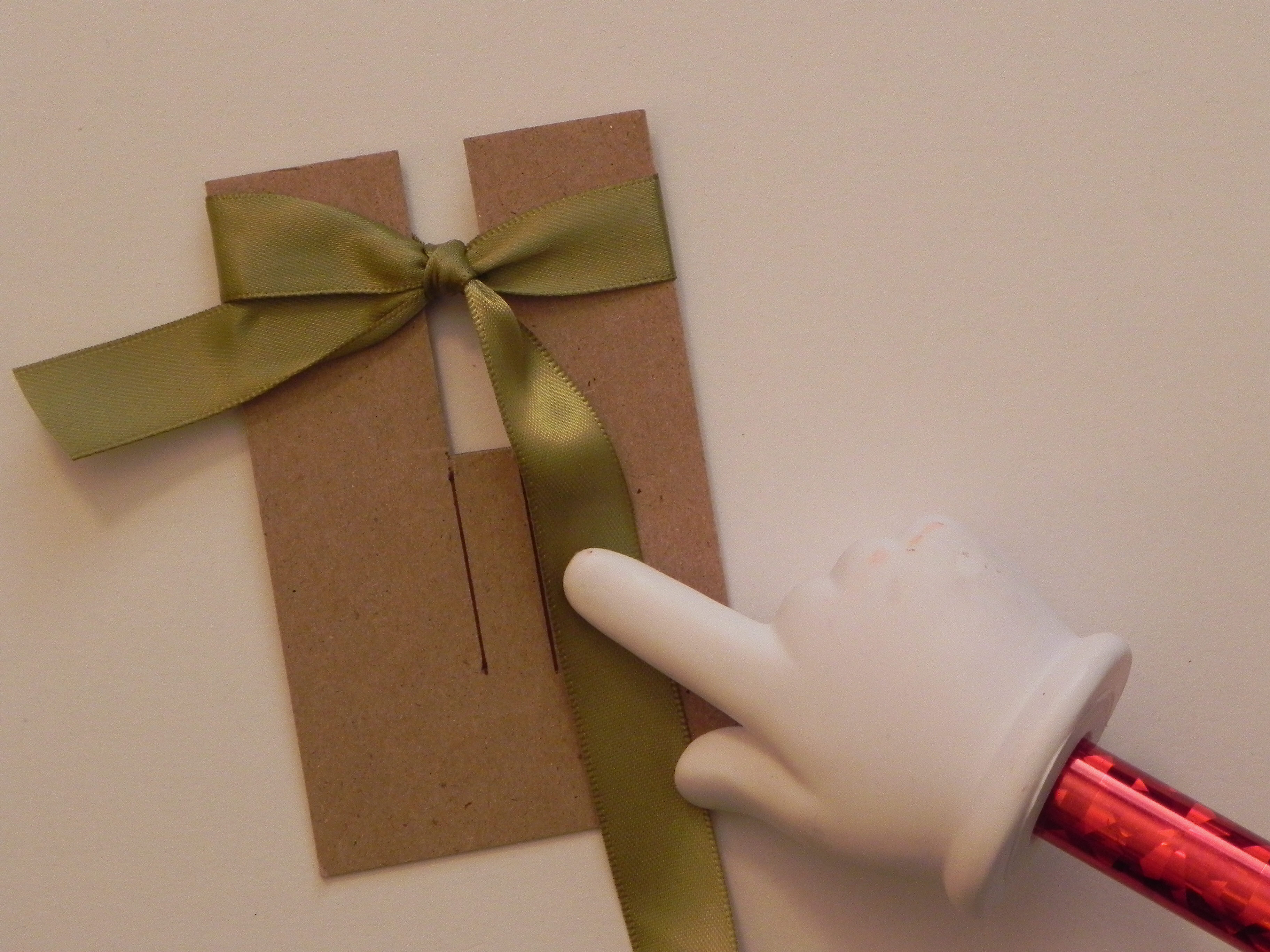
11.  Pull the end of the ribbon you’ve been working with tight.  The best way to do this is to pull it straight up toward you, perpendicular to the tool.  When you are done, the photo below shows what it should look like.  This is the back of the bow.

095 DSCN8075  105 DSCN8078


12.  If you turn the tool over, you will see the front of your bow.  Make any adjustments to the bow (making tighter or looser, straightening out the ends or bow center, etc.) while the bow is still on the tool.

110 DSCN8080


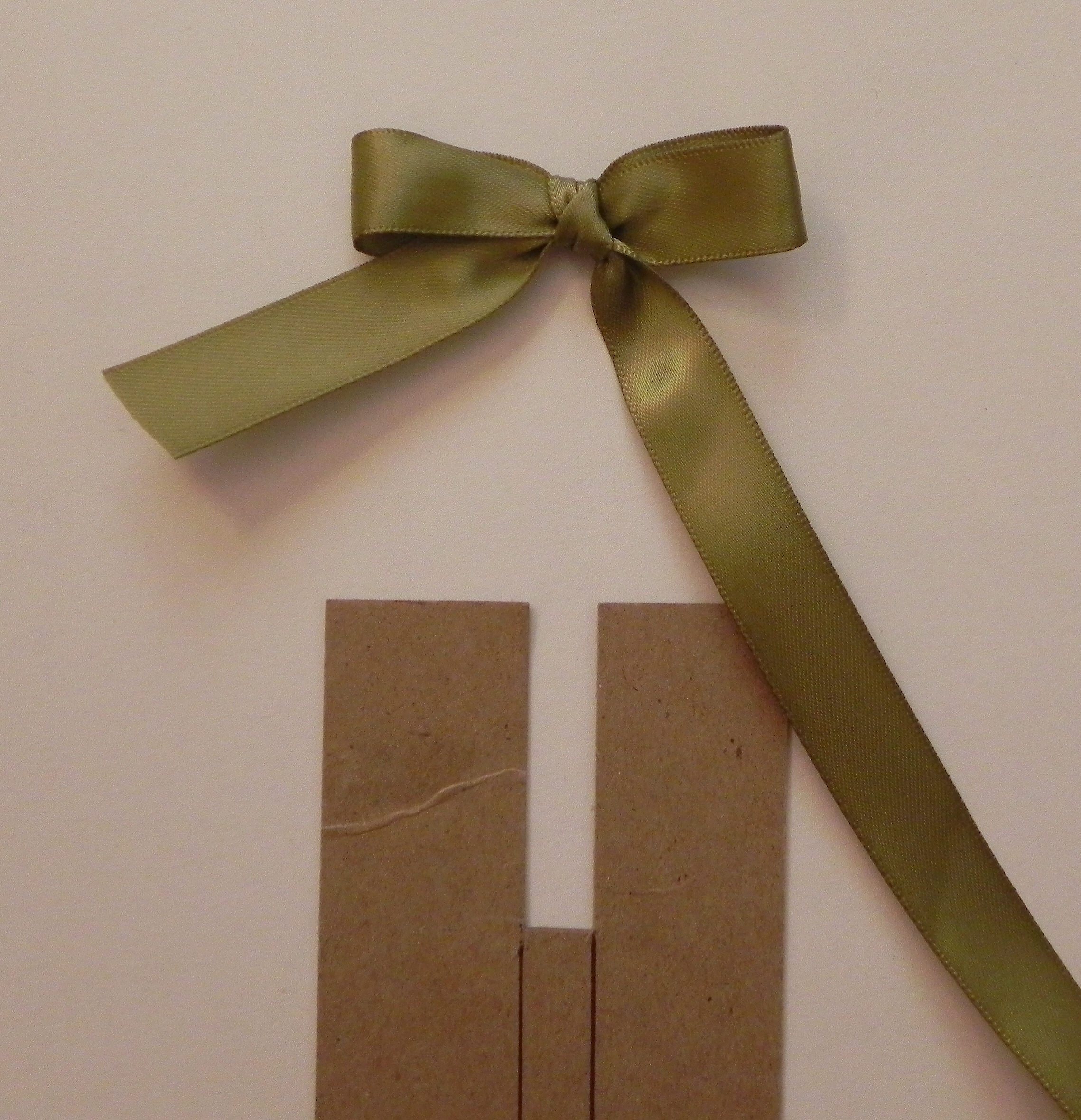
13.  Once you have everything the way you want it, slide the bow up and off the tool.

120 DSCN8091


Here’s the back:

130 DSCN8084

&

Here’s the front:

140 DSCN8086


Thanks for checking out my tutorial on how to make a bow making tool and on how to use it!