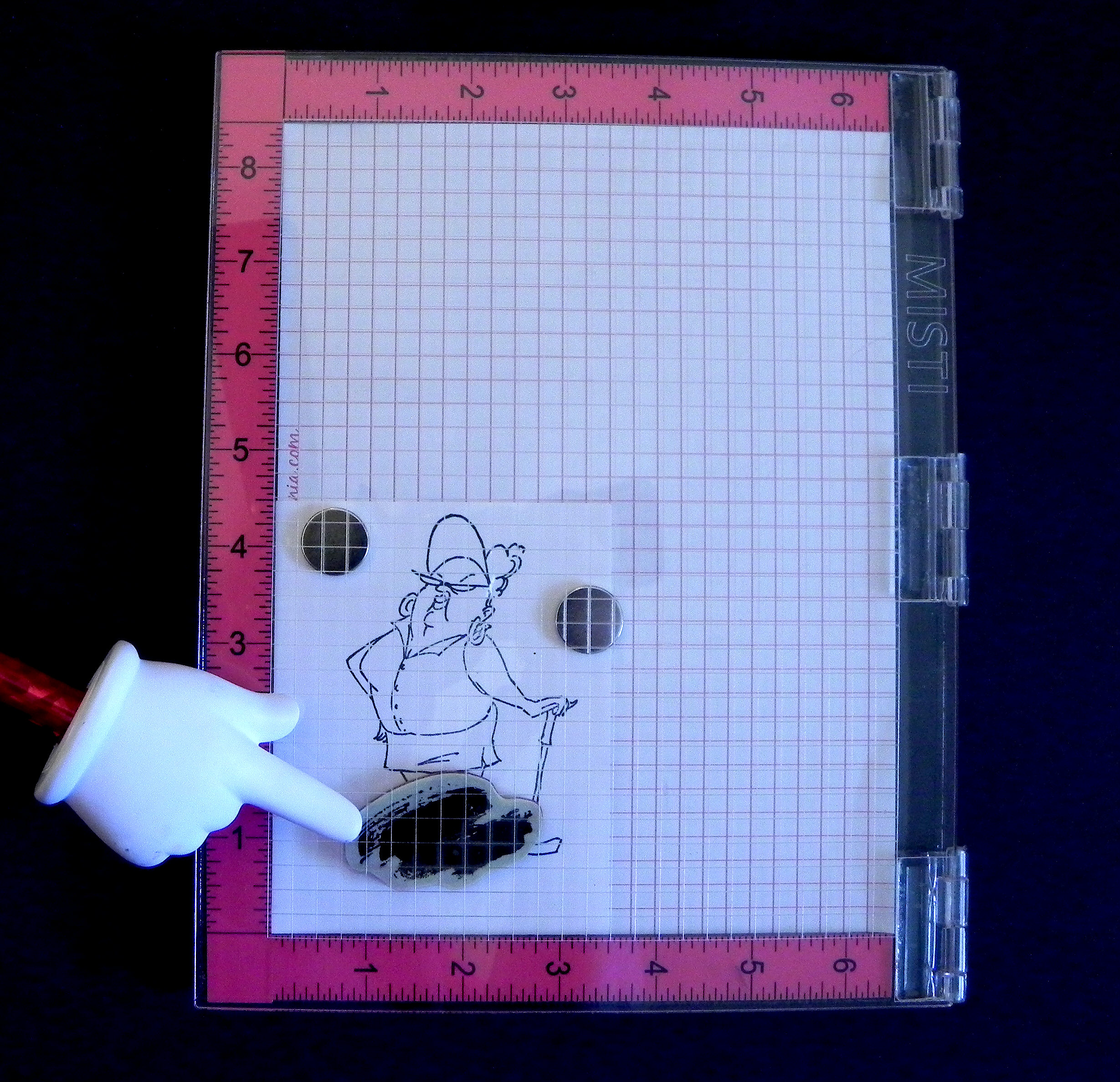
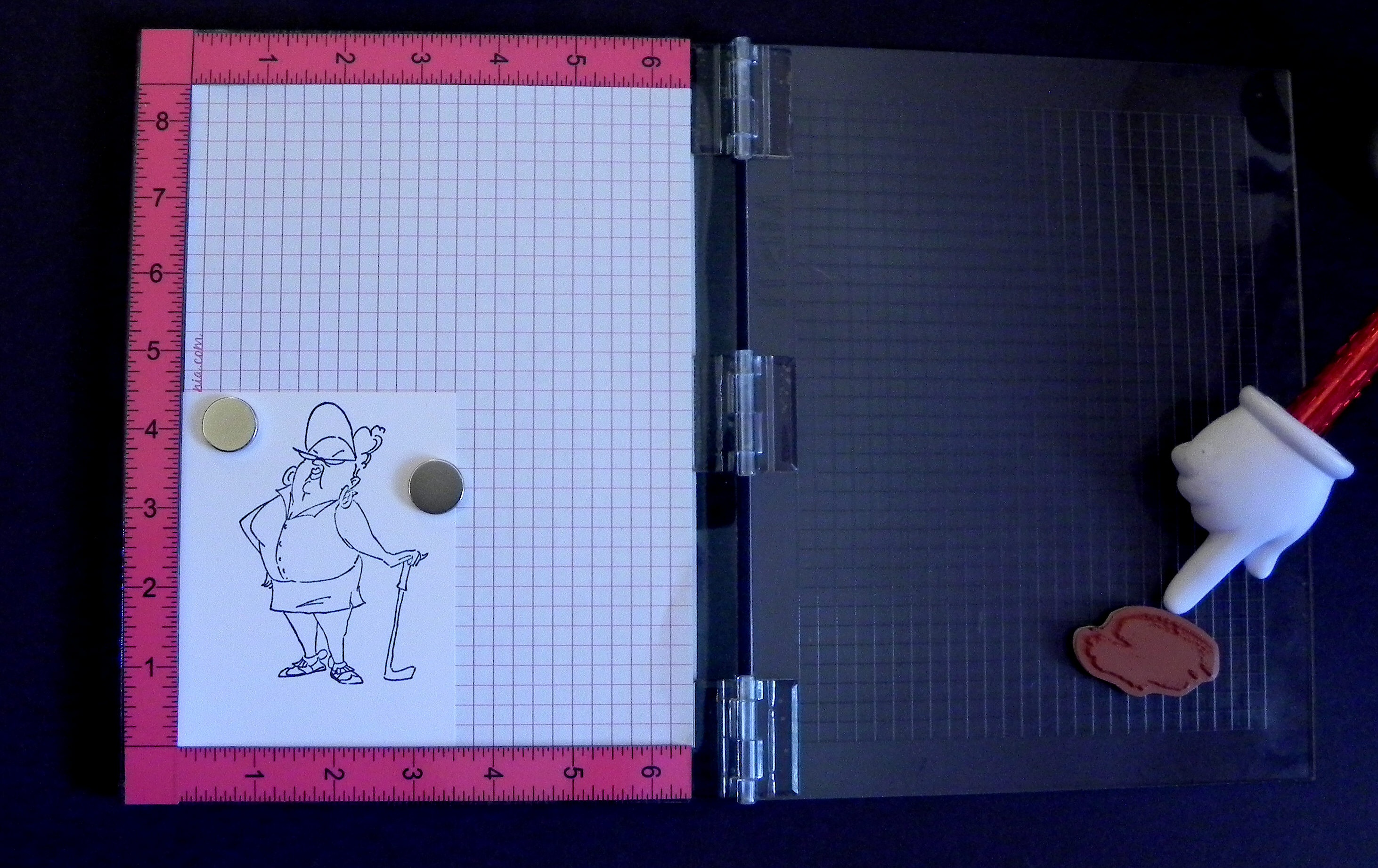
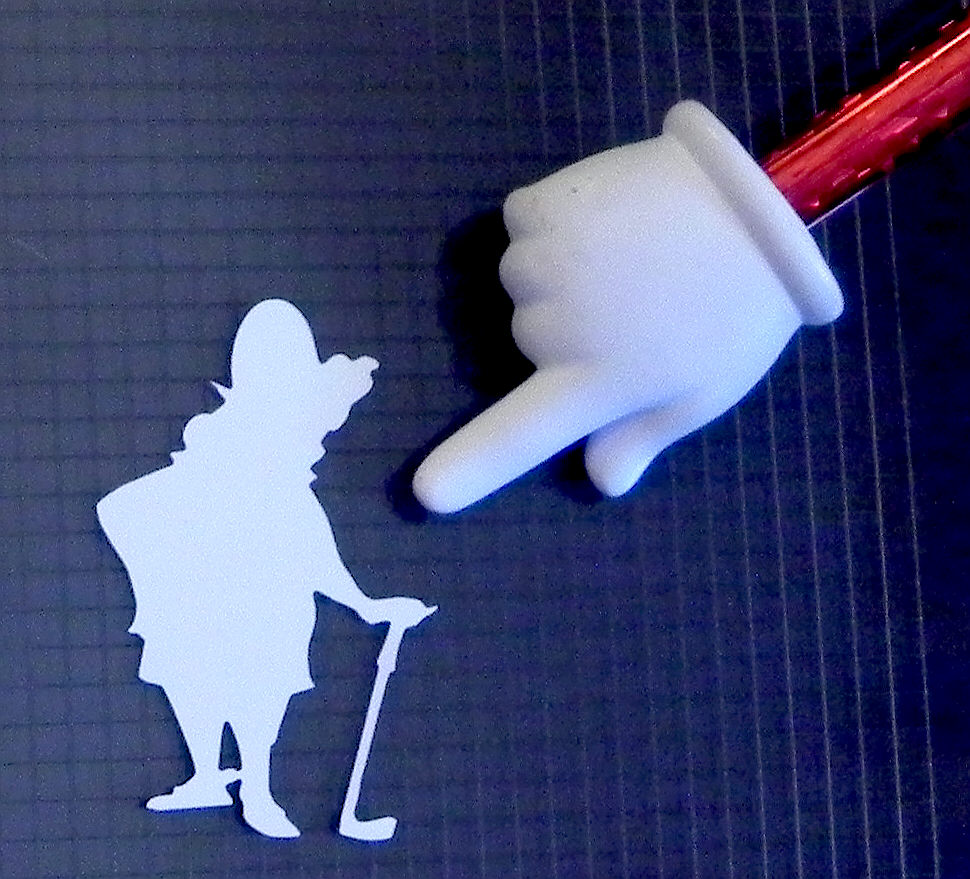
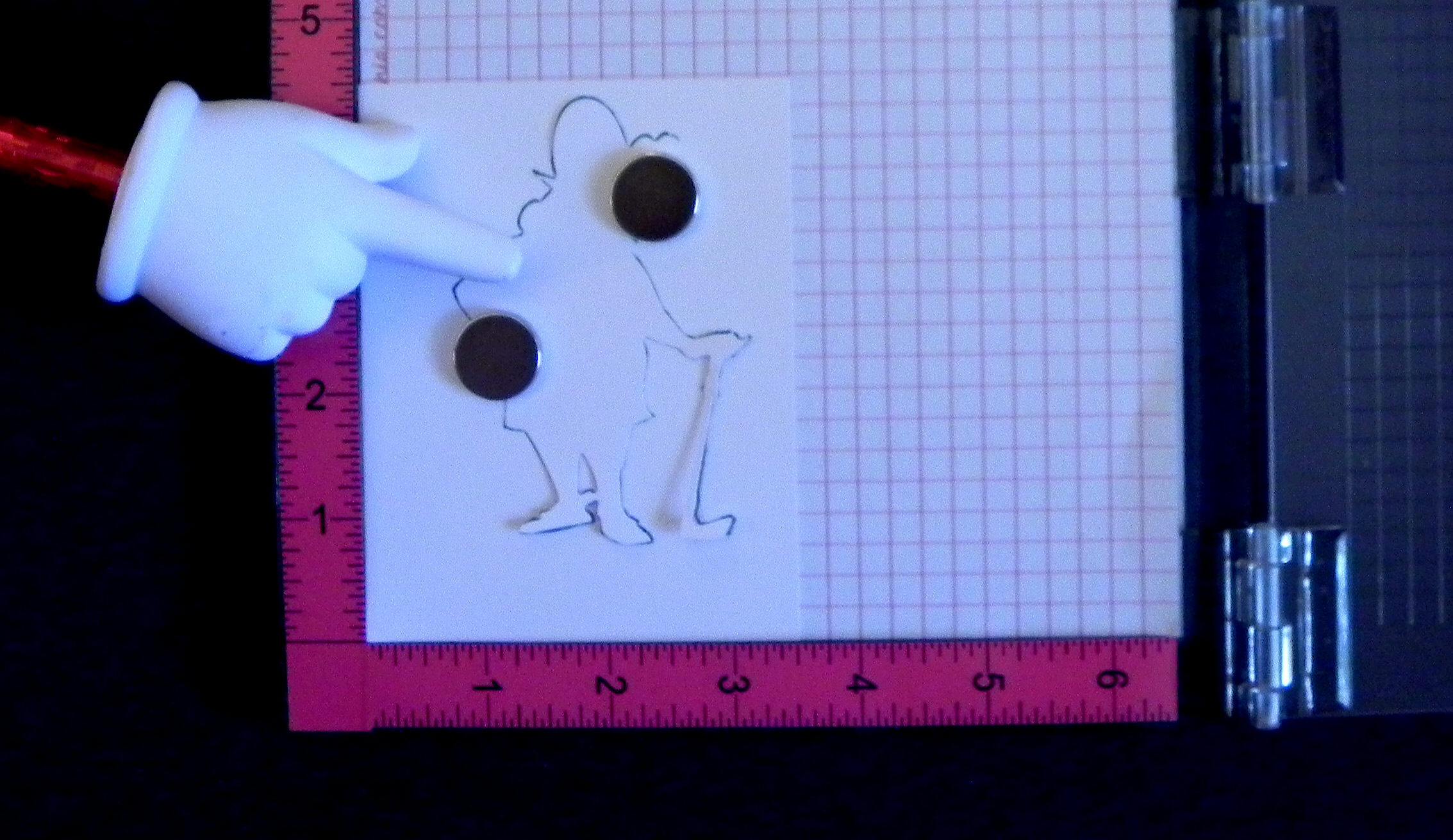
How to Make Silhouette Die Cuts for Your Stamped Images – Part II, Borderless

How to Make Silhouette Die Cuts for Your Stamped Images – Part II (Borderless)
wwDSCN7785

In my last tutorial called How to Make Silhouette Die Cuts for Your Stamped Images, I explained how I make die cuts with small borders around my stamped images using my Silhouette electronic die cutting machine and the “trace” and “offset” features in the Silhouette software.  (I use the Designer Edition.) Sometimes, it is necessary/desirable to create a die cut where the lines of the stamped image go right to the edge of the die cut, with no border.  This is a follow-up tutorial explaining how I create this type of die cut.

The explanation below is a bit lengthy.  Before going into the step-by-step,  I’ll give you the quick summary:

  1. trace the image
  2. create a solid offset
  3. create an internal offset which goes back to the original size of the image
  4. clean up the file, if needed, to match the image more closely

If you want a more detailed explanation, keep reading!


Click on the photos that I included in the steps below if you wish to enlarge them.

(The first 4 steps are the same as in the last tutorial, so refer back to that if you need more details on these steps.)

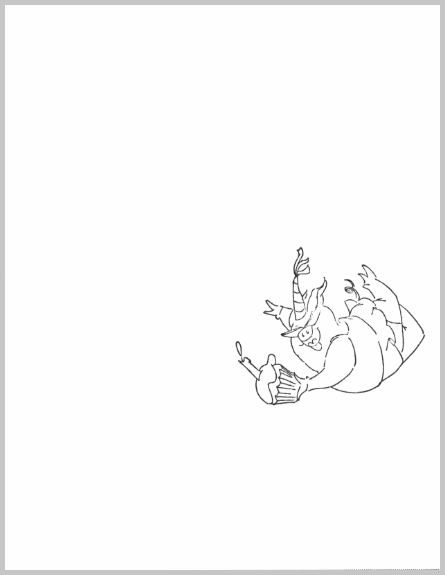
  1.  Stamp your image.

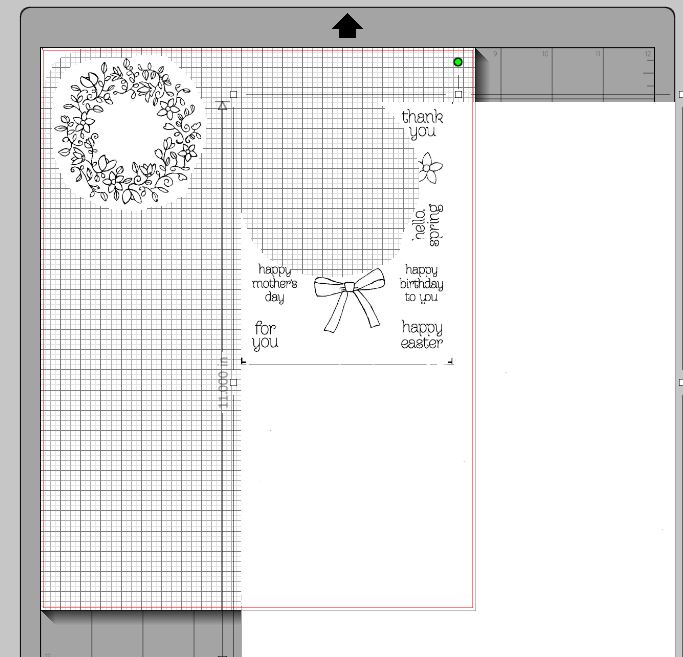
stamp and scan (stamped on 8 1/2 x 11 inch paper)


2.  Scan your image.
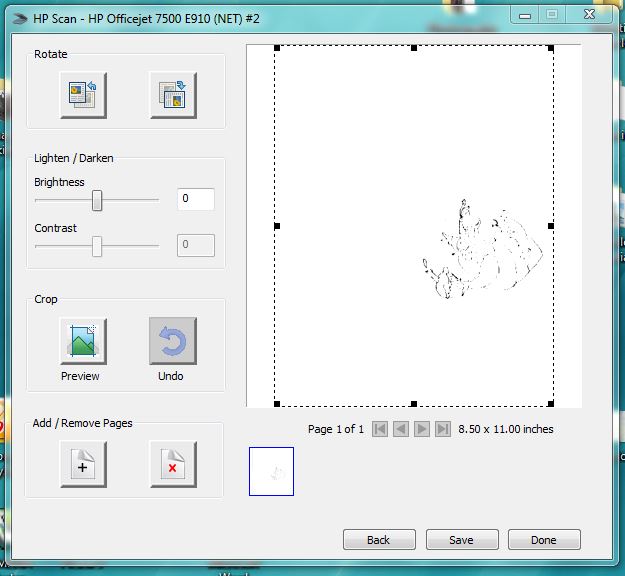
scan

(sorry for the bad photo; scanned as 8 1/2 x 11 inch document)


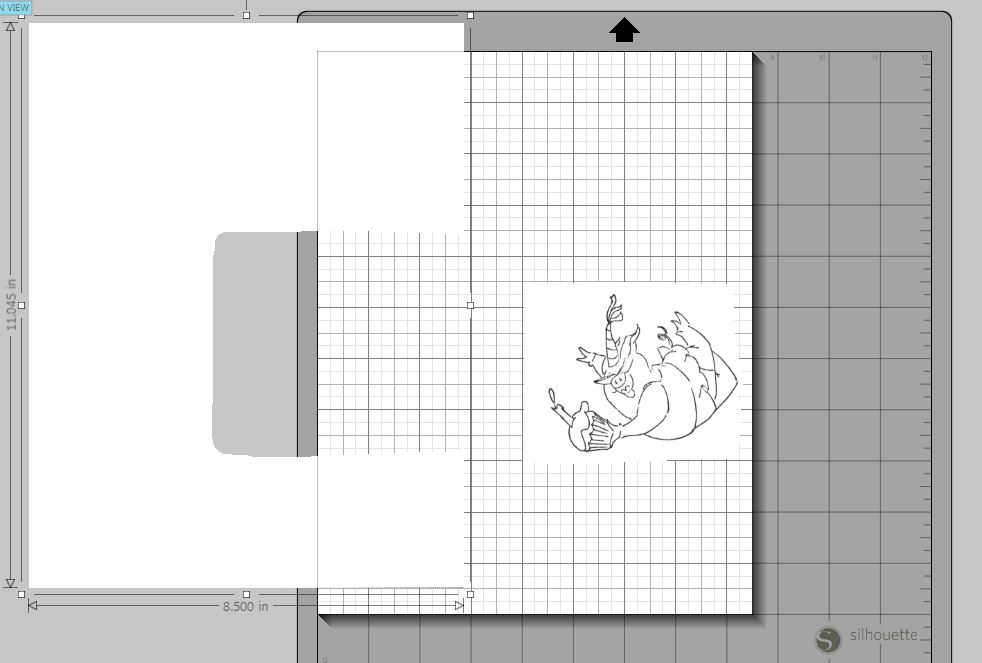
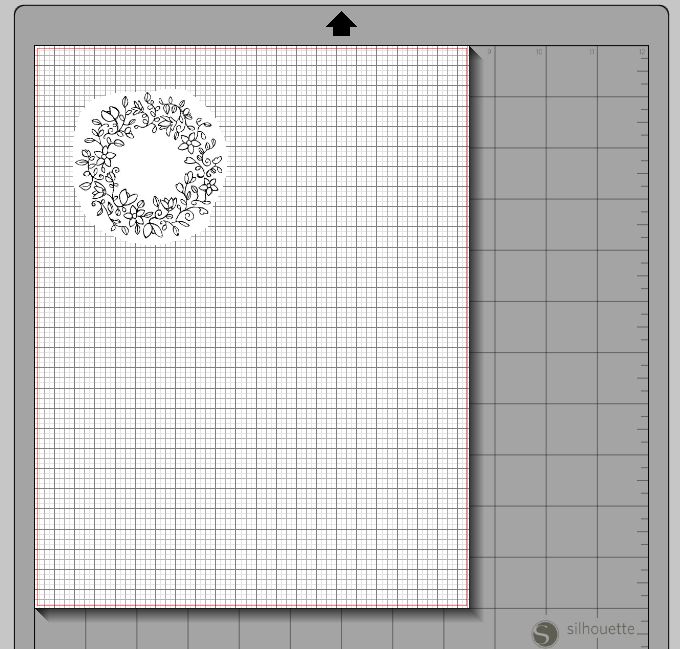
3.  Open jpeg file.
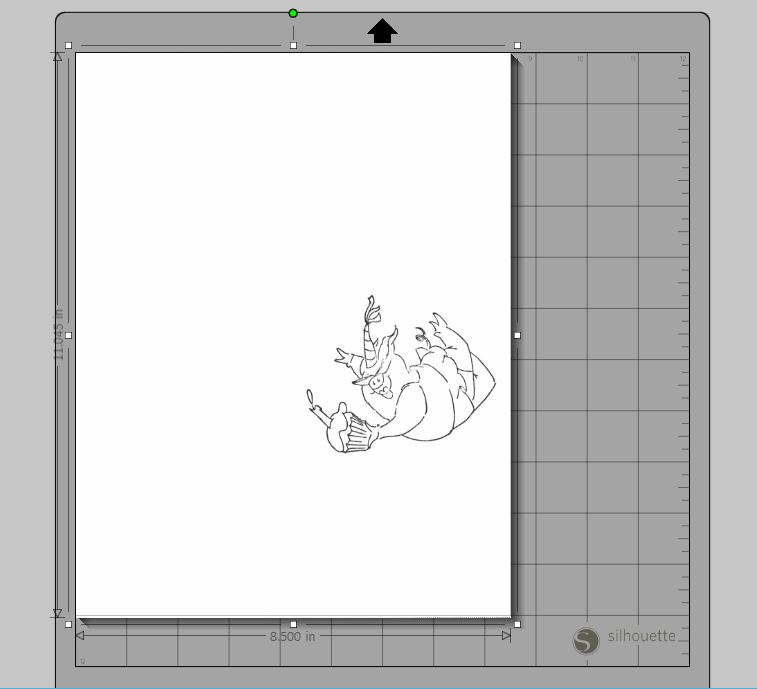
open jpeg


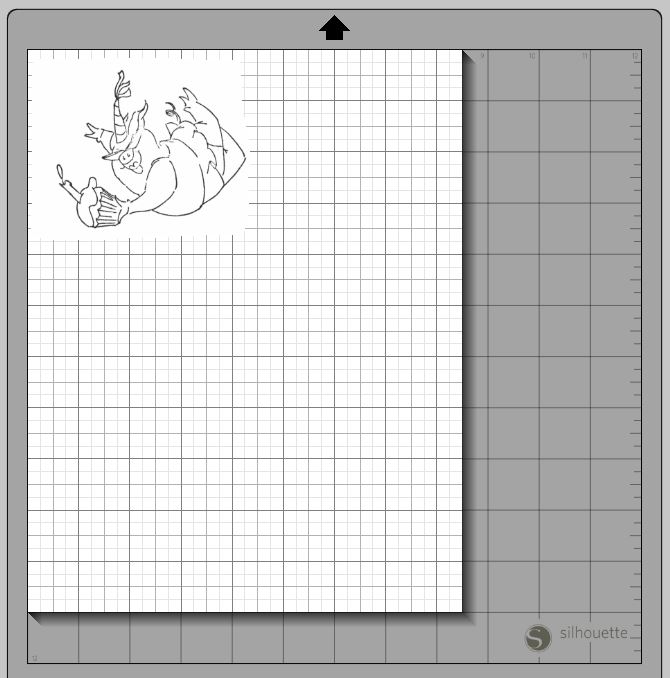
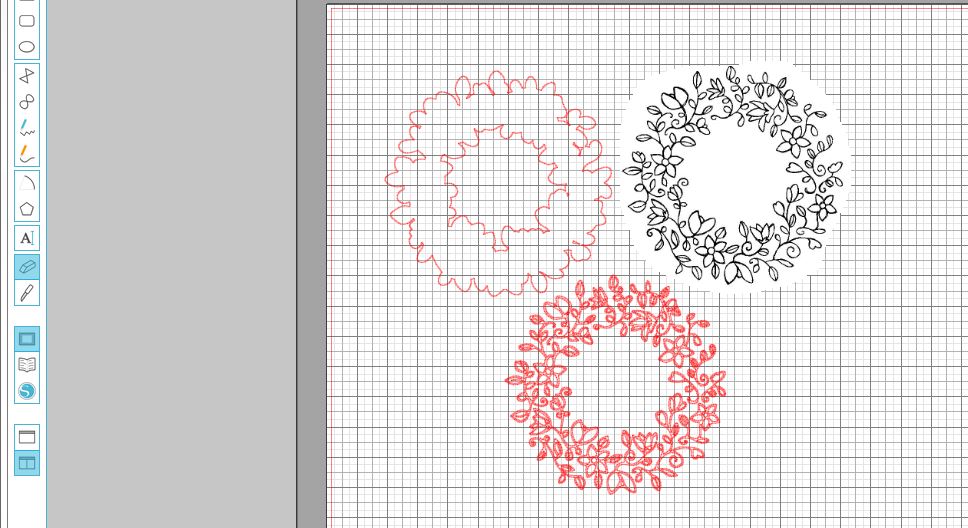
4.  Optional – erase to separate.

erase  erase 2


5.  Trace.

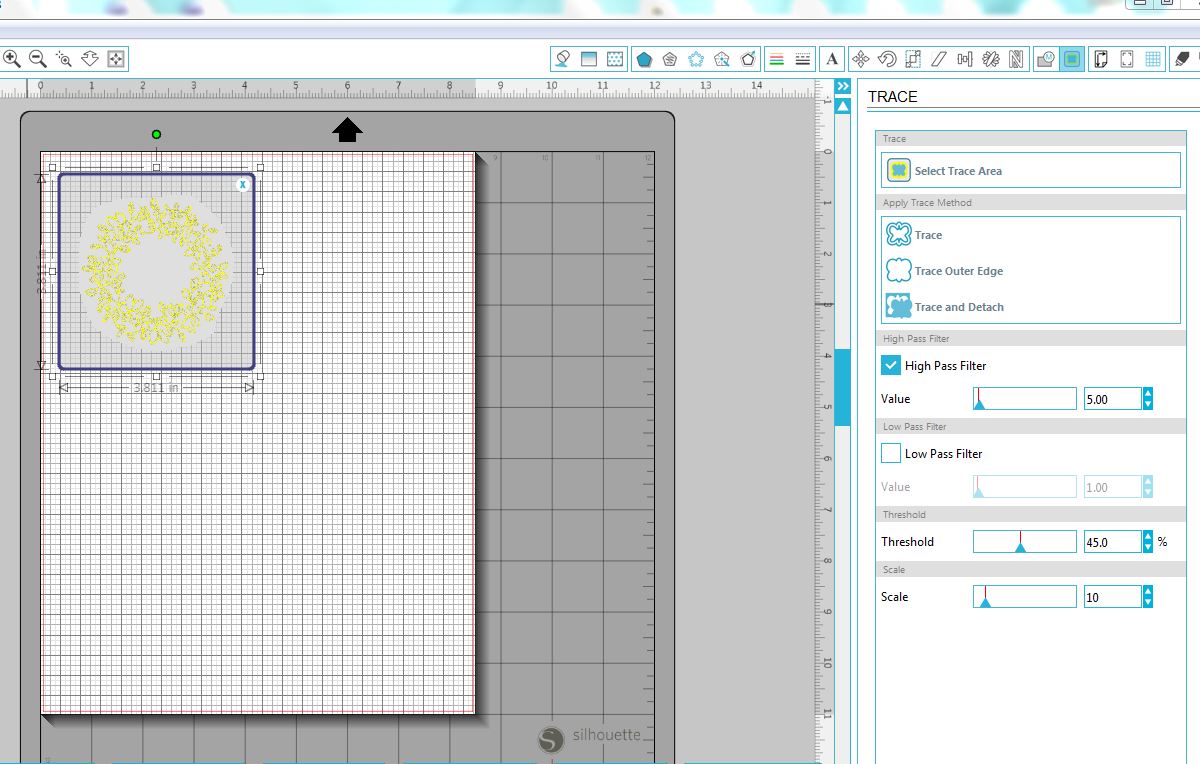
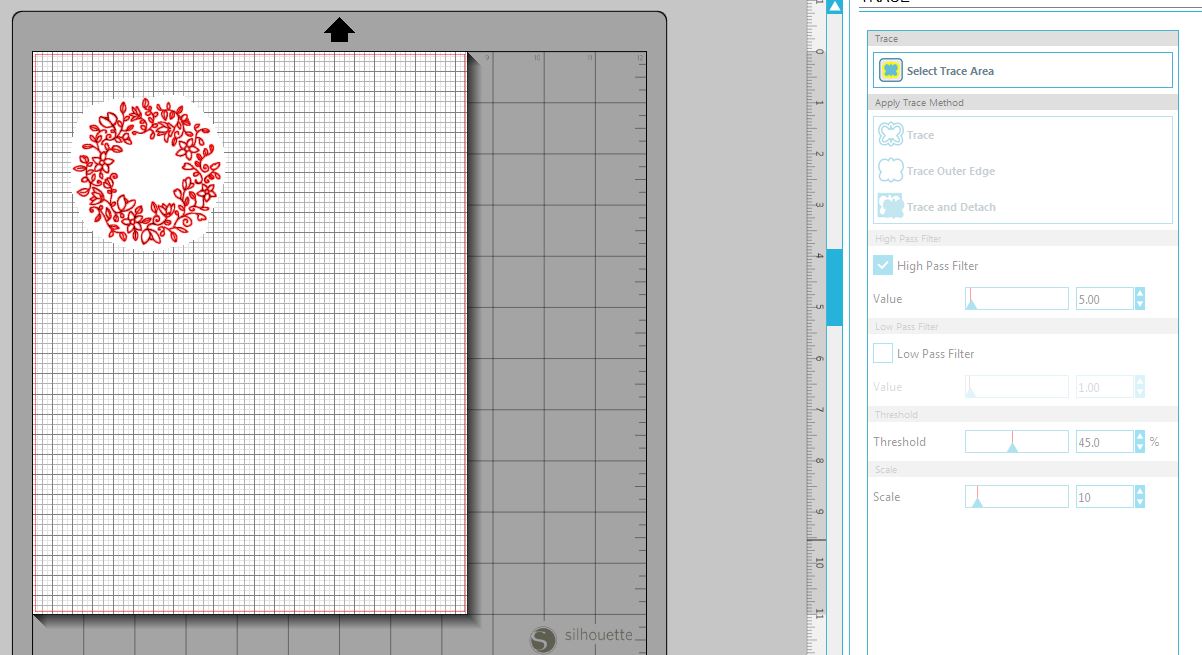
a.  Open “Trace” window, select “Select Trace Area,” and drag a box around the image you wish to trace.
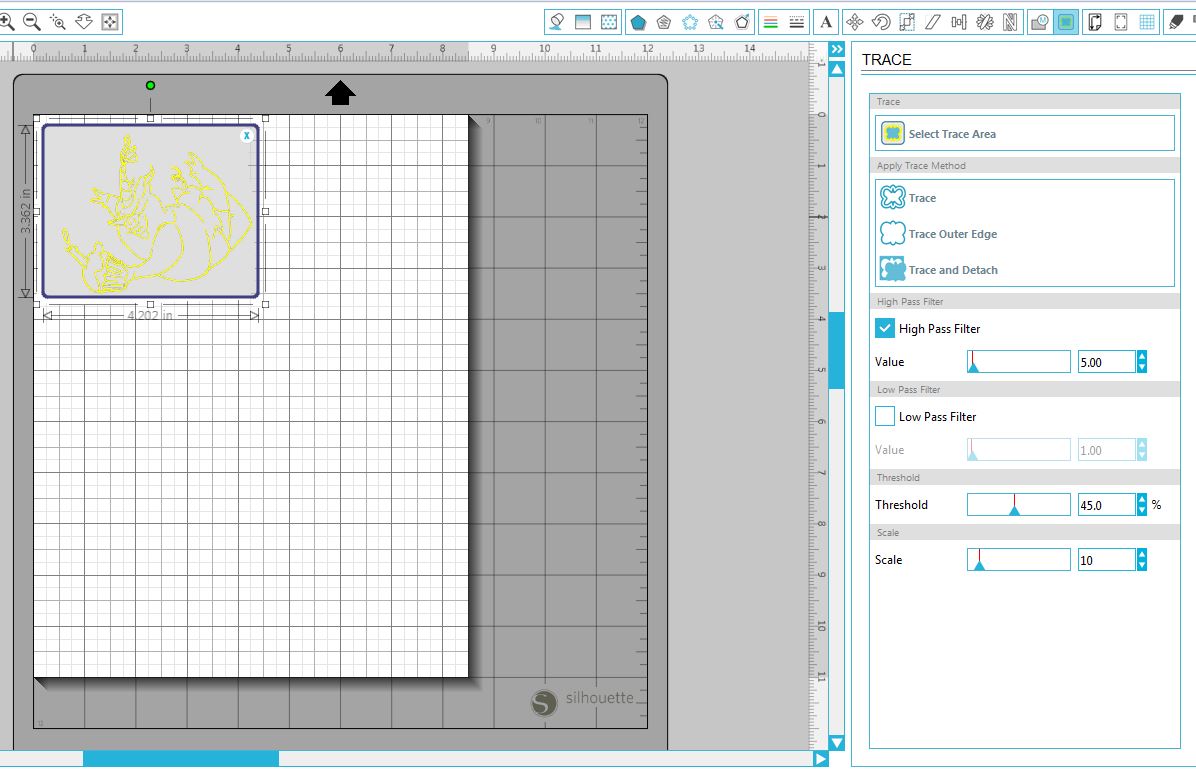
select trace area

b.  Select “Trace Outer Edge.”  (If you need inner details cut, select “Trace.”)
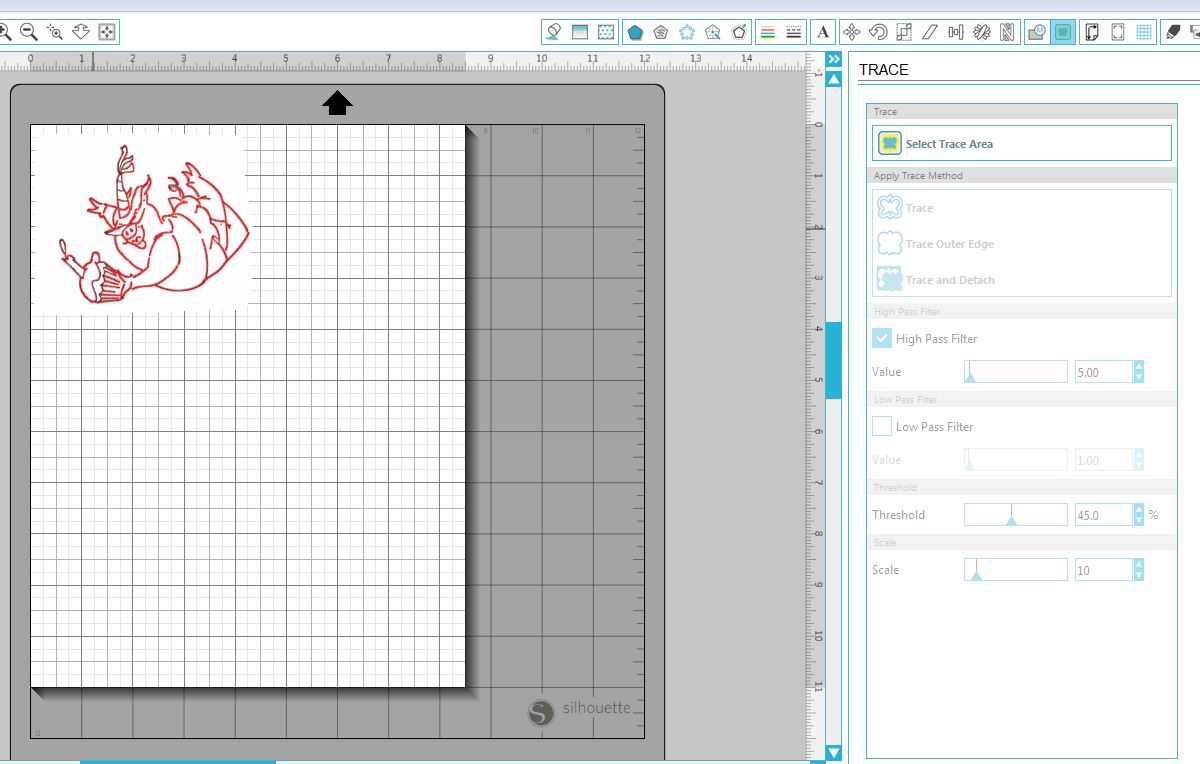
trace outer edge


6.  At this point, it is helpful to enlarge your view to make it easier to see what you are doing.  (DO NOT re-size your scanned image or the trace. You need these measurements to stay true to size.)  Just change your view on your computer to make it larger.  Go to the “View” tab, then “Zoom” and then select your preference, or use the magnifier tool.

enlarge

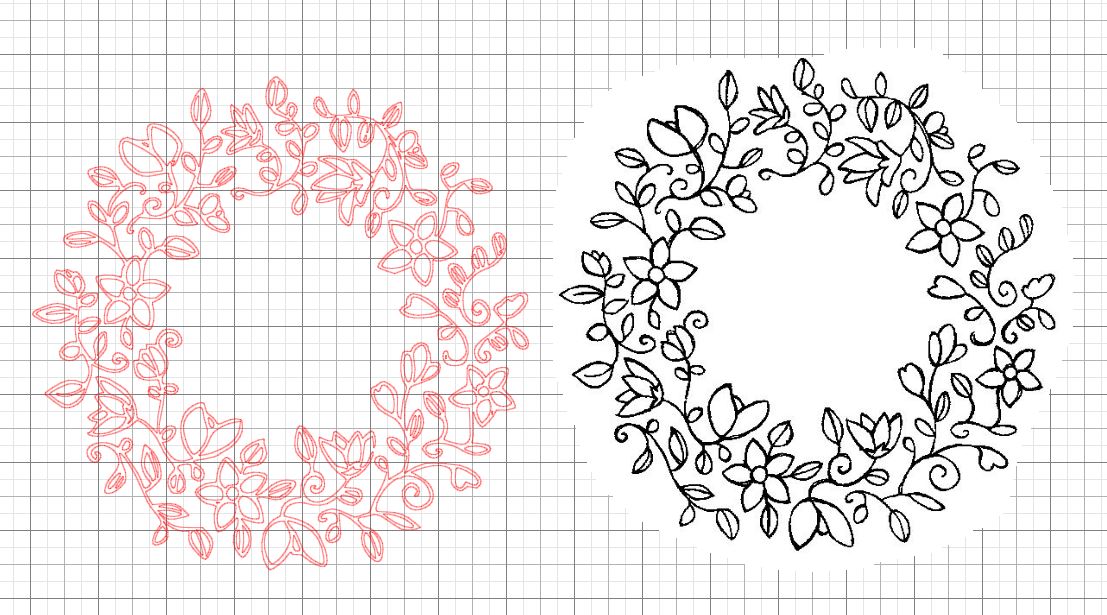
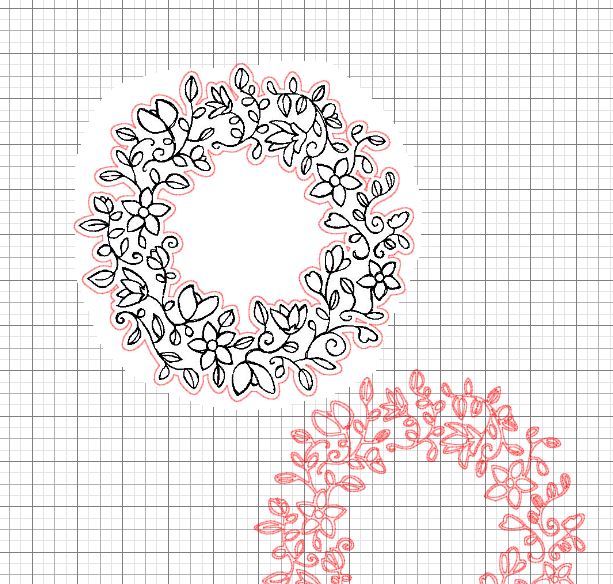
Notice that the red cut lines are not perfectly lined up with the black stamped lines of the image.  In some cases, there are broken lines.  (Click on the photo to see what I mean.)  In order to get a die cut with a complete outline and that fits the stamped image perfectly, you need to clean this up a bit. There are a few ways to do this.  I referenced a series of video tutorials in my last post called Tracing Without Tears in Silhouette Studio which I found extremely detailed and helpful in understanding the “Trace” feature of the software.  (Videos 7 and 8 specifically talk about point editing.)  If you don’t want to get as involved in the design process, try this:


7.  Move the jpeg scanned image away from the trace.  Highlight the image.  Under the “Object” tab, select “Convert to Path” to keep all the pieces of the trace together.
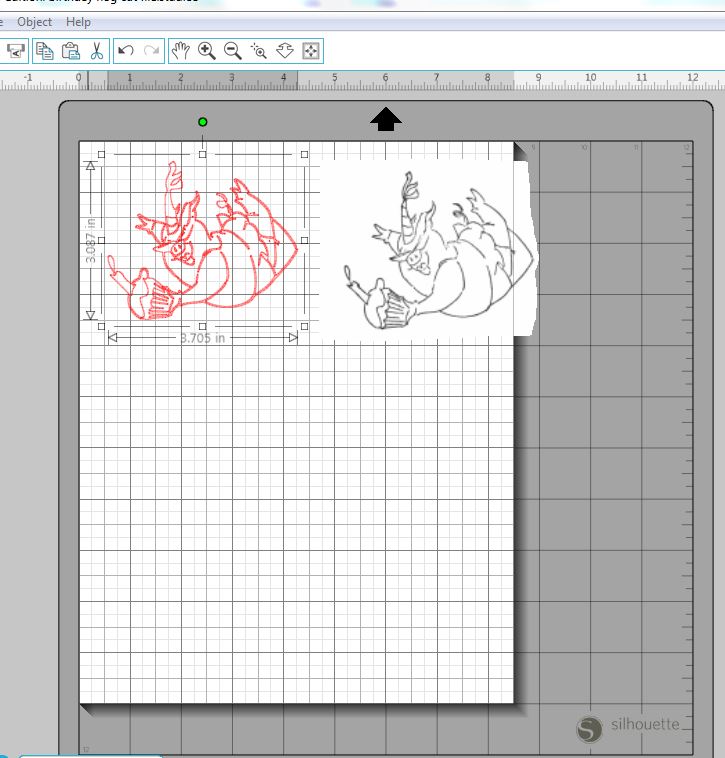
group trace

To make this easier to see in the next step, I changed the color of my trace to blue.
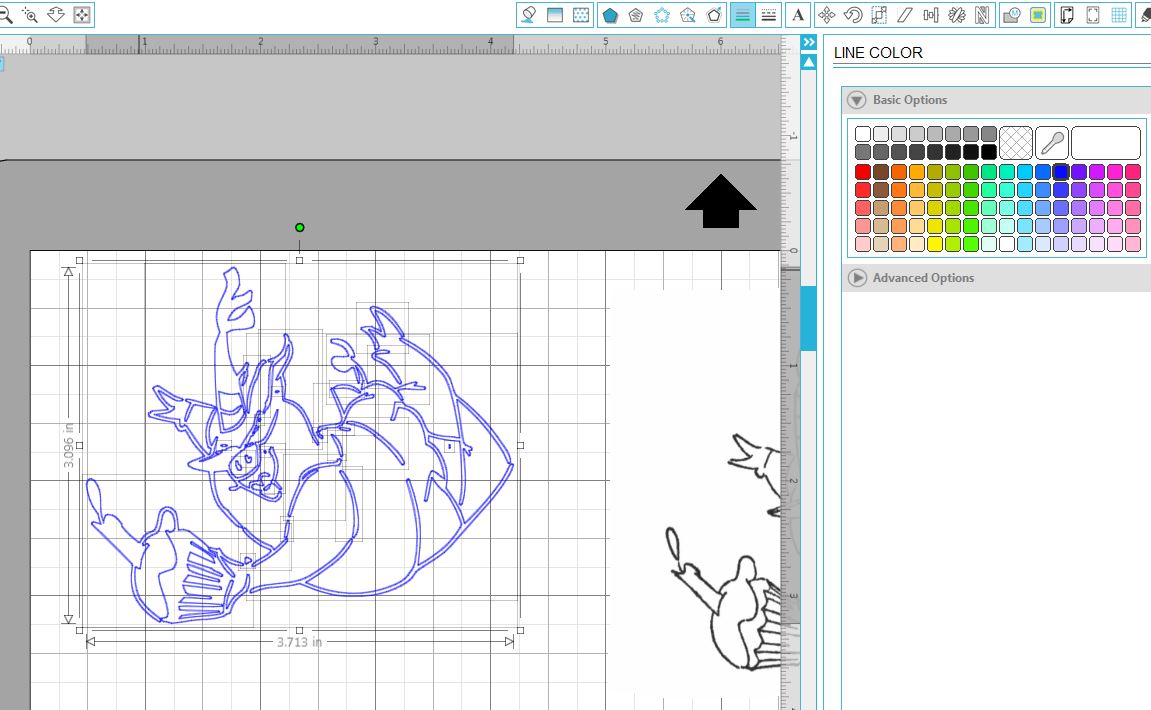
change trace color.JPG


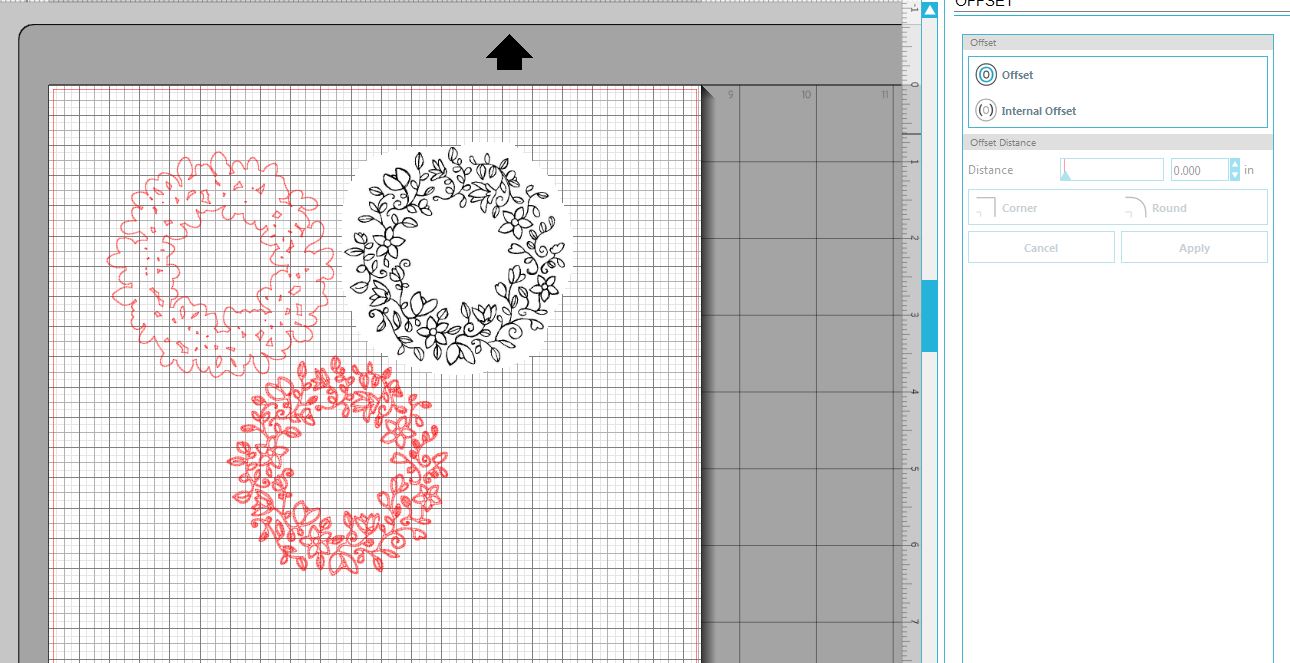
8.  Open the “Offset” window, and click “Offset” which will give you a border at the default 0.125 inchs.

ofset .125


9.  Slide the distance slider all the way to the left to zero.  Then slowly slide it to the right (or use the “up” arrows) just until you have a solid shape around the outside with no gaps.  On this one, I went to 0.020 inches.  Make a note of the value you used.  You will need this later.
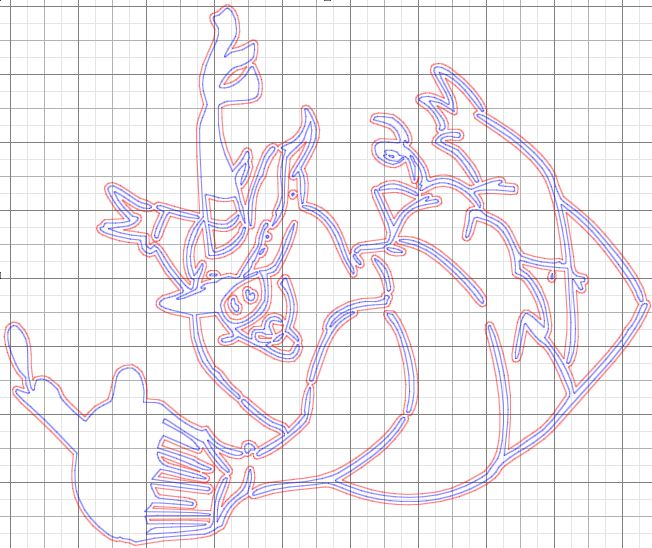
offset ,020


10.  Drag away the “trace” which is blue on this sample.
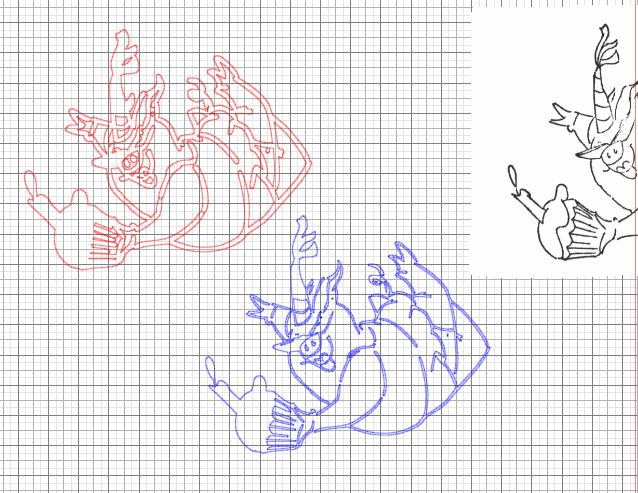
drag out trace


11.  Highlight the whole offset.  Click on the “Object” tab and click “Release Compound Path” to separate all the parts of the offset.  Then drag the outer piece (outline) away from the rest.
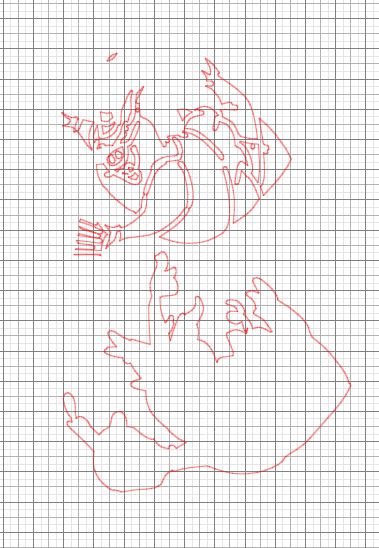
separate outer edge from offset


12.  Delete all the extra sections and just keep the outline.
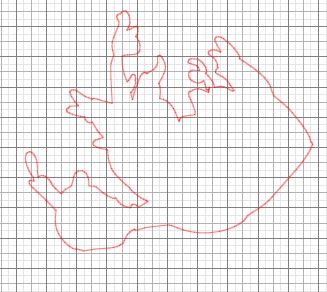
keep outline offset


13.  Highlight your offset.  Open “Offset” window and select “Internal Offset” which will give you a slightly smaller shape inside your offset.  The default here is 0.039.
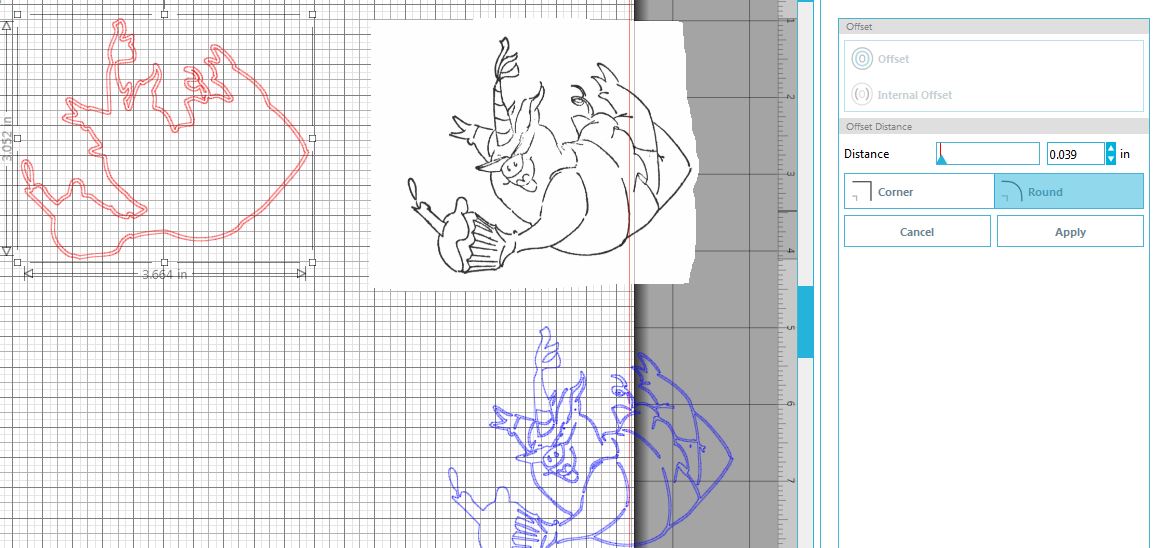
internal offset default

My internal offset is now green to make it easier to see here.  (You don’t need to change the color!)
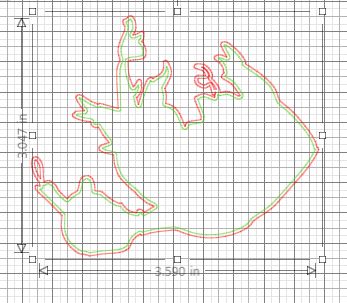
internal offset default in green


14.  Change the value of the internal offset to match the number you used to get your original offset.  Recall, mine was 0.020 from step 9 above.  (Highlight the offset and internal offset.  Click on the “Object” tab and click “Release Compound Path” to separate the two parts.  Then drag the outer piece (outline) away.
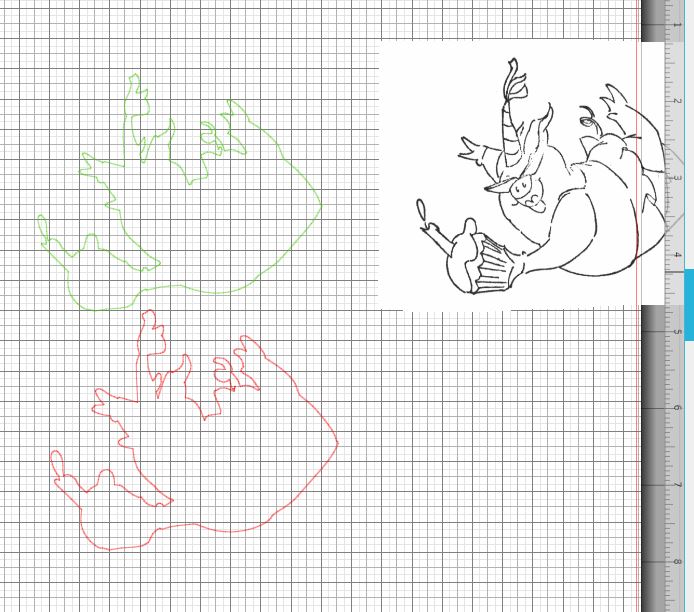
separate offset from internal offset


15.  The inside (internal offset) should be about the same size as your original scanned stamped image, without the gaps.  (I made my green lines a little thicker so you can see them easier here.)
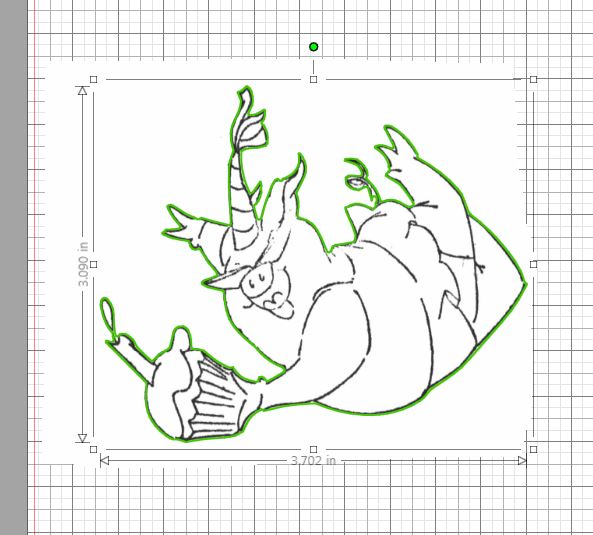
check size


16.  The above looks pretty close, but if you enlarge your view, by a lot, you will see where it is slightly off.

enlarged to see errors


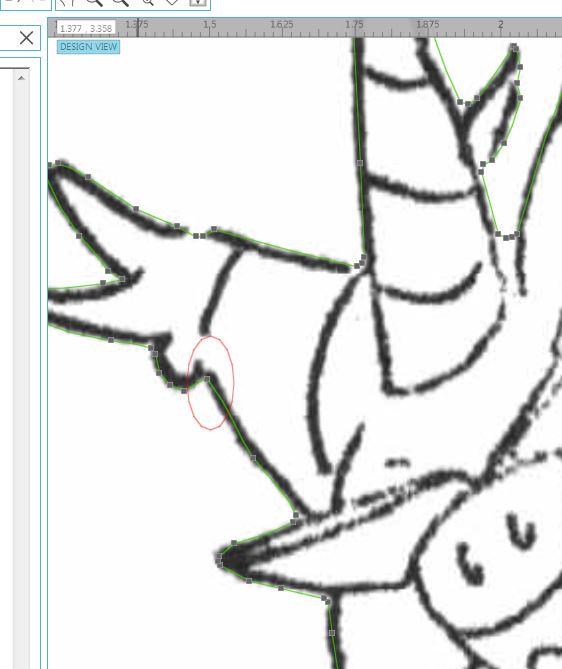
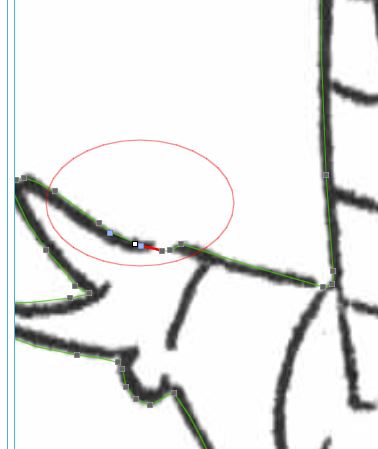
17.  To make this more exact you can move the nodes a bit.  Here’s how.  Double click on the green outline.  You will see the nodes (square “dots”) on this shape.

double click to show nodes

Put your cursor on a node.  While holding down the left side of your mouse, simple move the node so it is closer to the stamped shape.  Look at the node in the red oval below.  The first photo shows the original position of the node.  The second one shows where it is after I moved it.
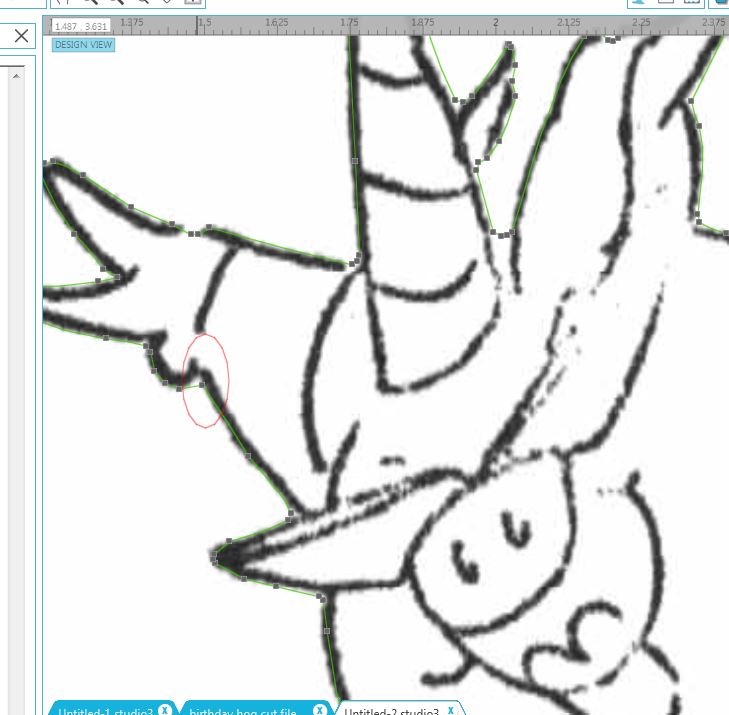
Before

(before)

After

(after)

You can add additional nodes to your shape by clicking on the line where there is no node.

no node

(before)

add node

(after)

Be sure to save your work often while you work.

This is a very simplified explanation of how to clean up the cut file for your die cut.    As I mentioned above, you may want to check out the video series called Tracing Without Tearsin Silhouette Studio if you want a more detailed explanation of Point Editing.


When I need an exact cut, I enlarge my view and just work my way around the whole image, moving nodes into the exact position so they are on the edge of/slightly over the black line with no white gaps. This will give you a shape that matches the stamp so you will see no white when it is stamped.  Yes, it can be tedious depending on how messy your original trace was, but you will be pleased with the results if you are patient!

I know there are some who would be asking, “Why not just use scissors?”  That is certainly an option if you enjoy and are physically able to fussy cut your stamped images.  However, sometimes the images have lines that are difficult to cut with scissors.  And often, I create multiples of a card design, and it is so much easier to cut many die cuts with my Silhouette than to fussy cut each one.  This was the case with the card below.  I was making multiple copies of this card for a craft show, and I needed to cut the stamped crab image.  The claws were so thin and curvy that every time I tried to get around this portion of the image, the paper creased and/or tore.  I ended up making a cut file and was able to get a clean die cut and make lots of them.

Sandy CLaws zDSCN7072

(click HERE to see original post for this card)

Stamping on such precise die cuts can be tricky.  Check out my tutorial HERE to see how I use a positioning tool to get perfectly placed stamped images.


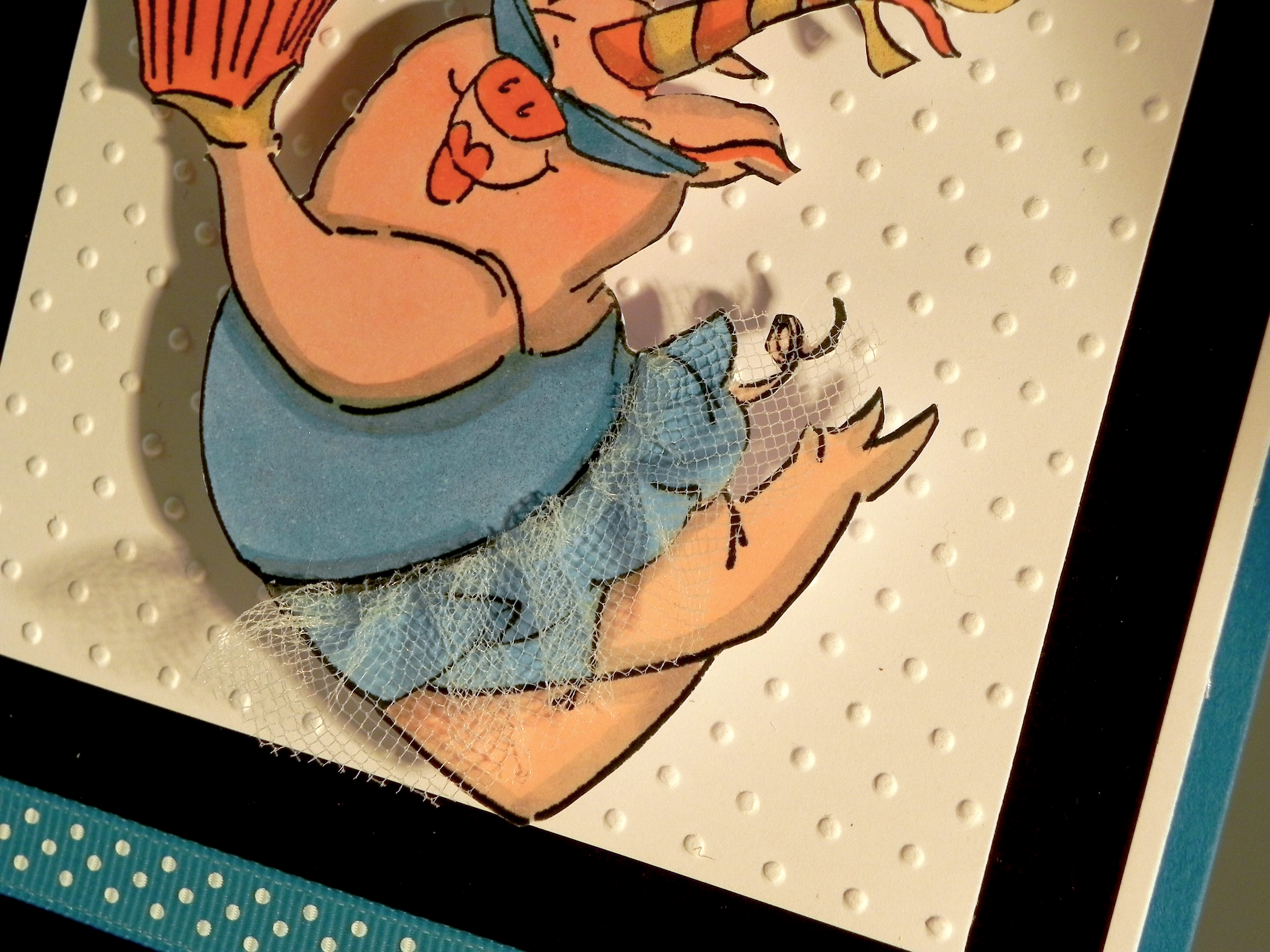
Finally, here is the card I made using the die cut I created above:
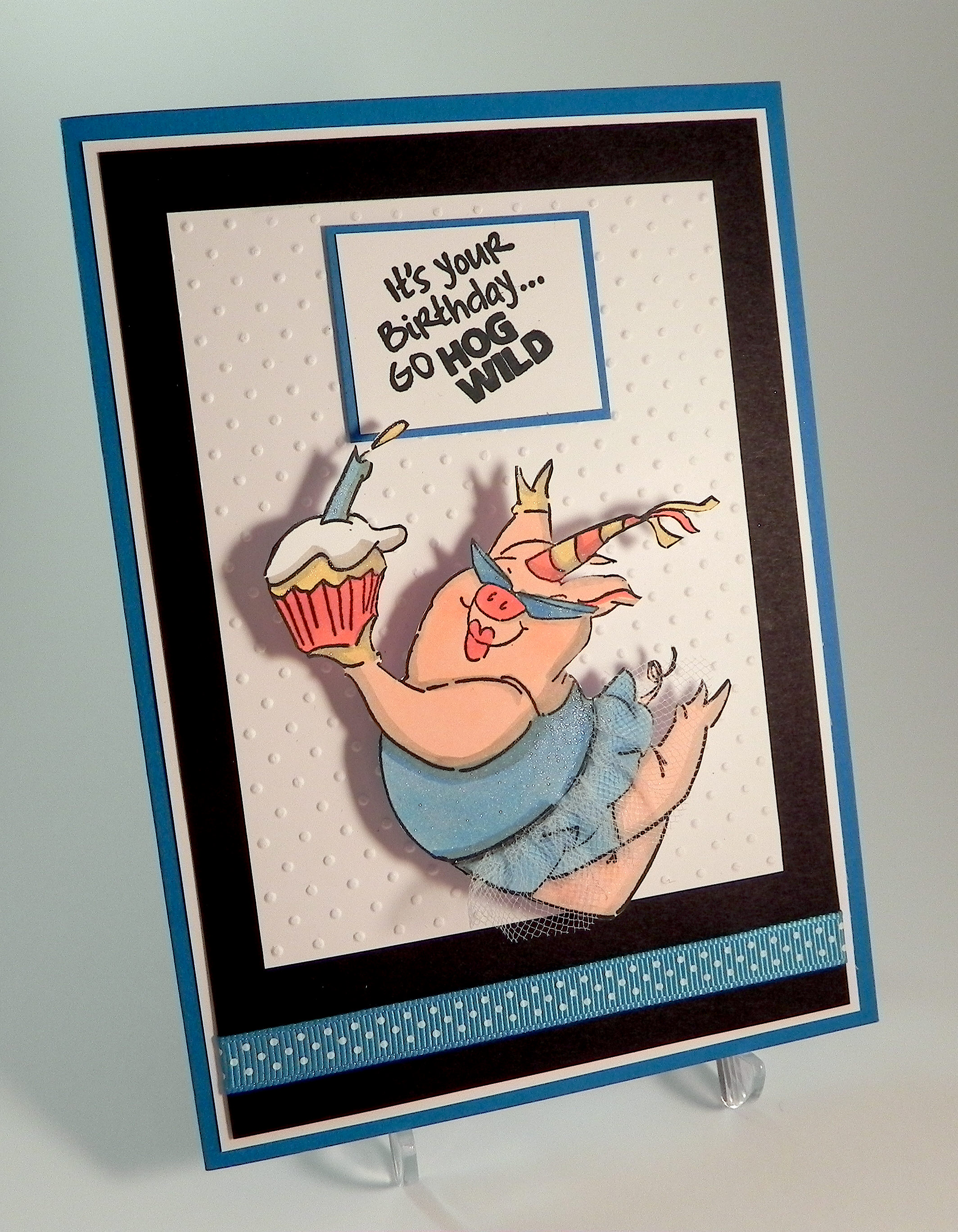
Hog Wild Birthday DSCN7819

(Click HERE for the original post for this card.)

Thanks for checking out my tutorial!

This content uses referral links as described in the disclosure policy on my sidebar.
How to Make Silhouette Die Cuts for Your Stamped Images

How to Make Silhouette Die Cuts for Your Stamped Images

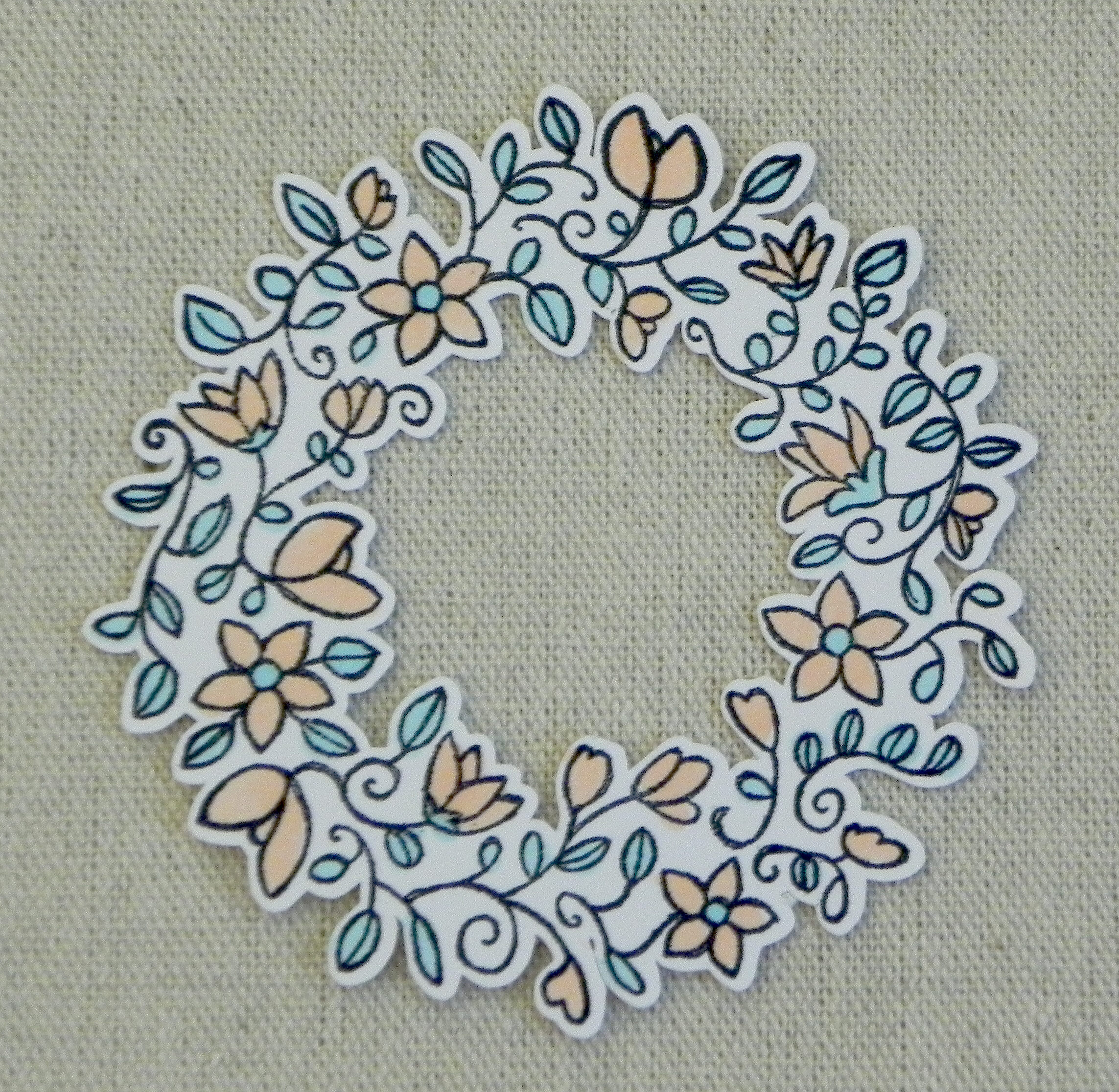
die cut wreath DSCN0041

Many stamp companies now offer dies that coordinate with their stamps, but it is also possible to create your own die cuts for your stamps by using your Silhouette electronic die cutting machine and the “trace” and “offset” features in the Silhouette software.  (I use the Designer Edition.)

For this tutorial, I will show you how I create a die cut with a small border around the stamped image. (In a future tutorial, I add the steps I use to create a die cut with no border.)  This tutorial assumes basic knowledge of the Silhouette software design features and how to use the Silhouette machine for basic cutting.  To create a die cut, you need to be able to scan your stamped image, save it as a jpeg, and open this file with your Silhouette software.

*Note:  While working on your files throughout this process, DO NOT re-size your scanned image or the trace or the offset. You need these measurements to stay true to size. However, you can change your view on your computer to make it larger and easier to see what you are doing.  (Go to the “View” tab, then “Zoom” and then select your preference.  Adjusting your view to 100% allows you to see what the actual die cut will look like when done.)

I’ve included photos to illustrate the steps I am describing.  If desired, click on the photos to make them larger.  I’ve also added a “cheat sheet” with the steps at the end of this post.


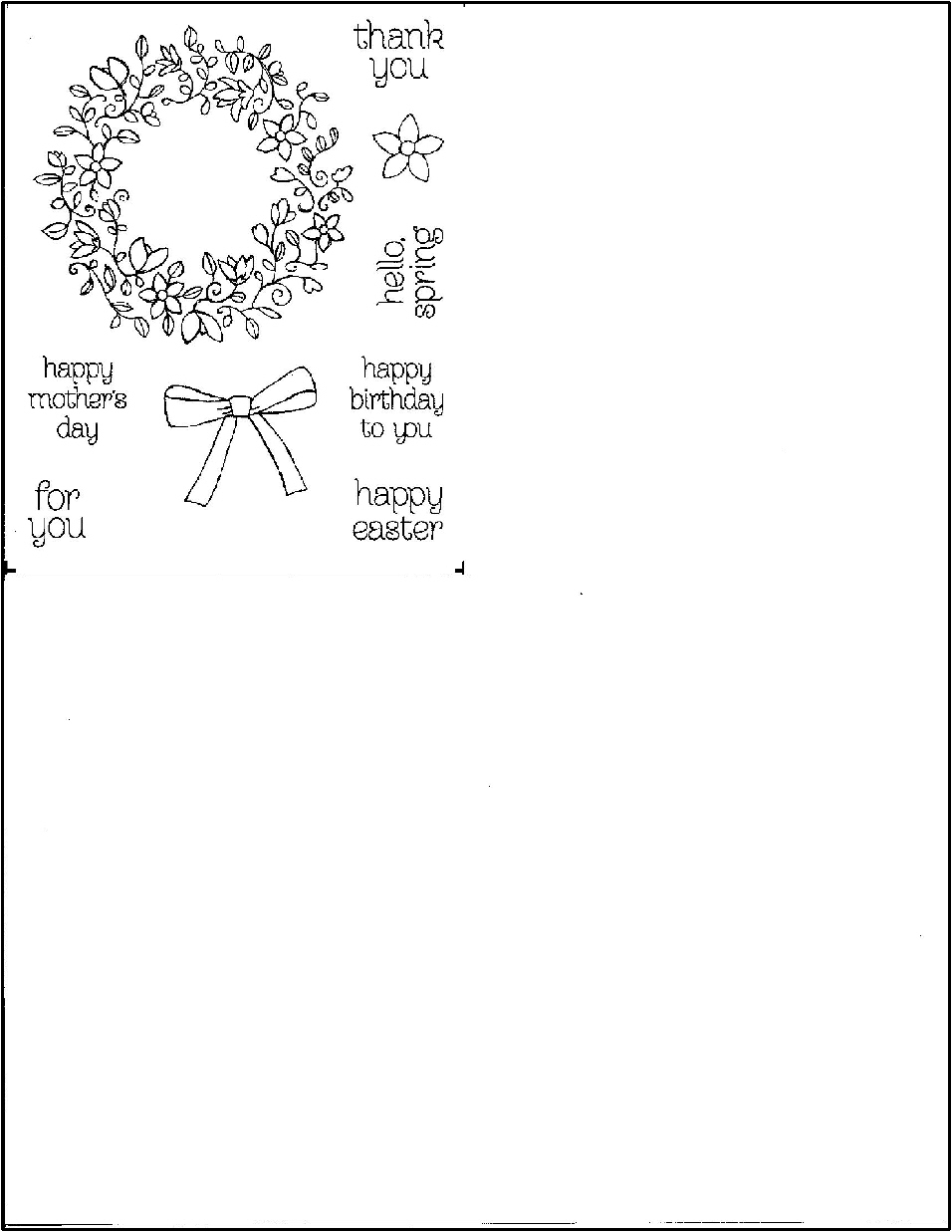
  1.  Stamp your image on a plain piece of white paper with black ink.  This image must be the exact size of your stamp.  (In other words,  don’t use the printed image that comes on the cover sheet of your stamp set unless it is the exact size.)  Some sets come with the images on acetate, and as long as these are the same size, these are fine.

circle of spring original images with border.jpg

(images from the Stampin’ Up “Circle of Spring” stamp set)


2.  Scan your image, and save it as a jpeg.  When scanning the image, do not crop it.  Save it as is.  I usually scan and save it as an 8 1/2 x 11 document.

circle of spring scan with border


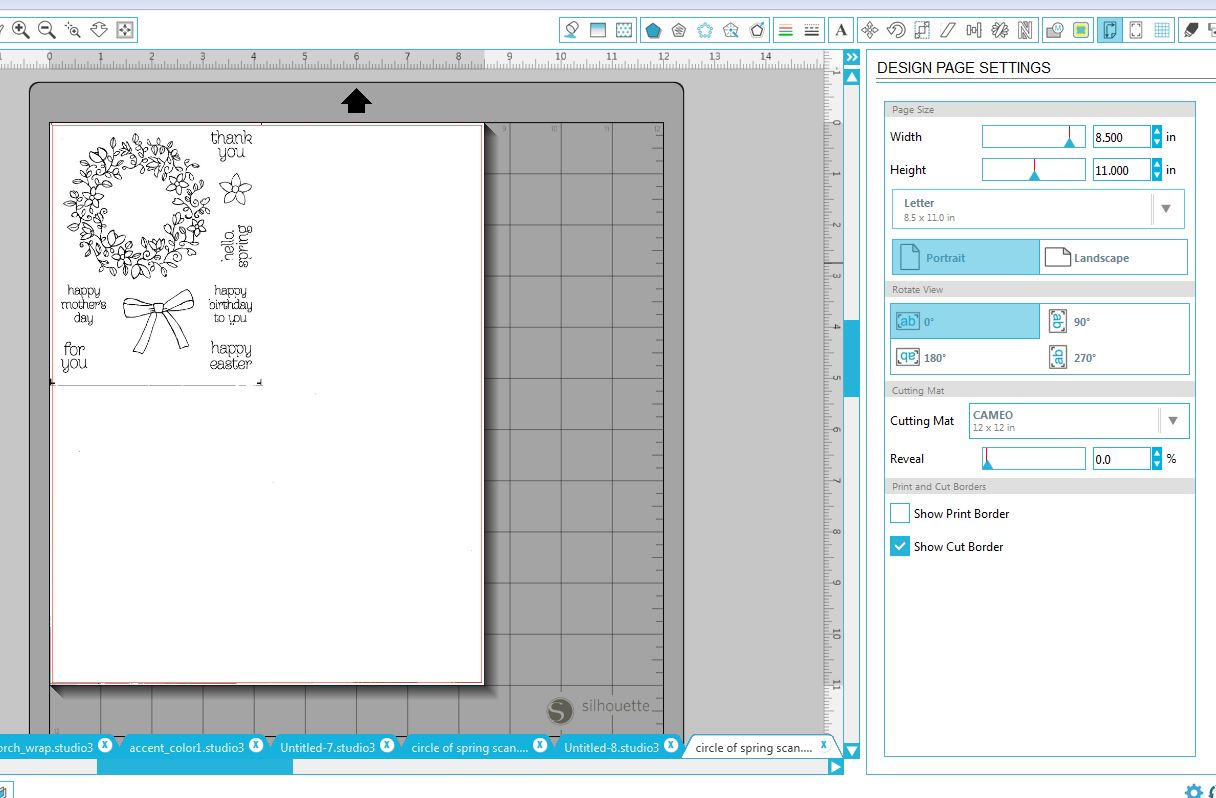
3.  Set page size in the “Design Page Settings” menu on your Silhouette software to “Letter – 8 1/2 x 11” which will keep the stamped image the correct size.  Open the jpeg of the scan.

open scan.JPG


4.  Optional:  Use the erase tool to loosely go around the image.  Creating a square or circle is fine; you don’t need to follow the edge of the image closely.  Ungroup the image from the extra background and delete the extra white.  This just makes the image you are working with less cumbersome.  (If there is more than one image on the scan, and you wish to use them all, use the eraser tool to loosely erase around each image.  Then ungroup the images and delete all the extra white.  What you are left with is several separate “scraps” of paper with stamped images – all still in the original size.)  I will just be working on the wreath for this tutorial.

Erase       Erase 2


5.  Using the “trace” tool, trace around the stamped image.  Select “Trace Outer Edge” if you just want a border around the whole image, or select “Trace” if you want the inner details to cut.  (If you start with a clean stamped image, you should get a good trace without much need for manipulating your trace.  If not, use filters, threshold and scale options to clean it up.  This is beyond the tutorial here. Check out the video series, Tracing Without Tears in Silhouette Studio, for a detailed description on how to do this.)

Select Trace Area

(select trace area)

Trace

(trace)


6.  Drag the jpeg away from the trace.  (Highlight the traced image.  Under the “Object” tab, select either “Group” or “Make Compound Path” to keep all the pieces of the trace together.)

After Trace


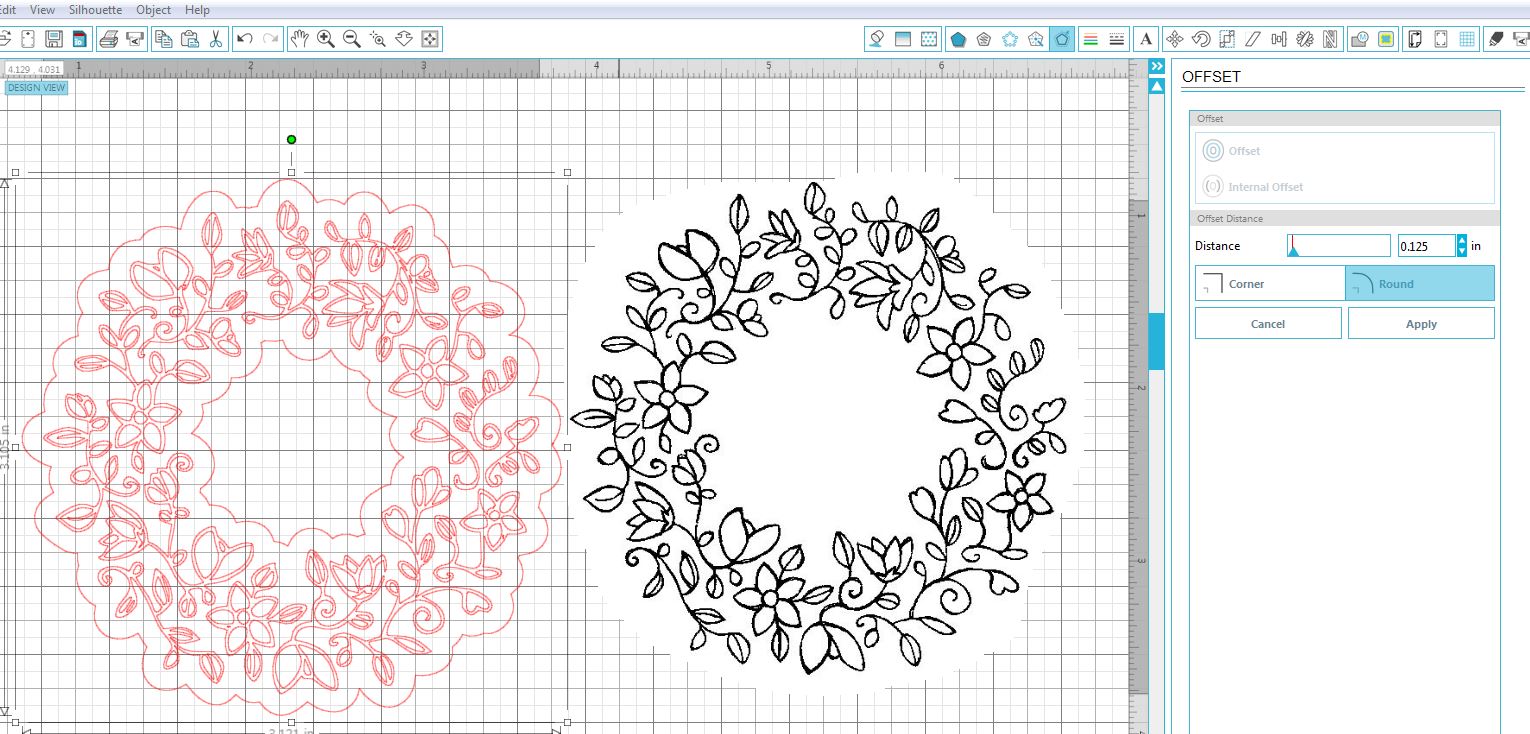
7.  Open the “Offset” window and select “offset.”  (Notice 0.125 inches is the default distance here.)

offset


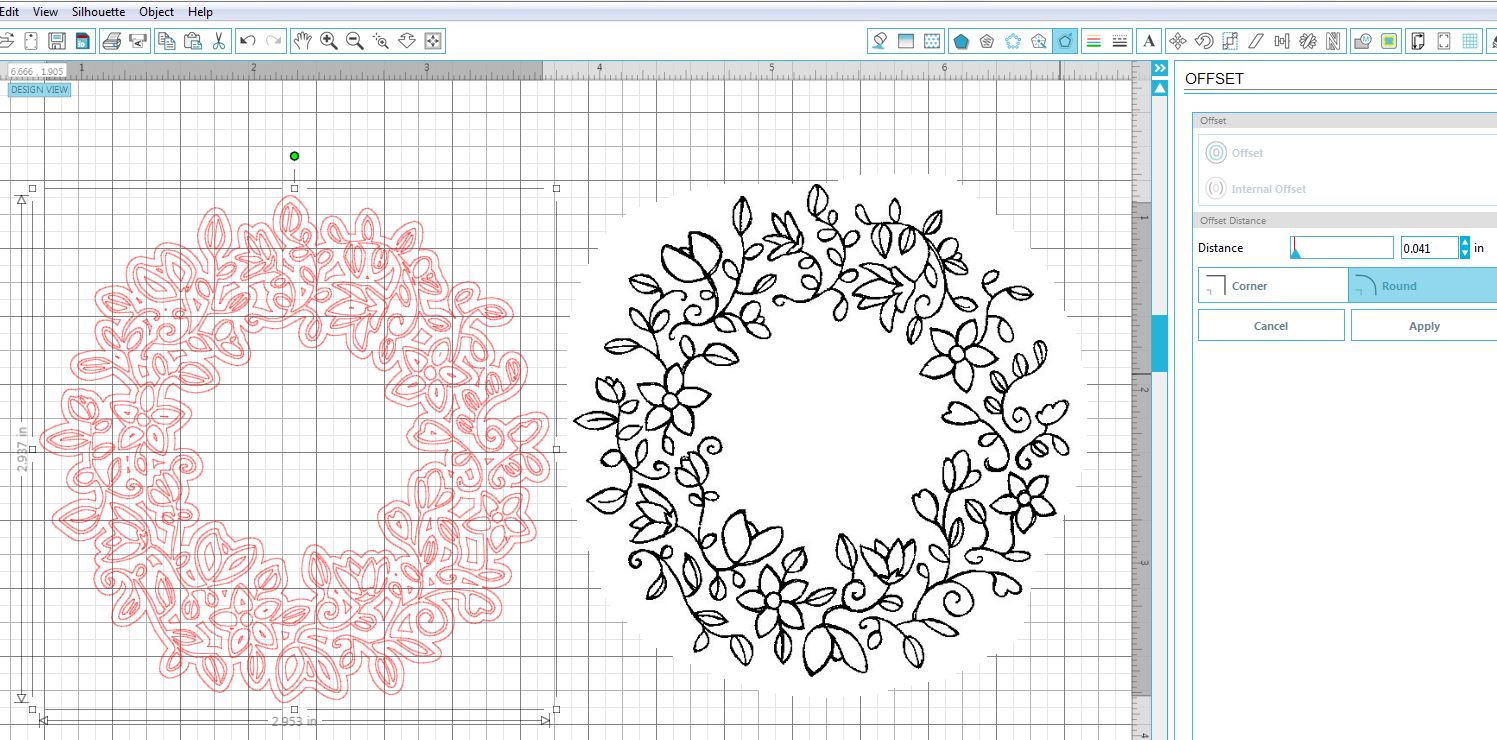
8.  Use the Offset Distance slider or arrows/measurements to adjust for how much border you’d like to see around your image.  I adjusted mine to 0.041 inches.

adjust offset to taste


9.  Once you happy with the size of your border, move the trace away from the offset.

separate trace from offset


10.  Depending on your stamped image, there may be a number of internal cuts in your shape.  Highlight the offset and select “Release Compound Path” under “Object” tab.  Keep the details you want and delete those you do not want.  (You can click on and delete each piece separately, group multiple pieces to delete, or use the erase tool.  This can be tedious, but it will keep the pieces there that you wish to keep and get rid of those that you do not.)  For this sample, I needed the inner and outer outlines so I needed to erase all the little pieces separately.  If I had just wanted the outside without the hole in the center, I could have just dragged aside the outside and deleted everything left all at once.

discard unwanted pieces


11.  Once you are happy with your shape, highlight the shape and select “Make Compound Path” under object tab.  You can drag the original jpeg image onto your die cut to see if it matches up nicely.

check results


12.  Save your die cut cut file, cut it out, and stamp your image on it.  If you are using clear stamps, you can just look through the stamp, line it up as best you can, and stamp it.

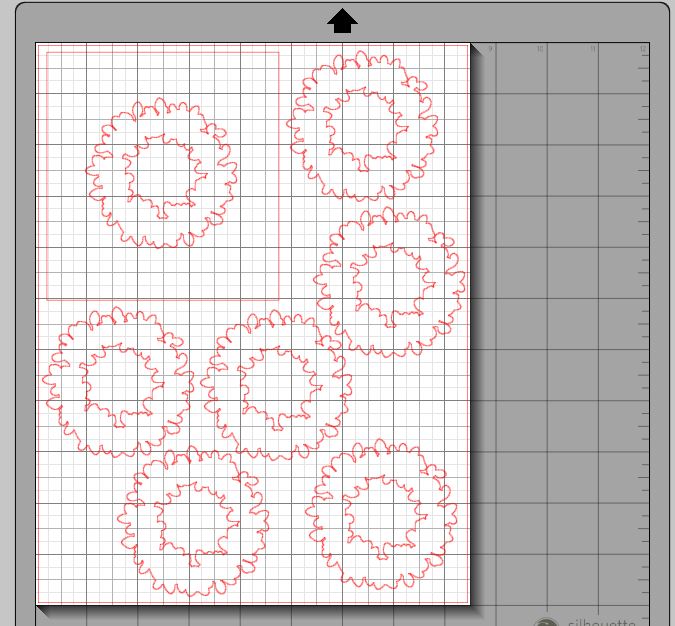
Unfortunately, I am not really good at eye-balling it, so I create a positioning template, and I use a positioning tool to help me.  The positioning template is simply the die cut with a rectangle around it.  In my photo below, I needed 7 die cuts (6 plus the one in the template), but you can cut as many or as few as you need.

positioning template

Check out my tutorial HERE to see how I use this to get perfectly placed stamped images with a positioning tool.

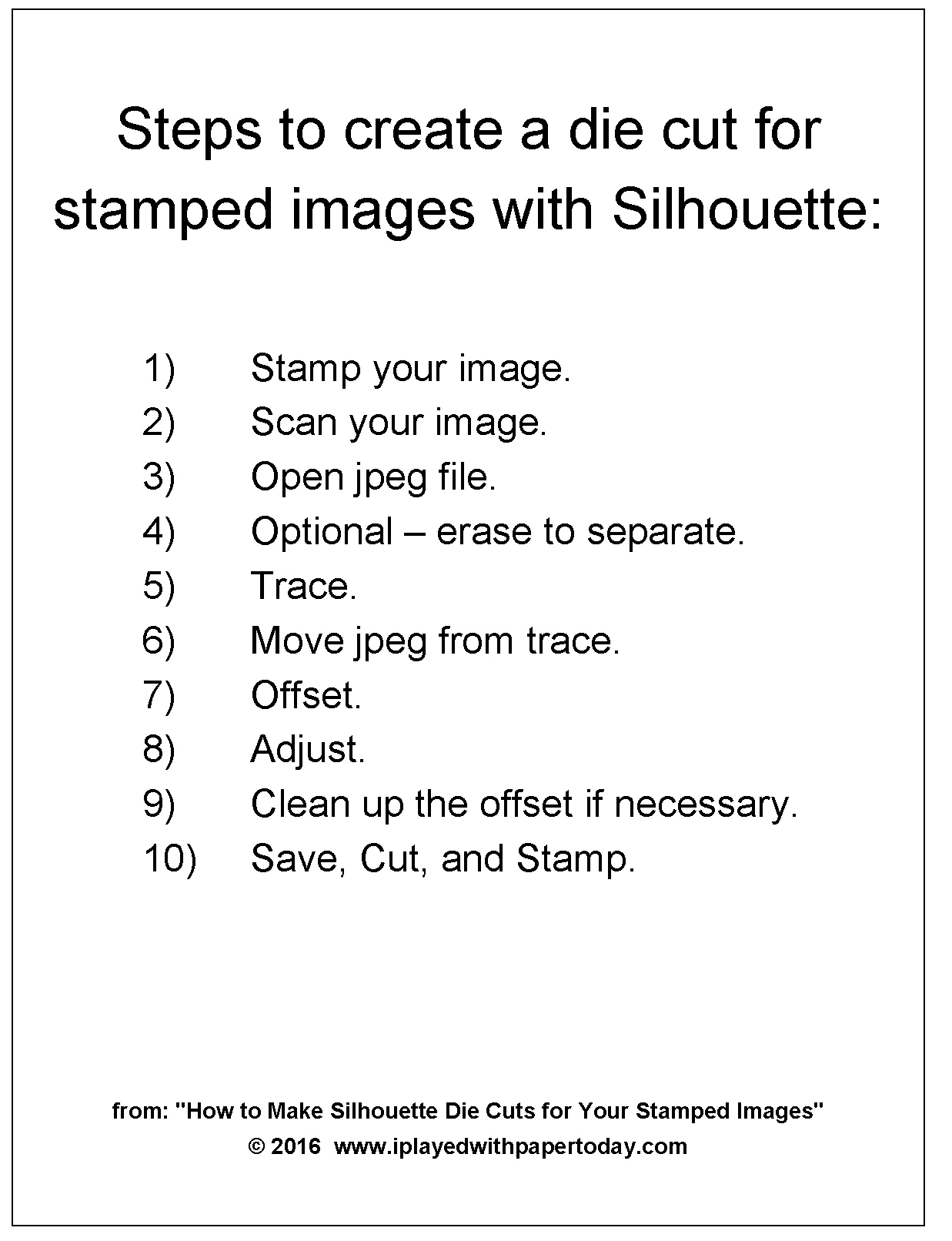
Here’s a “cheat sheet” listing the steps explained above:

cheat-sheet.jpg

(Click HERE to see the card I made with this wreath die cut.)

Thanks for checking out my tutorial!

This content uses referral links as described in the disclosure policy on my sidebar.

Silhouette Tip – Cutting without Connecting to Your Computer

Silhouette Tip – Cutting without Connecting to Your Computer

did_you_know_splat_transparent.png

Every now and again, I discover something that is so huge (for me), I wonder how I didn’t realize it before….

My Silhouette Cameo, along with all its accessories, is stored on a rolling cart in my craft room.   However, because my craft room is pretty small, I don’t have enough room to keep my laptop in there all the time. To use my Silhouette, I either needed to bring my laptop into my craft room where it took up valuable space on my desk, or I brought my Silhouette (with all the accessories needed) down to the dining room where my laptop usually sits.  Both were pretty inconvenient!

I recently discovered that you can save your cut files to an SD/SDHC card and cut from that without needing to attach the computer to the Silhouette machine.  HOW DID I NOT KNOW THIS BEFORE NOW?!  🙂     Anyway, in case you were also unaware…

Here’s how:

  • Create your cut file(s) using your Silhouette software.  (I use the Silhouette Designer Edition.)
  • Insert your SD/SDHC card card into your computer.  Select “Save As” option and select “Save to SD card.”
  • Name your file.  It will be saved as a “gsp” file onto your card.  (You may also wish to save your file as you normally would since the format of the file is different for the SD card.)
  • Place the SD/SDHC card in your Silhouette in the slot located on the right-hand side of the unit next to the USB and power connections, and load your mat with your card stock (or whatever you will be cutting).
  • Select “SD Card Setting.”
  • Select “Select File” to see all your saved choices.
  • Select the file you wish to use.
  • Select “Cut” and Silhouette will cut the file.

(from: http://www.silhouetteamerica.com/printer-friendly/faq/silhouette-cameo-ability-to-cut-from-sd-card-without-computer-connection)

Much easier!  Happy cutting …..without the cords!!

Thanks for checking out my post!

This content uses referral links as described in the disclosure policy on my sidebar.
Getting a Better Masked Image

Getting a Better Masked Image

zzzDSCN6123 cropped tighter and tilted

(click here to see original post)

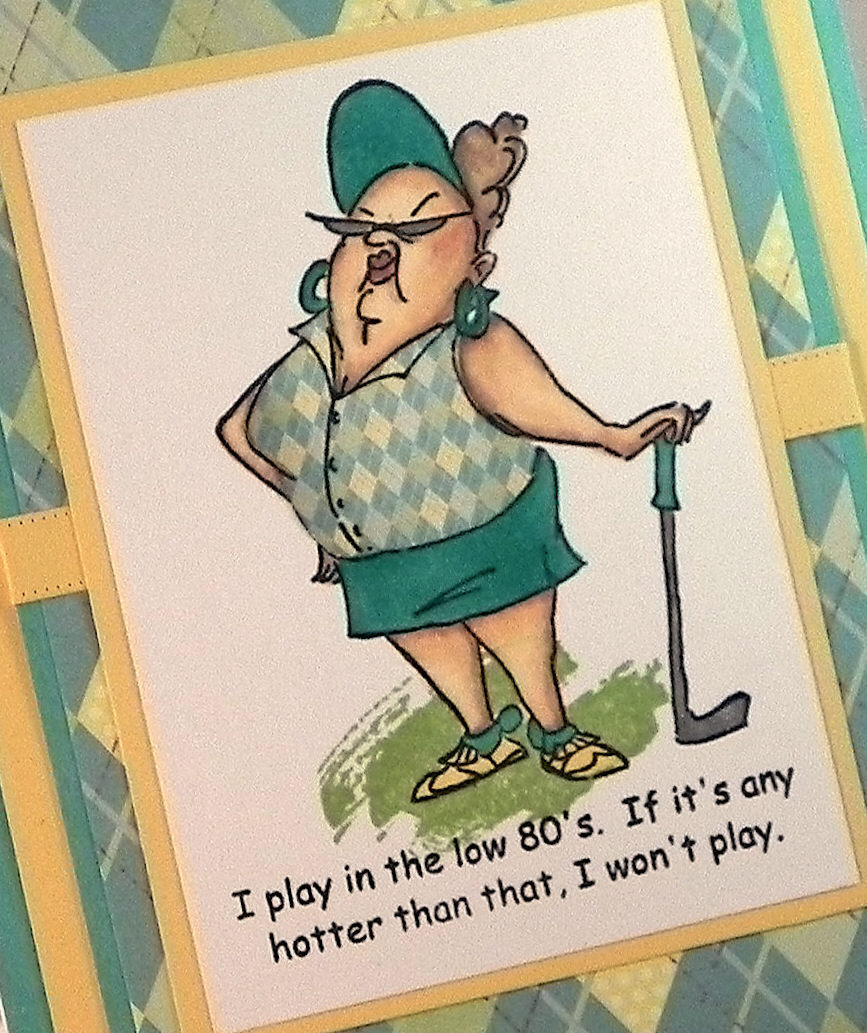
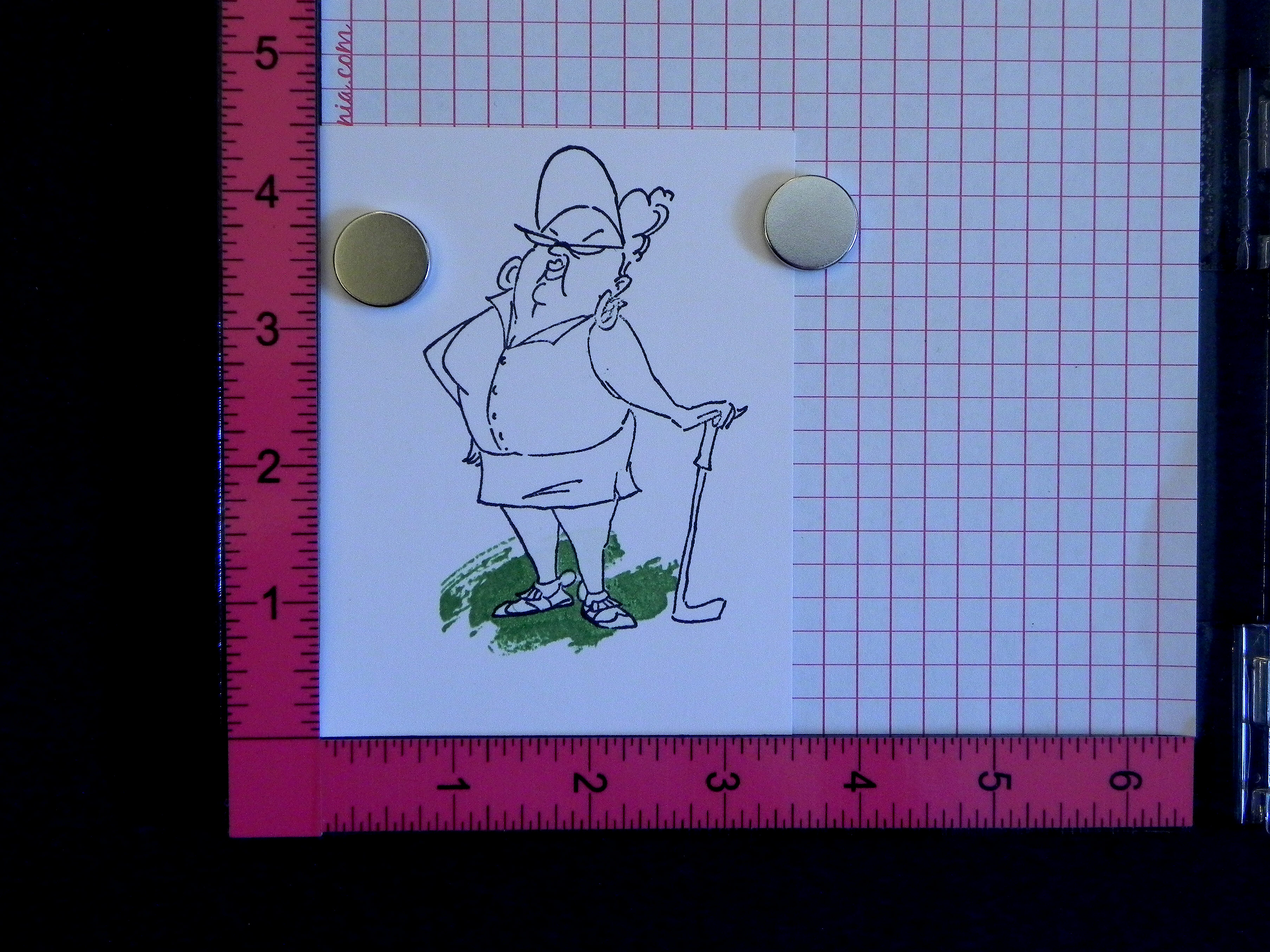
Often, when I am stamping images for my projects, I need to mask off a portion of one of the images to avoid unwanted overlap.  The image above was made with a few different stamps; the golfer is called “Goldie Golfer” by Art Impressions, and the “grass” is from a set called “Work of Art” by Stampin’ Up.  I wanted it to look like the golfer was standing on the grass.

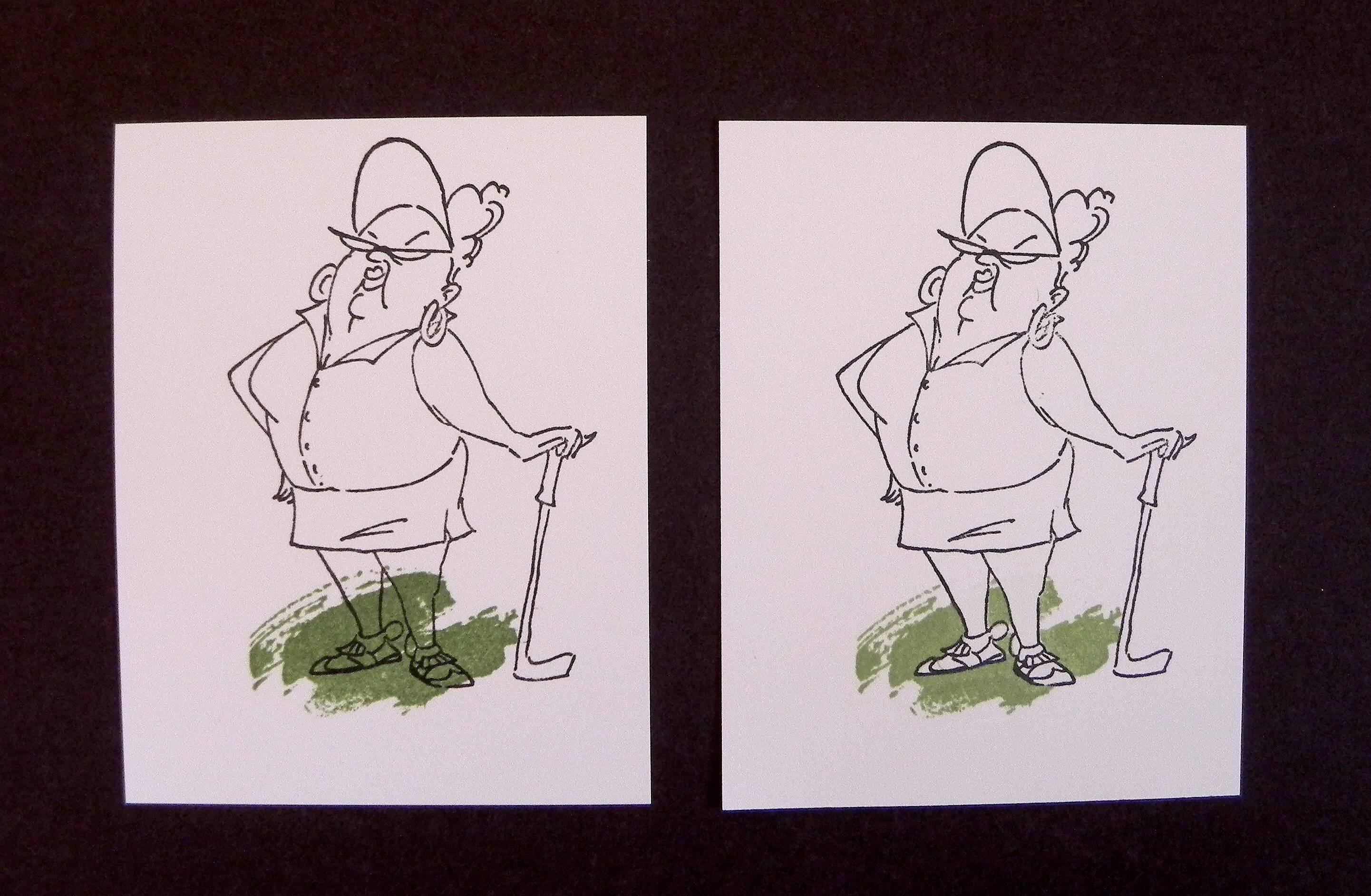
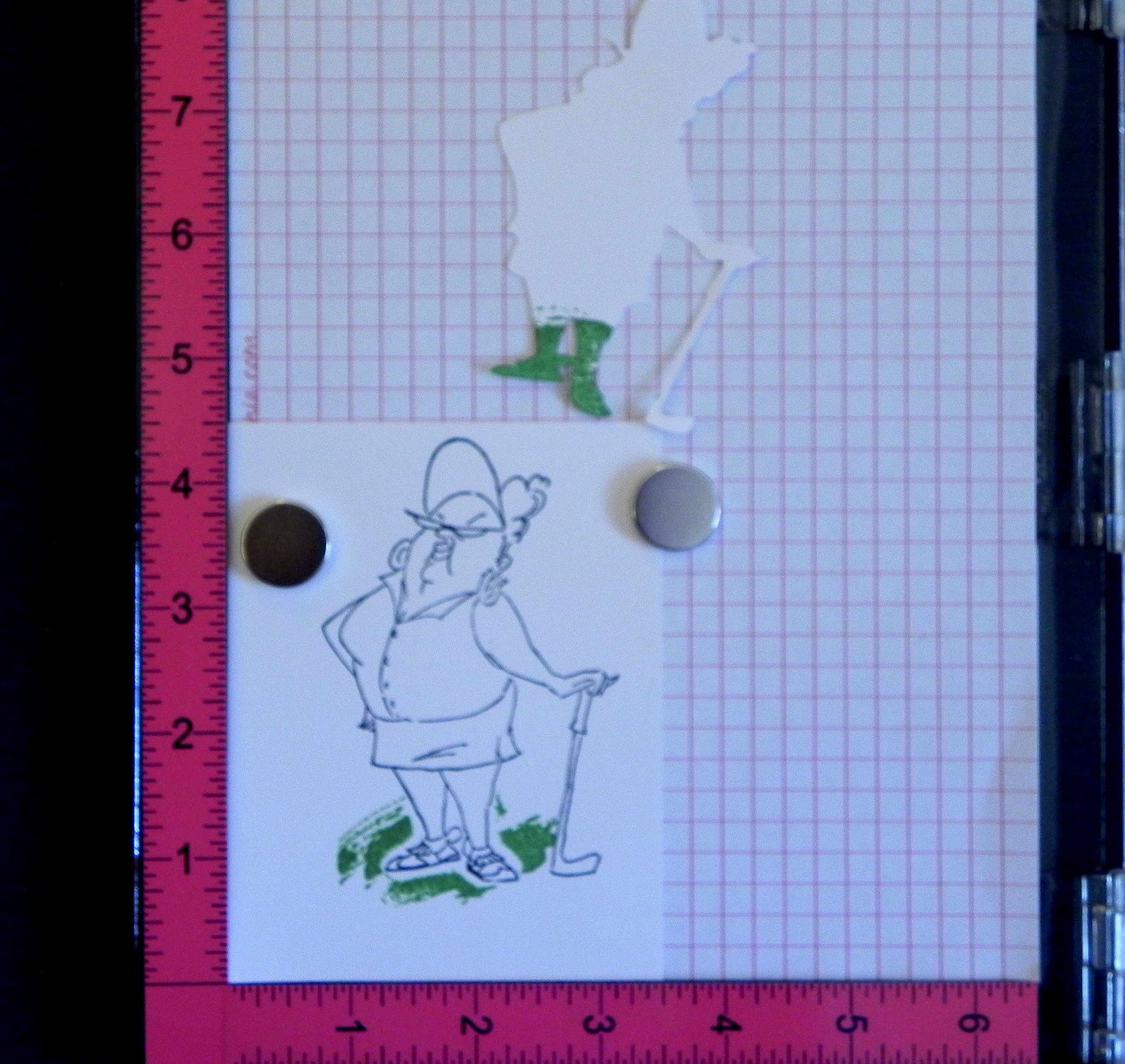
On the first sample below, I did NOT use a mask when adding the “grass” to the image.  It ended up on the golfer’s legs.  Yuck!  On the second sample, I masked the golfer first and then stamped the “grass.” When the mask was removed, the grass appeared to be under and around her but not on top of her. Much better!

007DSCN6069

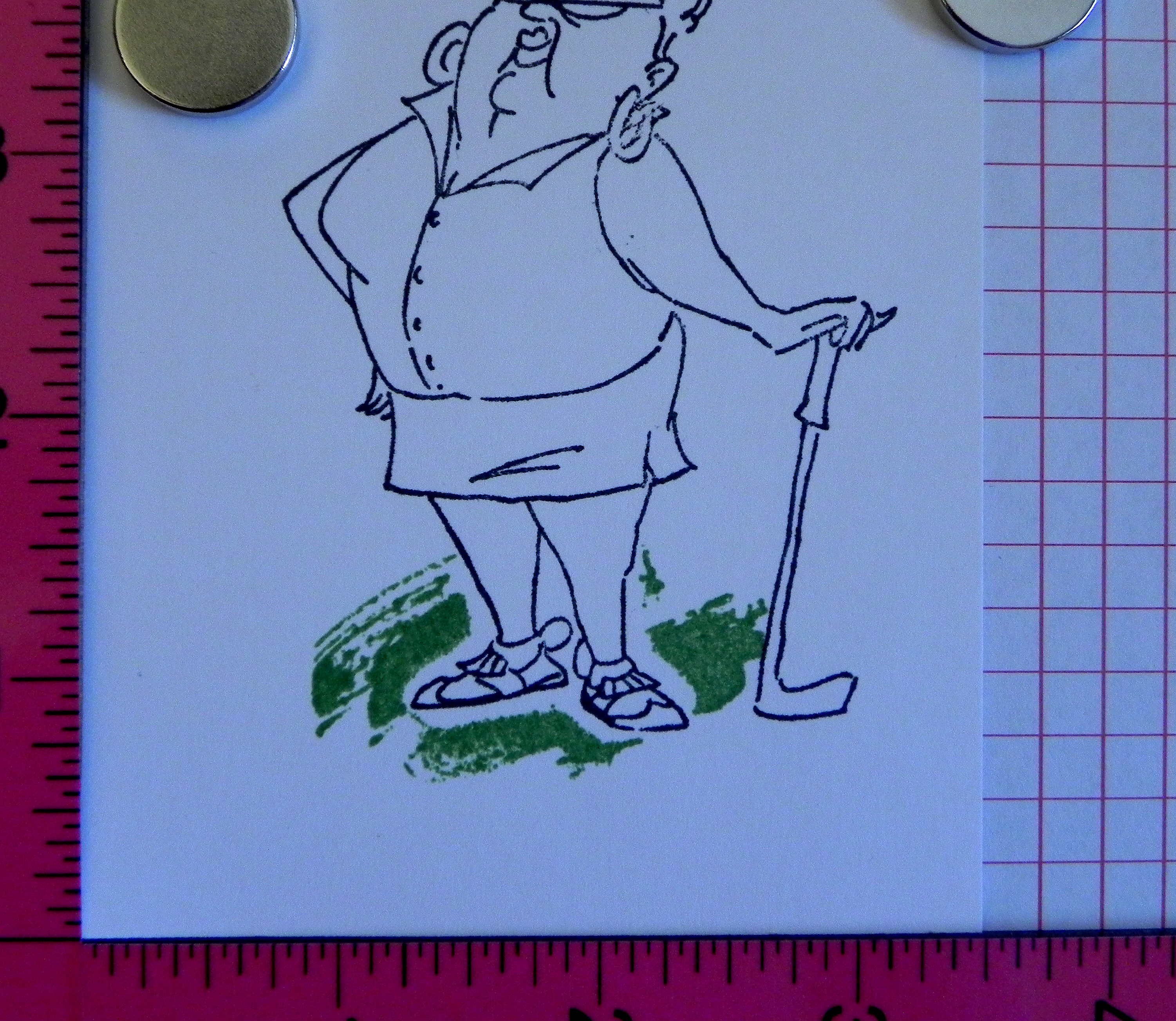
Honestly, though, the second sample didn’t look this good at first, and it took me a while to figure out how to fix it!  As you can see below, I was left with a white border around my original stamped image. What was happening was that the “thickness” of the mask was preventing the second stamp from making contact with the paper around the mask.  (This problem occurs mostly with solid stamps like the one I used for the grass on this sample.)

080 DSCN0080

I tried pressing really hard to get as much of the stamp to hit the paper as possible.  I tried sponging more ink around the mask with a dauber.  I tried making my mask smaller so the ink would get closer to the edges. None of these methods worked very well.

The solution to fix this was so obvious once I figured it out, but I just didn’t see it at first!  I figured I’d share my “aha moment” in case you’ve had the same problem and are also frustrated!!


A quick explanation on how to mask:

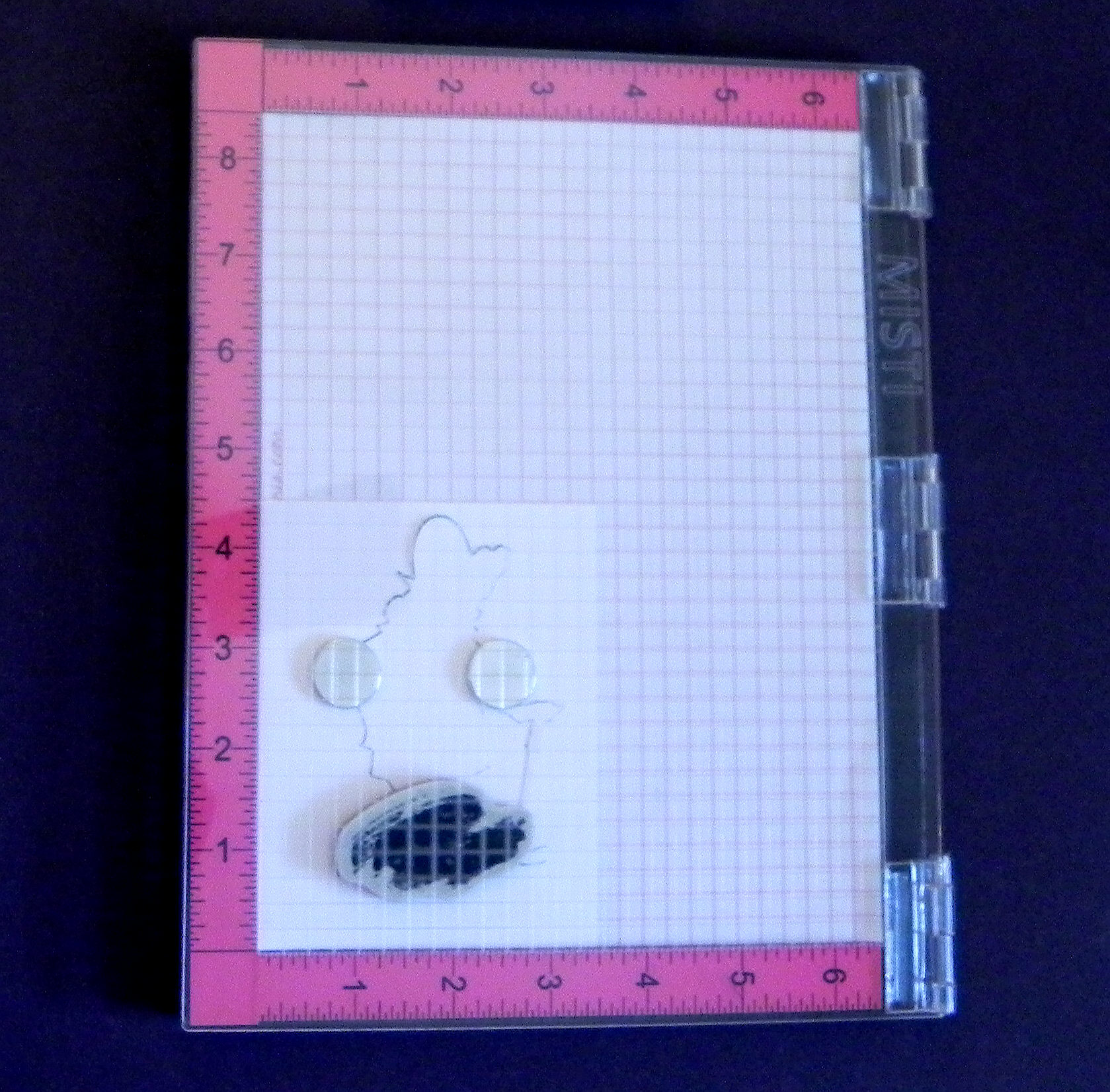
When I mask things to layer images on my projects, I use a stamp positioning tool to make sure I am placing everything exactly where I want it.  A stamp-a-ma-jig works well.  I use my MISTI.

* * *

First, I need to figure out where I want my “background” image to be and position the stamp accordingly.  In this sample, the “background” is the grass.  (Even though it looks like the golfer is in front, I stamped her first.  I’ll stamped the background “grass” over her.)

015 DSCN0069   014 DSCN0071

* * *

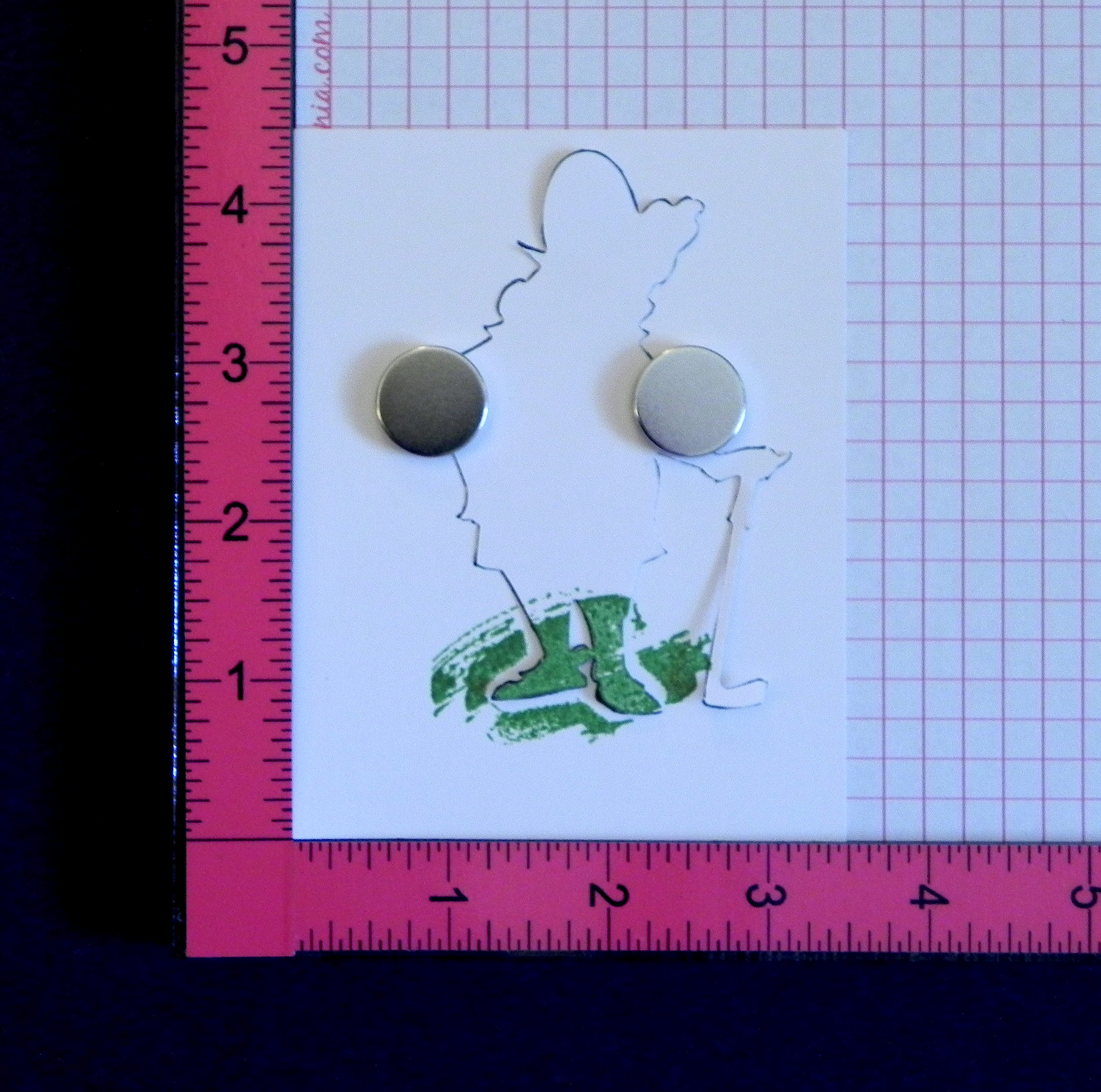
I also need to make a mask (of my “front” image).  If my mask is for a simple image, I just stamp it on a piece of scrap paper and cut around the outer edges.  For more complicated images, I use my Silhouette electronic die cutting machine to “trace” the image and to create a cut file for my mask. That’s what I did with this golfer image.

020 DSCN0066

* * *

I place the mask over my original stamped image.

055 DSCN0068

* * *

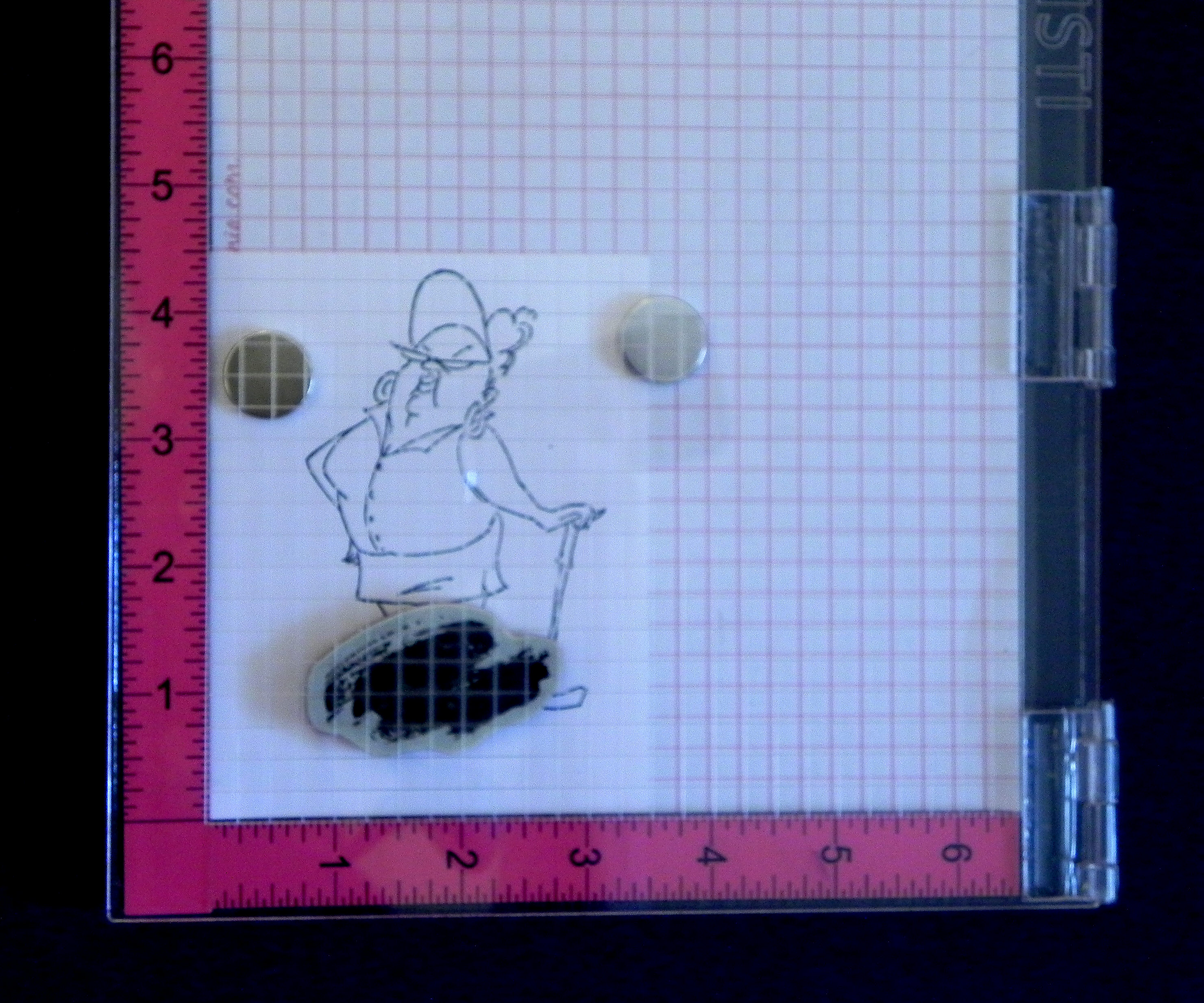
 Then I ink up the “background” stamp and stamp it on the masked image.

060 DSCN0073    070 DSCN0075

* * *

Here’s what it looks like when you remove the mask…

075 DSCN0079     080 DSCN0080

* * *

(Here’s the “aha moment” I was talking about!):  and this is what the stamp looks like…

wDSCN6184

* * *

The ink that never made it to the paper was still on the stamp.  So, I simply stamped it again (without the mask)…

090 DSCN0087

* * *

…much better!

100 DSCN0090

* * *

I know that seems obvious, but I was really not thinking about stamping without the mask when I needed the mask for my layout!

As you can see, using a positioning tool like the MISTI is really helpful because this method requires re-stamping the image in the exact same place it was previously stamped – unless, of course, you are really good at just eye-balling it to re-align it.  (I am not!!)

And one more thing:  When you stamp initially with the mask in place, you really want to make sure all the ink has been transferred to the parts that are hitting the mask.  I re-stamp a few times (without re-inking) to make sure.  You don’t want any ink left on the stamp where it hits the mask so when the mask is removed, ink will not get on the areas that were meant to get no ink.  (I learned the hard way when I started rushing on some of my panels.  She had a very faint green strip across her legs!)

Hopefully, this helps you to get better images when masking

Thanks for checking out my post!

This content uses referral links as described in the disclosure policy on my sidebar.
Penny Slider/Spinner Tutorial

Penny Slider/Spinner Tutorial

Tropical Penguins Penny Slider Card Video Clip.GIF

(click HERE to see original post for this card)

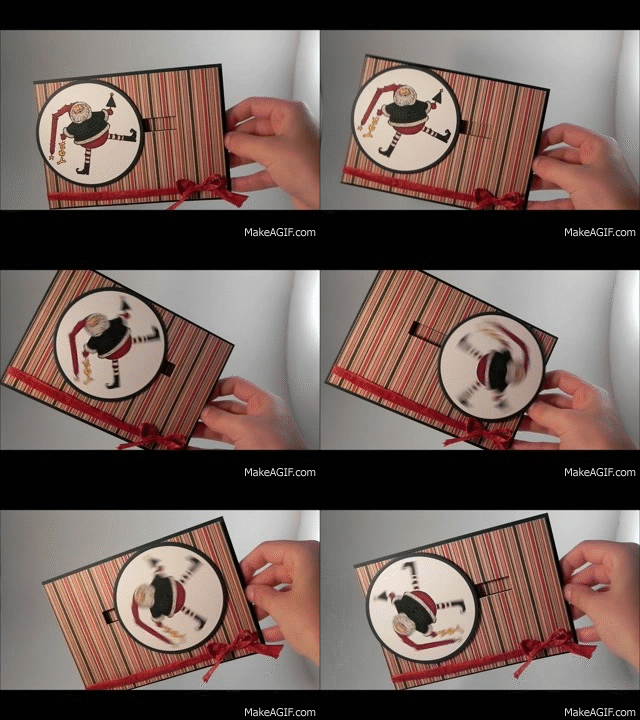
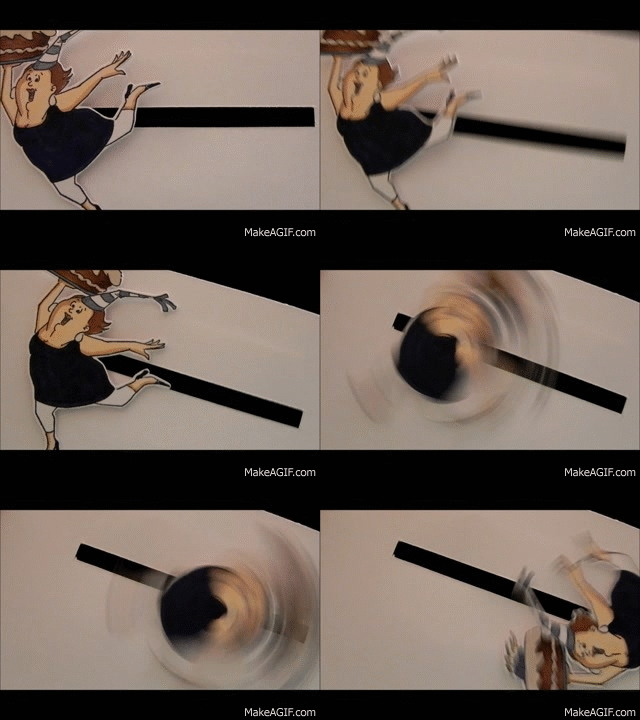
I’ve recently made two penny slider/spinner cards, and I must say, I LOVE watching the elements roll across the cards!  (Simple pleasures, right?!)  So I figured I’d post a tutorial on how to make one!!

A penny slider card has an element on the card that spins as it travels across the card.  It’s called a penny slider card because the spinning element is mounted on a “sandwich” of two pennies with a pop dot in the center which rolls across the card in a slot or channel that you create on the front of your card.

Spinning Santa.gif

(click HERE to see orignal post for this card)

There are three basic parts to a penny slider card:  the element that slides/spins, the channel or slot it spins across, and the card front itself.


1.  To make the sliding/spinning element:

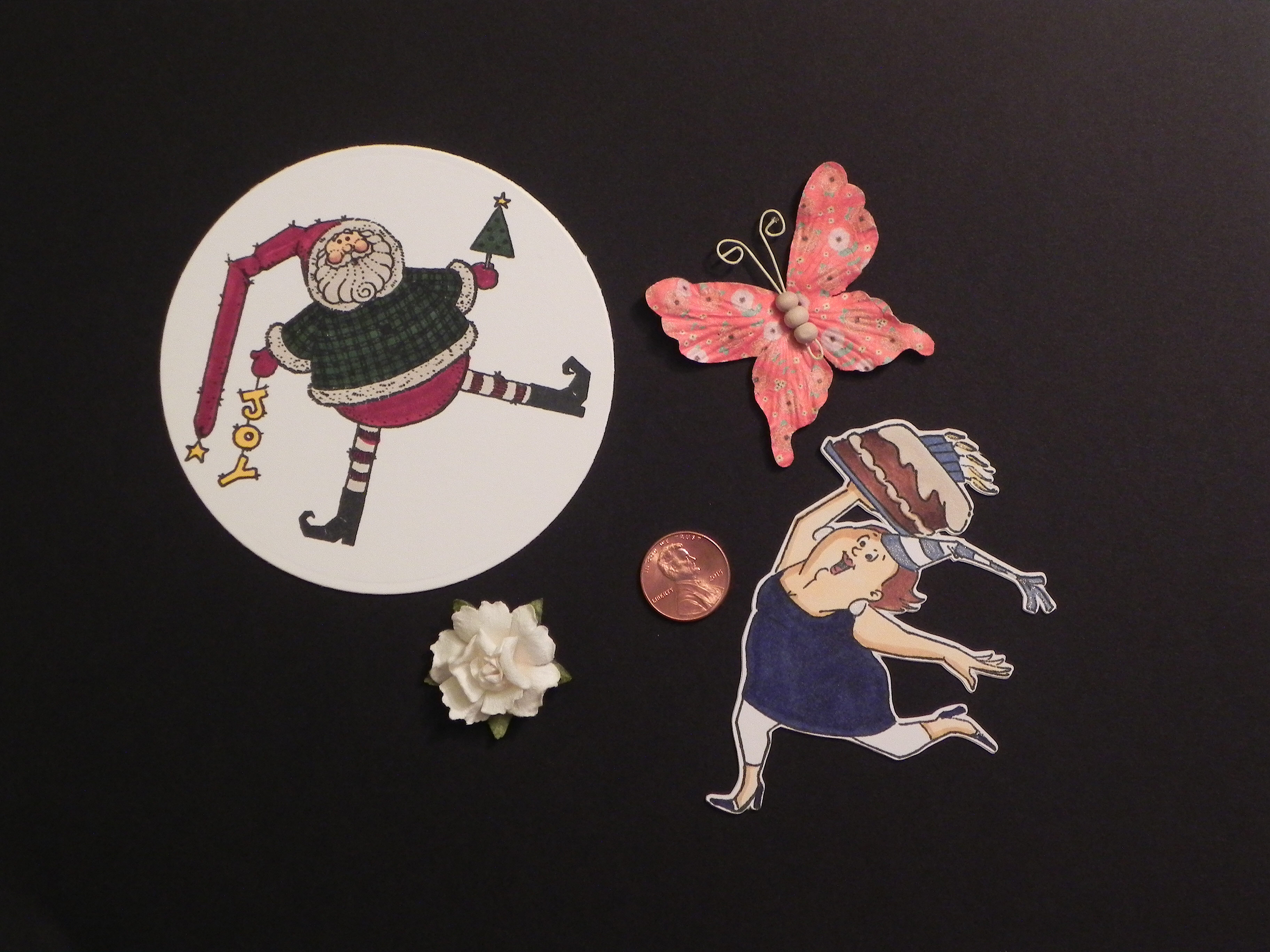
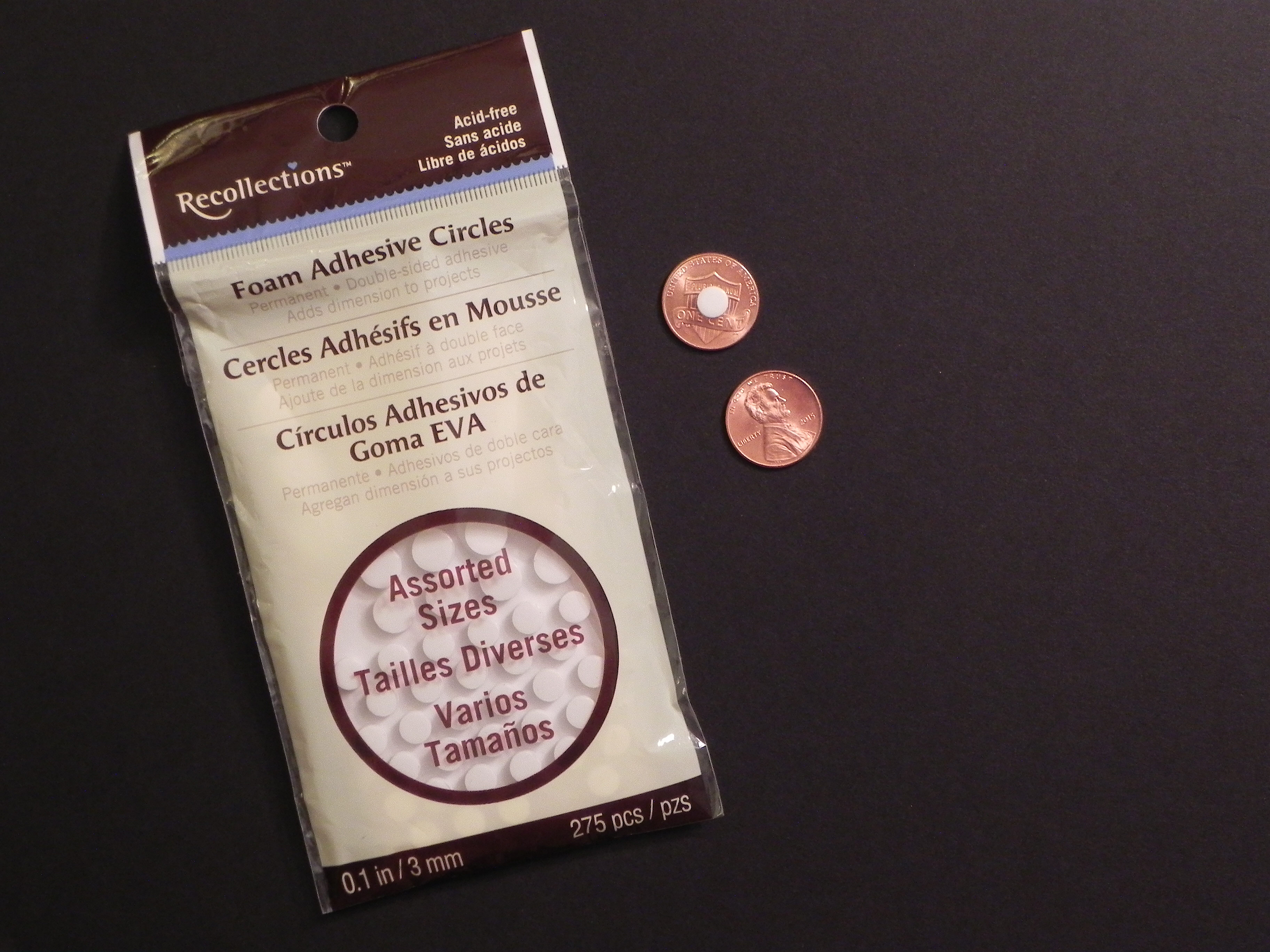
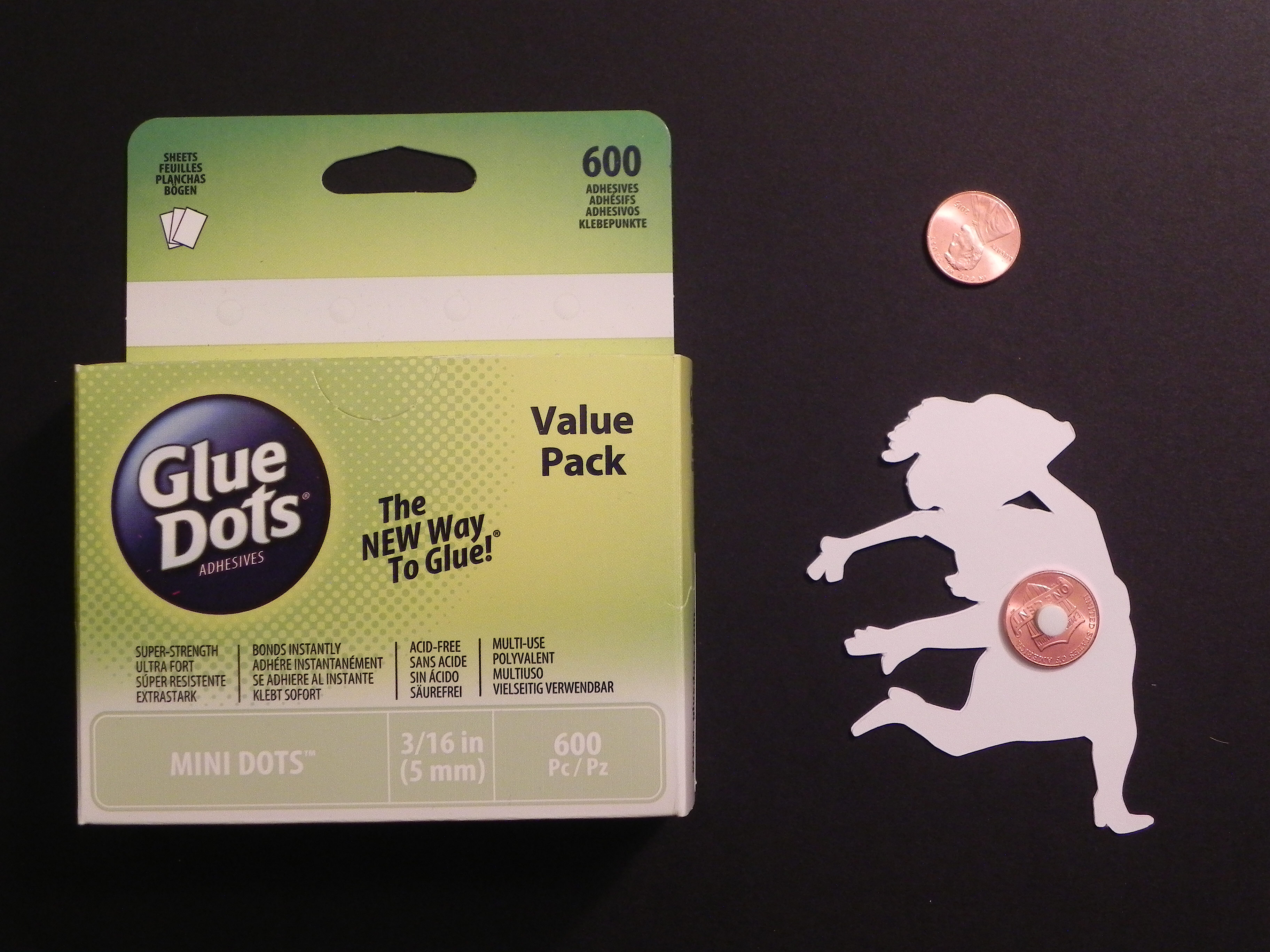
For this step, you need: 2 pennies, a round foam pop dot, glue dots and the thing you want to spin across your card.

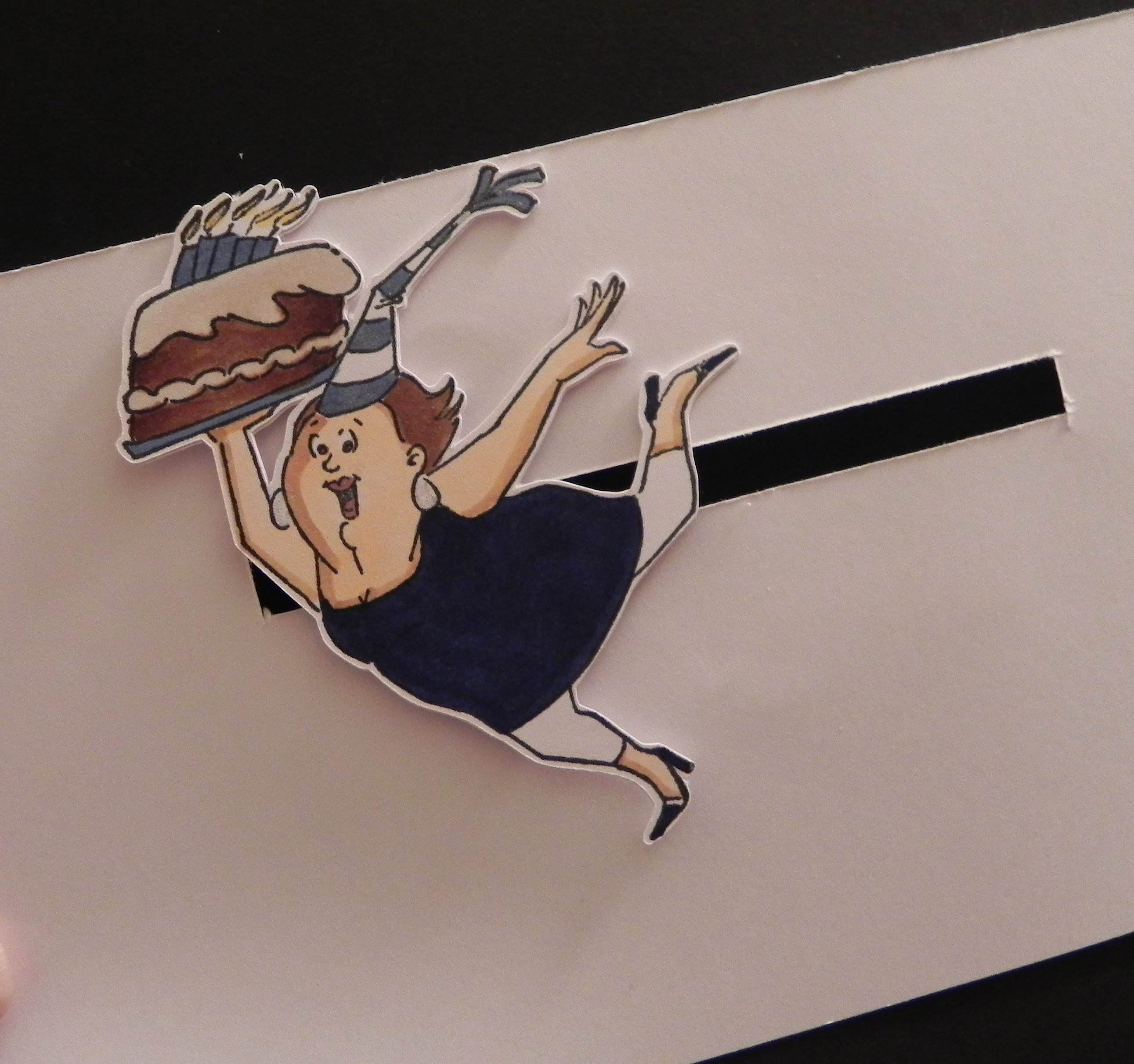
a.  Choose an image or element.  Stamped images either cut out or stamped on a basic shape work well.  Small, 3-D objects like flowers work well also.  Whatever you decide to use needs to be larger than a penny (or whatever coin you plan to use to create your spinner) so the penny will be hidden when the card is assembled.  (I am going to use the birthday gal image by Art Impressions (Hampton Art) # PS0919 for the rest of my tutorial.)
001 DSCN7977

b.  Create half the penny “sandwich” by adhering a round, foam pop dot to the CENTER of one penny.  The size of the pop dot does not matter as long as it is smaller than the coin.

002 DSCN7979  003 DSCN7981

c.  Adhere the image or element to the other side of the penny with glue dots.  Try to make sure the penny is centered on the back of your element.

004 DSCN7989

d.  I’d wait to do this final step until after you create your channel (see section 3), but the final step to create your penny “sandwich” is to attach a second penny to the other side of the pop dot.  Once done, the pop dot will be “sandwiched between two pennies, and this “sandwich” will be attached to the back of your image/element.

006 DSCN7991


2.  Design your card front:

This is the step that requires little explanation since anything goes!  Just plan your card front to incorporate the spinning element you created in the section above.  I suggest using a heavy weight card stock for this panel (either by itself or mounted behind a piece of patterned paper) since you need it to be somewhat sturdy. A flimsy card front will bend slightly and cause the spinner to get stuck as it travels.  (For this tutorial, I am using a plain, white piece of card stock.  Pretend it is decorated beautifully!!)


3.  To create the channel across the front of your card:

For this step, you need a cutting tool (like scissors, a craft knife,  a die or a trimmer) to create the channel/slot.

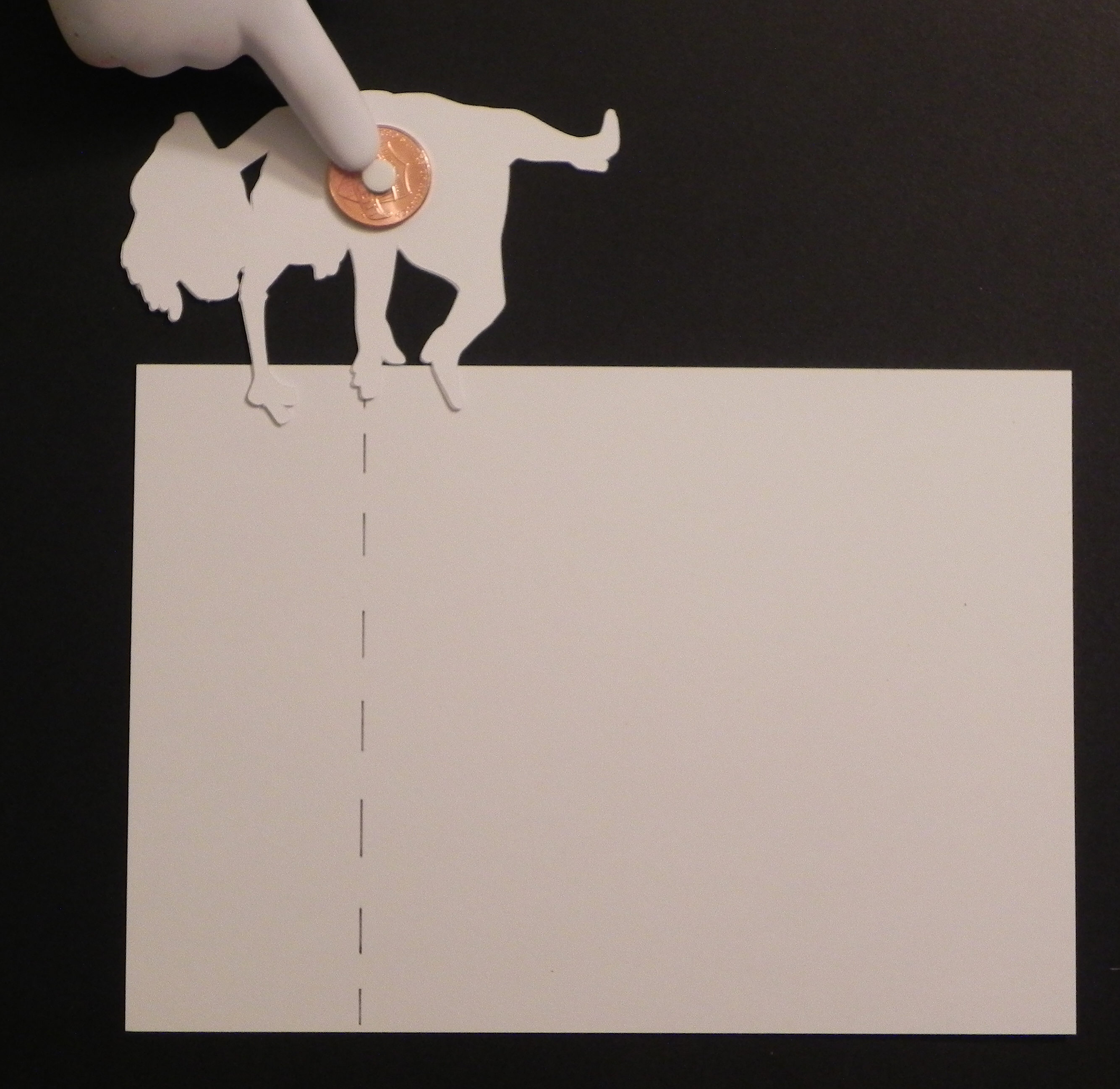
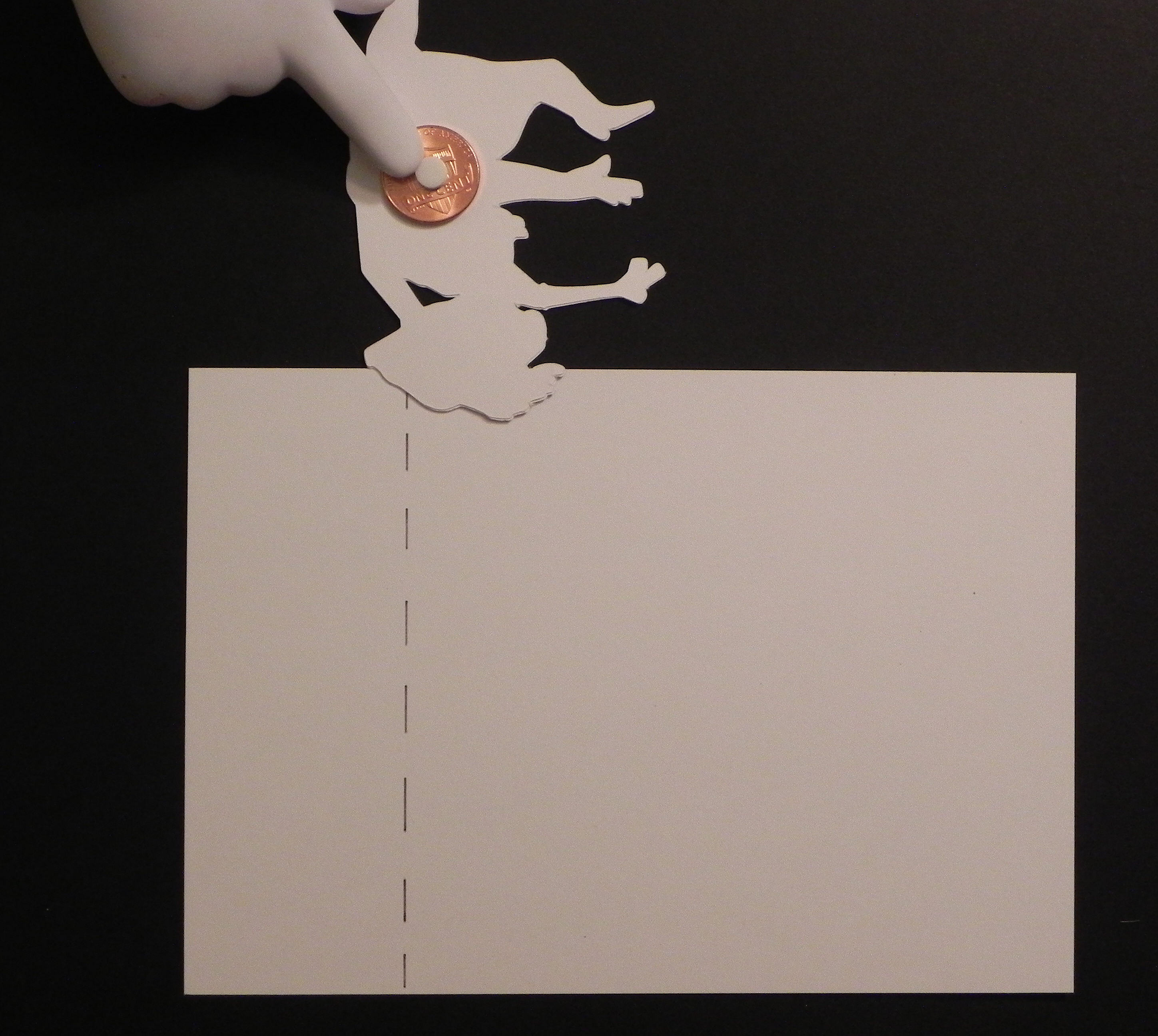
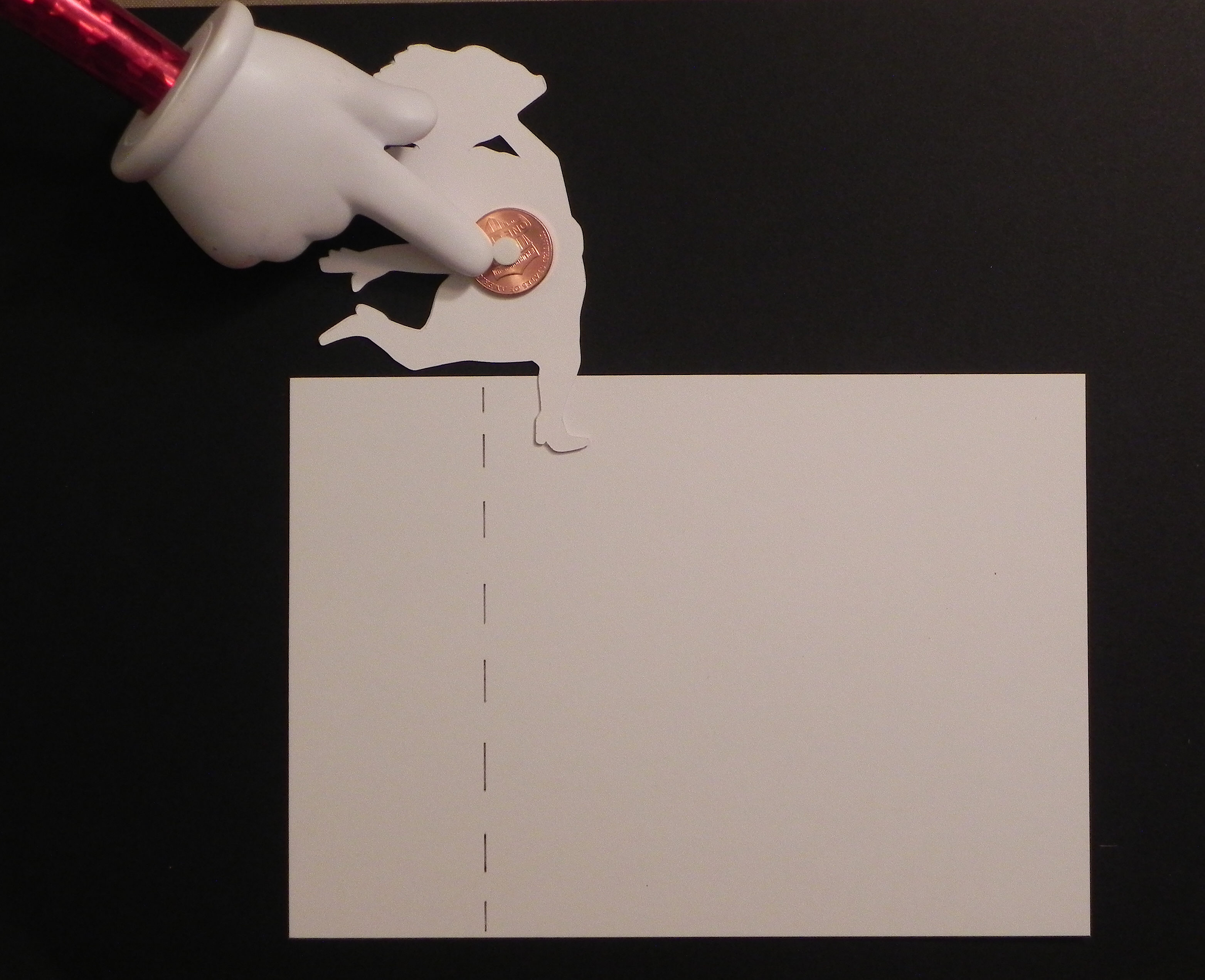
a.  This slot can either be hand-cut, die cut, or created with an electronic die cutting machine.  The slot can be as long/short as you desire.  To prevent the spinning element from hanging over the edges of your card when it gets all the way to the right or left, place your element upside down and note where the pop dot on the penny needs to stop in order for the element to stay within the boundaries of the card.  (Check all possible directions of the element.)  This will give you an idea of how long to make your channel.  (The element will stop spinning to the left when the left side of the foam pop dot hits the left edge of the channel.  The dashed line on the card stock shows where the channel should end based on where the foam pop dot is for this particular element.)

007 DSCN7994  008 DSCN7999

009 DSCN8000  010 DSCN8002

So the yellow highlighted line (below) shows a good length for the channel.  Anything shorter is fine; there will just be less room for your spinner to spin.  Anything longer will allow the spinning element to hang off the card (which is fine if you are ok with that!).

011 DSCN8006

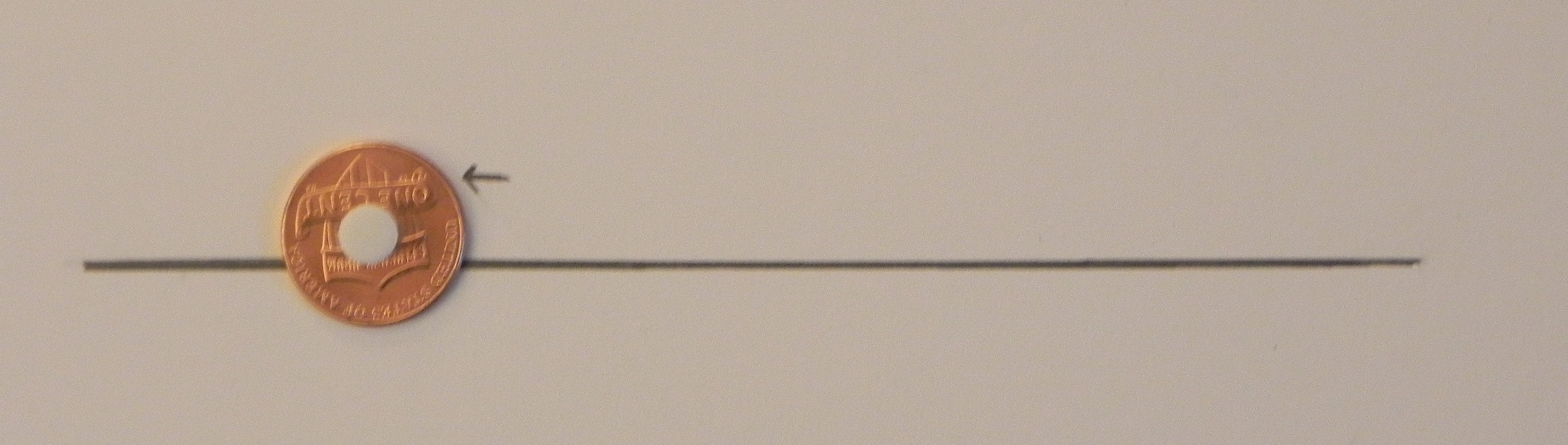
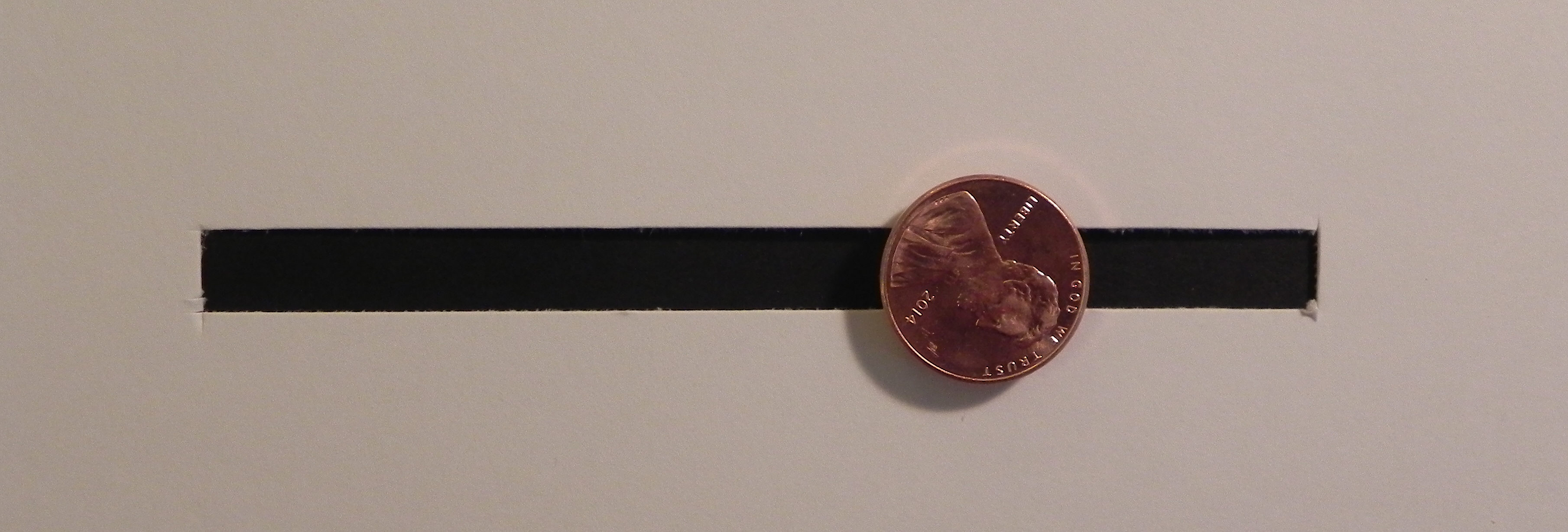
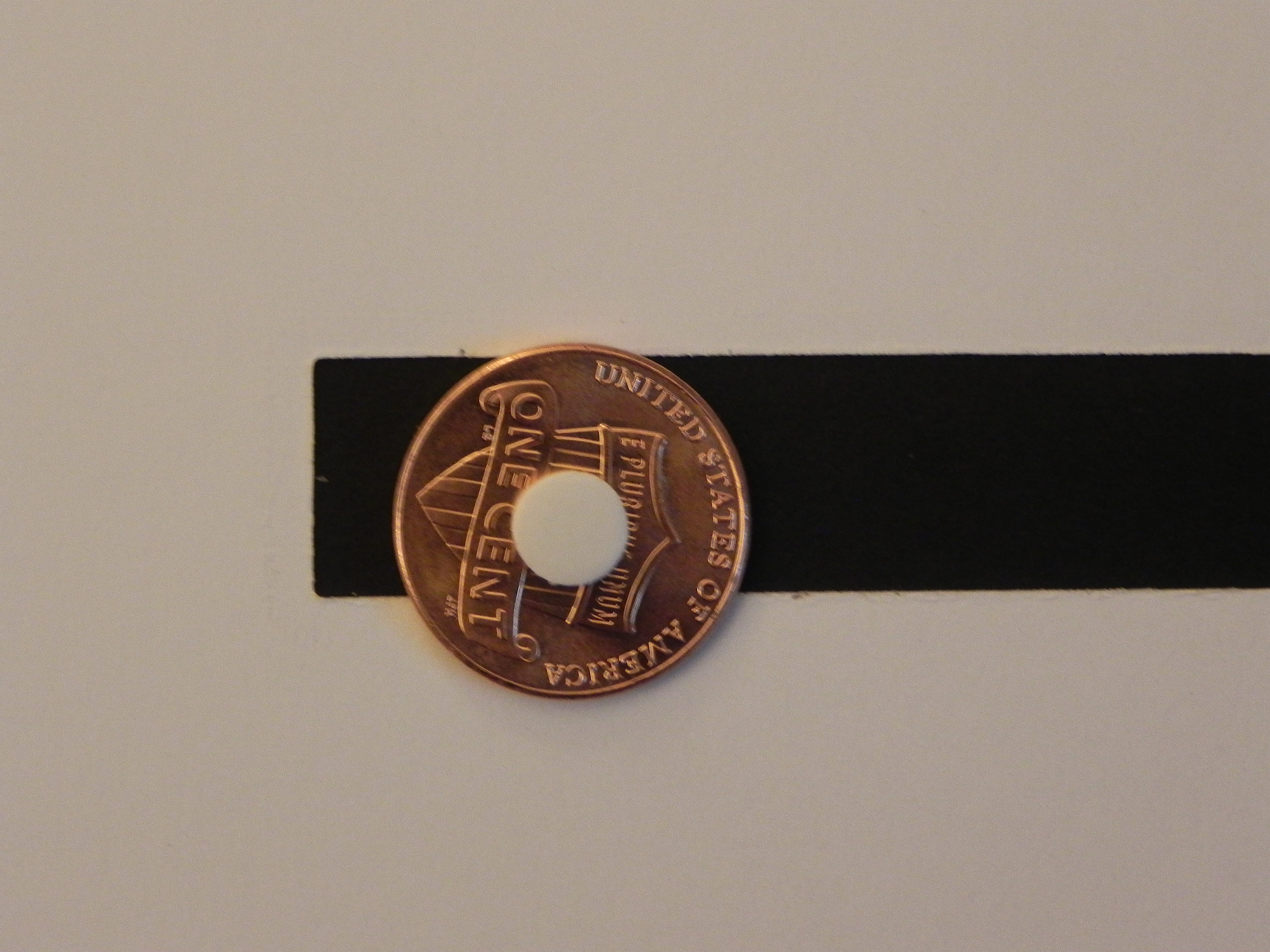
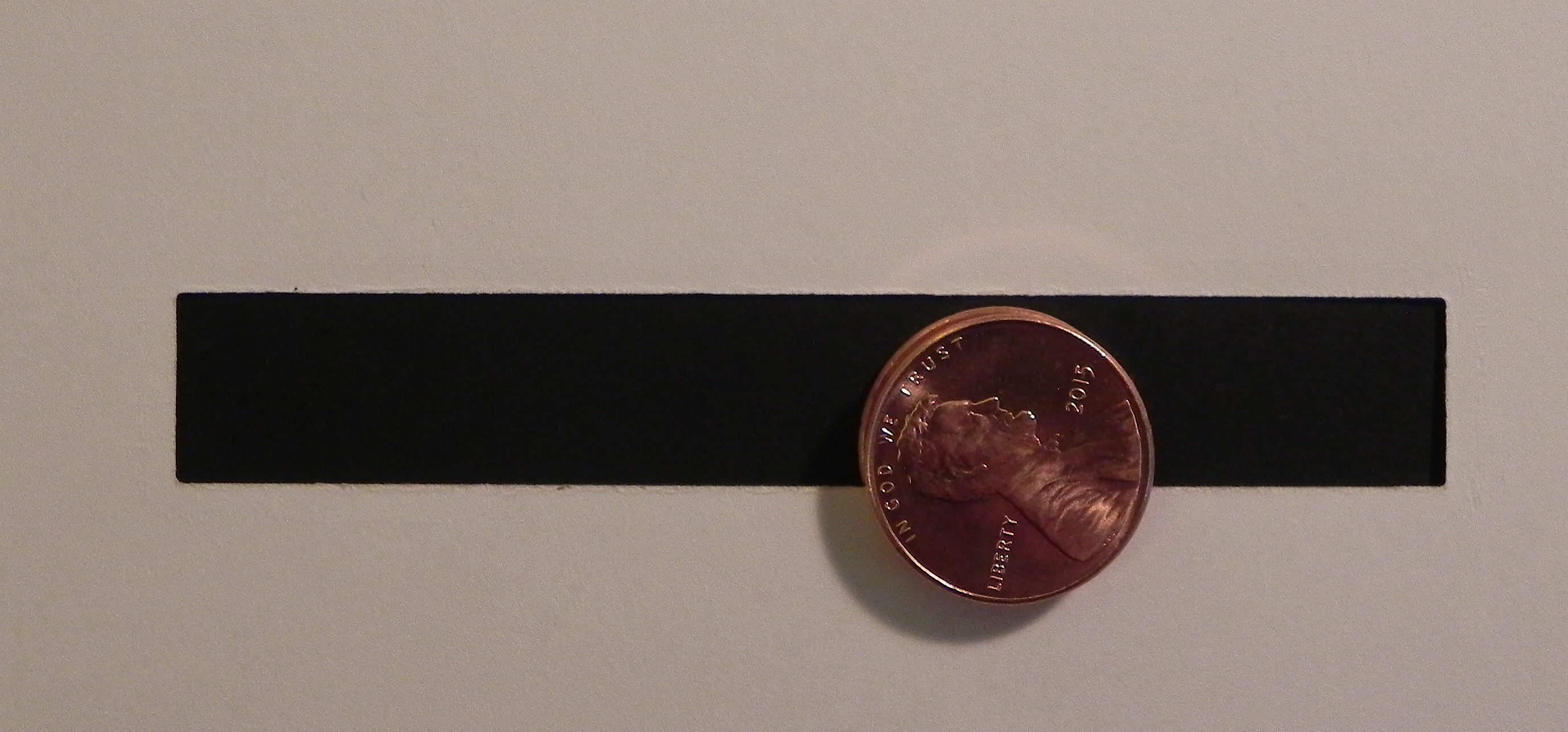
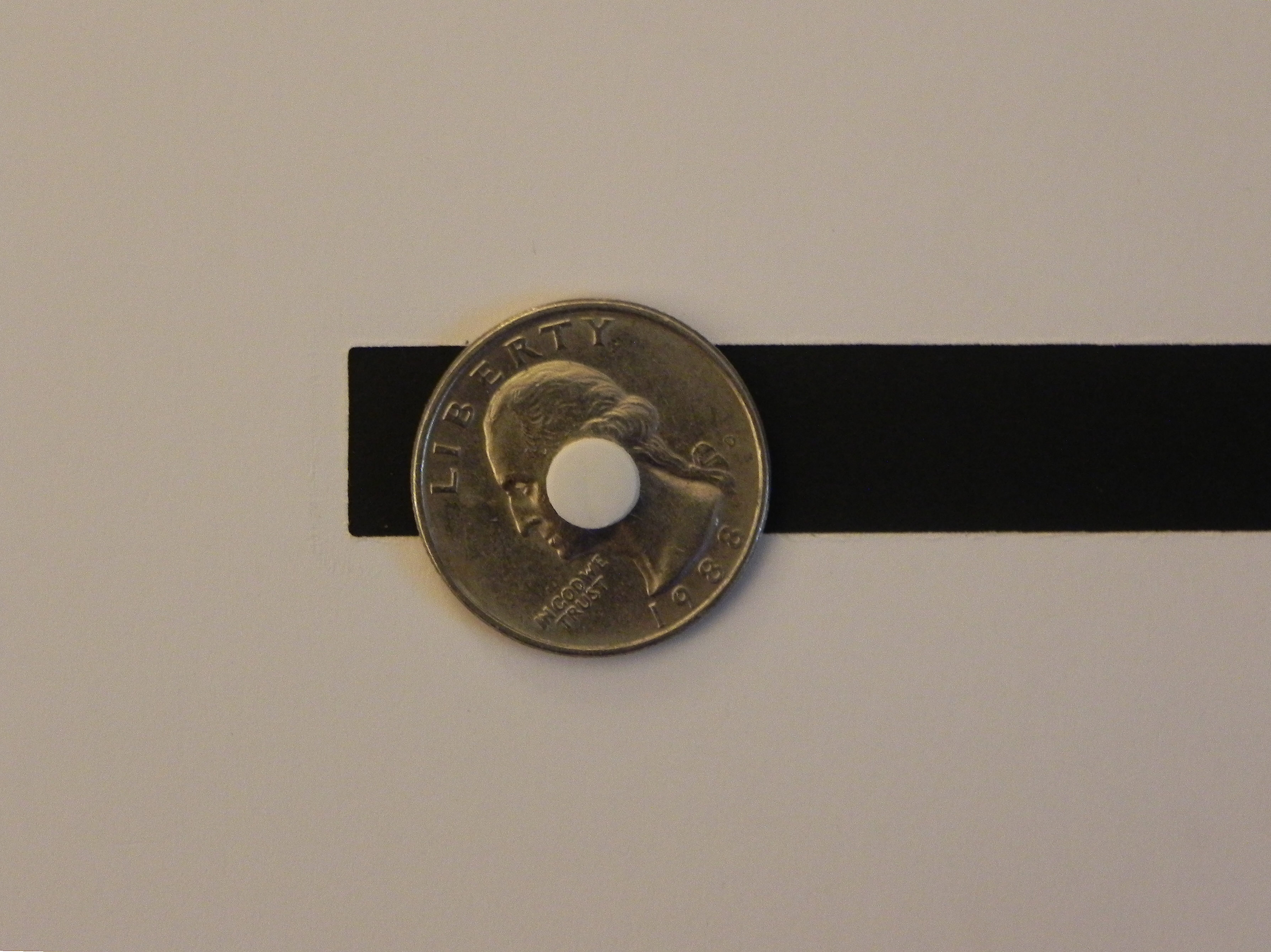
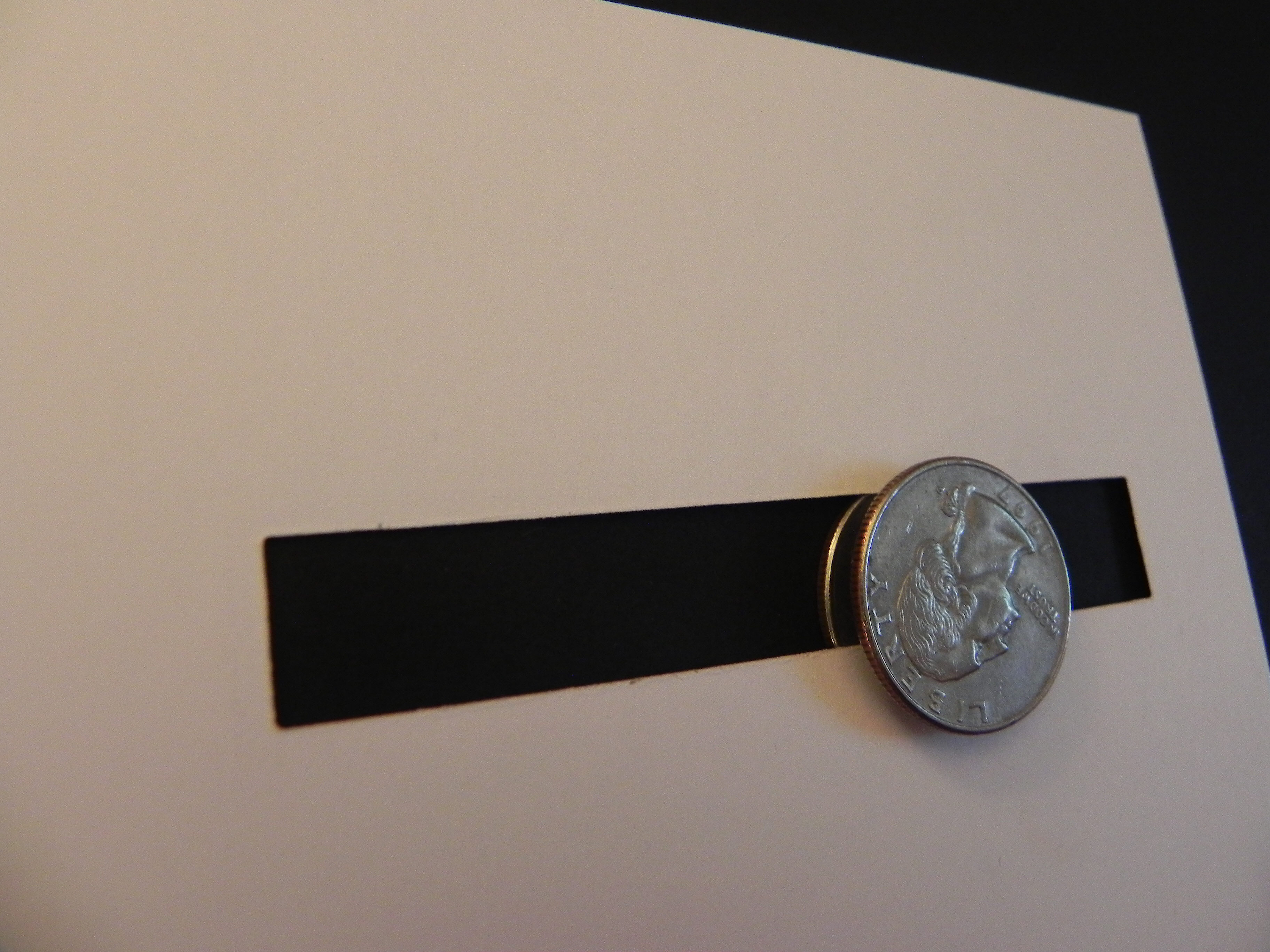
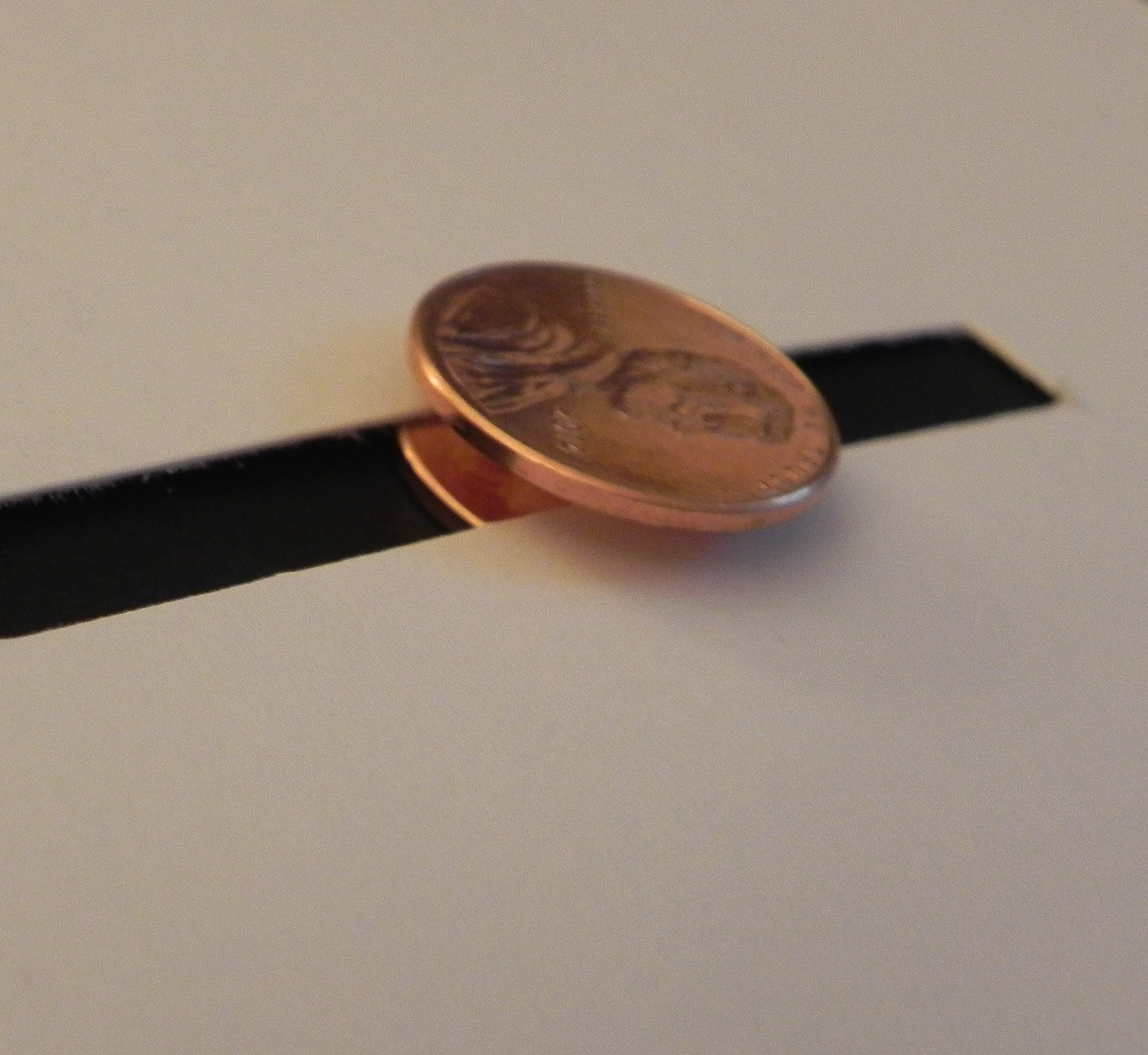
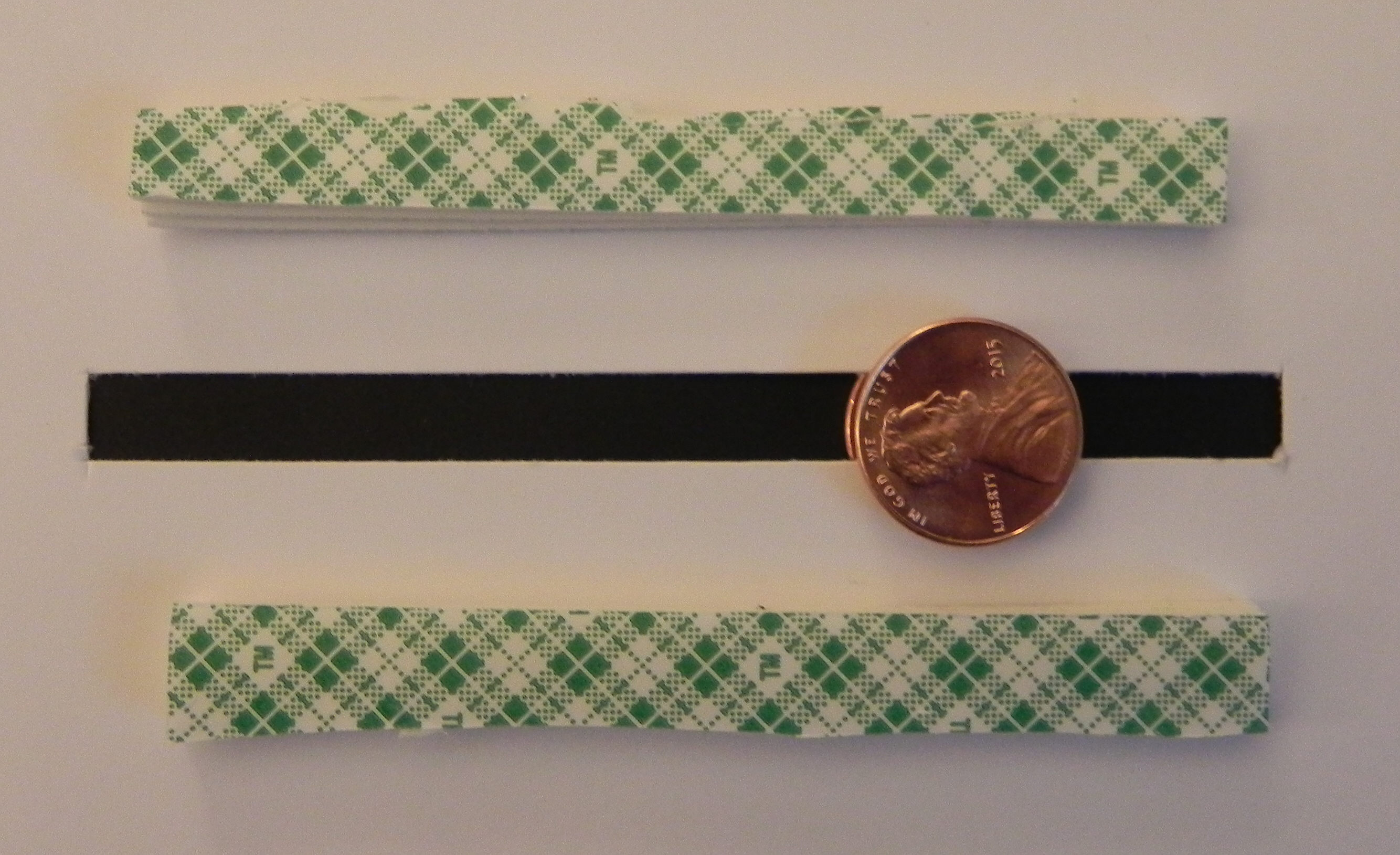
b.  To determine how wide to make the channel, look at the pop dot and coins you chose to use.  Your slot needs to be just slightly larger than the diameter of the pop dot and smaller than the distance from the edge of your coin to the opposite edge of the pop dot.  You want the pop dot to be able to spin freely in the channel, but you don’t want the sandwich to fall out of the slot once it is inserted.

012 DSCN7655

In the photo above, the line represents the bottom of the channel or slot on which the pop dot will sit/roll.  The little arrow shows a good place to cut the top of the channel because it is above the pop dot but below the top of the coin.

This is a good width.  The penny sandwich can move freely but won’t fall out.

013 DSCN7677

The slot below is too wide.  The penny sandwich can move freely, but the coin is not big enough to stay in the slot.

014 DSCN7662  015 DSCN7676

To fix this, you can use a larger coin, a larger pop dot, (or cut a more narrow channel/slot).

016 DSCN7664  017 DSCN7670


4.  Assembly:

For this step, you need pop dots or foam tape.

a.  If you still need to finish the penny sandwich, you can do that now by attaching the second penny to the foam pop dot directly over the first penny.

006 DSCN7991

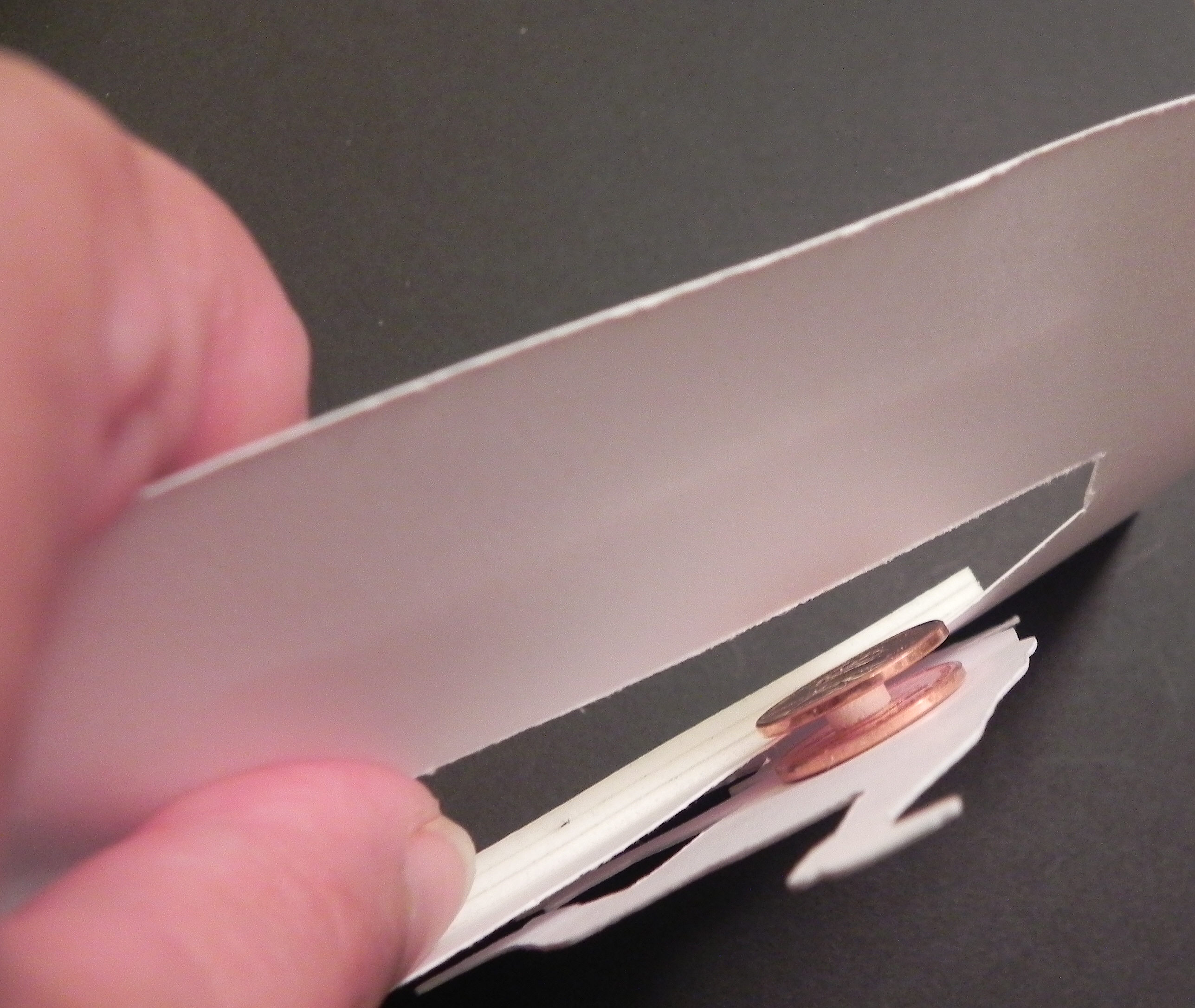
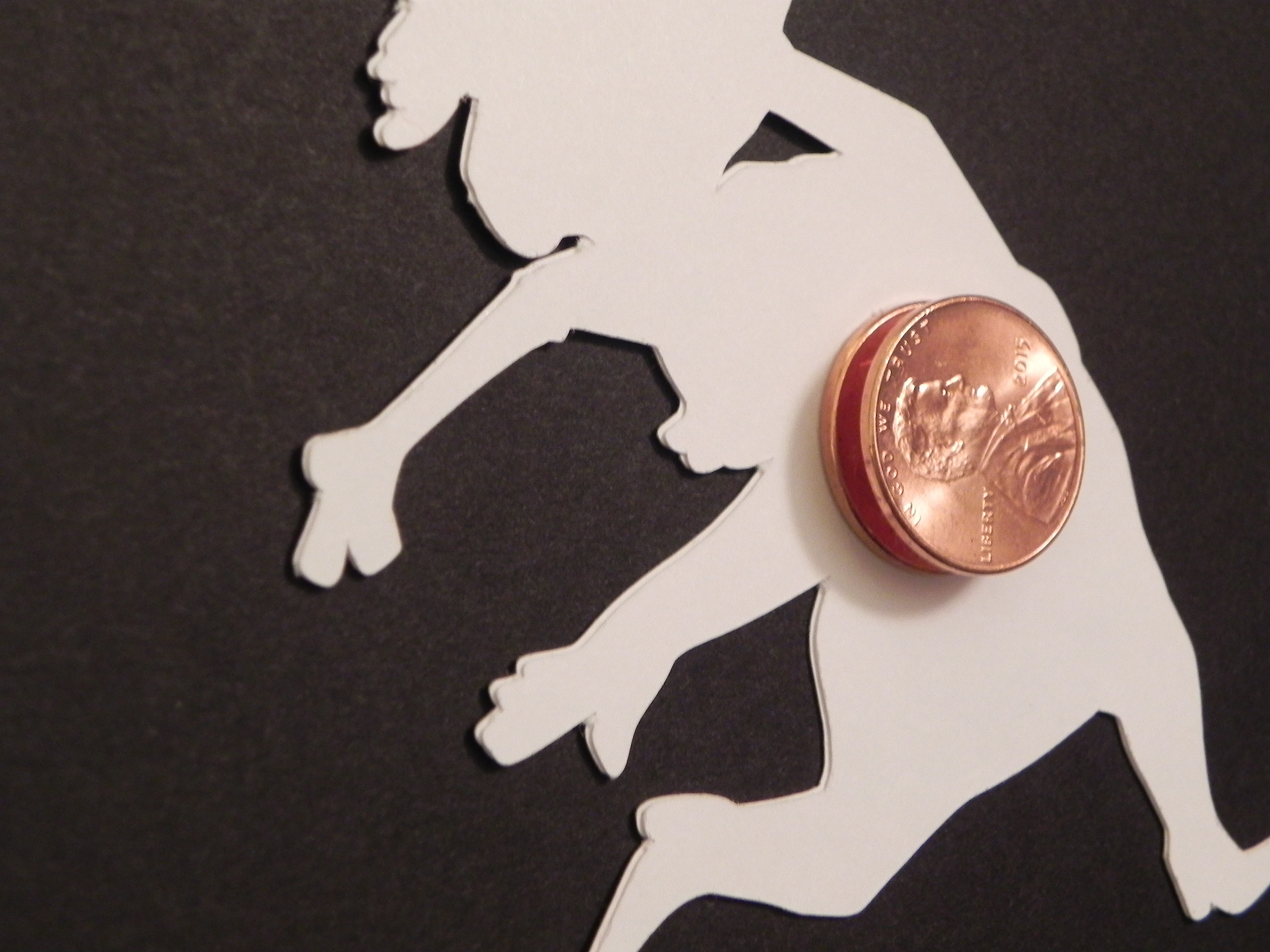
b.  Carefully insert the back penny in the slot by pushing the slot open slightly with your fingers.  Once in, it should not fall out.  (Again – If the element does not spin freely, your slot needs to be wider.  If the element falls out of the slot as it spins, your slot is too wide.  To fix this, use a larger coin or larger pop dot.)
019 DSCN8012

22 DSCN7679   020 DSCN8013 

Tutorial Spinning Element

c.  Once your card front is complete with the spinner element inserted in the slot, it’s time to adhere it to the card base.  This panel needs to be raised to allow the penny sandwich to roll freely so use pop dots or foam tape.  On the back of the card front panel, place the foam tape or pop dots around the channel (without touching the penny) as shown below, and also place foam tape around the edges of the panel (not shown).  You may need to double up the foam tape or pop dots to raise the panel enough so the card base does not come in contact with pennies.

021 DSCN7686

c.  Attach this panel to your card base, and enjoy!


This tutorial is being featured over at Die Cut Divas this month where I was invited to be a guest designer.  They have monthly challenges where all cards/projects must be made using at least one die cut or embossing folder, and this month’s challenge is Your Favourite Holiday.  (Click HERE to see all the challenge rules.)  Pop on over to Die Cut Divas and share your holiday projects.  I can’t wait to see what you create!


Thanks for checking out my post!