Texture Tutorial

Here is a fun technique to add texture to an image you’ve colored with alcohol markers by using scraps of fabric and a colorless blender solution.

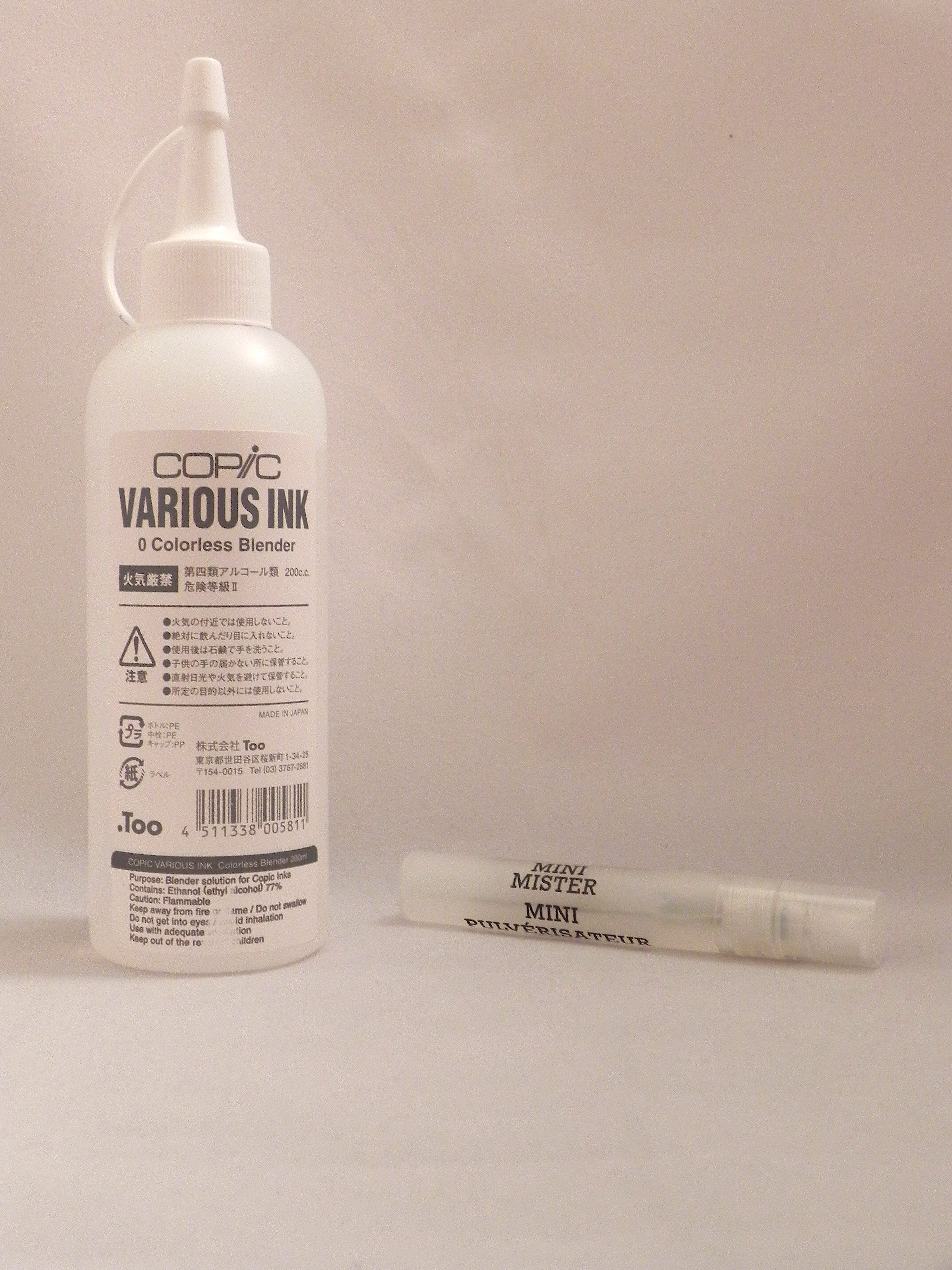
You will need:

(Click on a photo for a larger view.)
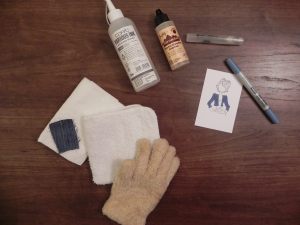
01 texture tutorial

  • Optional – If you’ve colored the entire stamped image, you may want to use something to mask the colored areas where you do not wish to add texture (like Frisket Masking Liquid, post it notes, etc.)
  • Scrap paper for under your stamped, colored image.

A little background:

  • Alcohol blending solution doesn’t really blend colors. Instead, it moves or pushes colors around on a surface.  With it, you can lighten areas that you’ve colored, erase mistakes by pushing the mistake back into the colored areas, add highlights, and add the appearance of texture to your image.
  • Adding blender solution to a colored surface that is still “wet” or saturated with ink will give you soft, blended edges.
  • Adding blender solution to a colored surface that is dry will give you more noticeable texture and crisp edges.

How to do it:

1.  Fill a spray bottle with the alcohol blender solution.
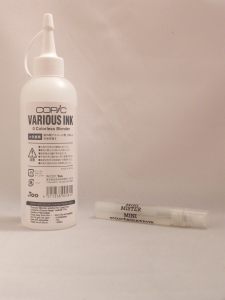
02 texture tutorial

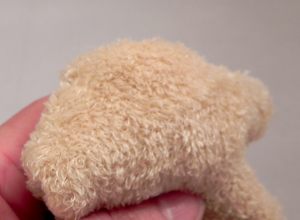
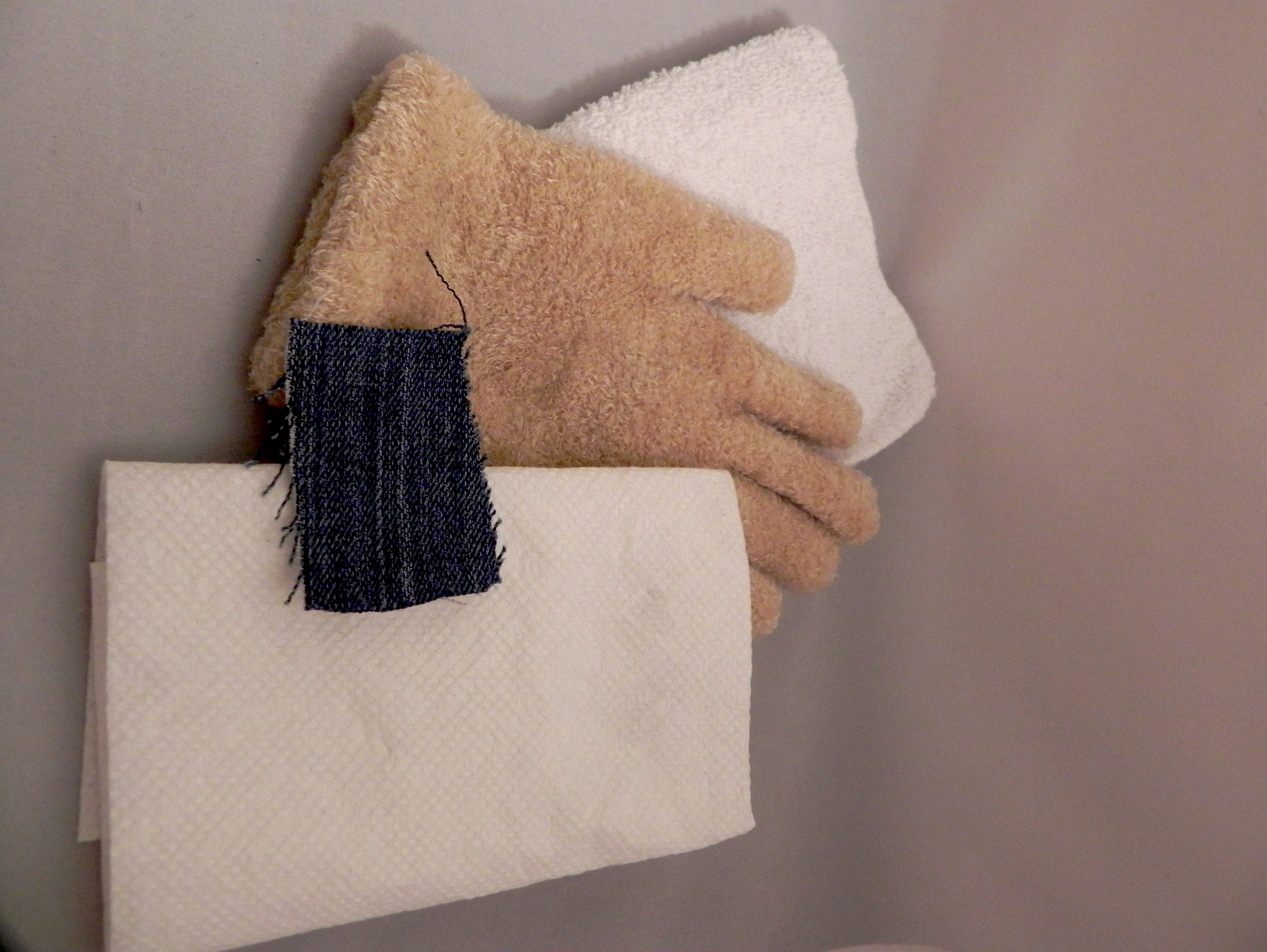
2.  Select a piece of fabric that looks like the texture you are trying to create. For example, if you are adding texture to a sweater, you may want to use a scrap of an old sweater or other fabric that may look like a sweater. (Or have fun and add a funky texture to your image!)
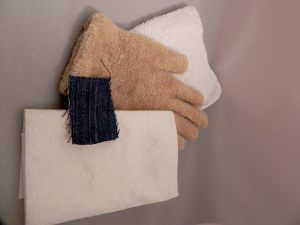
03 texture tutorial

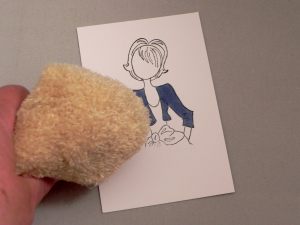
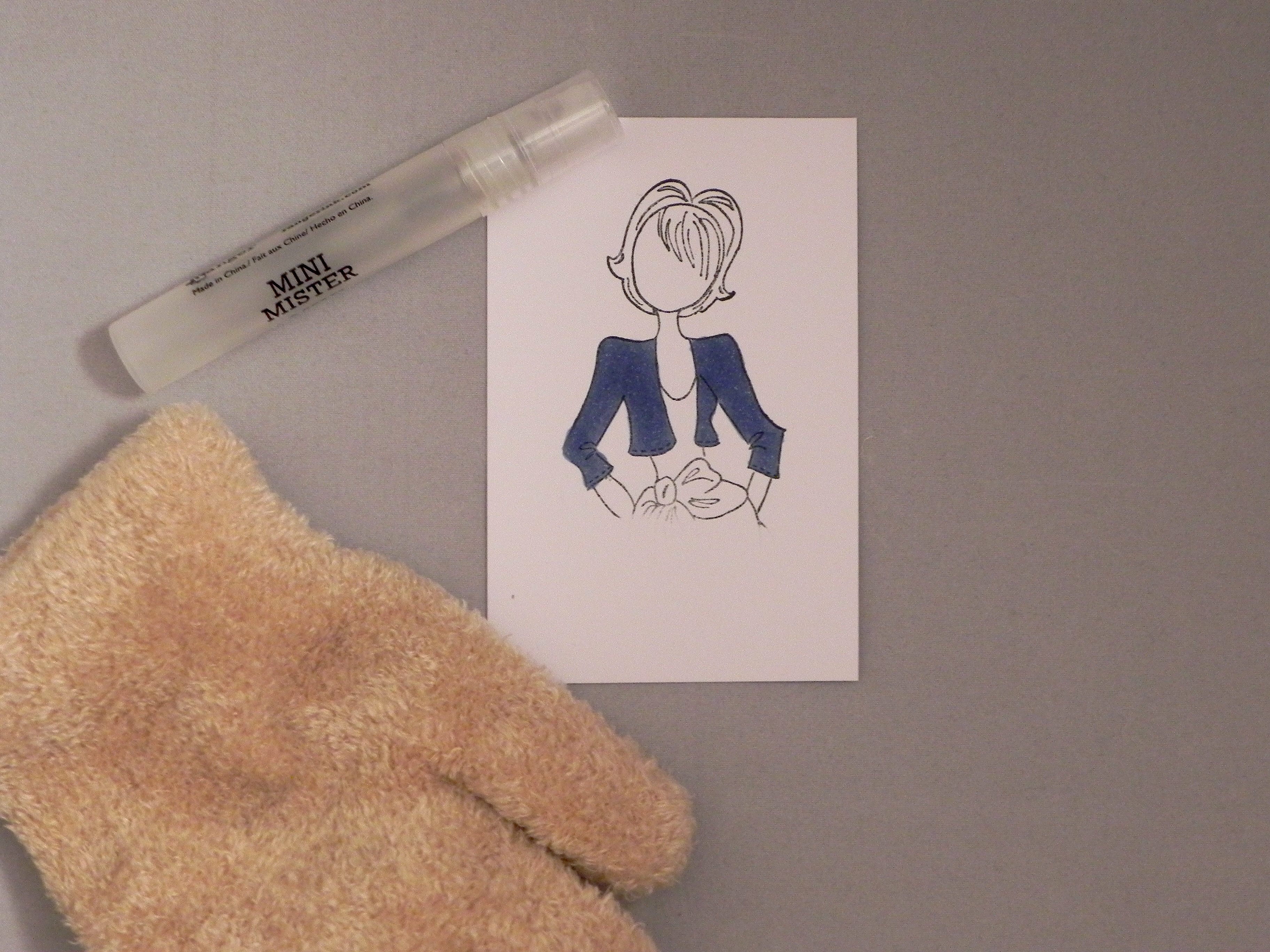
3.  Spray the blender solution (2 or 3 spritzes) on the piece of the fabric you wish to use. (Start off with a small amount of solution, and see if you get the desired effect. If not, add more solution.) Pinch the fabric between your fingers and dab the damp fabric on the colored area of your stamped image where you want to add texture.   Do not squeeze or press too hard.   Experiment with how long you hold the fabric on the image until you get the desired result. (If necessary, mask any adjoining areas where you do not wish to add the texture.)

This is what it looks like with the fuzzy glove.
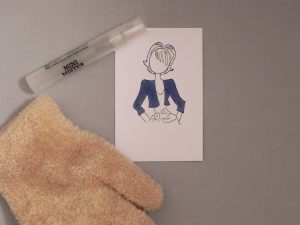
cDSCN9035    04 texture tutorial 05 texture tutorial  cDSCN8998 fuzzy glove

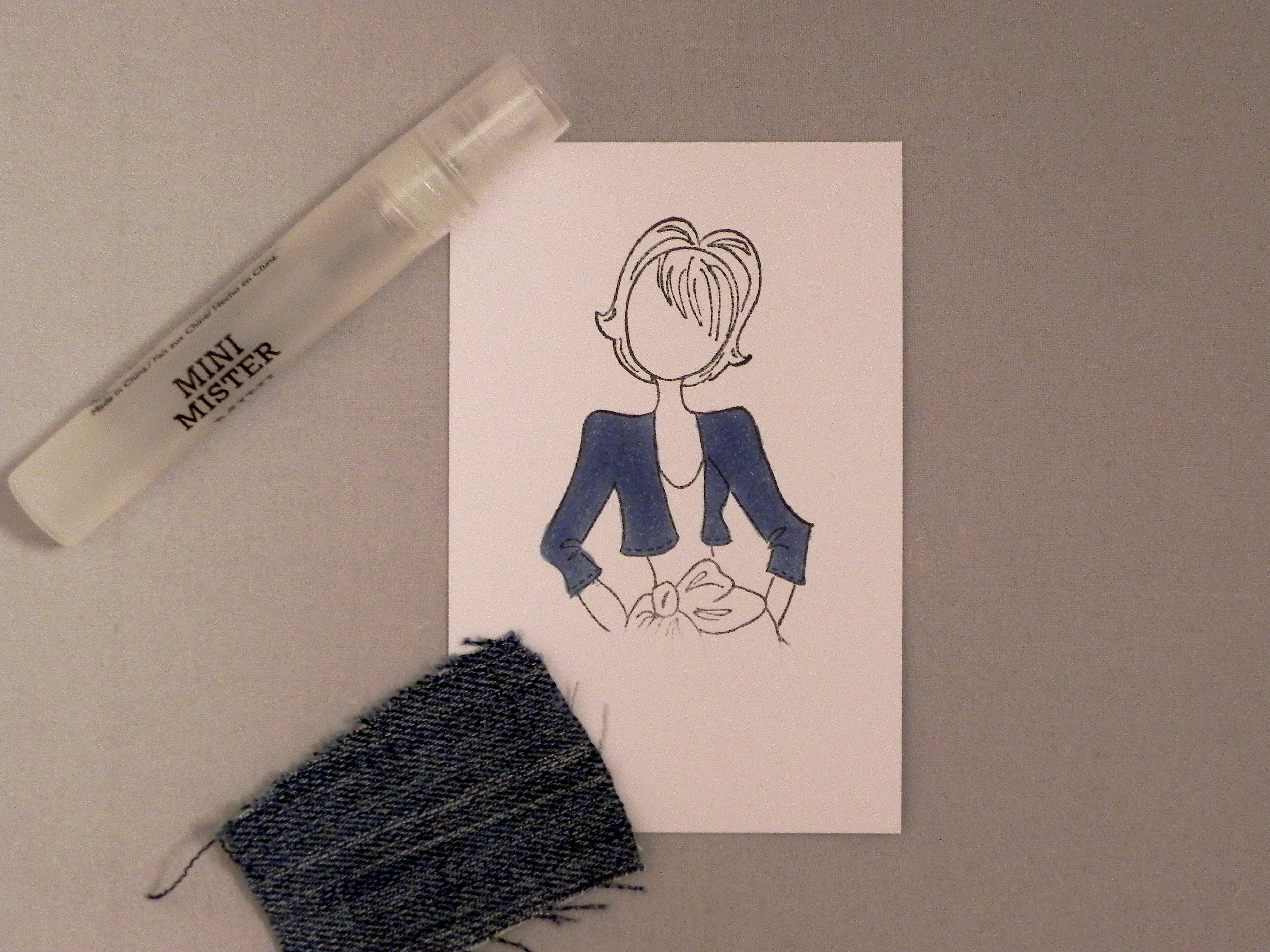
This is what it looks like with a piece of denim.
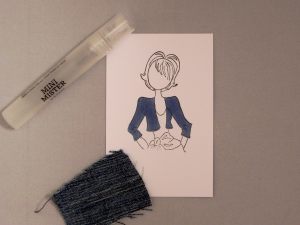
cDSCN9027   08 texture tutorial

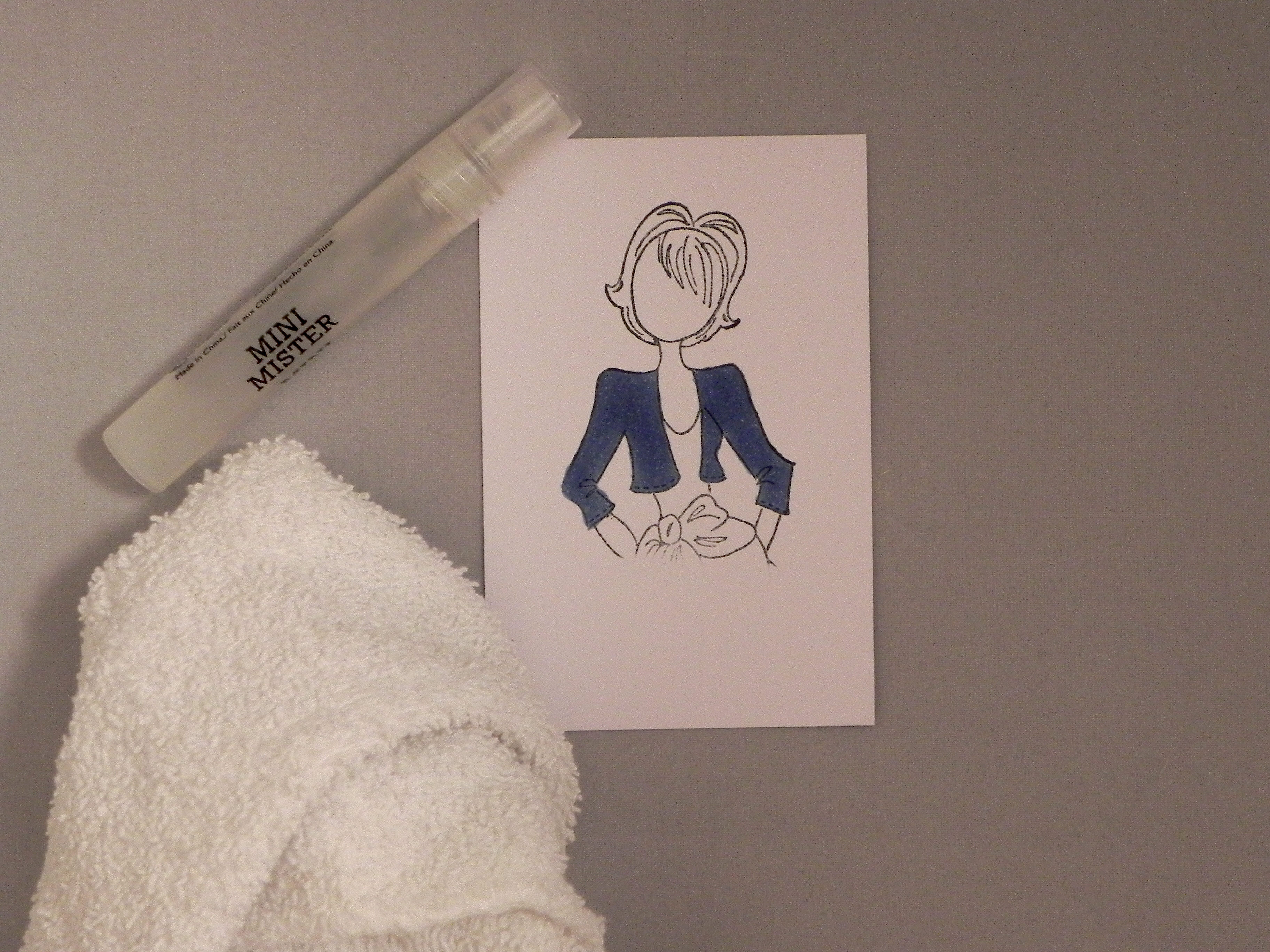
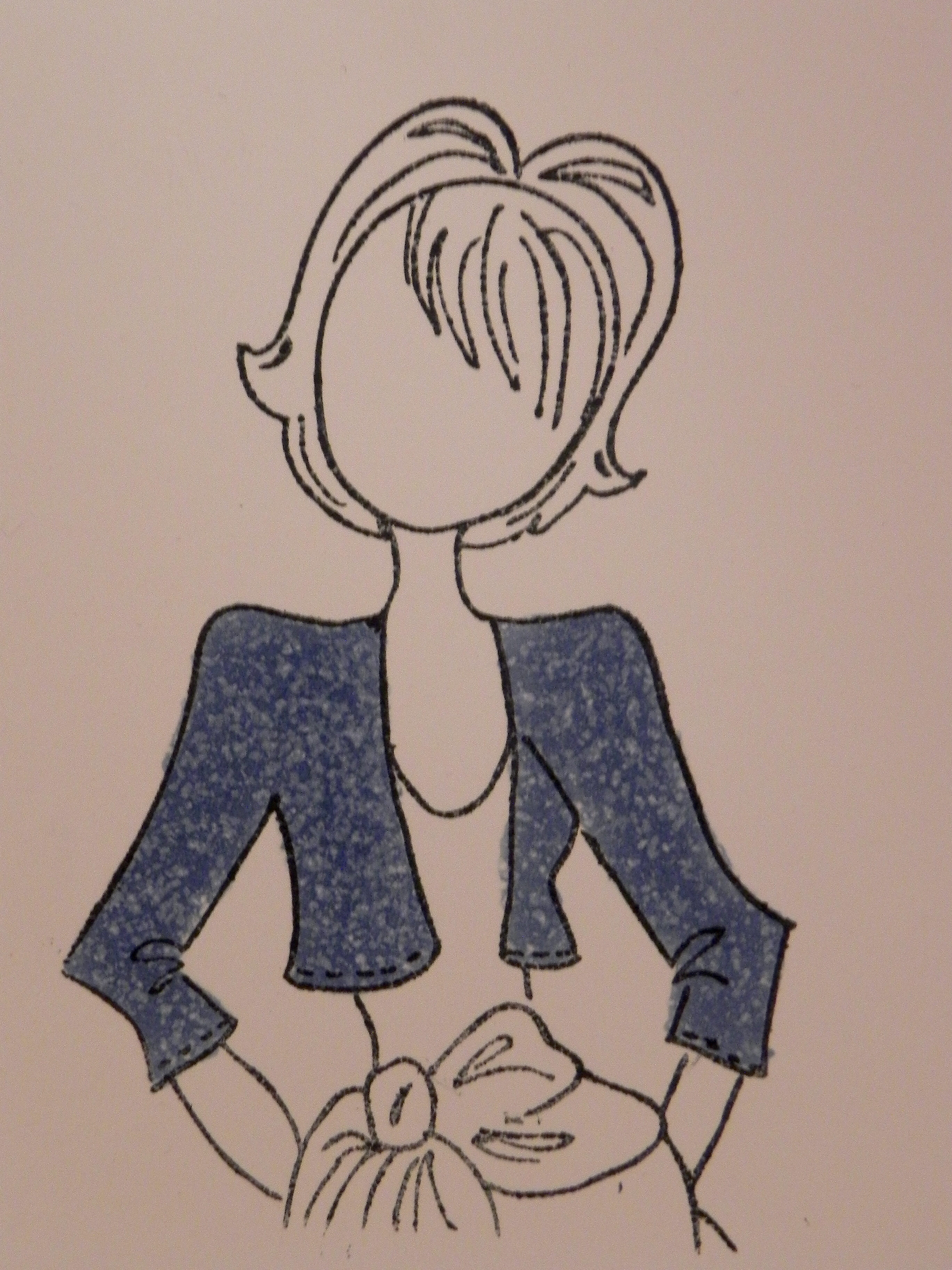
This is what it looks like with a terry cloth wash cloth.
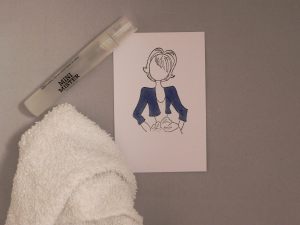
cDSCN9031   10 texture tutorial

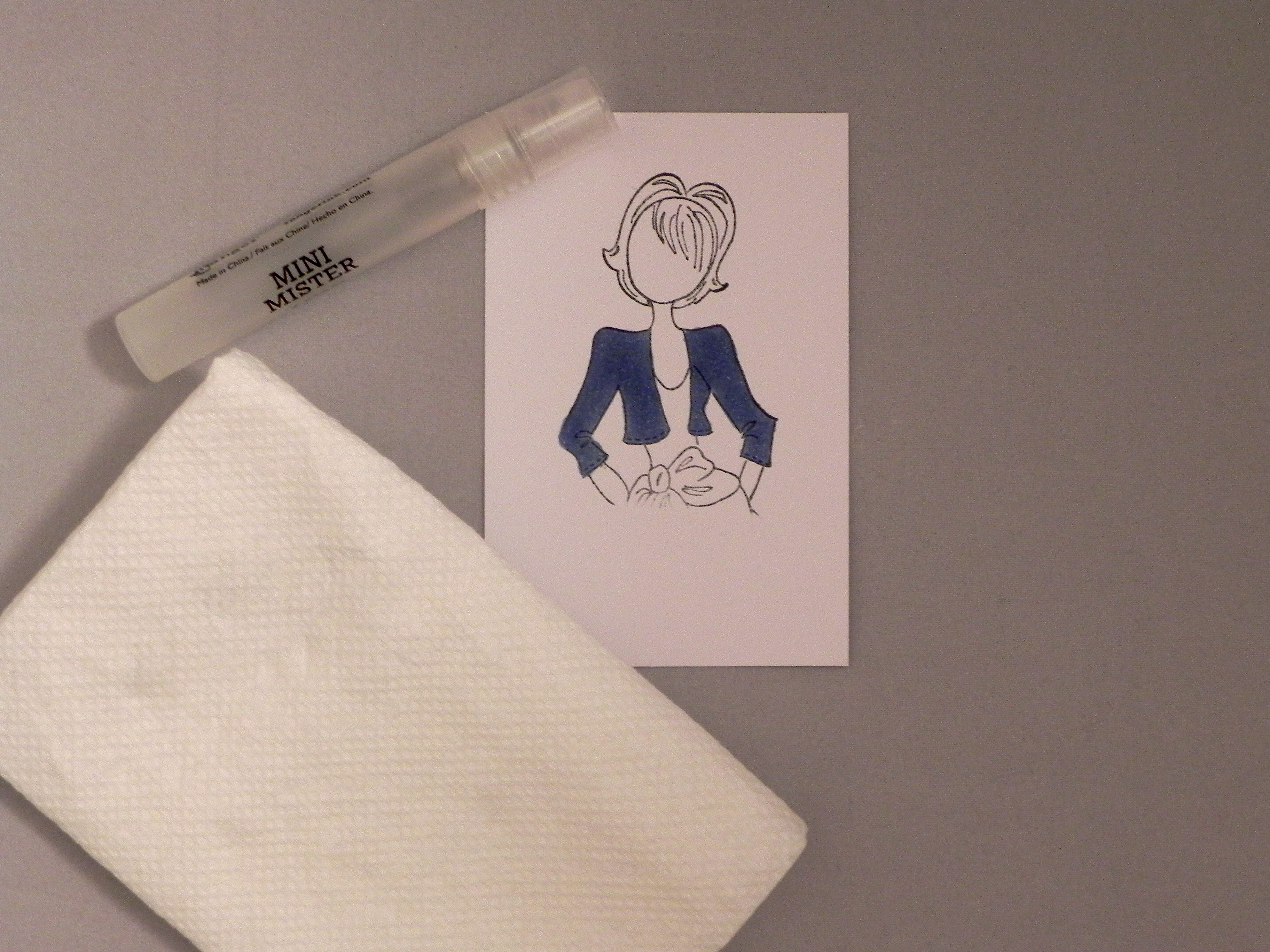
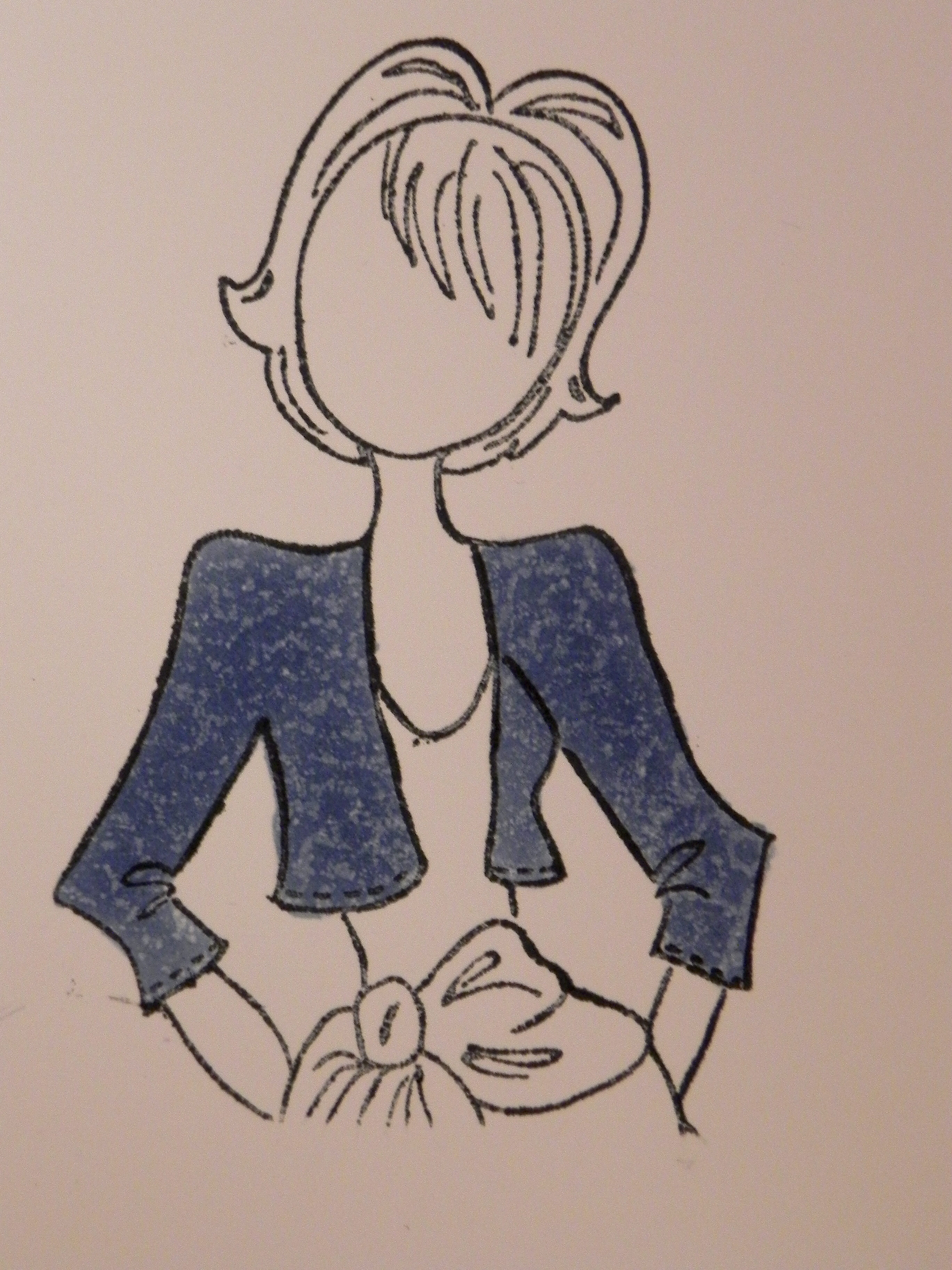
This is what it looks like with a Bounty paper towel.
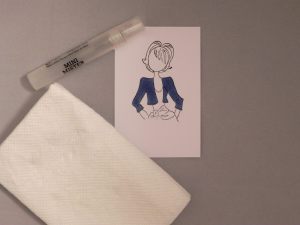
   cDSCN9038   12 texture tutorial

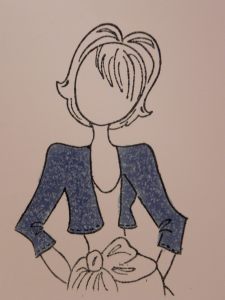
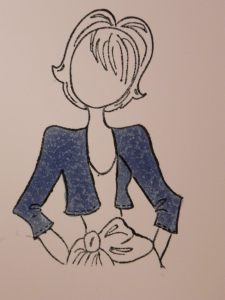
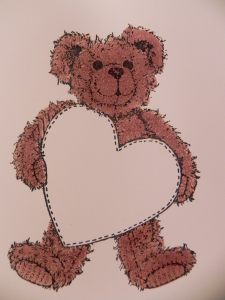
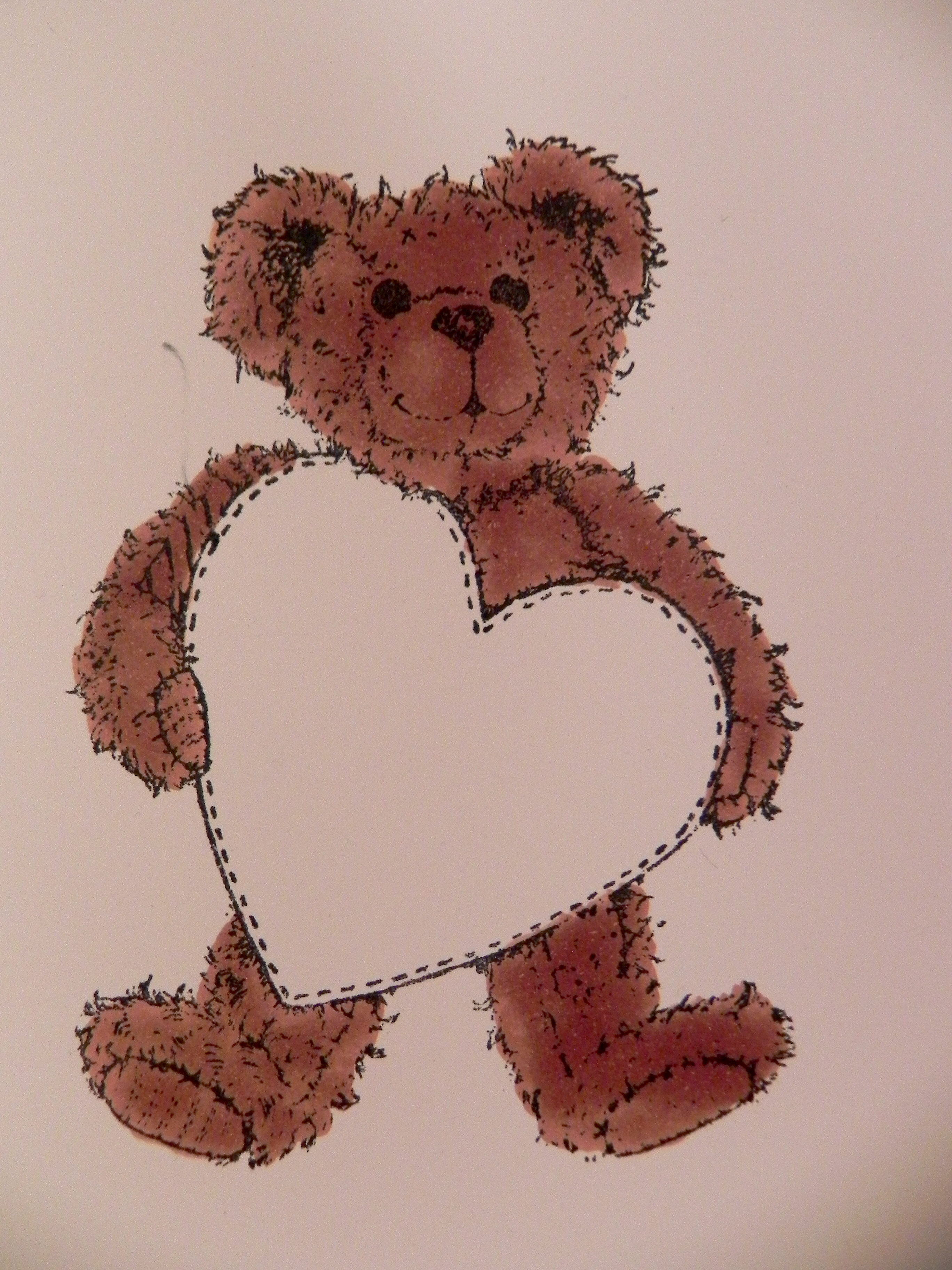
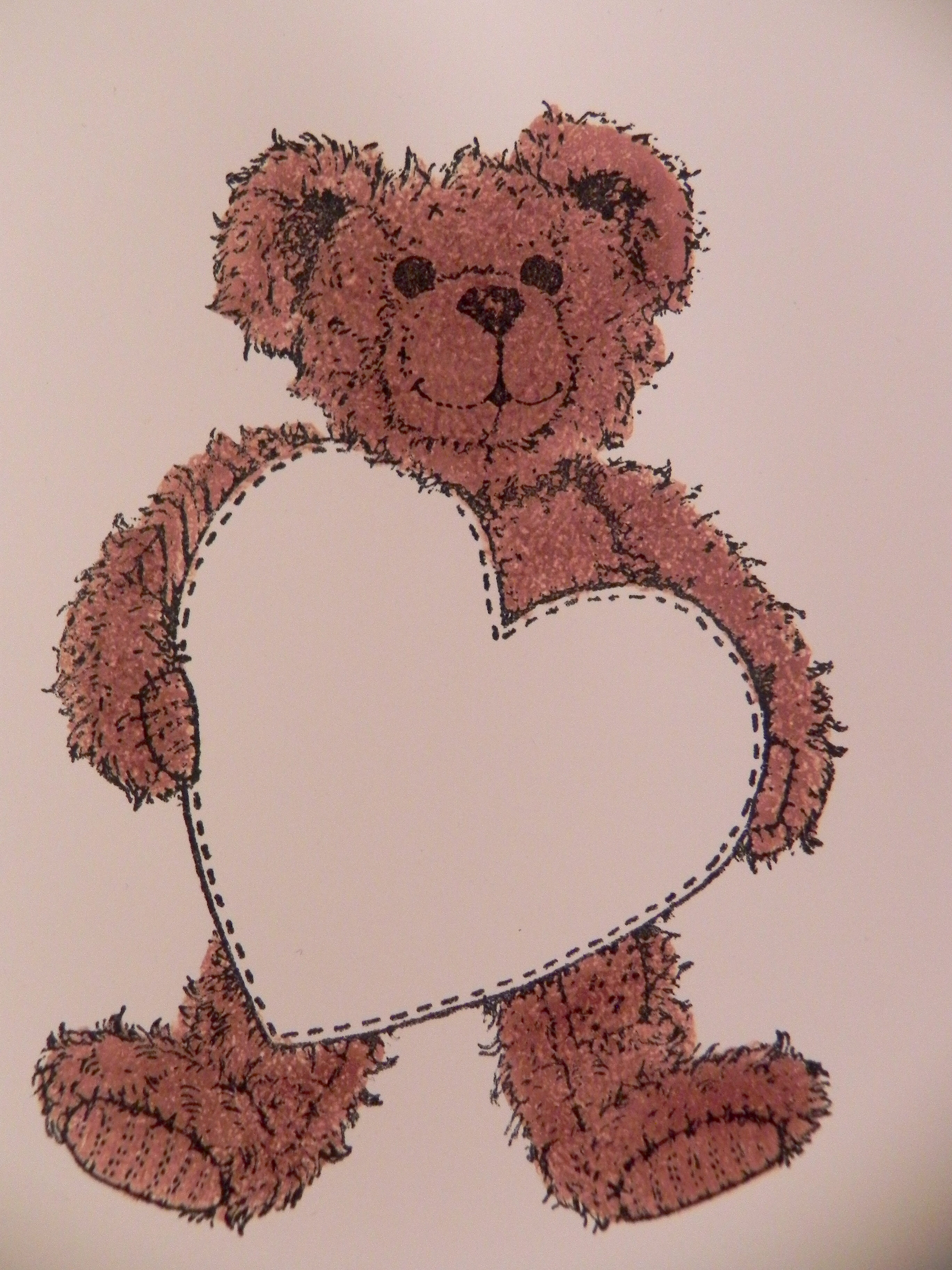
Notice the difference between the two bear images below.  They were both colored (with no shading) the same way.  The second image had texture added with the fuzzy glove.
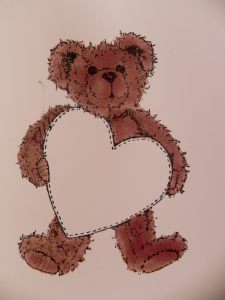
13 texture tutorial   14 texture tutorial

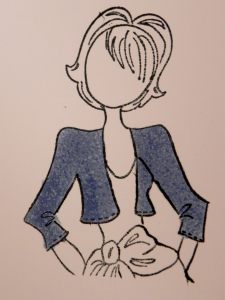
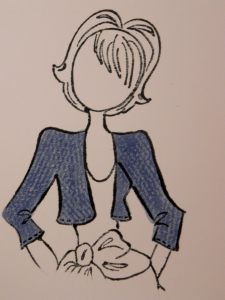
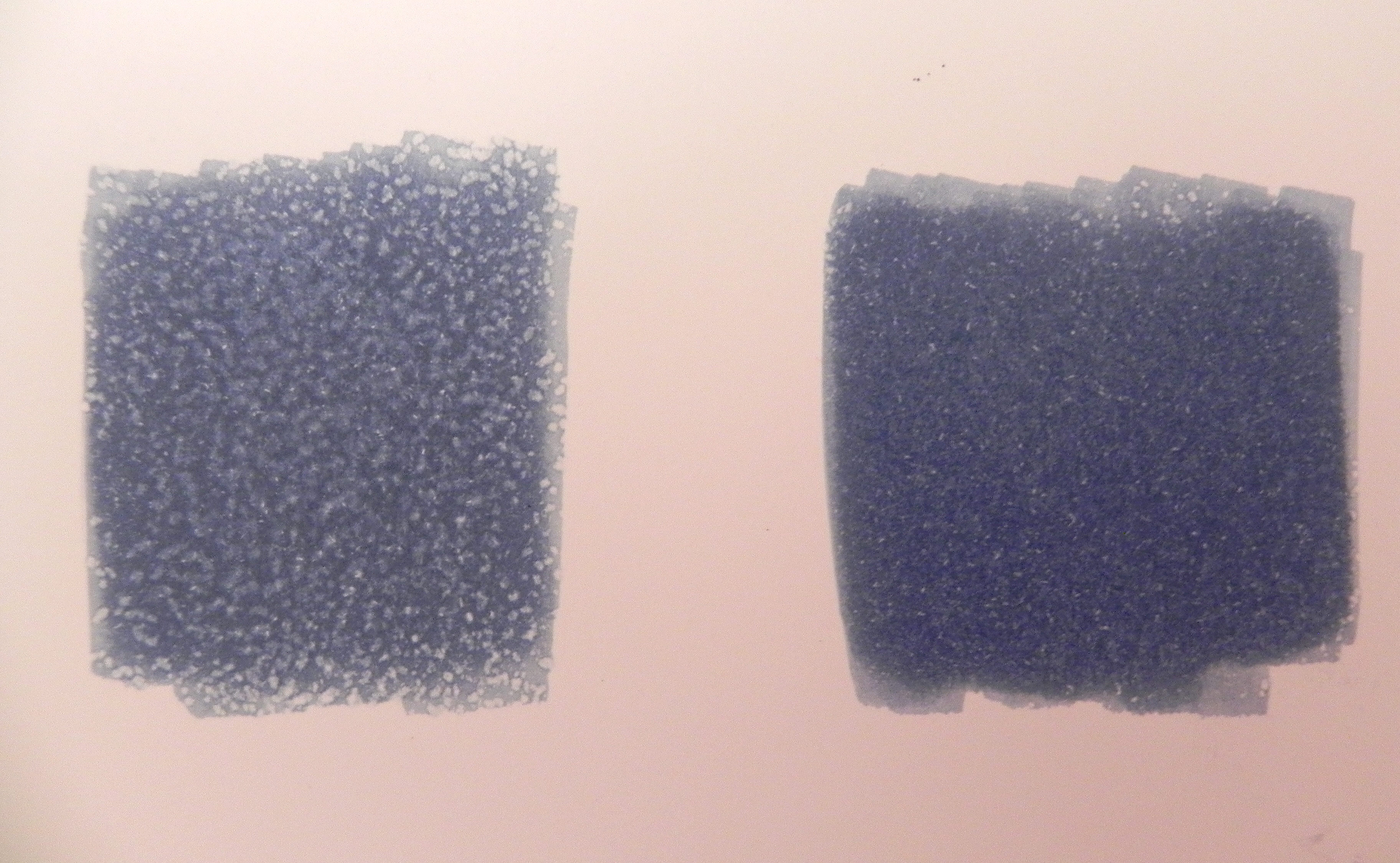
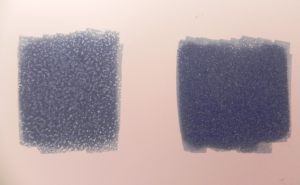
4.  If you wish to have a more noticeable, crisp texture, allow the ink to dry on your colored image first (as pictured below on left).  If you wish to create a more subtle texture, dab the damp fabric while the image is still wet (as pictured below on right).
15 texture tutorial

5.  If your scrap paper under your stamped image becomes too wet while you are working, replace it with a dry piece.  (The blender solution from the scrap paper can seep into the back of your stamped image and alter it.  I’m speaking from experience!!)


6.  Keep a collection of fabric scraps for adding a variety of textures to your projects!


*The stamps used in this tutorial were “Prima Marketing Mixed Media Doll, Natalie with Crop Jacket Dress” and ” K Stamp, Have a Heart Teddy” (- I think.  I’ve had this stamp forever and there is no label on it).


Hope you enjoyed this tutorial.  Thanks for visiting!

This content uses referral links as described in the disclosure policy on my sidebar.

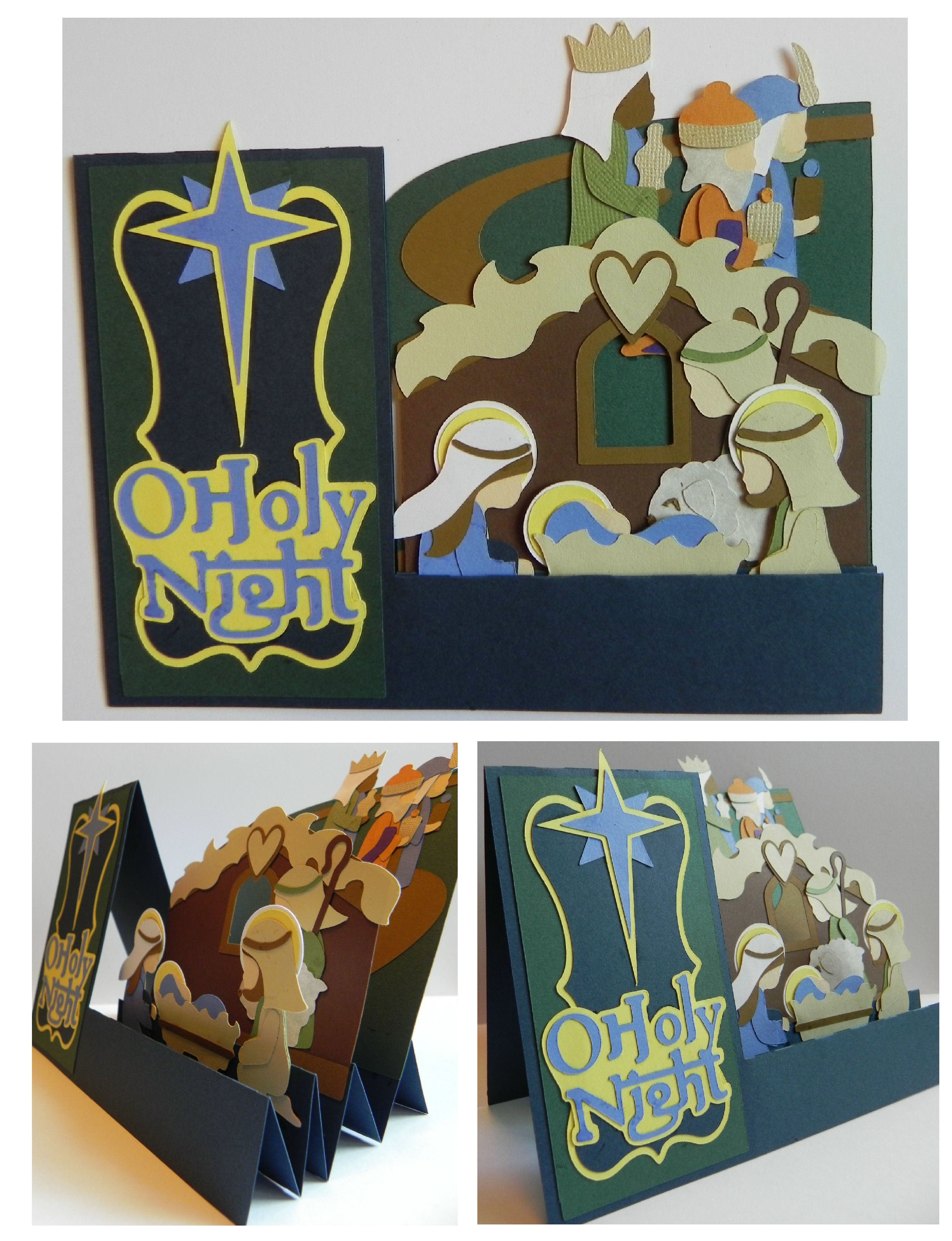
O Holy Night Step Card

O Holy Night Step Card

O Holy Night Card.jpg

This step card was made with elements from two kits from svgcuts called “Edisto Island Cards Svg Kit” (for the step card itself) and “O Holy Night Svg Kit” (for the nativity pieces). Click HERE to see the Edisto Island Kit and HERE to see the O Holy Night Kit at svgcuts.com.

These kits contains svg files of all of the pieces needed to create this card.  I used my Cricut Expression with my Sure Cuts A Lot 2 software, but I could have used my Silhouette or any electronic die cutting machine that can cut svg files.  I selected all of the paper I wished to use and set up all of the cut files on separate “pages” by grouping images based on the type of paper I wanted the pieces to be.  Once all of the pieces were cut out by my electronic die cutting machine, I assembled and glued everything together and ended up with this cute card!

I am entering this card in the Mod Squad – Word Challenge – Holiday where “anything that is holiday related is fair game!”  (Sadly, this site is no longer active.)

Thanks for checking out my card project!

This content uses referral links as described in the disclosure policy on my sidebar.
Click HERE to get back to the Home Page to see ALL posts, or click on a tab in the menu bar above to go directly to a category.

Thanks for visiting!


If you wish to view the projects I created before I began posting here, please go to my StampTV Page by clicking HERE.

Thank you!

Falling Leaves Thanksgiving Card

Falling Leaves Thanksgiving Card

eeedscn9784

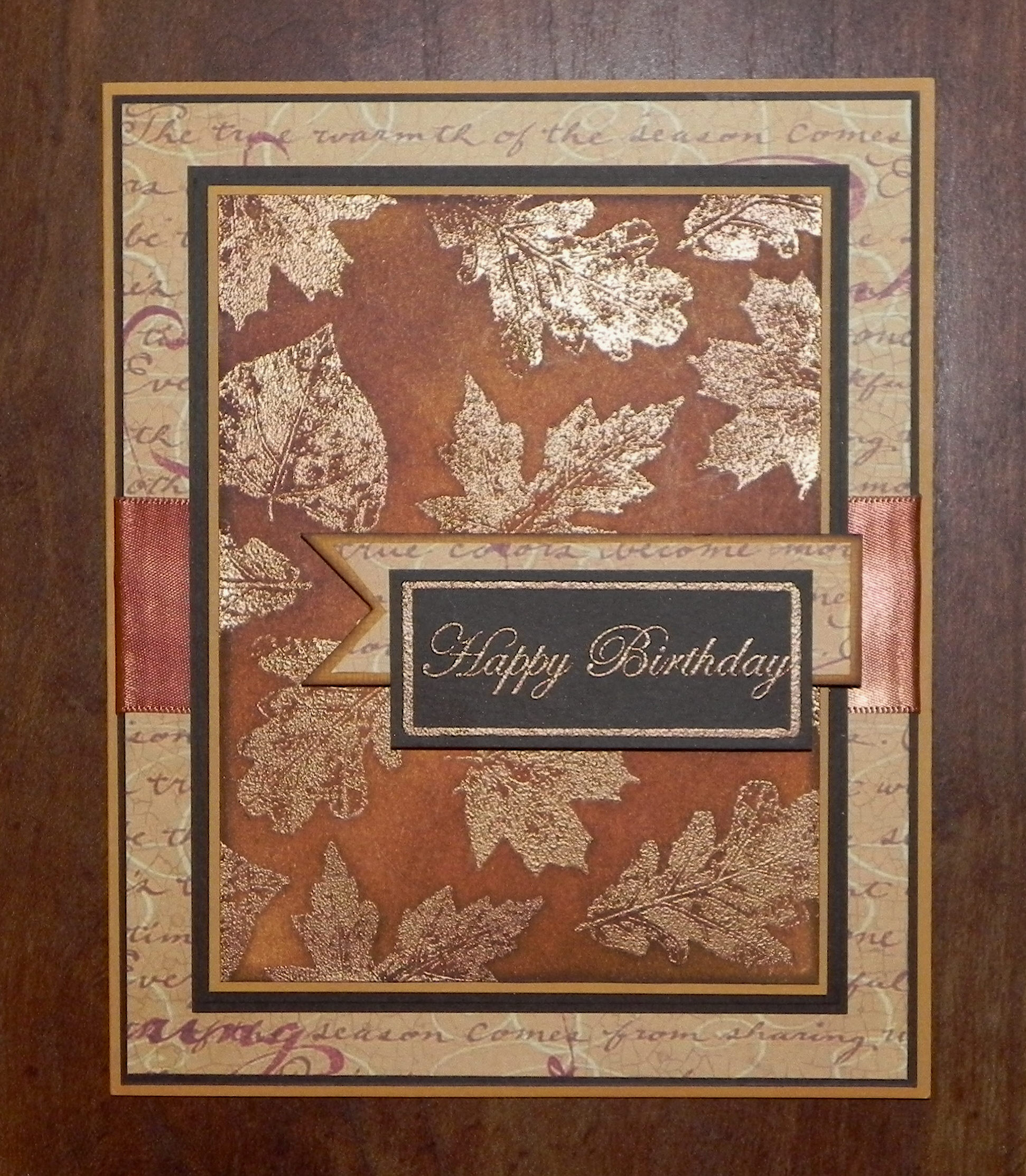
This is a triple layer card.  The three stamped panels were first inked with Tim Holtz aged mahogany, rusty hinge, dusty concord, and vintage photo distress inks on Gina K Honey Mustard card stock. The panels were then temporarily taped together, centered one on top of the other.  The leaf images were then stamped in versamark and aged mahogany and then were heat embossed with clear embossing powder. When stamping the images, I made sure that the leaves went over more than one layer.  I also stamped and embossed the sentiment on a plain scrap of Honey Mustard card stock.  The panels were then separated and matted on plain Honey Mustard card stock panels and a card base.  After adding my raffia and wooden leaf embellishment, I layered the panels on top of each other in the same order and direction they were originally stamped, lining up the leaves as carefully as possible.  I used pop dots to adhere the layers.  The leaf image and greeting were from the Gina K Designs Fall Foliage set.

The panel measurements for this triple layer card are as follows:

stamped panel  2″ x 3 1/4″          mat  2 1/4″  x  3 1/2″

stamped panel  3″ x  4 1/4″         mat  3 1/4″  x  4 1/2″

stamped panel  4″ x  5 1/4″         base  8 1/2″ x   5 1/2″ – scored and folded in half so it creates a 4 1/4″ x 5 1/2″ mat

This card is being entered in the StampTV MIUM Challenge, “Falling Leaves” where the card should have a leaf or leaves as the primary image.  (Sadly, this site is no longer active.)

It is also being entered in the Mod Squad Challenge – Word Challenge – Holiday where “anything that is holiday related is fair game.”  (Sadly, this site is no longer active.)

Thanks for checking out my card project!

This content uses referral links as described in the disclosure policy on my sidebar.

Snowman Gift Box

Snowman Gift Box

snowman-gift-box.jpg

This gift box was made from a kit from svgcuts called Christmas Open House SVG Kit.  Click HERE  to check it out at svgcuts.com.

The kit contains svg files of all of the pieces needed to create this box.  I used my Cricut Expression with my Sure Cuts A Lot 2 software, but I could have used my Silhouette or any electronic die cutting machine that can cut svg files.  I selected all of the paper I wished to use and set up all of the cut files on separate “pages” by grouping images based on the type of paper I wanted the pieces to be.  Once all of the pieces were cut out by my electronic die cutting machine, I embossed all of the white panels that were for the snowman’s body with a folder by Darice called Snowflake Swirls.  Then I assembled and glued everything together and ended up with this amazing box!  SVGCuts has great tutorial videos that go with each of their their projects to help with assembling the pieces.  (HERE is the You Tube video link for this project tutorial, or you can watch it on their site as well.)

Thanks for checking out my project!

This content uses referral links as described in the disclosure policy on my sidebar.