Pleated Skirt Fold – Mother’s Day Card

Pleated Skirt Fold – Mother’s Day Card

Pleated Skirt Fold Mother's Day Card yyDSC_0352.jpg

I was asked to co-host the Mod Squad Challenge again this week with the very talented Peggy Timmerman.  The theme of the challenge is MOTHER’S DAY.  (Sadly, this site is no longer active.)

For this card sample, I used two stamps from the Newton’s Nook Designs – Versatile Vases stamp set along with a die from the Gina Marie Designs – Stitched Rectangle Dies set and the Happy Mother’s Day border die by Lawn Fawn. All of these items are available at Kat Scrappiness who is one of the Mod Squad Challenge sponsors this week .

Versatile Vases Stamp Set

Kat stocks the products that she loves and uses as well as what her customers request.  If you don’t see it in her store, feel free to contact her.  She is happy to do special orders for you!  And she offers a DISCOUNT CODE for The Mod Squad Challenge: MSC10!

I had recently seen a card made with the Pleated Skirt Fold technique and thought I’d give it a try. For this technique, a two-sided piece of patterned paper works best since you see both patterns once the pleats are created.  I started with a 5 1/2 x 12 inch panel and scored it at 1 then 1/2 inch intervals.  (I wanted a tall panel with narrow pleats.)  HERE is the tutorial I found and adapted for my measurements.  The two-sided patterned paper I used is called “Mail Poste Correo” from the “From Me to You” collection by Pebbles.  The “white” on this paper was not pure white so I created my own matching card stock by coloring a plain piece of white card stock with Copic W1 for the stamped panel and the die cut greeting.  (The greeting die cut was cut apart so it would fit in the space on the bottom corner of the card.)

I stamped the flowers and vase with Memento Tuxedo Black ink and colored it with Copic Markers (BG78, V000, and R14).

I also created a mat for my card front by coloring the edges of a plain white piece of card stock with Copic Marker (BG78) to match the vase.  This panel was adhered to a white card base.

Here is another sample with different paper and a different stamp:

Pleated Skirt Fold Mother's Day Card wwDSC_0353

For this one, I used the tulip stamp from the Lawn Fawn – Fairy Friends stamp set along with a die from the Gina Marie Designs – Stitched Square Dies set and the Happy Mother’s Day border die by Lawn Fawn.  All of these items are also available at Kat Scrappiness.

Lawn Fawn Fairies Stamp Set

The two-sided patterned paper is called “Garden Walk” from the Happy Day collection by Pebbles.  The tulip was stamped with Memento Tuxedo Black ink and colored with Copic Markers (YG03, YG93, and R14).  I placed a piece of vellum behind my stamped panel to “separate” it from the busy background.

Now it’s your turn!  Head on over to the Mod Squad Challenge Blog, and show us your Mother’s Day projects. I can’t wait to see what you create!

Thanks for checking out my card project!

Fun Floral Mother’s Day Card

Fun Floral Mother’s Day Card

Fun Floral Mother's Day Card xDSC_0333.jpg

The challenge this week over at the  Mod Squad Challenge is Mother’s Day.  I was asked to co-host with the very talented Peggy Timmerman.  (Sadly, this site is no longer active.)

For my card, I used the lily of the valley, coneflower, and tulip stamps from the Lawn Fawn – Fairy Friends stamp set along with dies from the Gina Marie Designs – Stitched Rectangle Dies set and the Happy Mother’s Day die by Lawn Fawn.  All of these items are available at Kat Scrappiness who is one of the Mod Squad Challenge sponsors this week .

Lawn Fawn Fairies Stamp Set

Kat stocks the products that she loves and uses as well as what her customers request.  If you don’t see it in her store, feel free to contact her.  She is happy to do special orders for you!  And she offers a DISCOUNT CODE for The Mod Squad Challenge: MSC10!

This was a fun challenge for me because I wanted to create a card using one of the stamp sets I had previously purchased from Kat Scrappiness while I waited for the arrival of a new set I ordered, but I didn’t have any that seemed Mother’s Day-ish…at first.  I liked the bold and chunky style of these flowers and was able to quickly color them with Copic Markers (YG03, YG93, R14, BV04, and V000) to create my bright, whimsical  card.  I chose the patterned paper called “Garden Walk” from the Happy Day collection by Pebbles to complement these images.  This patterned paper is two sided; the front is the floral pattern I used as my background, and the back is primarily peach/orange that I used for my greeting die cut.  I chose to use the black mats to complement the bold black outlines of the flowers.

Now it’s your turn!  Head on over to the Mod Squad Challenge Blog, and show us your Mother’s Day projects. I can’t wait to see what you create!

Thanks for checking out my card project!

How to Make Silhouette Die Cuts for Your Stamped Images – Part II, Borderless

How to Make Silhouette Die Cuts for Your Stamped Images – Part II (Borderless)
wwDSCN7785

In my last tutorial called How to Make Silhouette Die Cuts for Your Stamped Images, I explained how I make die cuts with small borders around my stamped images using my Silhouette electronic die cutting machine and the “trace” and “offset” features in the Silhouette software.  (I use the Designer Edition.) Sometimes, it is necessary/desirable to create a die cut where the lines of the stamped image go right to the edge of the die cut, with no border.  This is a follow-up tutorial explaining how I create this type of die cut.

The explanation below is a bit lengthy.  Before going into the step-by-step,  I’ll give you the quick summary:

  1. trace the image
  2. create a solid offset
  3. create an internal offset which goes back to the original size of the image
  4. clean up the file, if needed, to match the image more closely

If you want a more detailed explanation, keep reading!


Click on the photos that I included in the steps below if you wish to enlarge them.

(The first 4 steps are the same as in the last tutorial, so refer back to that if you need more details on these steps.)

  1.  Stamp your image.

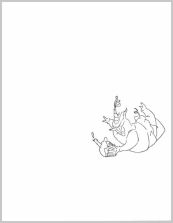
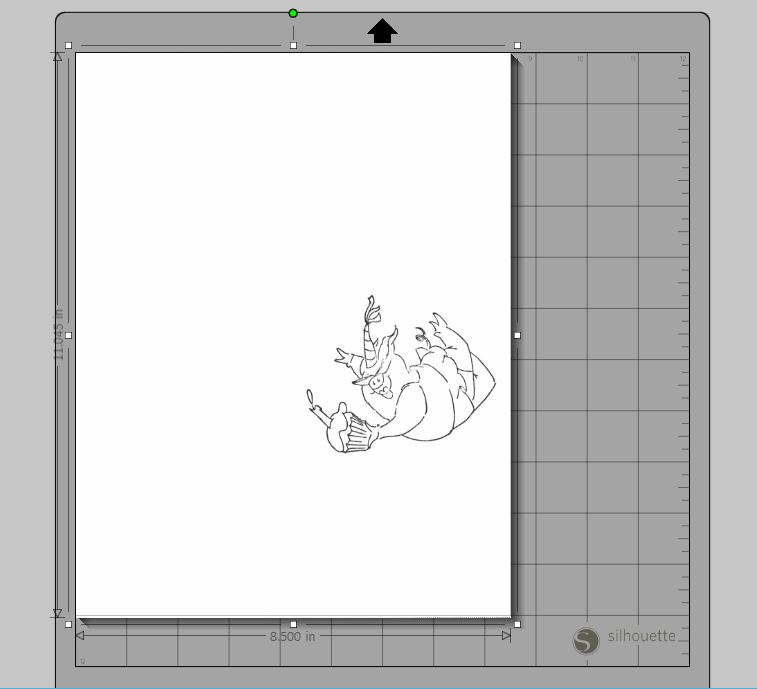
stamp and scan (stamped on 8 1/2 x 11 inch paper)


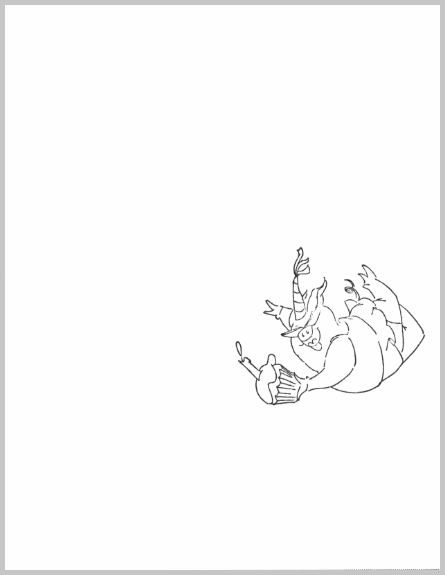
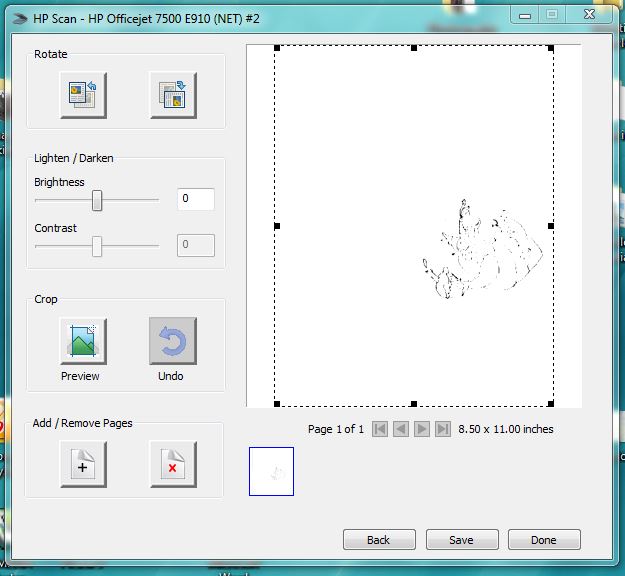
2.  Scan your image.
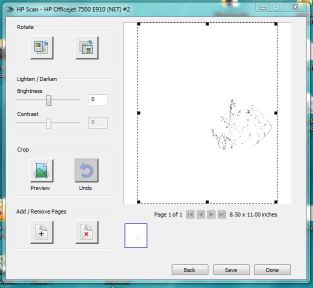
scan

(sorry for the bad photo; scanned as 8 1/2 x 11 inch document)


3.  Open jpeg file.
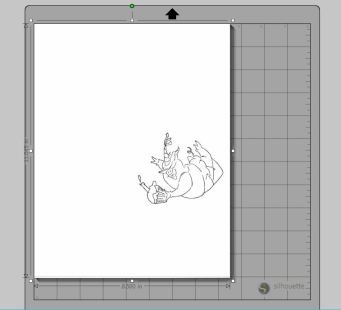
open jpeg


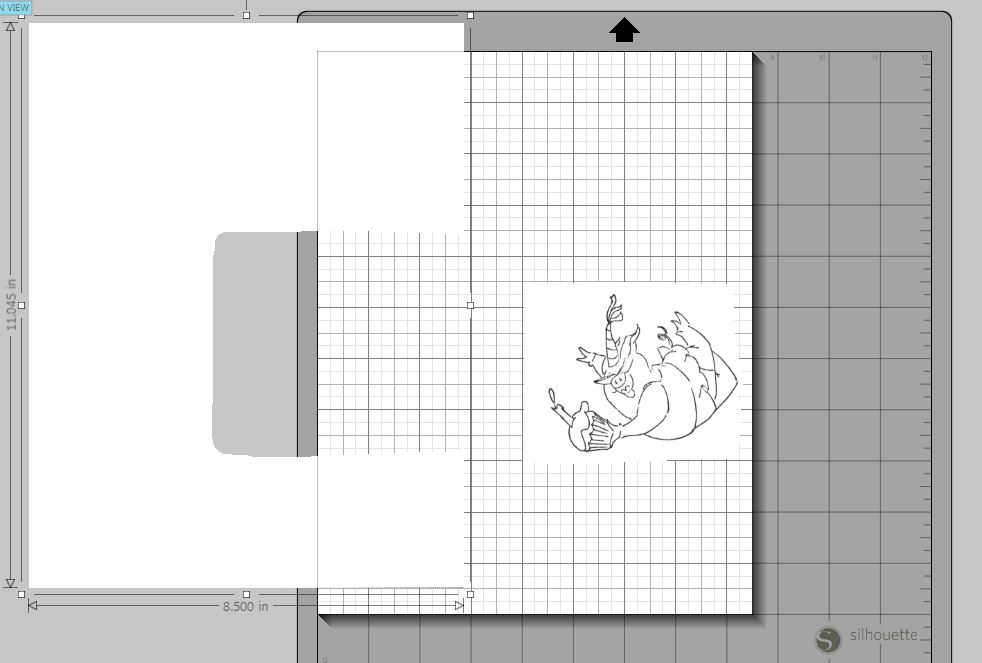
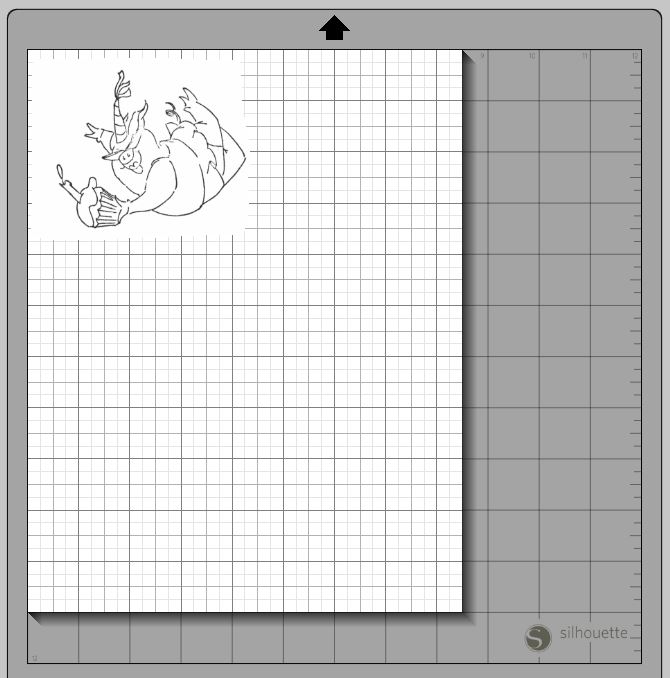
4.  Optional – erase to separate.

erase  erase 2


5.  Trace.

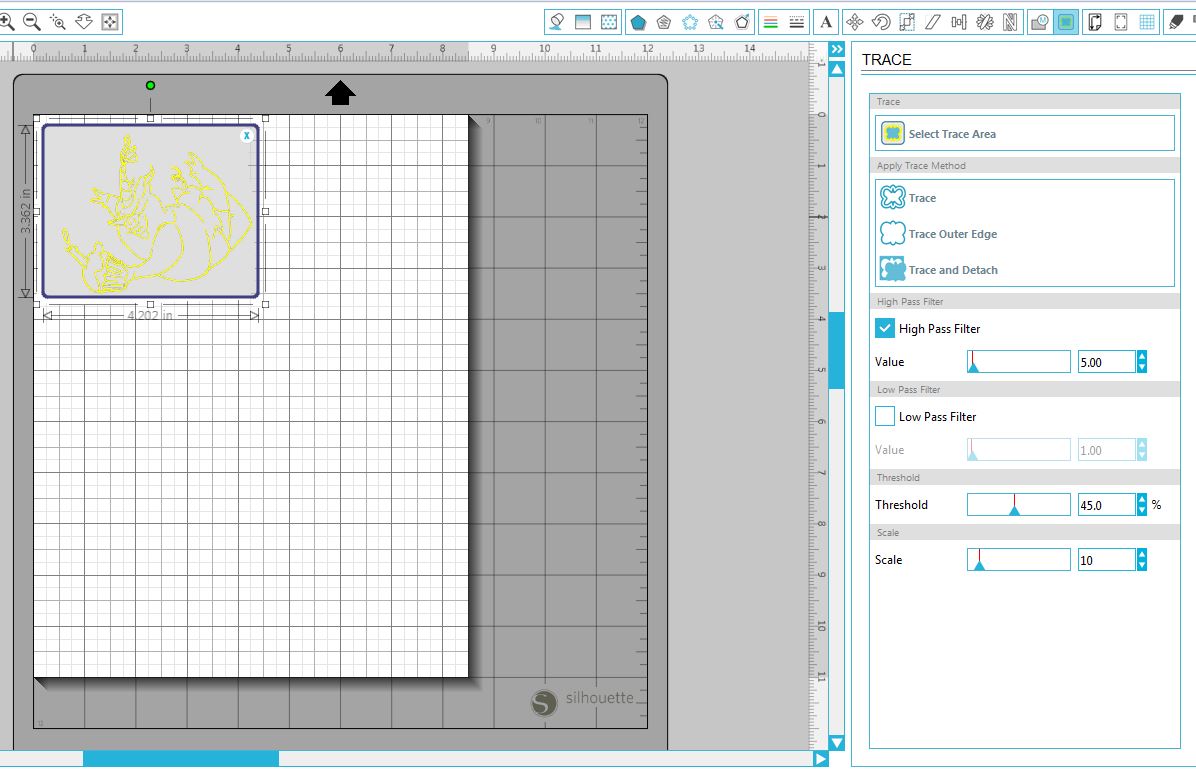
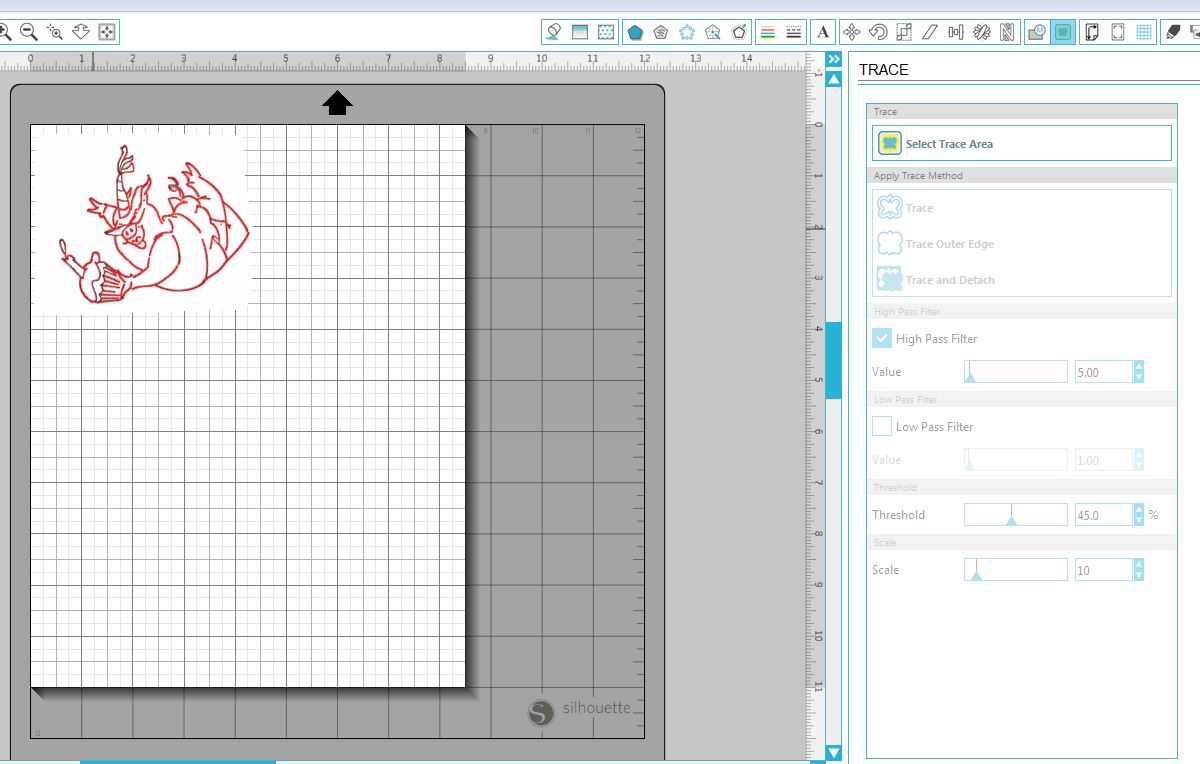
a.  Open “Trace” window, select “Select Trace Area,” and drag a box around the image you wish to trace.
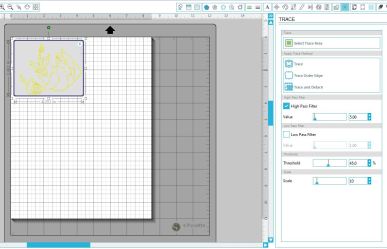
select trace area

b.  Select “Trace Outer Edge.”  (If you need inner details cut, select “Trace.”)
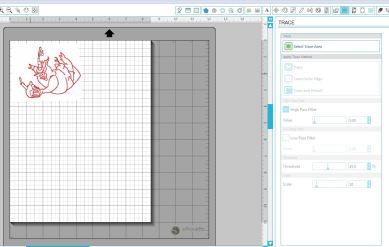
trace outer edge


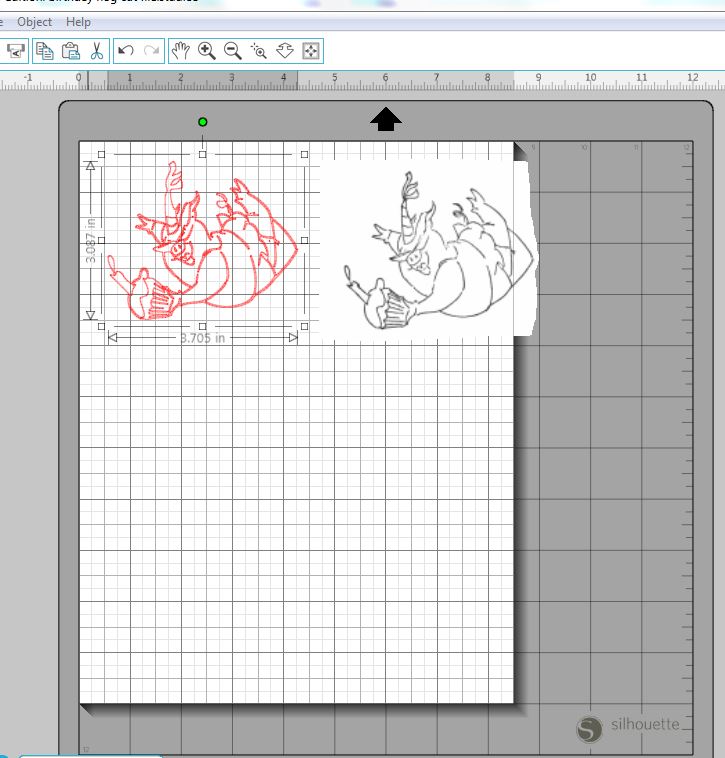
6.  At this point, it is helpful to enlarge your view to make it easier to see what you are doing.  (DO NOT re-size your scanned image or the trace. You need these measurements to stay true to size.)  Just change your view on your computer to make it larger.  Go to the “View” tab, then “Zoom” and then select your preference, or use the magnifier tool.
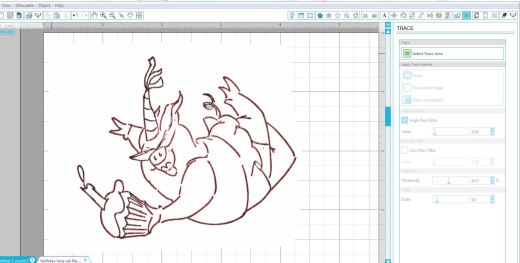
enlarge

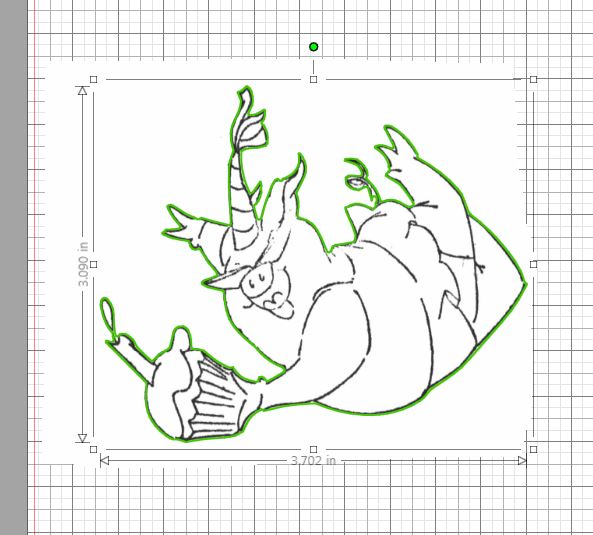
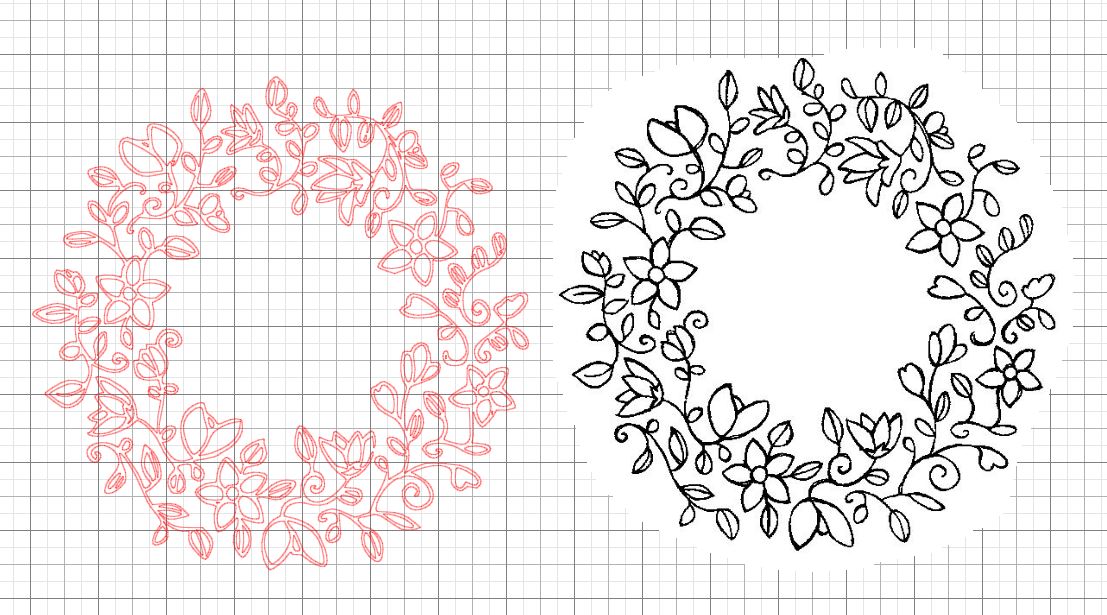
Notice that the red cut lines are not perfectly lined up with the black stamped lines of the image.  In some cases, there are broken lines.  (Click on the photo to see what I mean.)  In order to get a die cut with a complete outline and that fits the stamped image perfectly, you need to clean this up a bit. There are a few ways to do this.  I referenced a series of video tutorials in my last post called Tracing Without Tears in Silhouette Studio which I found extremely detailed and helpful in understanding the “Trace” feature of the software.  (Videos 7 and 8 specifically talk about point editing.)  If you don’t want to get as involved in the design process, try this:


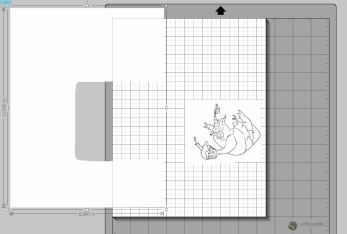
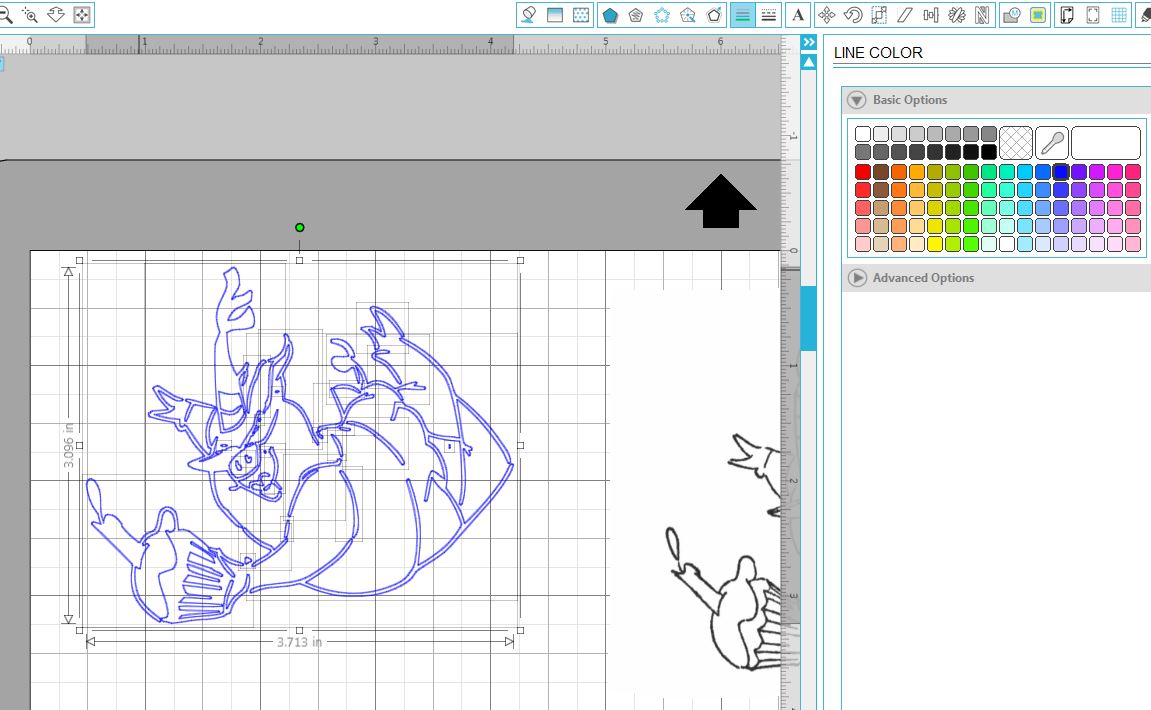
7.  Move the jpeg scanned image away from the trace.  Highlight the image.  Under the “Object” tab, select “Convert to Path” to keep all the pieces of the trace together.
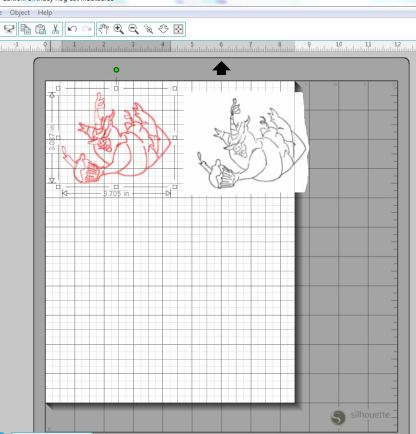
group trace

To make this easier to see in the next step, I changed the color of my trace to blue.
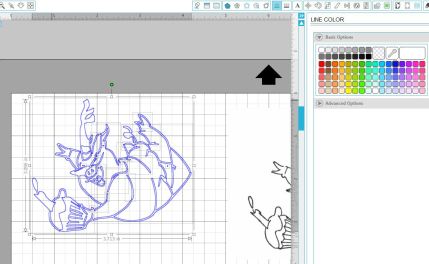
change trace color.JPG


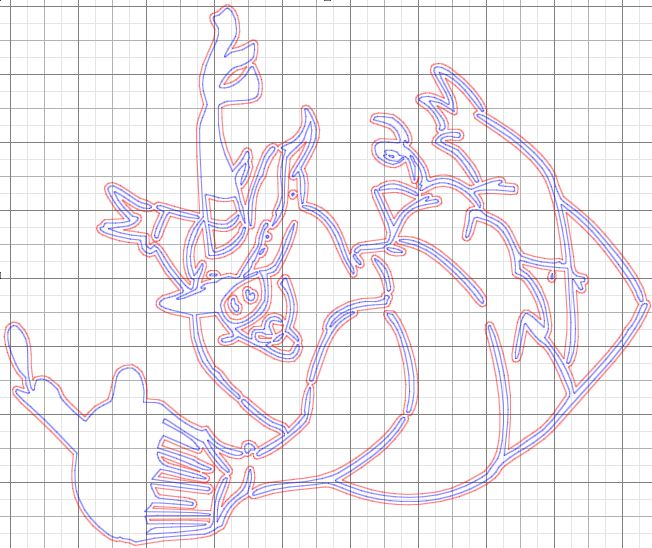
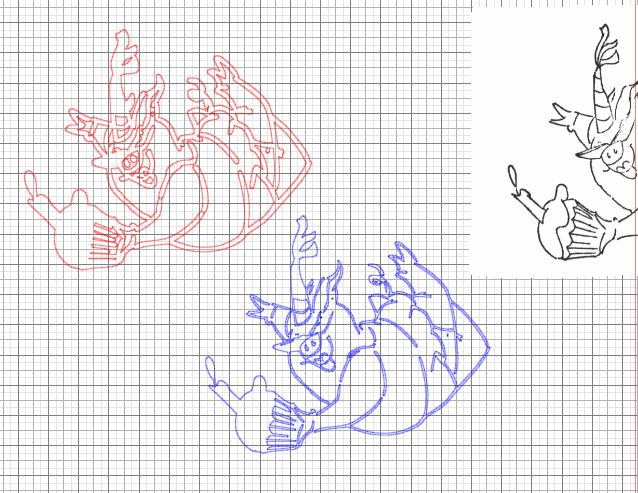
8.  Open the “Offset” window, and click “Offset” which will give you a border at the default 0.125 inchs.
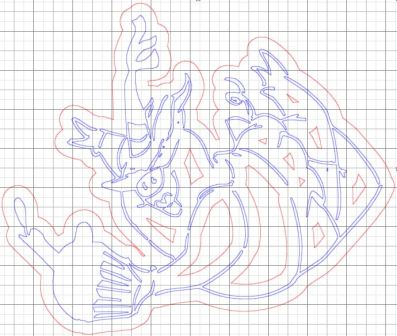
ofset .125


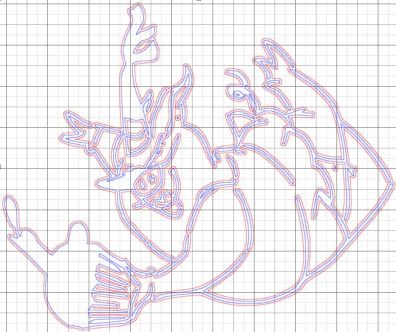
9.  Slide the distance slider all the way to the left to zero.  Then slowly slide it to the right (or use the “up” arrows) just until you have a solid shape around the outside with no gaps.  On this one, I went to 0.020 inches.  Make a note of the value you used.  You will need this later.
offset ,020


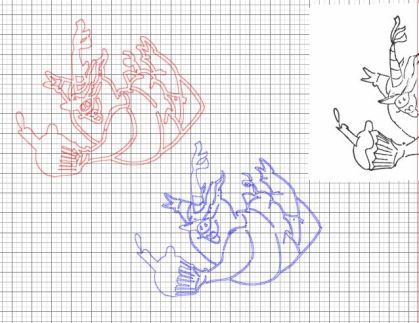
10.  Drag away the “trace” which is blue on this sample.
drag out trace


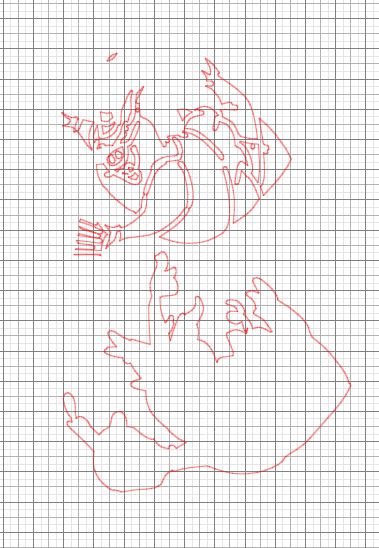
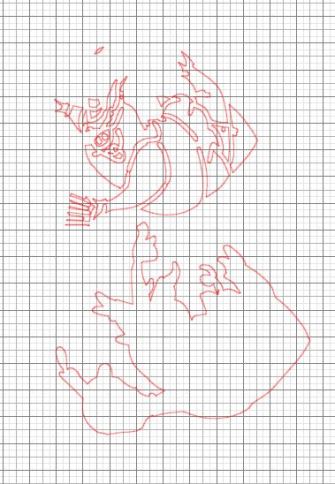
11.  Highlight the whole offset.  Click on the “Object” tab and click “Release Compound Path” to separate all the parts of the offset.  Then drag the outer piece (outline) away from the rest.
separate outer edge from offset


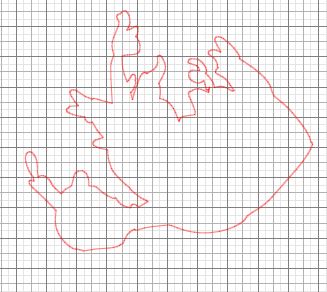
12.  Delete all the extra sections and just keep the outline.
keep outline offset


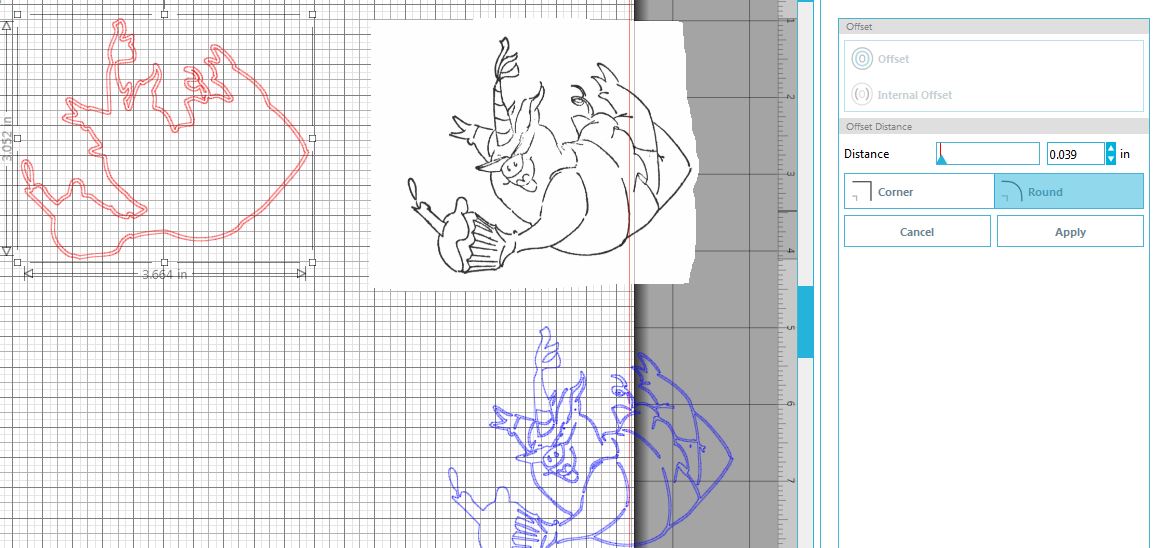
13.  Highlight your offset.  Open “Offset” window and select “Internal Offset” which will give you a slightly smaller shape inside your offset.  The default here is 0.039.
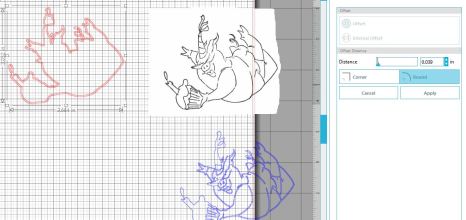
internal offset default

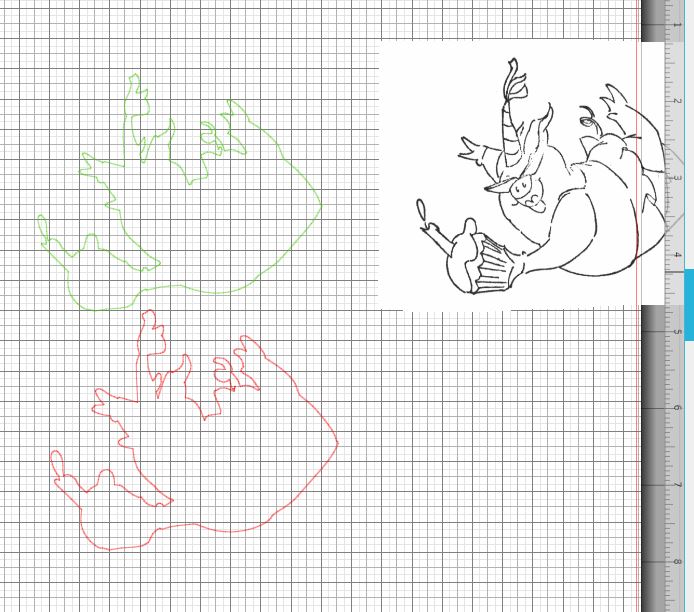
My internal offset is now green to make it easier to see here.  (You don’t need to change the color!)
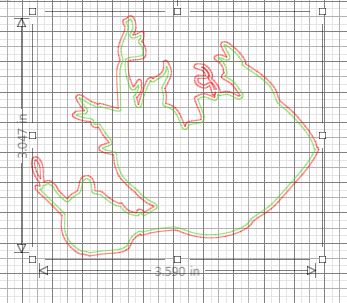
internal offset default in green


14.  Change the value of the internal offset to match the number you used to get your original offset.  Recall, mine was 0.020 from step 9 above.  (Highlight the offset and internal offset.  Click on the “Object” tab and click “Release Compound Path” to separate the two parts.  Then drag the outer piece (outline) away.
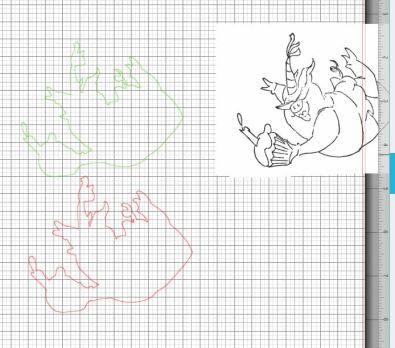
separate offset from internal offset


15.  The inside (internal offset) should be about the same size as your original scanned stamped image, without the gaps.  (I made my green lines a little thicker so you can see them easier here.)
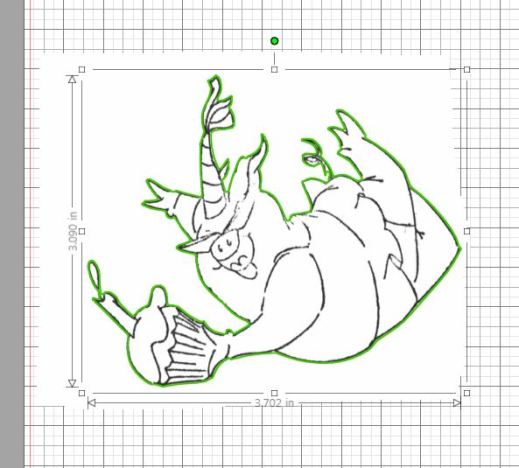
check size


16.  The above looks pretty close, but if you enlarge your view, by a lot, you will see where it is slightly off.
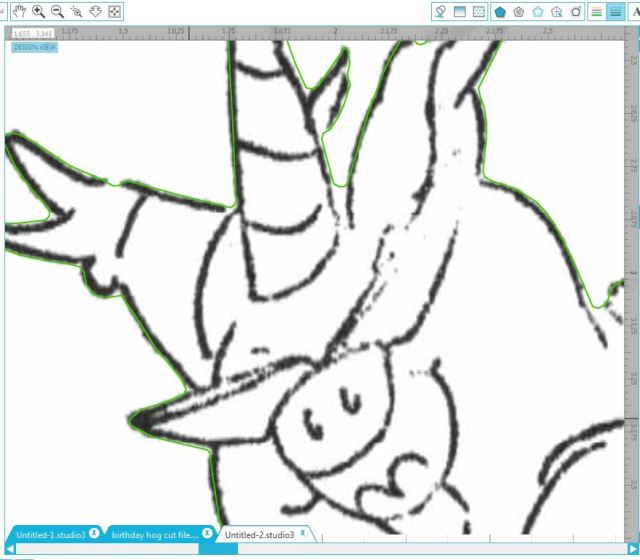
enlarged to see errors


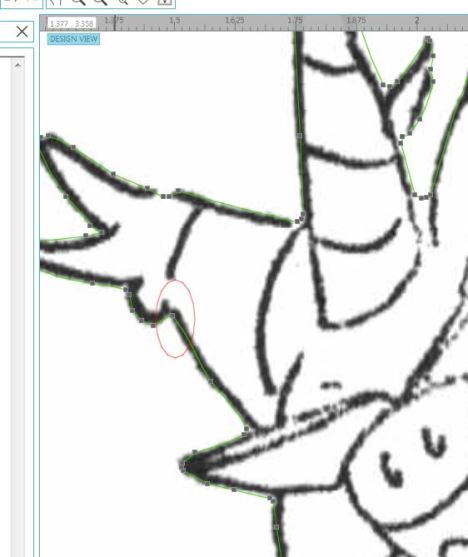
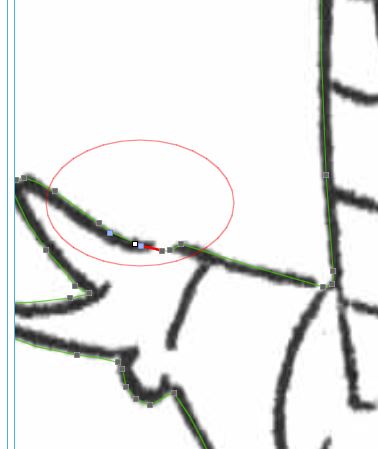
17.  To make this more exact you can move the nodes a bit.  Here’s how.  Double click on the green outline.  You will see the nodes (square “dots”) on this shape.

double click to show nodes

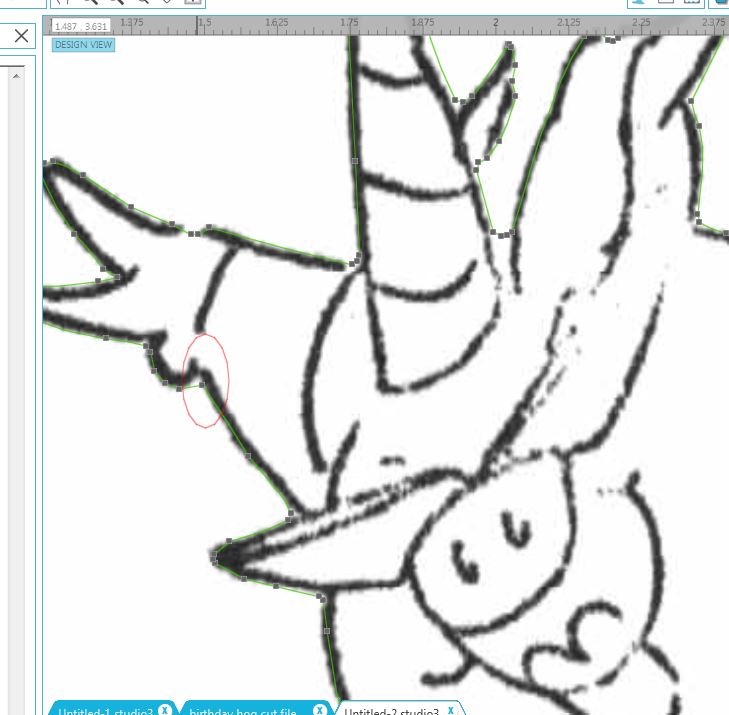
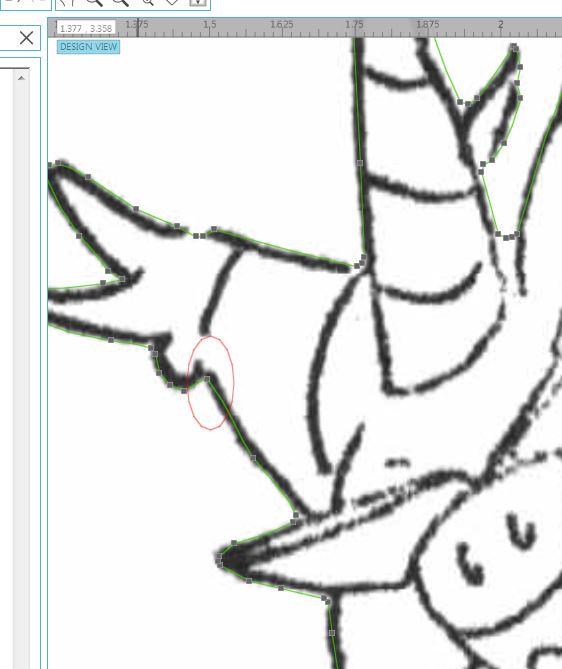
Put your cursor on a node.  While holding down the left side of your mouse, simple move the node so it is closer to the stamped shape.  Look at the node in the red oval below.  The first photo shows the original position of the node.  The second one shows where it is after I moved it.
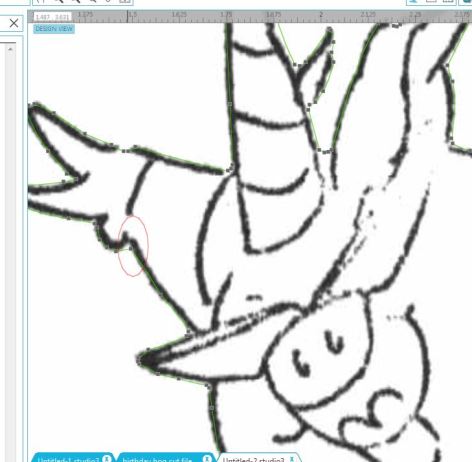
Before

(before)

After

(after)

You can add additional nodes to your shape by clicking on the line where there is no node.
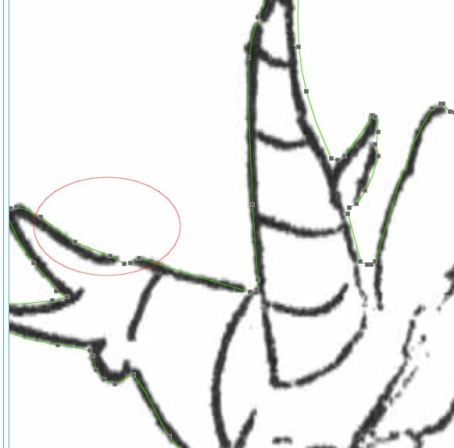
no node

(before)

add node

(after)

Be sure to save your work often while you work.

This is a very simplified explanation of how to clean up the cut file for your die cut.    As I mentioned above, you may want to check out the video series called Tracing Without Tearsin Silhouette Studio if you want a more detailed explanation of Point Editing.


When I need an exact cut, I enlarge my view and just work my way around the whole image, moving nodes into the exact position so they are on the edge of/slightly over the black line with no white gaps. This will give you a shape that matches the stamp so you will see no white when it is stamped.  Yes, it can be tedious depending on how messy your original trace was, but you will be pleased with the results if you are patient!

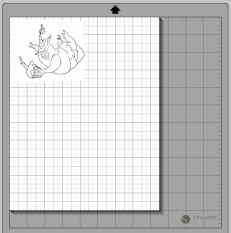
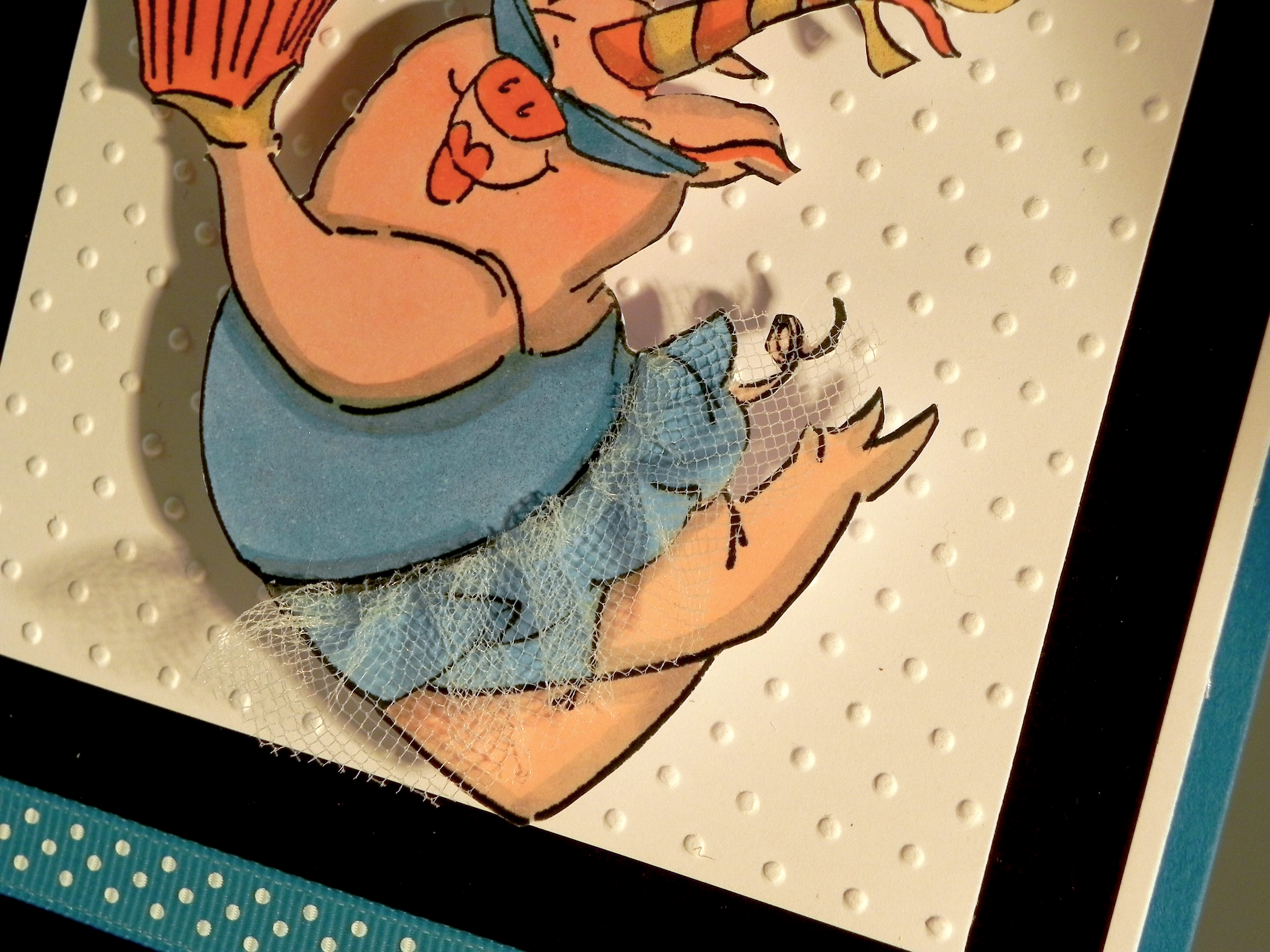
I know there are some who would be asking, “Why not just use scissors?”  That is certainly an option if you enjoy and are physically able to fussy cut your stamped images.  However, sometimes the images have lines that are difficult to cut with scissors.  And often, I create multiples of a card design, and it is so much easier to cut many die cuts with my Silhouette than to fussy cut each one.  This was the case with the card below.  I was making multiple copies of this card for a craft show, and I needed to cut the stamped crab image.  The claws were so thin and curvy that every time I tried to get around this portion of the image, the paper creased and/or tore.  I ended up making a cut file and was able to get a clean die cut and make lots of them.

Sandy CLaws zDSCN7072

(click HERE to see original post for this card)

Stamping on such precise die cuts can be tricky.  Check out my tutorial HERE to see how I use a positioning tool to get perfectly placed stamped images.


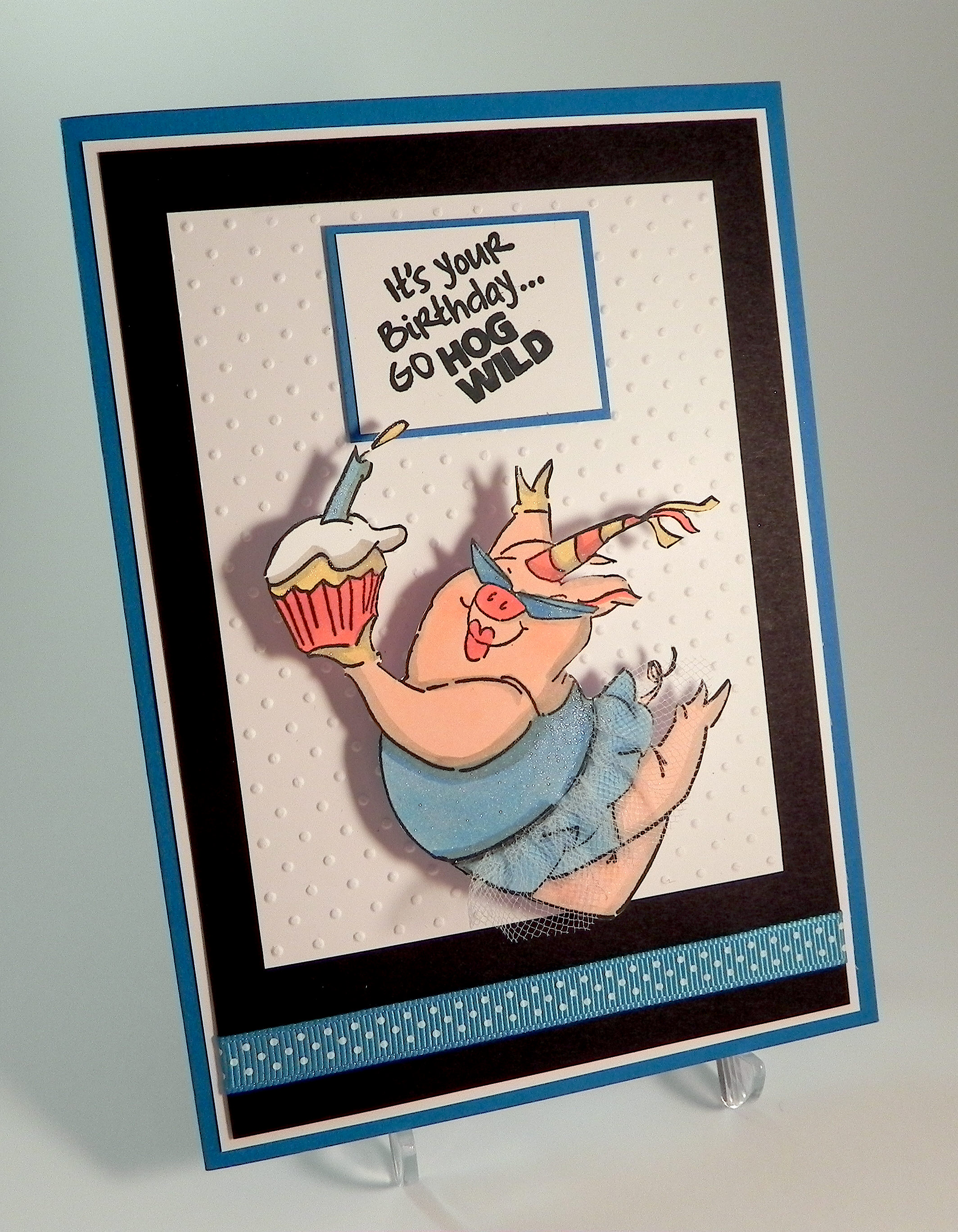
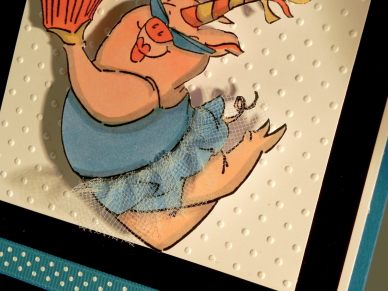
Finally, here is the card I made using the die cut I created above:
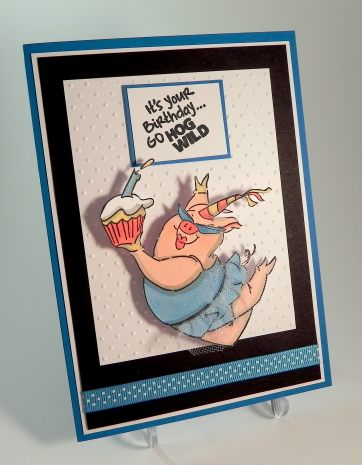
Hog Wild Birthday DSCN7819

(Click HERE for the original post for this card.)

Thanks for checking out my tutorial!

This content uses referral links as described in the disclosure policy on my sidebar.

How to Make Silhouette Die Cuts for Your Stamped Images

How to Make Silhouette Die Cuts for Your Stamped Images

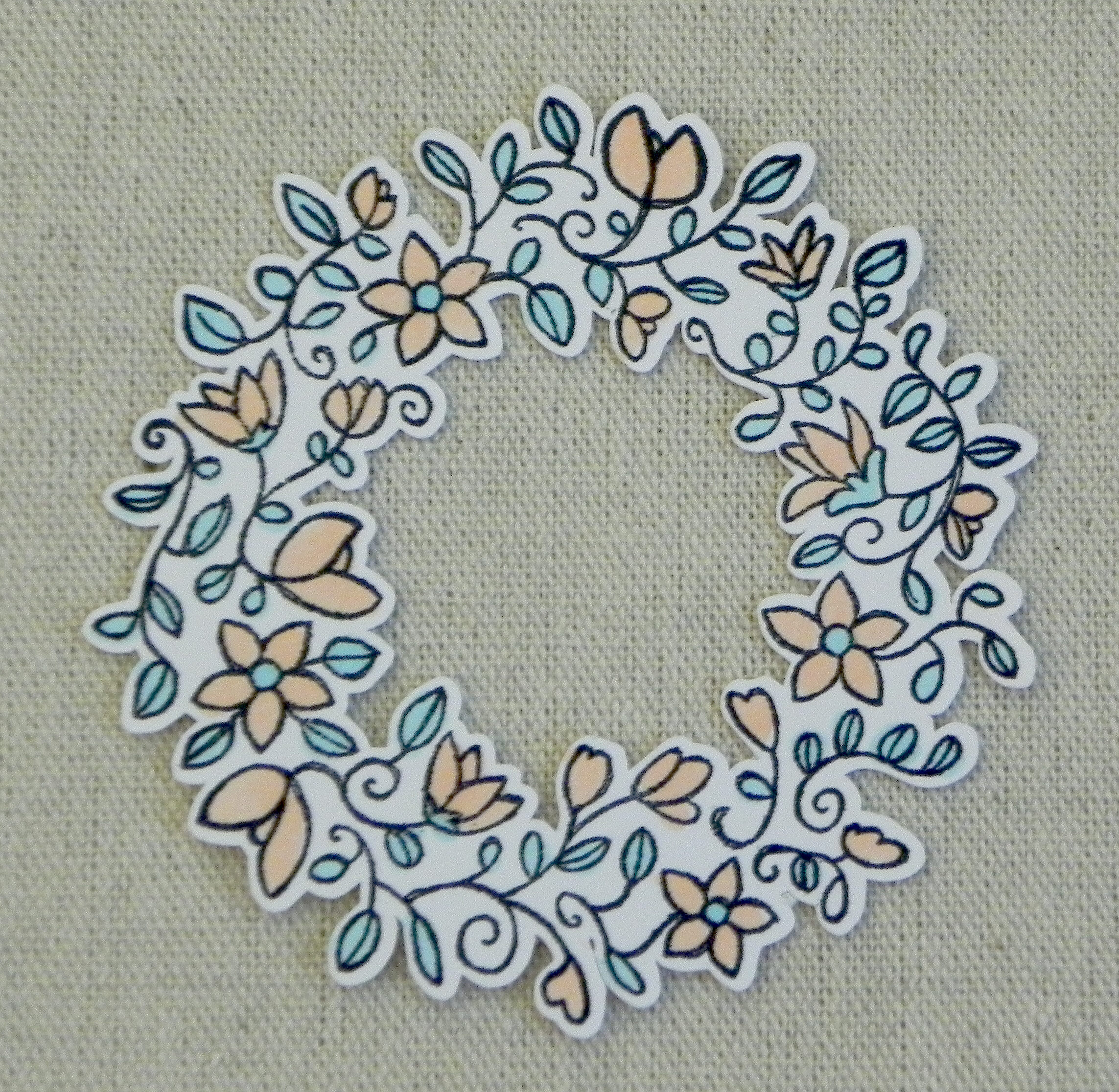
die cut wreath DSCN0041

Many stamp companies now offer dies that coordinate with their stamps, but it is also possible to create your own die cuts for your stamps by using your Silhouette electronic die cutting machine and the “trace” and “offset” features in the Silhouette software.  (I use the Designer Edition.)

For this tutorial, I will show you how I create a die cut with a small border around the stamped image. (In a future tutorial, I add the steps I use to create a die cut with no border.)  This tutorial assumes basic knowledge of the Silhouette software design features and how to use the Silhouette machine for basic cutting.  To create a die cut, you need to be able to scan your stamped image, save it as a jpeg, and open this file with your Silhouette software.

*Note:  While working on your files throughout this process, DO NOT re-size your scanned image or the trace or the offset. You need these measurements to stay true to size. However, you can change your view on your computer to make it larger and easier to see what you are doing.  (Go to the “View” tab, then “Zoom” and then select your preference.  Adjusting your view to 100% allows you to see what the actual die cut will look like when done.)

I’ve included photos to illustrate the steps I am describing.  If desired, click on the photos to make them larger.  I’ve also added a “cheat sheet” with the steps at the end of this post.


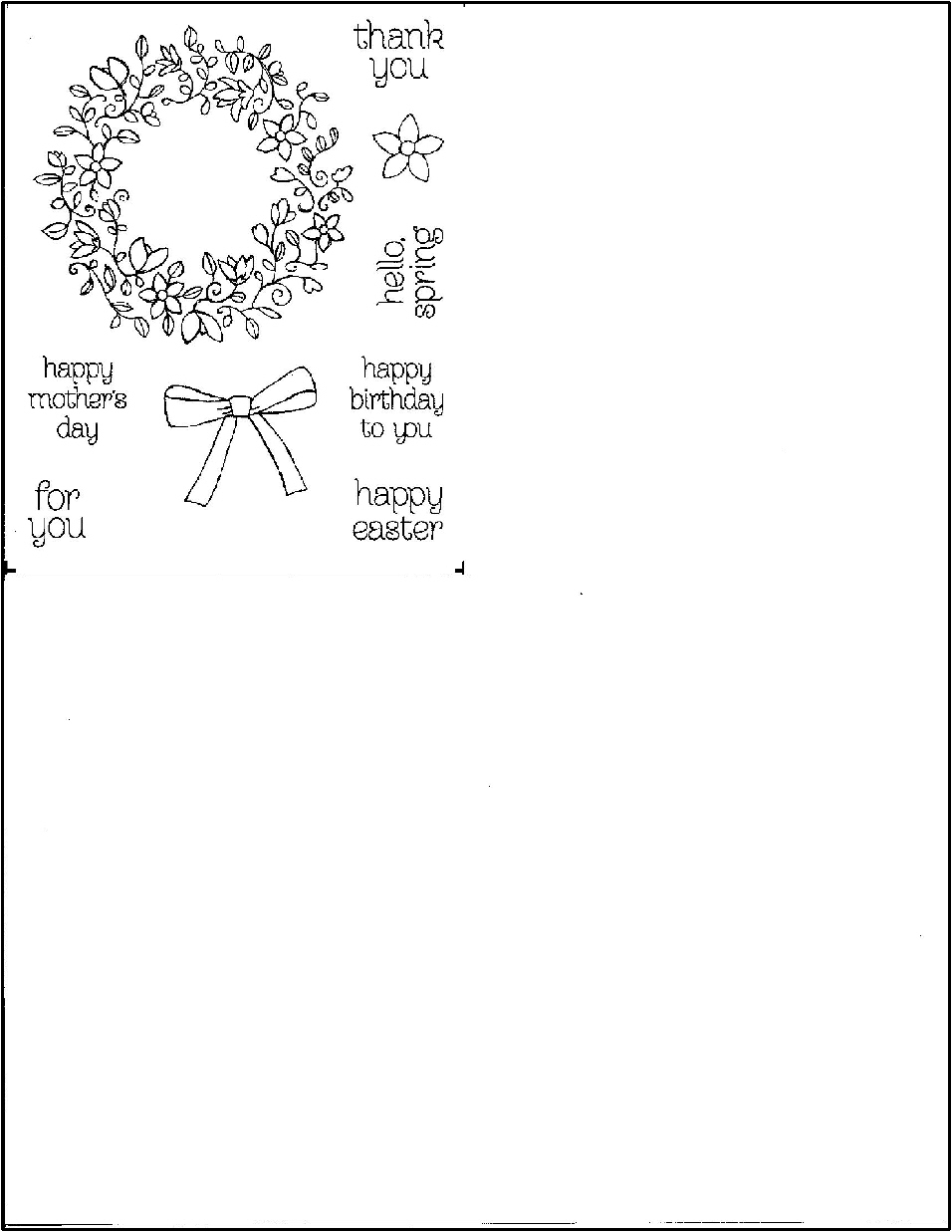
  1.  Stamp your image on a plain piece of white paper with black ink.  This image must be the exact size of your stamp.  (In other words,  don’t use the printed image that comes on the cover sheet of your stamp set unless it is the exact size.)  Some sets come with the images on acetate, and as long as these are the same size, these are fine.

circle of spring original images with border.jpg

(images from the Stampin’ Up “Circle of Spring” stamp set)


2.  Scan your image, and save it as a jpeg.  When scanning the image, do not crop it.  Save it as is.  I usually scan and save it as an 8 1/2 x 11 document.

circle of spring scan with border


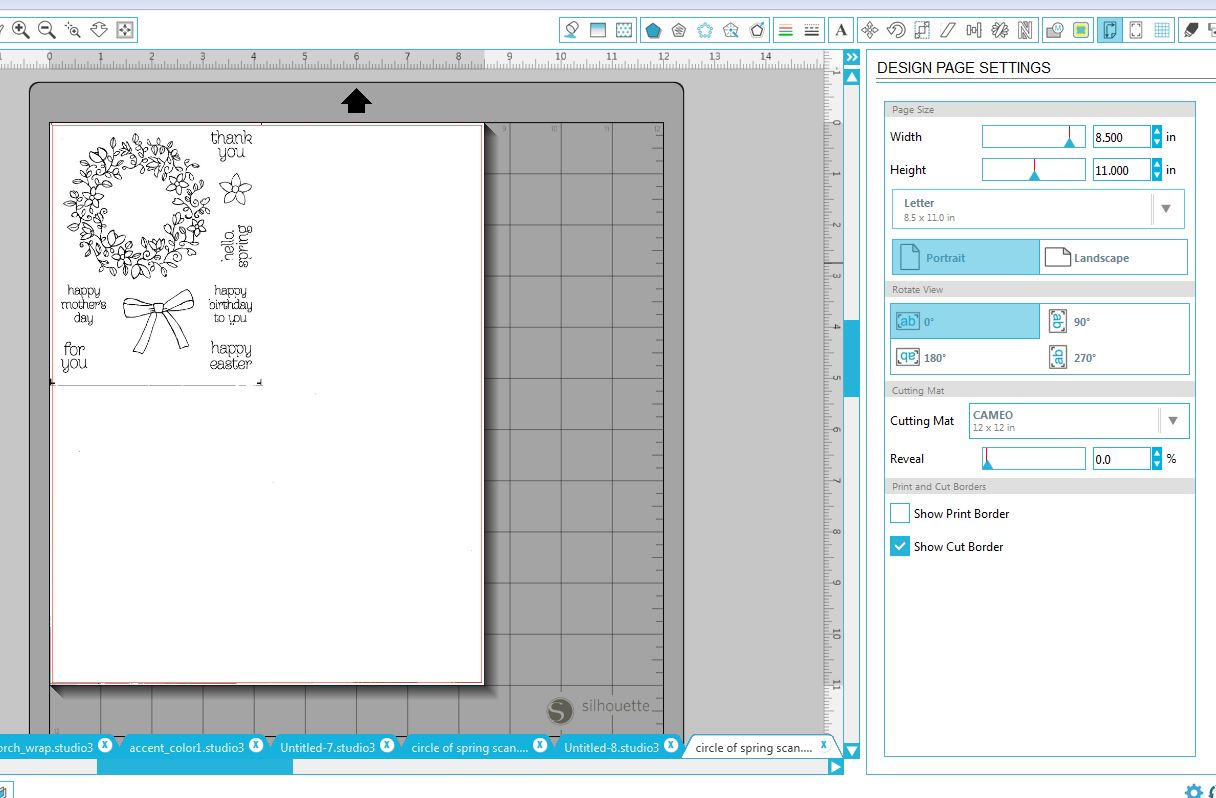
3.  Set page size in the “Design Page Settings” menu on your Silhouette software to “Letter – 8 1/2 x 11” which will keep the stamped image the correct size.  Open the jpeg of the scan.

open scan.JPG


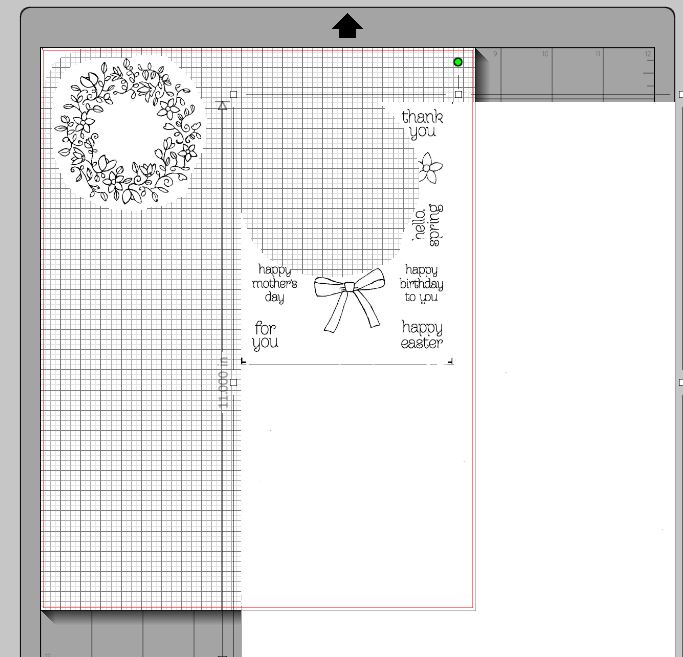
4.  Optional:  Use the erase tool to loosely go around the image.  Creating a square or circle is fine; you don’t need to follow the edge of the image closely.  Ungroup the image from the extra background and delete the extra white.  This just makes the image you are working with less cumbersome.  (If there is more than one image on the scan, and you wish to use them all, use the eraser tool to loosely erase around each image.  Then ungroup the images and delete all the extra white.  What you are left with is several separate “scraps” of paper with stamped images – all still in the original size.)  I will just be working on the wreath for this tutorial.

Erase       Erase 2


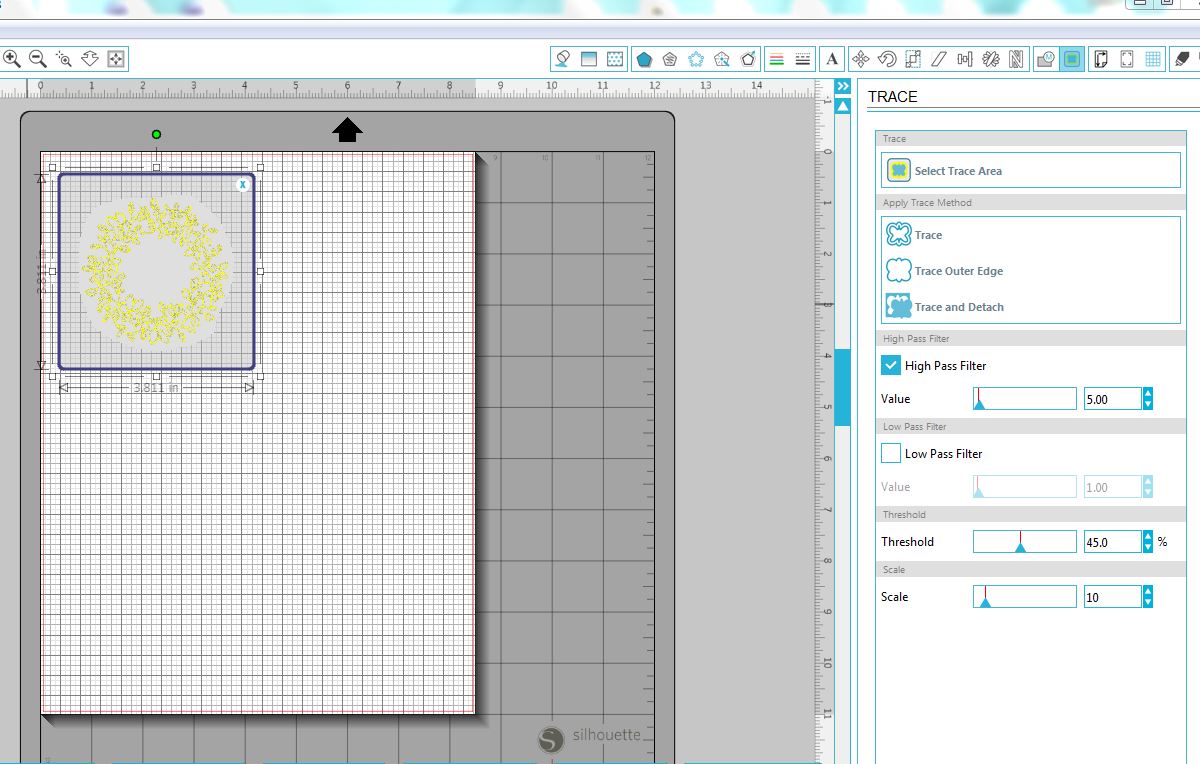
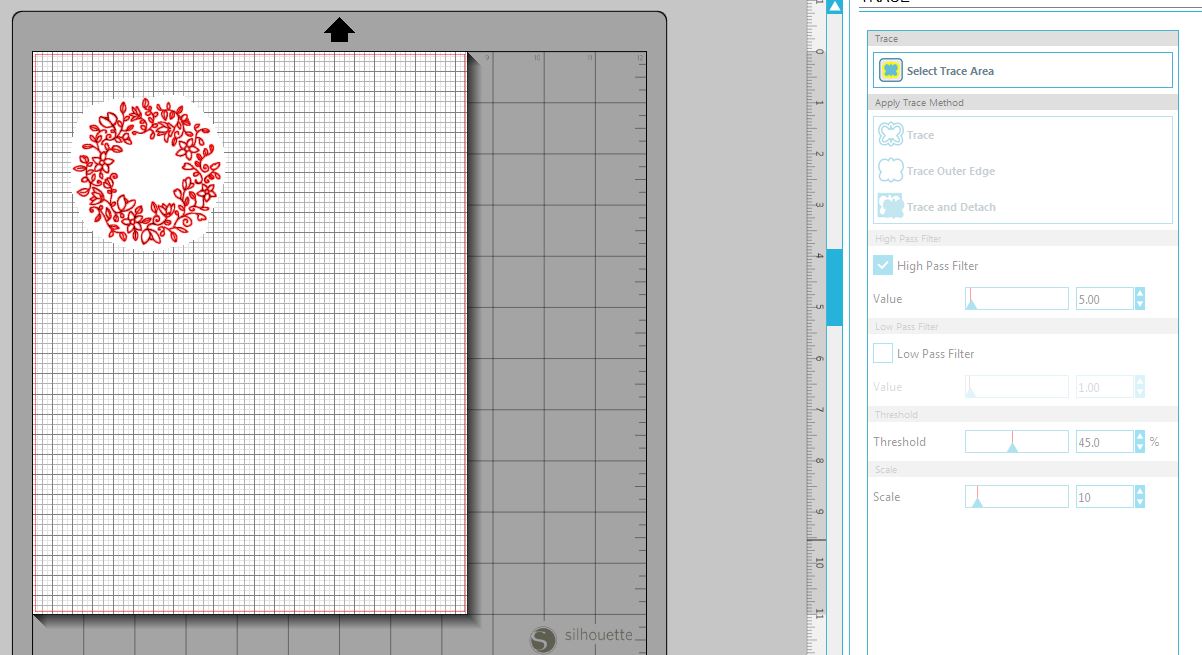
5.  Using the “trace” tool, trace around the stamped image.  Select “Trace Outer Edge” if you just want a border around the whole image, or select “Trace” if you want the inner details to cut.  (If you start with a clean stamped image, you should get a good trace without much need for manipulating your trace.  If not, use filters, threshold and scale options to clean it up.  This is beyond the tutorial here. Check out the video series, Tracing Without Tears in Silhouette Studio, for a detailed description on how to do this.)

Select Trace Area

(select trace area)

Trace

(trace)


6.  Drag the jpeg away from the trace.  (Highlight the traced image.  Under the “Object” tab, select either “Group” or “Make Compound Path” to keep all the pieces of the trace together.)

After Trace


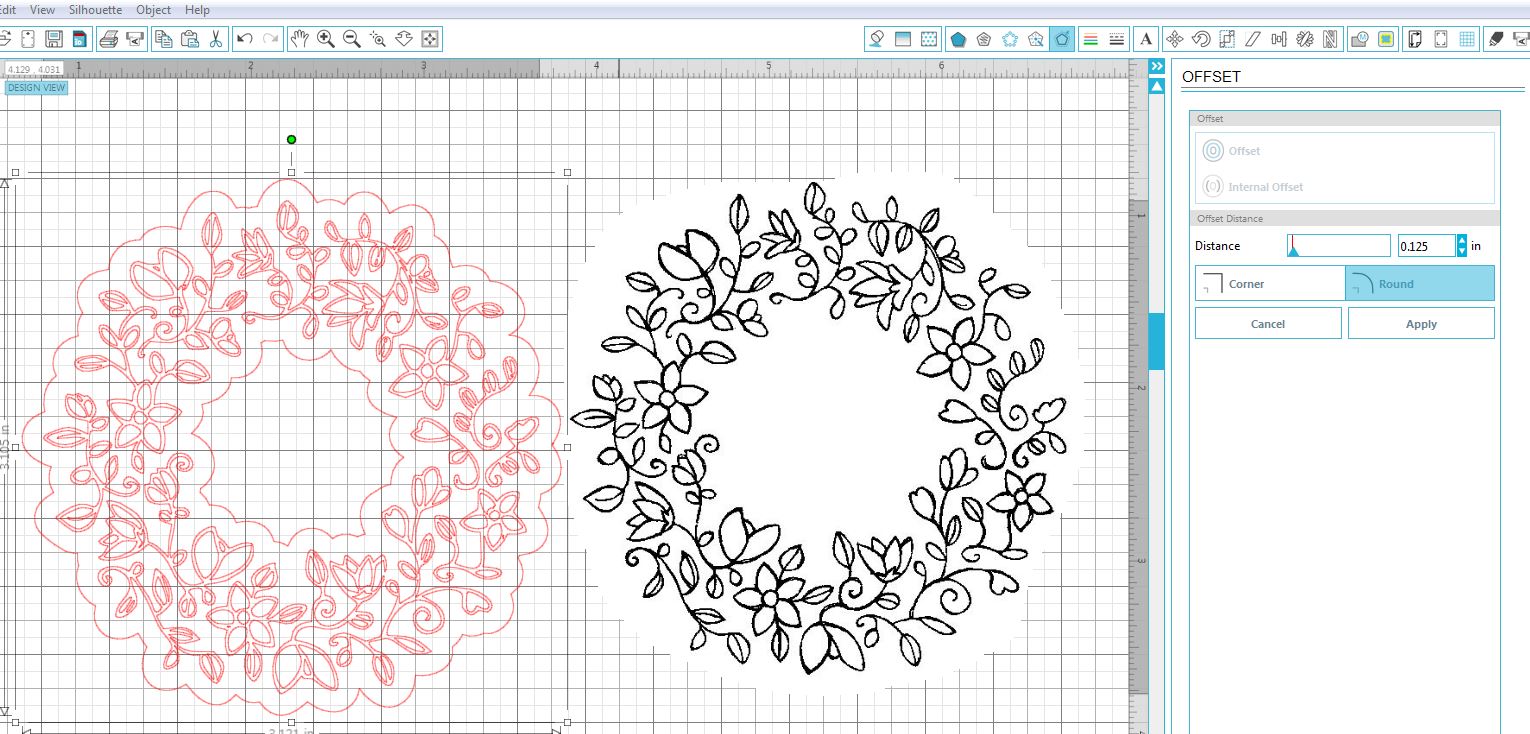
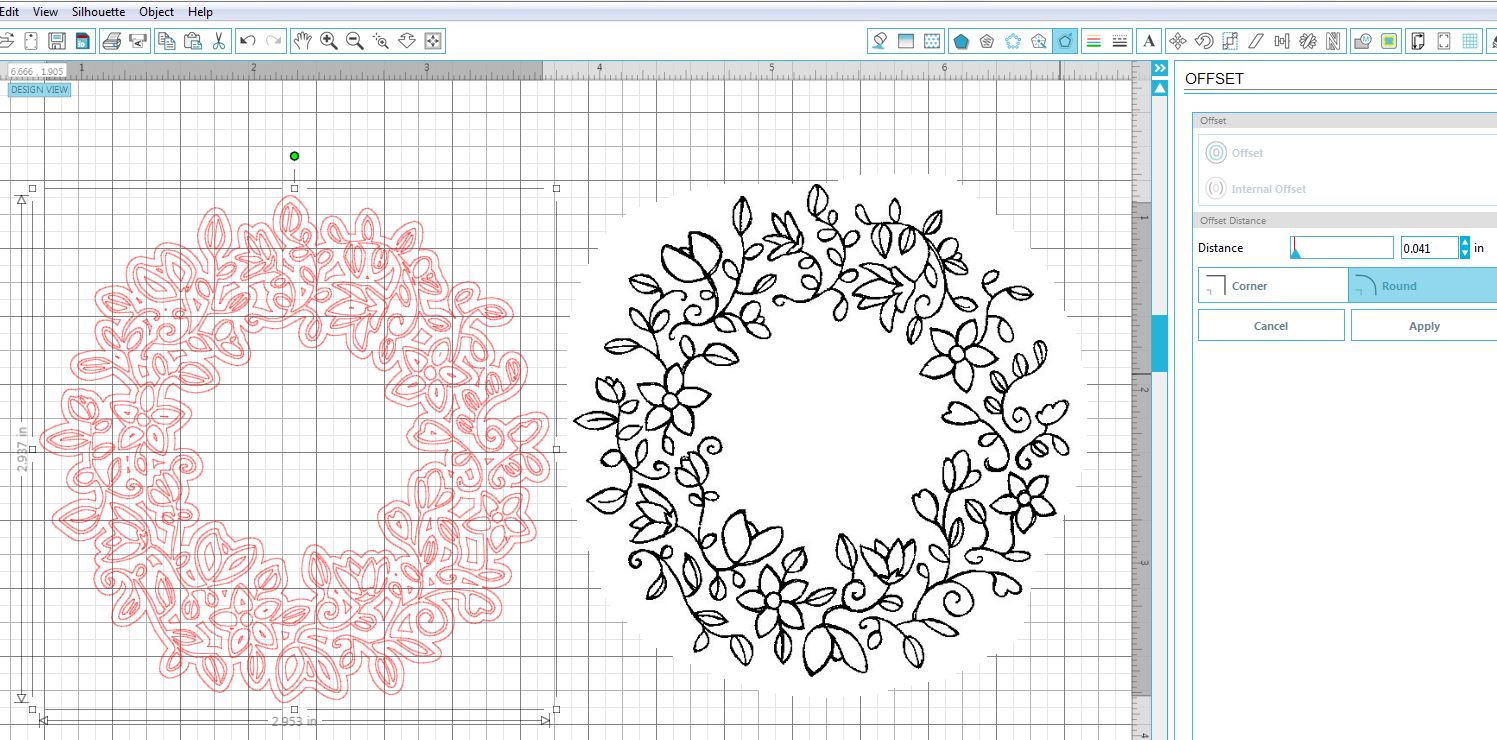
7.  Open the “Offset” window and select “offset.”  (Notice 0.125 inches is the default distance here.)

offset


8.  Use the Offset Distance slider or arrows/measurements to adjust for how much border you’d like to see around your image.  I adjusted mine to 0.041 inches.

adjust offset to taste


9.  Once you happy with the size of your border, move the trace away from the offset.

separate trace from offset


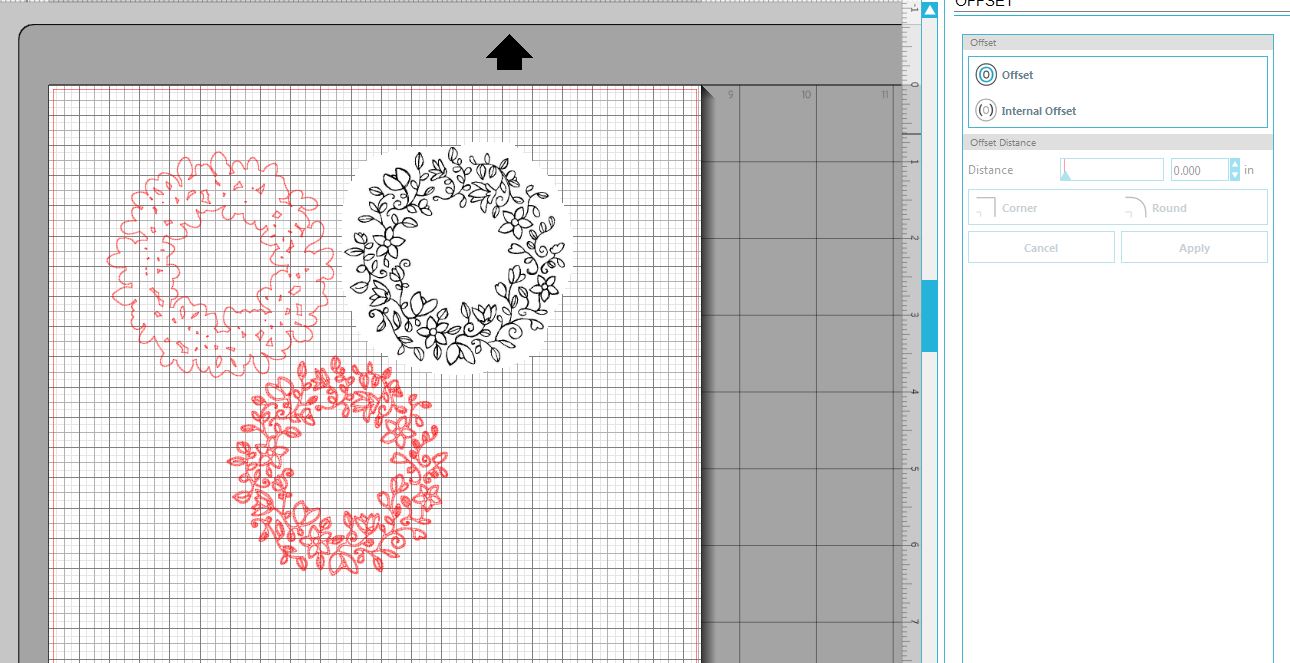
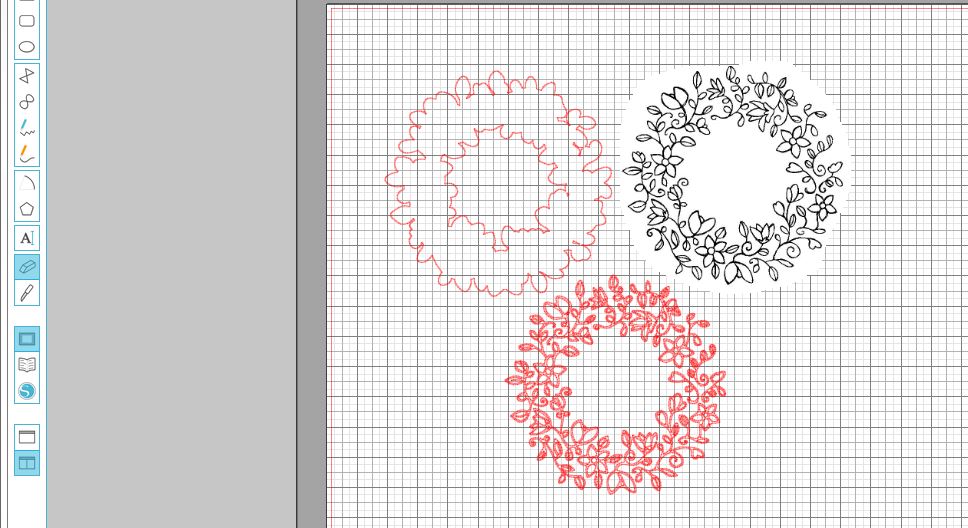
10.  Depending on your stamped image, there may be a number of internal cuts in your shape.  Highlight the offset and select “Release Compound Path” under “Object” tab.  Keep the details you want and delete those you do not want.  (You can click on and delete each piece separately, group multiple pieces to delete, or use the erase tool.  This can be tedious, but it will keep the pieces there that you wish to keep and get rid of those that you do not.)  For this sample, I needed the inner and outer outlines so I needed to erase all the little pieces separately.  If I had just wanted the outside without the hole in the center, I could have just dragged aside the outside and deleted everything left all at once.

discard unwanted pieces


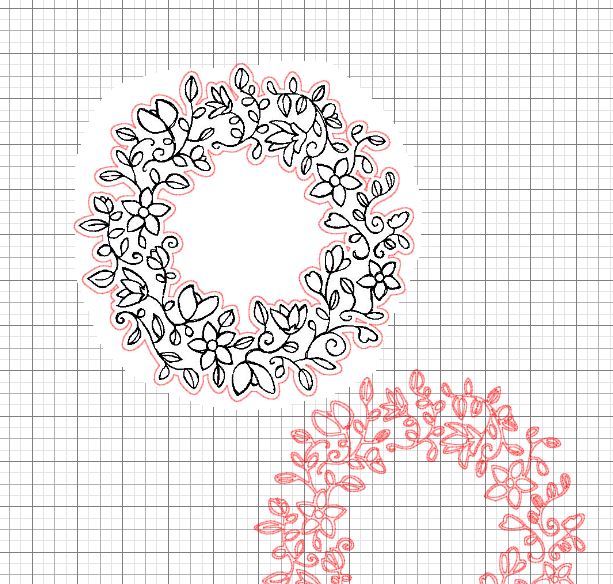
11.  Once you are happy with your shape, highlight the shape and select “Make Compound Path” under object tab.  You can drag the original jpeg image onto your die cut to see if it matches up nicely.

check results


12.  Save your die cut cut file, cut it out, and stamp your image on it.  If you are using clear stamps, you can just look through the stamp, line it up as best you can, and stamp it.

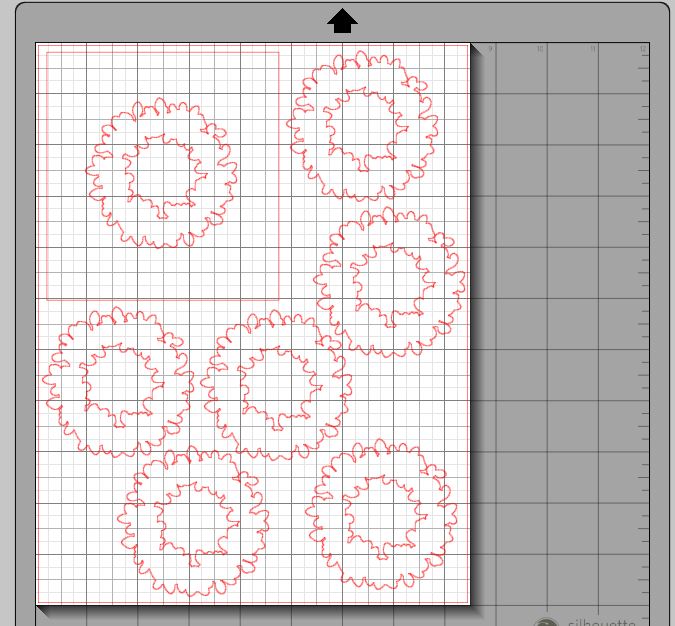
Unfortunately, I am not really good at eye-balling it, so I create a positioning template, and I use a positioning tool to help me.  The positioning template is simply the die cut with a rectangle around it.  In my photo below, I needed 7 die cuts (6 plus the one in the template), but you can cut as many or as few as you need.

positioning template

Check out my tutorial HERE to see how I use this to get perfectly placed stamped images with a positioning tool.

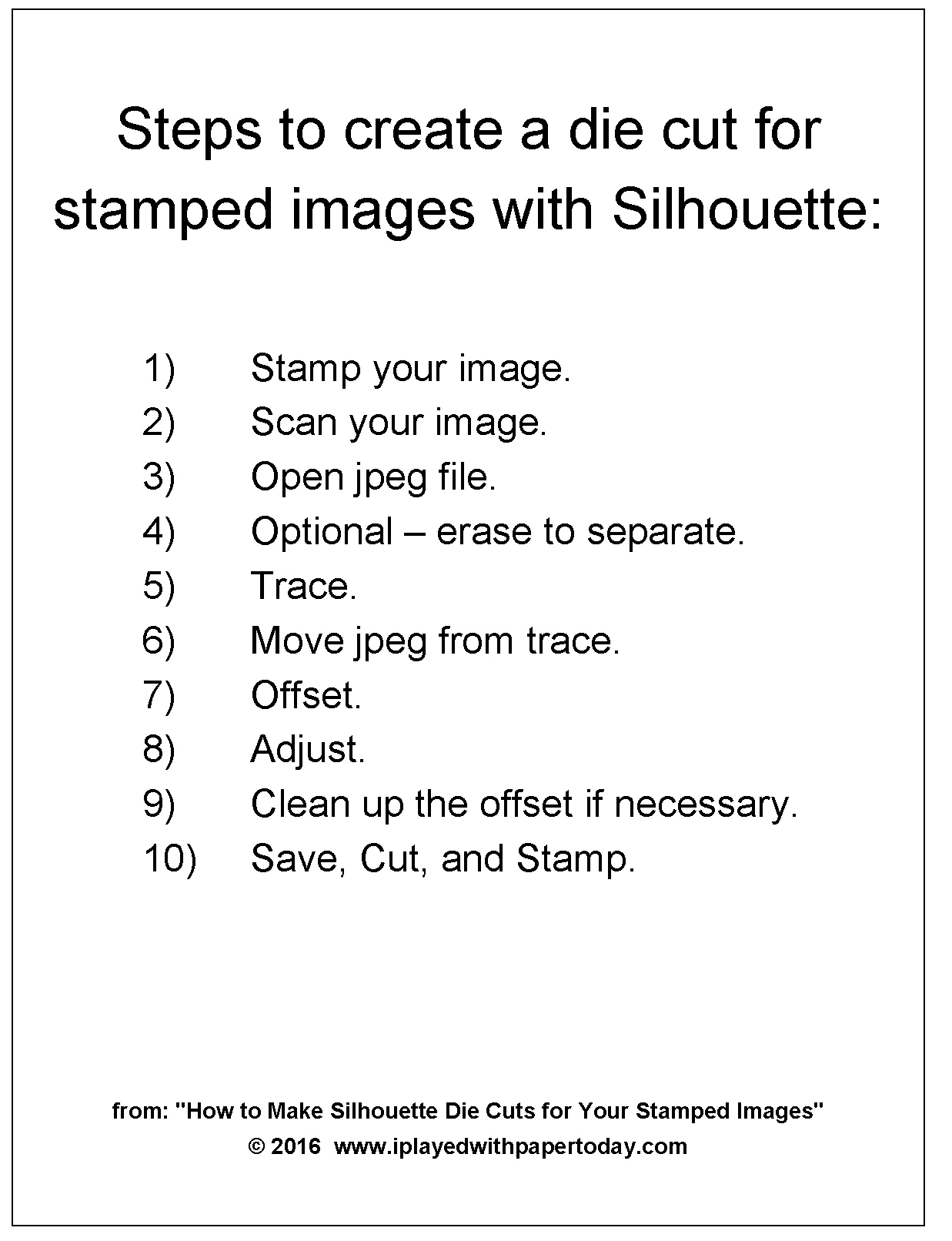
Here’s a “cheat sheet” listing the steps explained above:

cheat-sheet.jpg

(Click HERE to see the card I made with this wreath die cut.)

Thanks for checking out my tutorial!

This content uses referral links as described in the disclosure policy on my sidebar.

Floral Wreath Mother’s Day Card

Floral Wreath Mother’s Day Card

Floral Mother's Day Card yDSC_0360.jpg

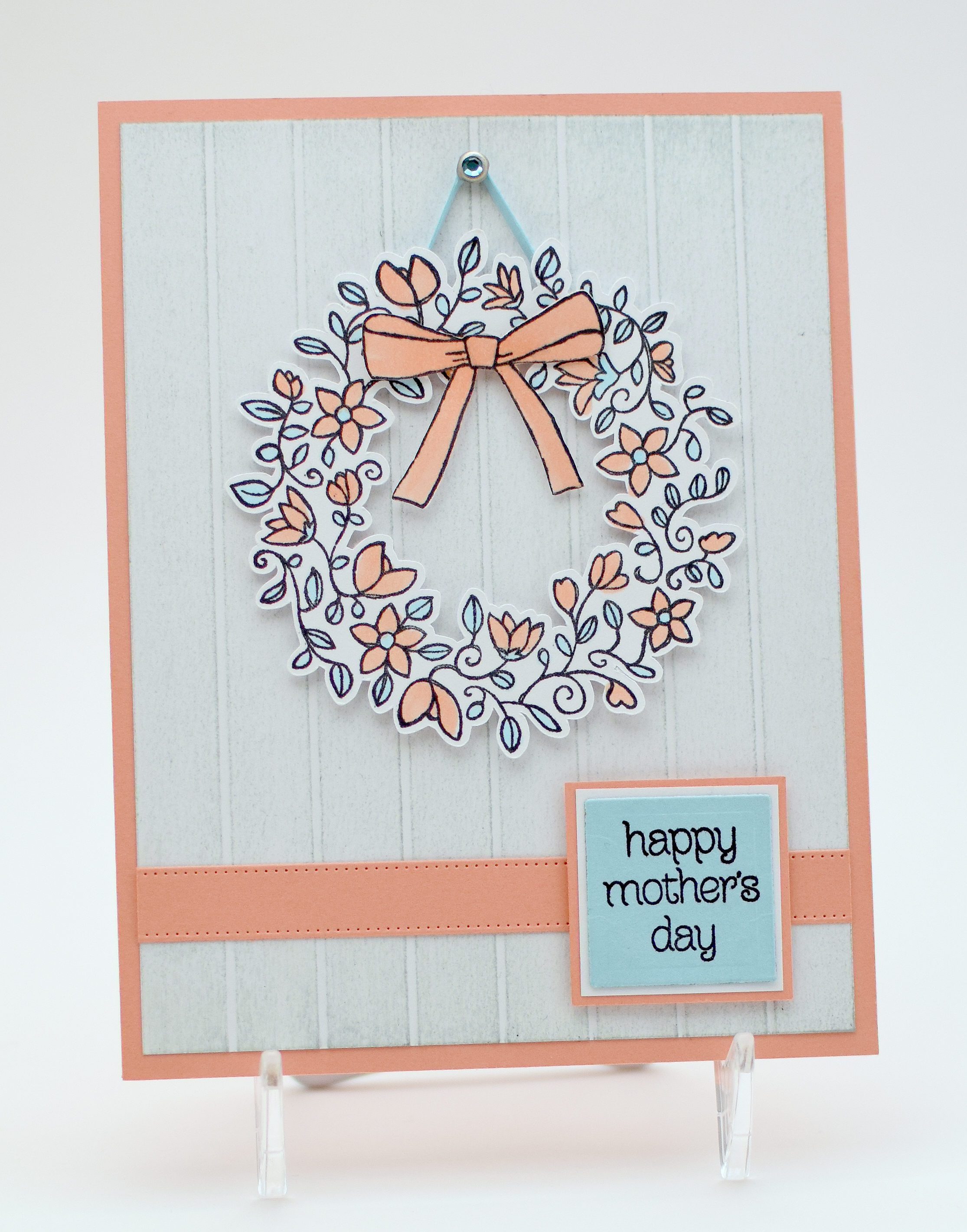
This Mother’s Day card features stamps from the “Circle of Spring” set by Stampin’ Up.  I really love this delicate wreath image and chose to keep the layout simple to highlight the wreath.
I created a faux wood-grained background by scoring a piece of white card stock with my Martha Stewart Scoring Board and then swiping Papertrey Ink Soft Stone ink across the surface.  I also used Gina K Designs Peach Bellini and Ocean Mist card stock along with the white.

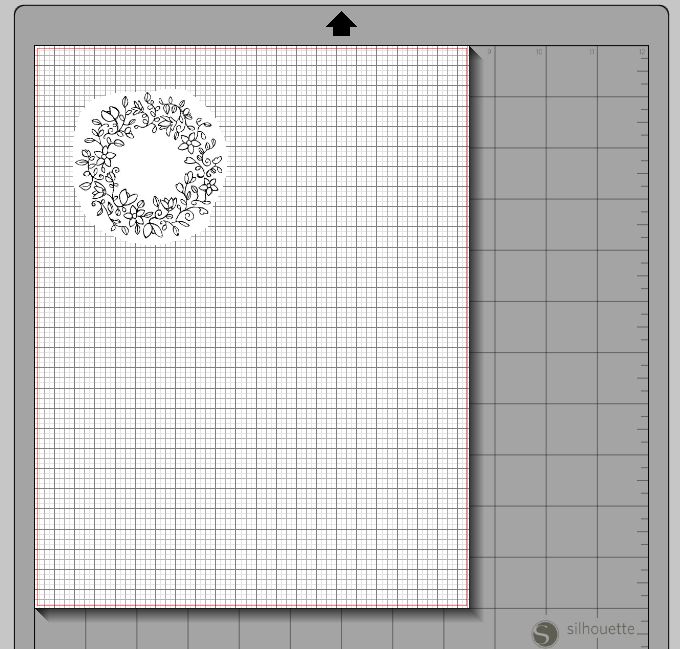
I created a cut file of the wreath with my Silhouette.  Then I stamped the image onto the die cut with Memento Tuxedo Black ink and colored it with Copic Markers (E93  and B00).  I know, it’s a bit weird that I chose blue for the leaves, but I LOVED these two colors together!

I created the “ribbon” with the “Alison’s Ribbons” die by Cheery Lynn Designs and used a die from the “Classic Squares (large)” set by Spellbinders for the greeting block.  (The mats were cut with my trimmer.)  The finishing touch was a “string” created with a thin strip of the Ocean Mist card stock and a jeweled brad by Recollections.

Thanks for checking out my card project!

This content uses referral links as described in the disclosure policy on my sidebar.